Using the preview function to check email templates #
Before you send an email, you want to see what it looks like. Autorespond offers several ways to view and check your email templates before they go out to your contacts.
Email templates in Autorespond are based on FluentCRM Pro, which is included in your package. Read the English documentation
The preview function for email templates #
The simplest way to view your template is with the preview function:
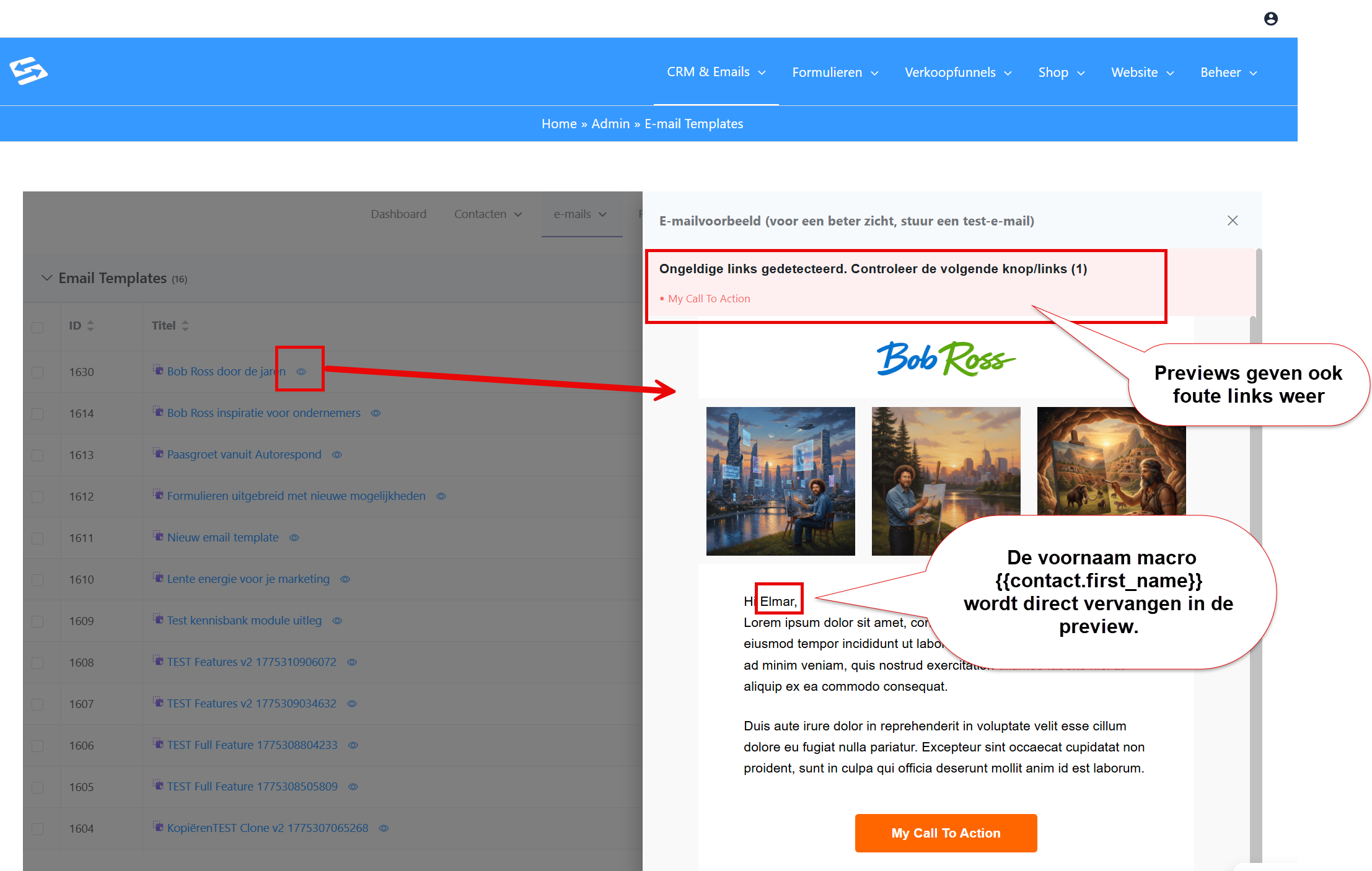
- Go to CRM & Emails → Email Templates
- Find the template you want to view
- Click the eye icon next to the template
- The preview of the email appears
The preview shows exactly what the email looks like, including how smartcodes are filled in with sample data. You also see a warning if the email contains broken links:
Preview in campaigns and automations #
You can also use the preview function while building campaigns or automations:
- In campaigns: click ‘Preview’ before you send the campaign
- In automations: use the preview option when setting up email actions
- In email sequences: view every email in the sequence with the preview
That way you can check that all smartcodes are filled in correctly and that the formatting is right.
Viewing simulated emails (onboarding environment) #
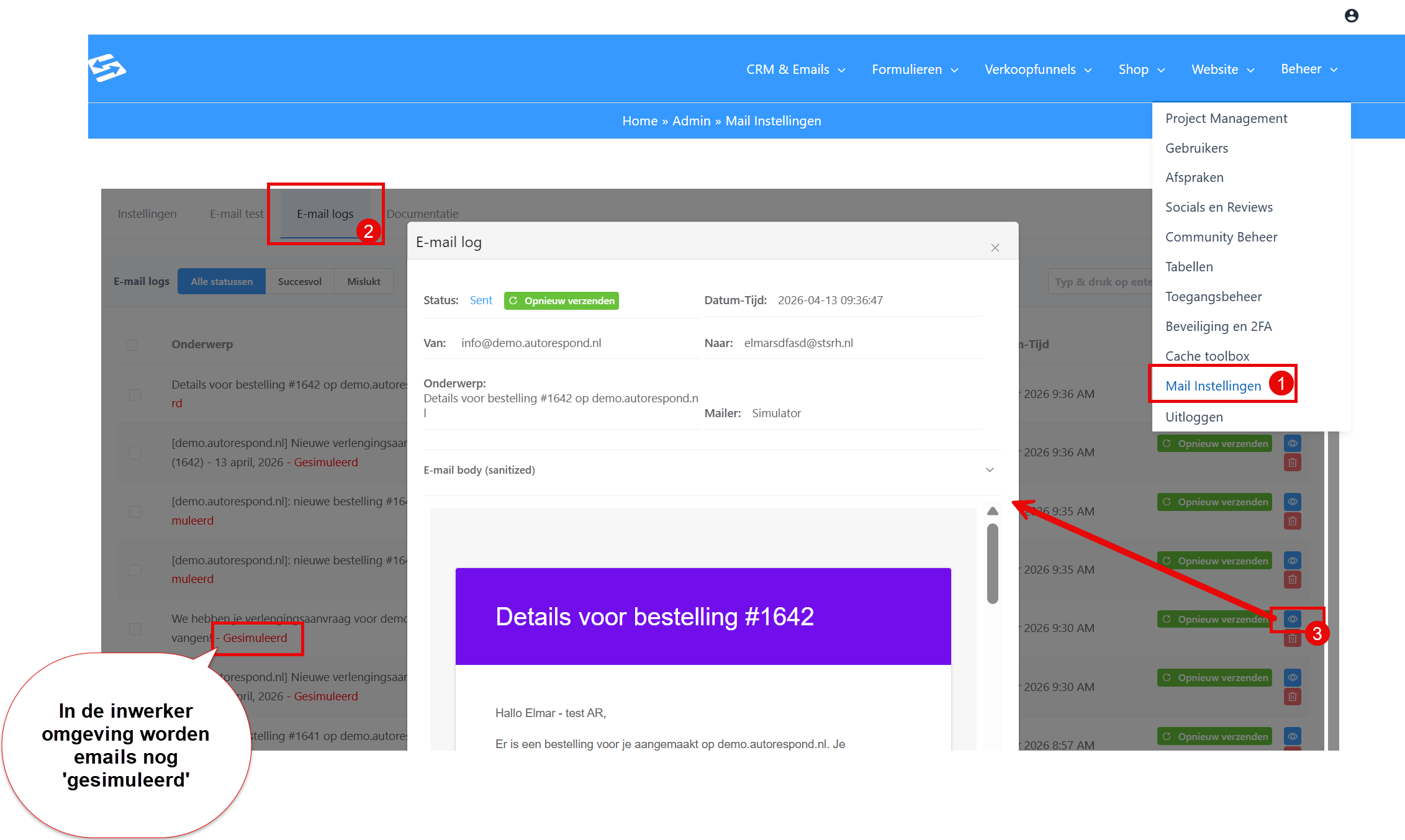
In the onboarding environment all email is switched off, but you can still view ‘simulated’ emails:
- Send a test campaign or try out an automation
- Go to Administration → Mail settings
- Open the ‘Email logs’ tab
- Click the eye icon next to a simulated email
- You now see the full layout of the email
This method shows exactly what the email looks like with real contact details filled in, without an email actually being sent.
After going live #
As soon as your Autorespond site goes live on your own domain, all email functions work normally. From then on you can also send real test emails to yourself to check how they arrive.
Frequently asked questions #
Why can I not send a test email in the onboarding environment? #
All email is switched off in the onboarding environment as a safety measure. This prevents emails from going out unintentionally while you are testing. Use the preview function or view simulated emails in the mail logs.
Can I see how smartcodes are filled in from the preview? #
Yes, the preview function shows how all smartcodes are filled in with sample data. So you can see, for example, what {{contact.first_name}} looks like in the actual email.
What is the difference between a preview and a simulated email? #
The preview shows a general sample rendering. Simulated emails in the mail logs show the exact email with real contact details filled in, without an email actually being sent.


