Unsubscribe links in email templates: how shortcodes and footers work #
Every marketing email sent through the CRM must contain an option to unsubscribe. This is not only a legal requirement, it is also necessary for a good email reputation. In your email templates you may see the text ##crm.unsubscribe_url##: this is a shortcode that is automatically converted into a working unsubscribe link.
How unsubscribe link shortcodes work #
In the template editor you still see the raw shortcode text, but recipients of your email see a clickable unsubscribe link. The shortcode ##crm.unsubscribe_url## is automatically replaced by the correct unsubscribe URL as soon as the email is sent through a campaign, email sequence or automation.
Please note: unsubscribe links do not work in test emails. They only work in real campaigns and automations that are sent to contacts.
Adjusting the unsubscribe link #
You cannot leave the unsubscribe link out of marketing emails altogether, but you may adjust the text. Some examples:
##crm.unsubscribe_url##: shows the bare URL as a clickable link- The macro {{crm.unsubscribe_html|Unsubscribe here}} , where the part ‘unsubscribe here’ is shown as a clickable unsubscribe link in the email
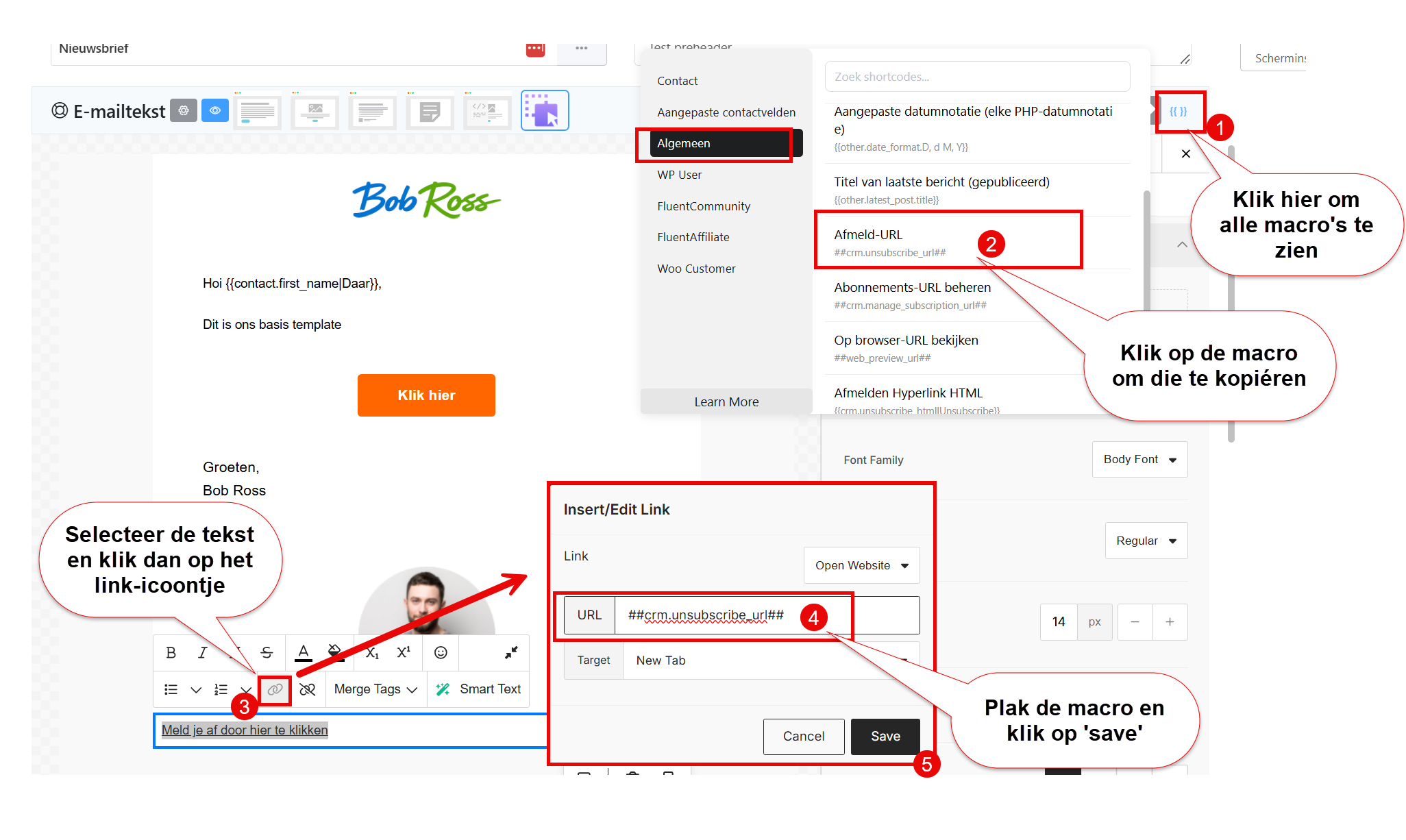
- You can also select a piece of text, for example ‘click here to unsubscribe’, and then set the macro as the URL (see screenshot)
Using the global email footer #
If you prefer a complete, professional footer with company details and an unsubscribe link in one go, use this shortcode:
{{crm_global_email_footer}}
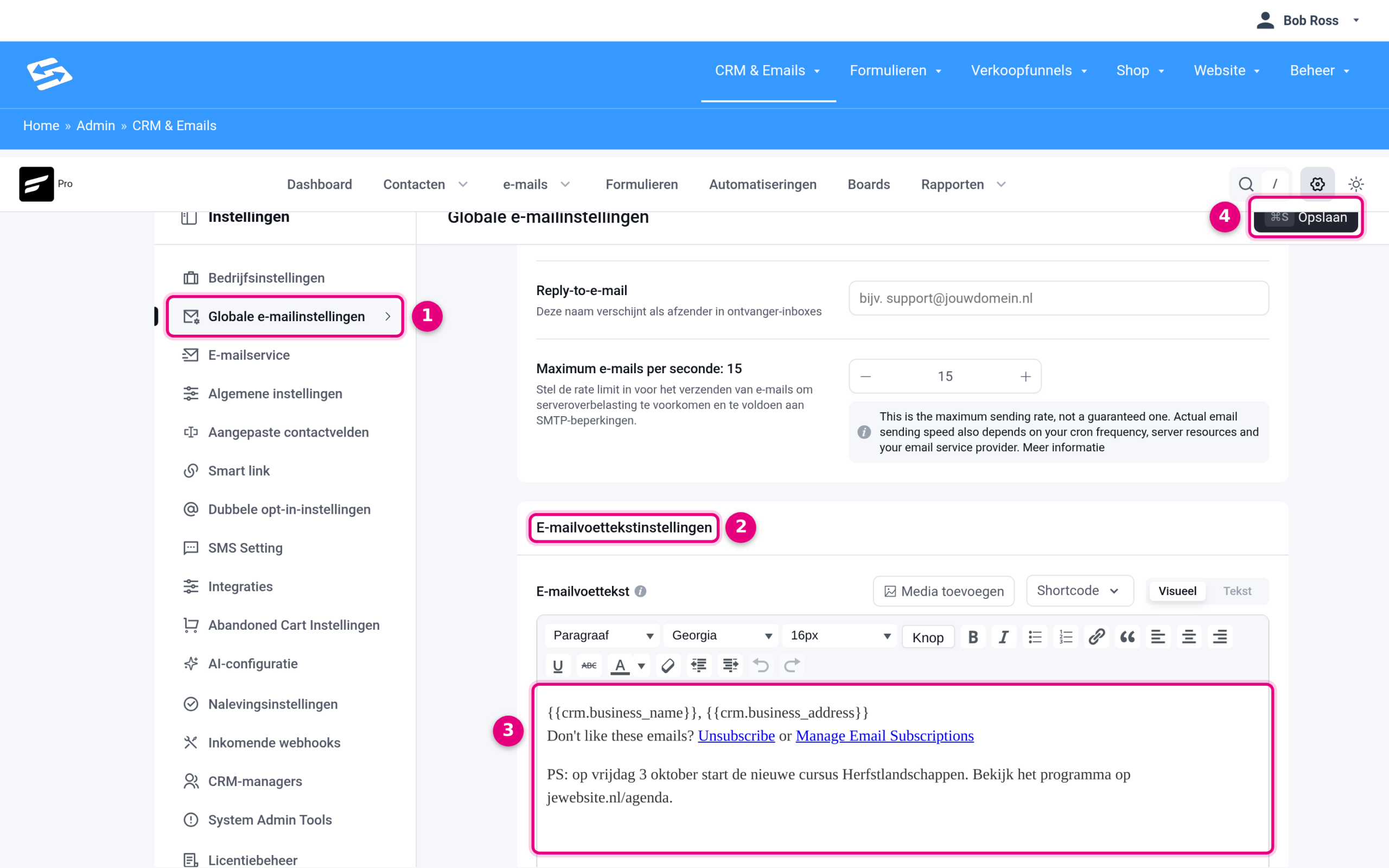
This shortcode automatically adds the general footer settings you configured under CRM & Emails → Settings → menu item ‘Global email settings’, section ‘Email footer settings’. That footer contains your company name, address and an unsubscribe link by default.
Advantages of the global footer #
The big advantage of {{crm_global_email_footer}} is that you can manage the footer centrally. You can quickly add temporary announcements there, such as ‘PS: we have an event coming up’. That text then appears automatically in all emails that use the global footer, including active email sequences and automations.
Where to configure the global footer #
Go to CRM & Emails → Settings and click ‘Global email settings’ in the menu on the left. Scroll down to the ‘Email footer settings’ section. In the ‘Email footer’ field you can edit the standard footer that is used by the {{crm_global_email_footer}} shortcode.
In the global footer you can also use smartcodes such as:
{{crm.business_name}}: company name{{crm.business_address}}: company address##crm.unsubscribe_url##: unsubscribe link##crm.manage_subscription_url##: manage preferences
Compliance and legal requirements #
Every marketing email sent through the CRM must contain an option to unsubscribe. This applies to:
- Campaigns
- Email sequences
- Automation emails
Transactional emails (such as order confirmations) do not need an unsubscribe link, because they are sent through a different mail server.
Frequently asked questions #
Why do I see ##crm.unsubscribe_url## in my template instead of a link? #
This is normal. In the template editor you see the raw shortcode text. As soon as you send the email through a campaign or automation, it is automatically converted into a working unsubscribe link.
Can I leave out the unsubscribe link altogether? #
No, every marketing email sent through the CRM must contain an option to unsubscribe. This is a legal requirement and is necessary for a good email reputation.
Why does the unsubscribe link not work in my test email? #
Unsubscribe links only work in real campaigns and automations that are sent to contacts. In test emails the shortcode stays visible as text.
What is the difference between ##crm.unsubscribe_url## and {{crm_global_email_footer}}? #
The first shows only an unsubscribe link. The second adds a complete footer with company details and an unsubscribe link, as configured in your CRM settings.


