Segmenting and filtering contacts #
Segmentation means dividing your contact list into smaller, targeted groups based on specific characteristics or behaviour. By segmenting contacts you can send far more targeted email campaigns and improve your marketing results.
In Autorespond you work with two forms of segmentation: static lists (groups you put together manually) and dynamic segments (groups that are updated automatically based on criteria you set).
The difference between lists, tags and segments #
Before you start segmenting, it is important to understand the difference between the various ways of organising contacts:
- Lists are static groups that you add contacts to manually or that are filled through forms
- Tags are labels you can assign to contacts to indicate characteristics or behaviour
- Segments are dynamic groups that are filtered automatically based on ‘more criteria’, such as tags, behaviour, or contact details
Advanced contact filtering #
The most powerful way to segment contacts is through the advanced filter in your contacts overview. Go to CRM & Emails → Contacts and tick ‘Advanced filter’ in the top right. Then click ‘Add property’.
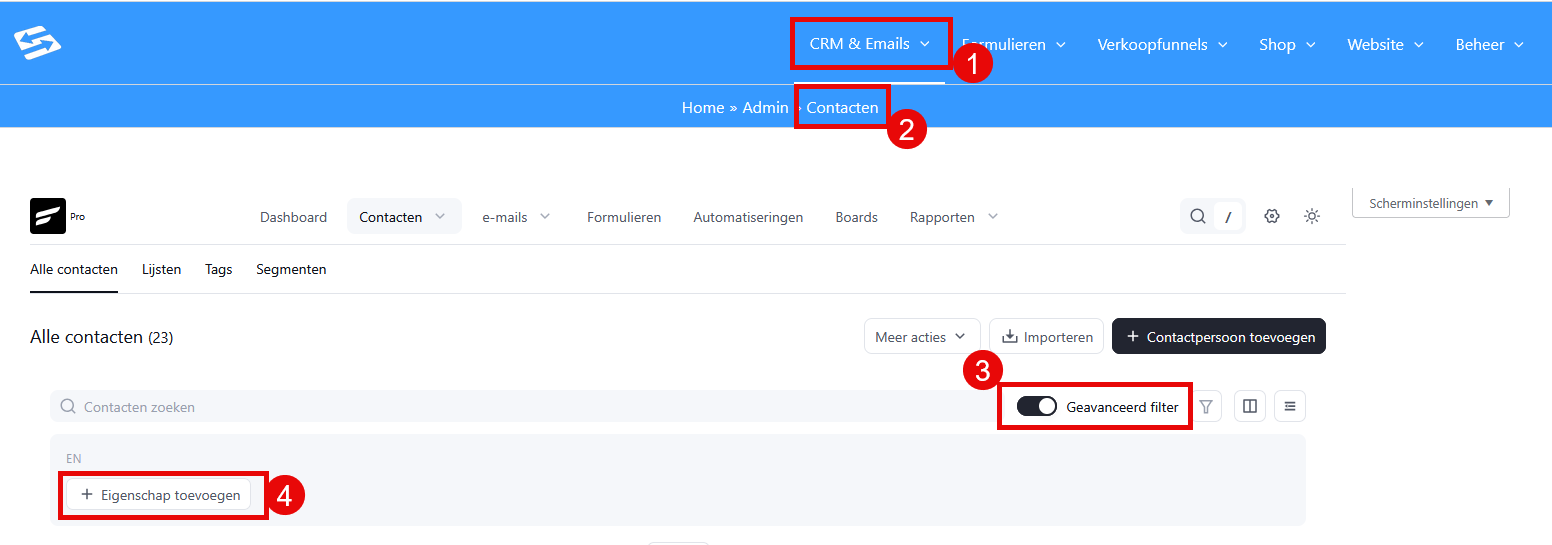
Here you can set complex criteria to find exactly the contacts you are looking for:
- Contact details: filter on name, email address, phone number, city, country
- Contact segment: select contacts that do or do not have certain tags or belong to specific lists
- Contact activity: select contacts that did or did not open the last email or click a link
- Custom fields: filter on values in custom fields you have created
- FluentCommunity: find contacts that are or are not a member of a community and / or course
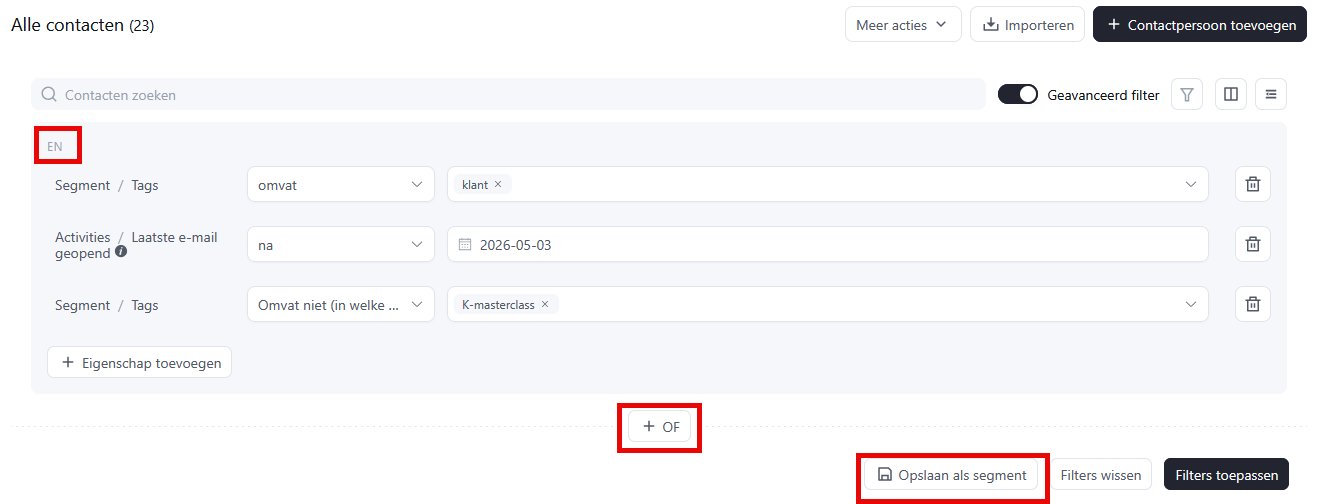
You can combine several criteria with ‘AND’ or ‘OR’ logic to create very specific groups. For example: “Contacts that have the tag ‘Customer’ AND opened the last email after 3 May 2026 AND do not have the tag ‘K-masterclass’”. Click ‘Apply filters’ to get the list of contacts that meet these criteria.
Creating dynamic segments #
If you use the same filter combination regularly, you can turn it into a dynamic segment. Once your filter is set, click ‘Save as segment’ and give the segment a recognisable name.
Dynamic segments are updated automatically. New contacts that meet your criteria are added automatically. Existing contacts that no longer meet the criteria are removed automatically.
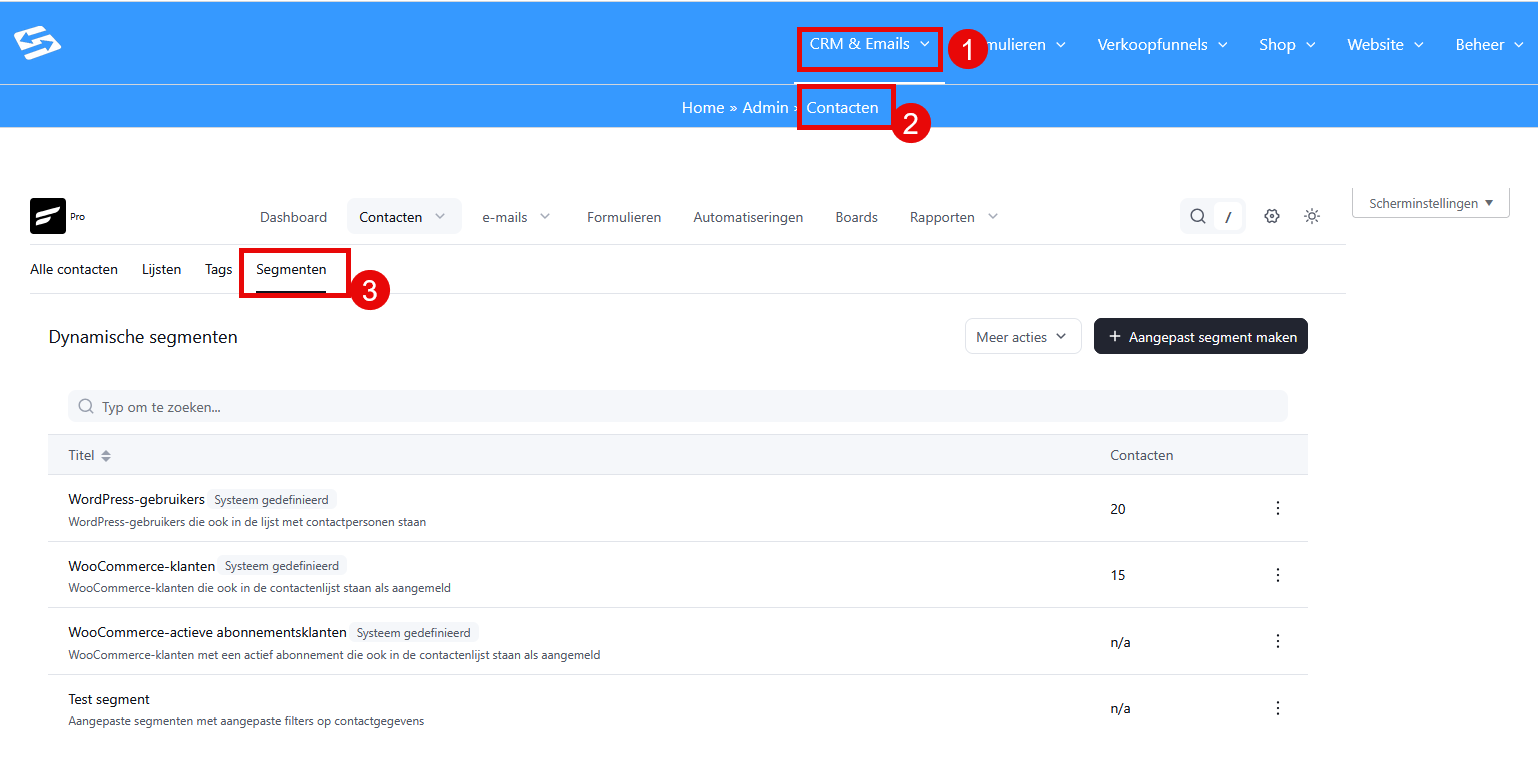
You can find and manage dynamic segments through CRM & Emails → Contacts → Segments. Click the segment concerned to adjust the filters in it.
Examples of useful segmentations #
Here are a few practical examples of segmentations that many business owners use:
Engagement-based segments #
- Active contacts: opened an email or clicked a link in the past 60 days
- Inactive contacts: have not opened a single email in the past 6 months
- Highly engaged contacts: opened more than 50% of your emails in the past 90 days
Behaviour-based segments #
- Website visitors: visited a specific page (through tracking or a form)
- Download prospects: downloaded a lead magnet
- Event attendees: signed up for a webinar or event
Demographic segments #
- Local contacts: live in a specific city or region
- Business segment: filtered on company size through custom fields
- New sign-ups: signed up in the past 30 days
Using segments in campaigns #
Once you have created segments, you can use them when sending email campaigns. Go to CRM & Emails → Campaigns → ‘Add campaign’, work through the steps and select your saved segment under ‘Recipients’ (in Step 3).
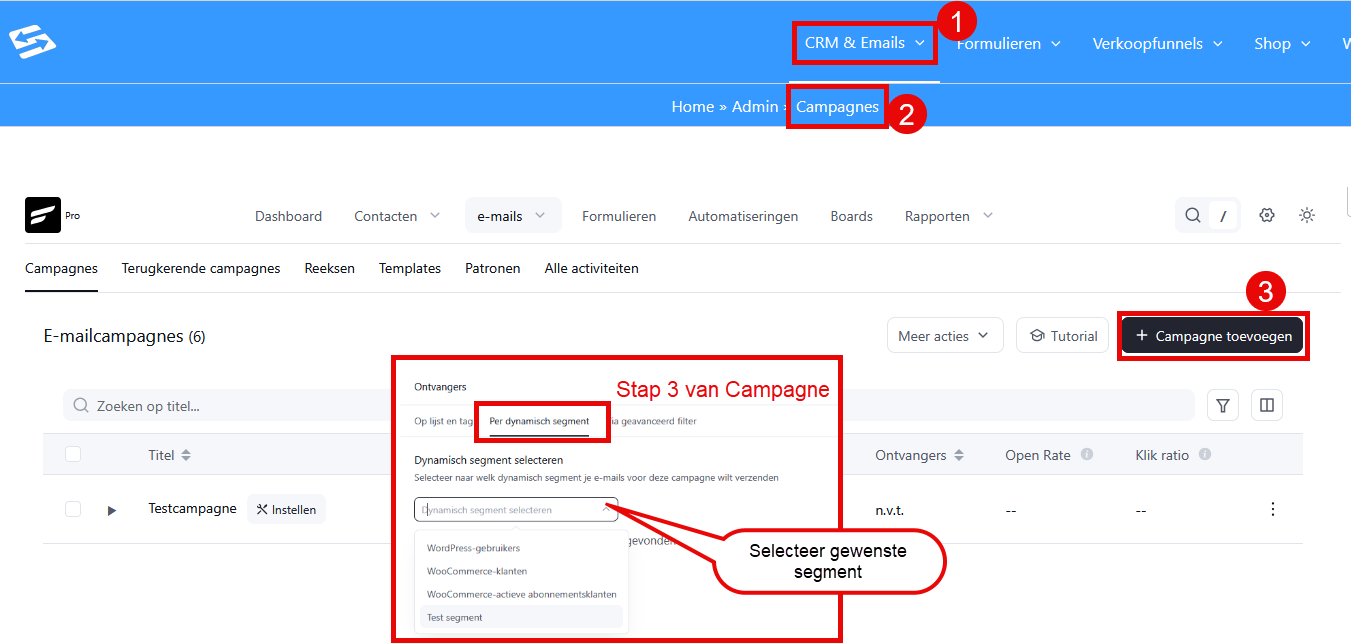
You can also combine several segments or exclude certain segments. For example: send to the segment ‘Customers’ but exclude the segment ‘Recent buyers’ to avoid sending another sales email straight after a purchase.
Best practices for segmentation #
Effective segmentation starts with applying tags consistently and keeping relevant contact details up to date:
- Use clear tag names: choose tag names that still make sense a year from now
- Set up a tag system: think through a logical structure before you start
- Test regularly: check whether your segments contain the right contacts
- Combine criteria sensibly: use both behaviour and characteristics for targeted segments
- Keep segments current: delete or adjust segments that are no longer relevant
Smart segmentation lets you send far more relevant emails, which leads to higher open and click rates and ultimately to better marketing results.
Segmenting contacts in Autorespond is based on FluentCRM, included in your package. Read the FluentCRM documentation


