Sending a campaign to specific contacts with an advanced filter #
You can send a campaign to specific contacts without having to create a separate list or tags. You do this with the advanced filter while setting up a campaign.
Campaigns in Autorespond are based on FluentCRM Pro, included in your package.
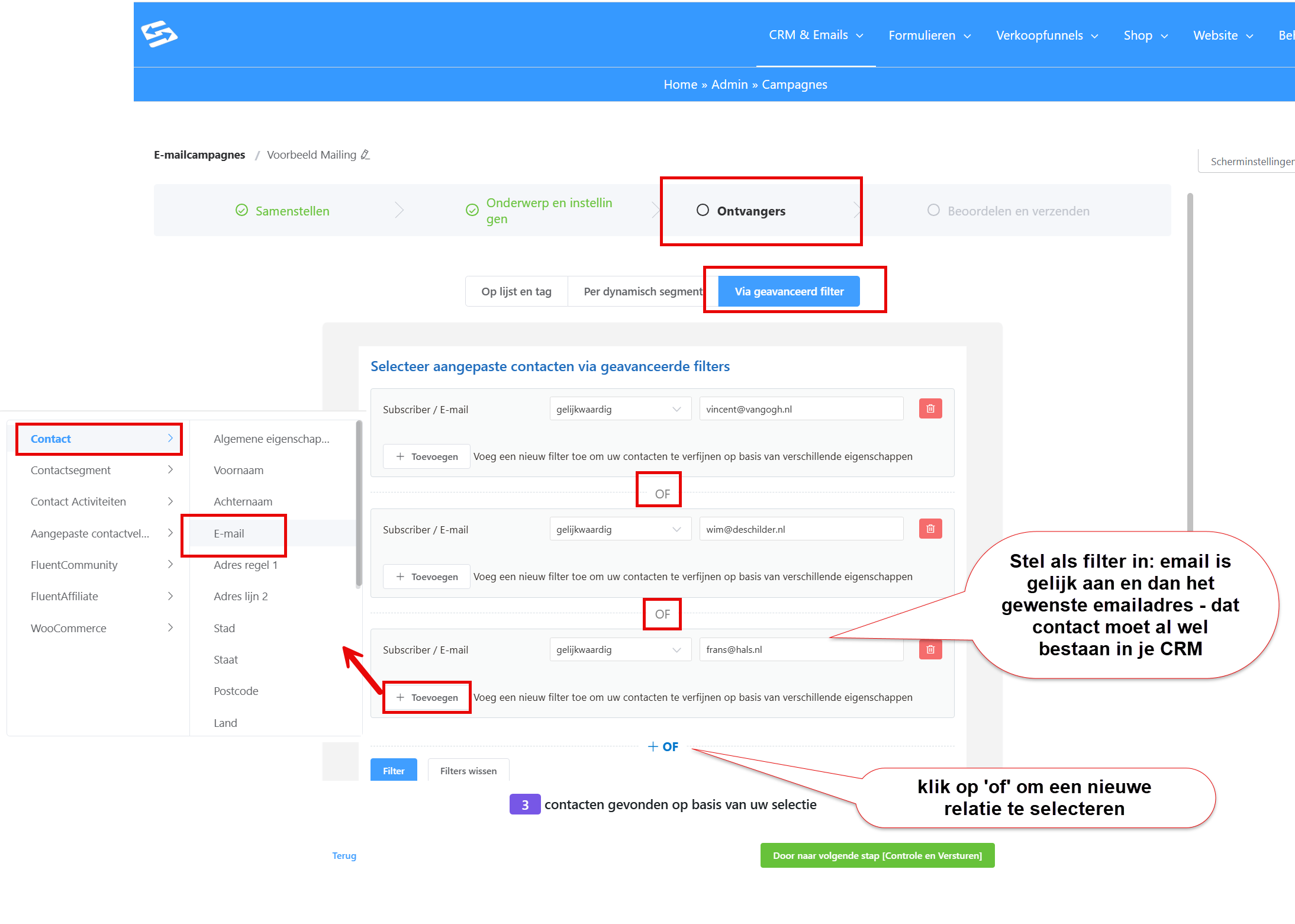
How to set up an advanced filter #
Go to CRM & Emails → Campaigns and create a new campaign. When selecting recipients, choose ‘Advanced filter’.
- Click ‘Add filter’
- Set the filter to: ’email is equal to’
- Enter the email address you want
- The contact must already exist in your CRM to be selected
Adding several contacts #
For several specific contacts you can use the ‘or’ variable:
- Add the first email address as described above
- Click ‘Add OR rule’
- Set ’email is equal to’ again
- Enter the second email address
- Repeat this for every contact you want
Checking the number of recipients #
After setting up your filter, click ‘Filter’. At the bottom of the screen you see how many contacts will be emailed. This lets you check whether your filter is set up correctly before you send the campaign.
When to use this filter #
The advanced filter is useful when you:
- Want to send a one-off email to a few specific contacts
- Do not want to create a separate list or tags
- Want to check quickly which contacts are included
Alternative methods #
For larger groups of contacts or repeated mailings you are better off working with lists or tags. You manage these via CRM & Emails → Lists or CRM & Emails → Tags.
Frequently asked questions #
What happens if an email address does not exist in my CRM? #
That address is then not included in the campaign. The filter only shows existing contacts from your CRM.
Can I combine other criteria with email addresses as well? #
Yes, you can combine several filter rules with ‘AND’ or ‘OR’ to make more complex selections based on tags, lists, or other contact details.
How can I be sure the right contacts are selected? #
After setting up your filter, click ‘Filter’. The number of contacts that will be selected appears at the bottom, so you can check that it is correct.


