A social media block in your email templates lets recipients go straight to your social channels. The block shows icons for platforms such as Facebook, Instagram, LinkedIn and Twitter, with direct links to your profiles.
Adding the social media block #
In your Autorespond account, go to CRM & Emails → Email Templates and open an existing template or create a new one. In the visual template builder you add the social media block as follows:
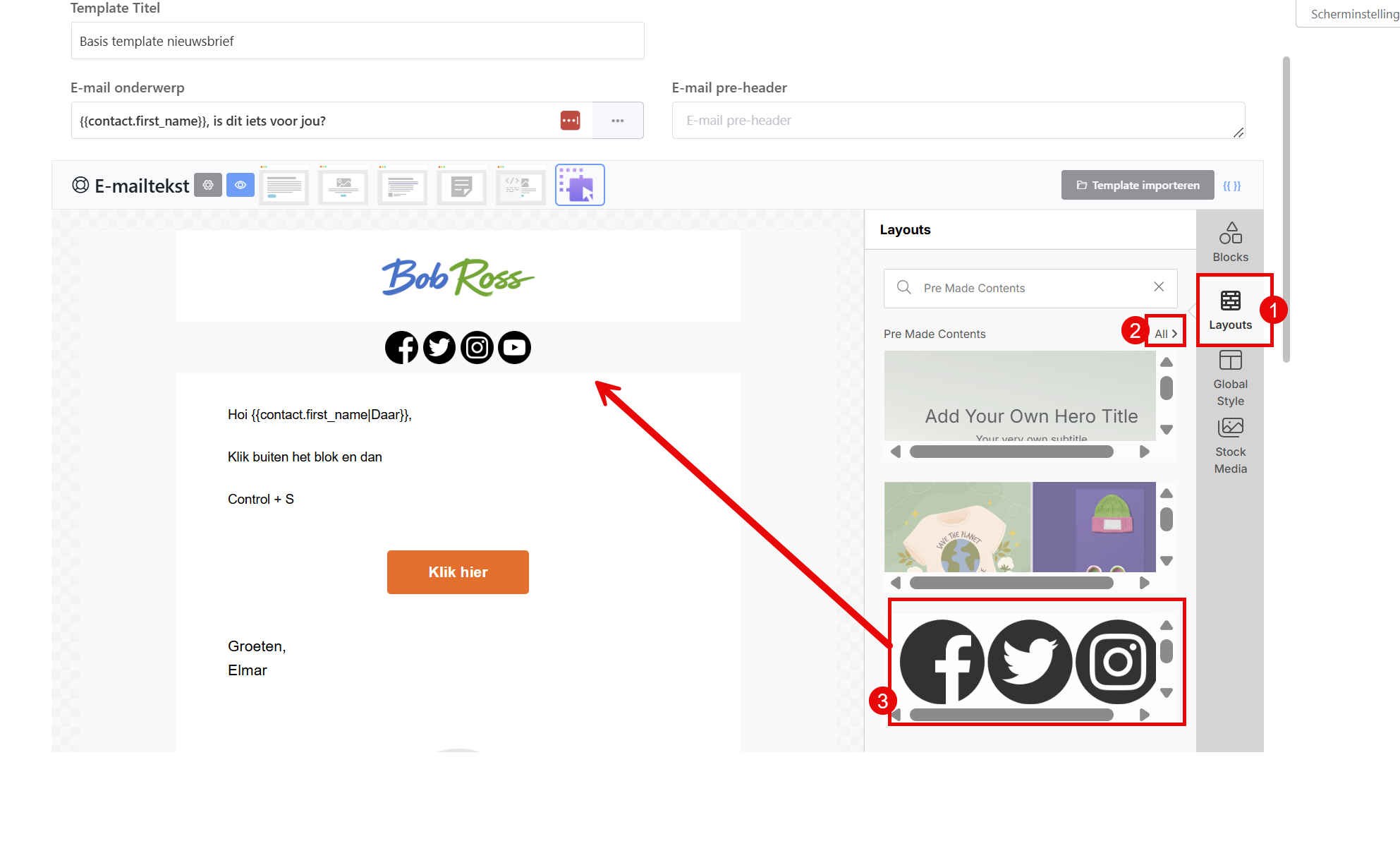
- In the template builder, click the ‘Layouts’ tab
- Click the ‘All>’ button to show every available block
- Scroll down, the social media block sits at the bottom of the list
- Drag the social media block to the position you want in your template
- Click the block to open its settings
Configuring the social media links #
Once you have added the block, configure the social media links:
- In the settings panel, enter the URLs of your social media profiles
- Choose which platforms to show by filling in the matching URLs
- Fields you leave empty are not shown in the email
- Choose the alignment of the icons (left, centre, right)
- Set the colour and style of the icons if you want
Adjusting the icon size #
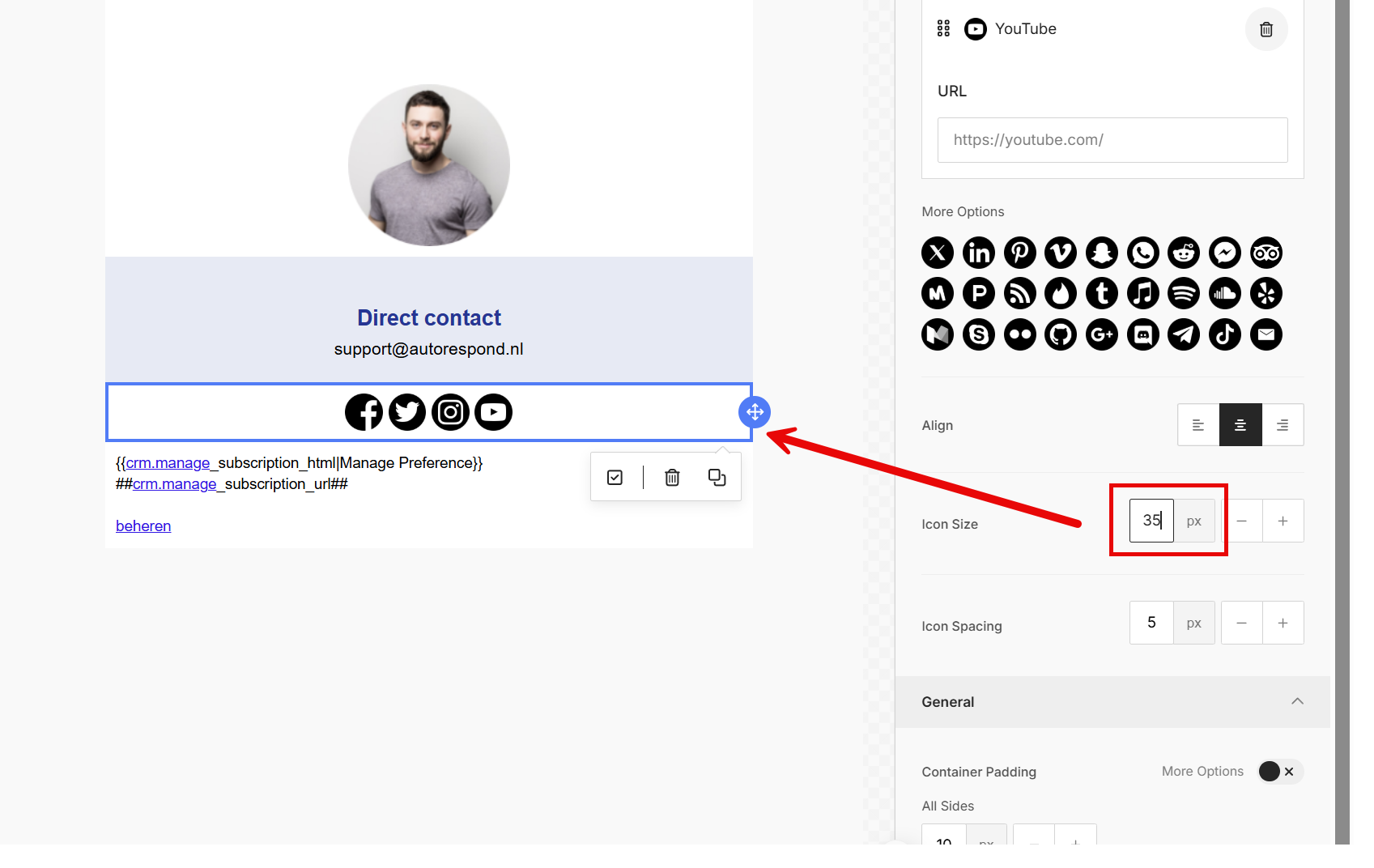
If the social media icons appear too large in your email, you can adjust the pixel width by hand:
- Select the social media block in your template
- In the settings, look for the width or size option
- Lower the pixel value step by step (try 24px or 32px, for example)
- Check the result in the preview to find the ideal size
Tips for social media in emails #
- Place the social media block at the bottom of the email, in the footer
- Only include the platforms you are active on, empty profiles make a poor impression
- Always test how the icons look in different email clients
- Keep the icons small enough that they do not dominate the email
Email marketing in Autorespond is based on FluentCRM Pro, which is included in your package. Read the English documentation
Frequently asked questions #
Why can I not see the social media block in my template builder? #
The social media block is not part of an email template by default, you add it yourself through the Layouts blocks. First click ‘Layouts’ and then ‘All>’ to show every available block. Scroll all the way down to find the block.
Can recipients go to my social media straight from the email? #
Yes. When recipients click a social media icon, their browser opens your social media profile directly. Make sure the URLs are entered correctly and point to public profiles.
Which social media platforms are supported? #
The social media block supports all common platforms, such as Facebook, Instagram, LinkedIn, Twitter and YouTube, among many others. Only fill in the URLs of the platforms you want to show.


