Contacts overview and bulk management #
Your contacts dashboard is the central place where you manage all your relationships and get an overview of your complete customer database. From this overview page you manage contacts, edit details, filter on specific criteria and gain insight into the status of every relationship.
The contacts dashboard gives you a structured overview of all contacts in your account, including their status, tags, lists and most recent activity. You can carry out actions directly from here, such as editing contact details, assigning tags or deleting contacts.
Navigating to the contacts dashboard #
In your Autorespond account, go to CRM & Emails → Contacts. This takes you to the overview page where all your contacts are shown in a table.
Overview of contact information #
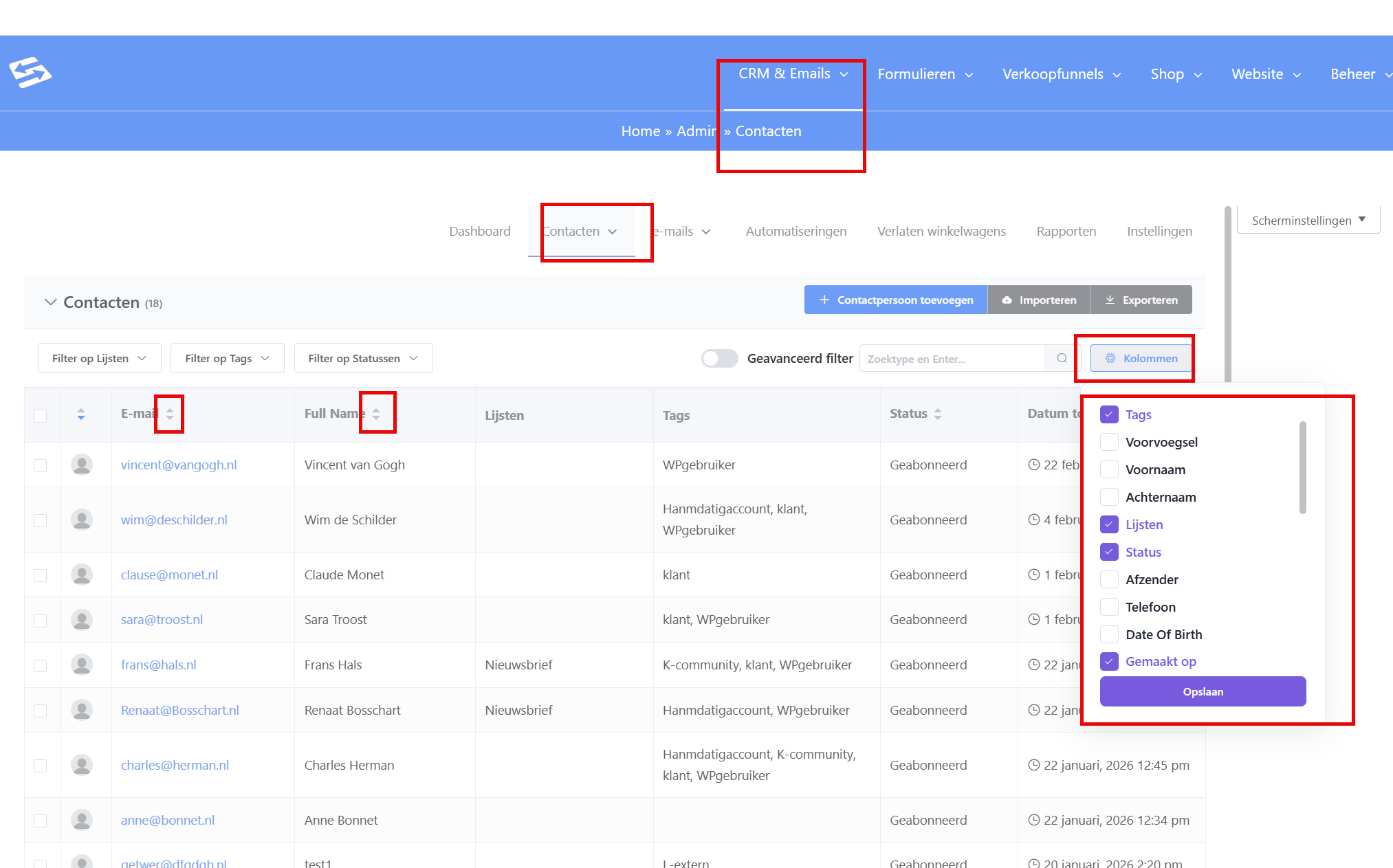
The contacts dashboard shows the following information for each contact:
- Name and email address – The basic details of the contact
- Status – Whether a contact is subscribed, paused or unsubscribed
- Tags – All tags linked to this contact
- Lists – The lists this contact belongs to
- Last activity – When this contact was last active
- Date added – When this contact was added to your database
You can click any column to sort by that criterion, which is useful for organising large contact lists.
You can also decide for yourself which columns are shown:
Understanding contact statuses #
Every contact has a status that indicates how you can communicate with this relationship:
- Subscribed – Contact receives all emails and campaigns
- Paused – Contact temporarily receives no emails
- Unsubscribed – Contact has opted out and no longer receives marketing emails
- Bounced – Email address cannot be reached (hard bounce)
- Complained – Contact has marked your emails as spam
The status is updated automatically based on actions taken by the contact or on email deliverability issues.
We recommend cleaning up your database regularly by deleting contacts that have unsubscribed, bounced or complained.
Using advanced filter options #
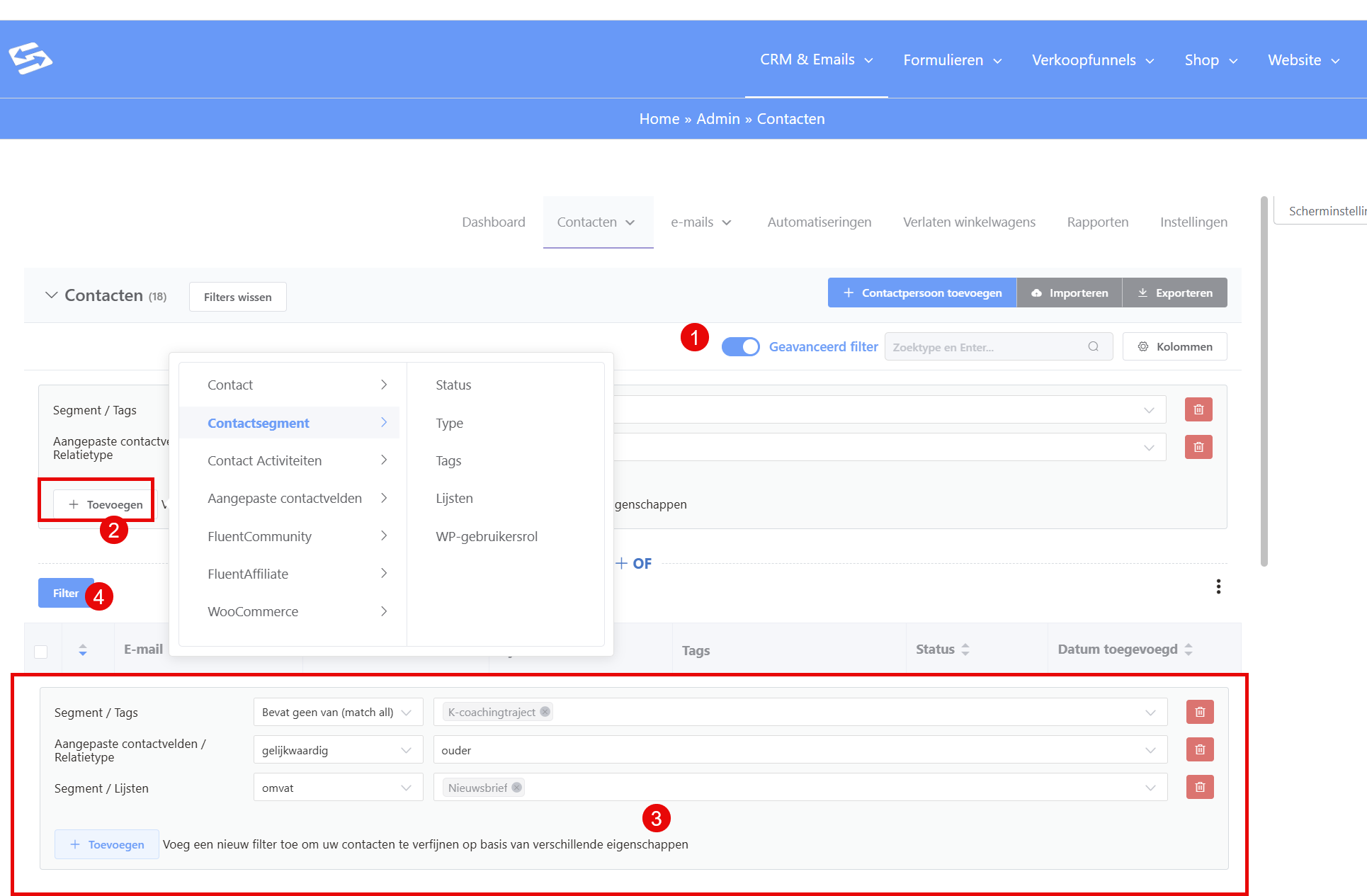
The filter options let you find specific groups of contacts:
- Click Filters at the top of the contacts dashboard
- Choose from various filter criteria such as status, tags, lists, or date added
- Combine several filters for highly specific selections
- Save frequently used filter combinations as a segment for future use
For example, you can look up all subscribed contacts with a specific tag, or all contacts that signed up in the past month.
Carrying out bulk actions #
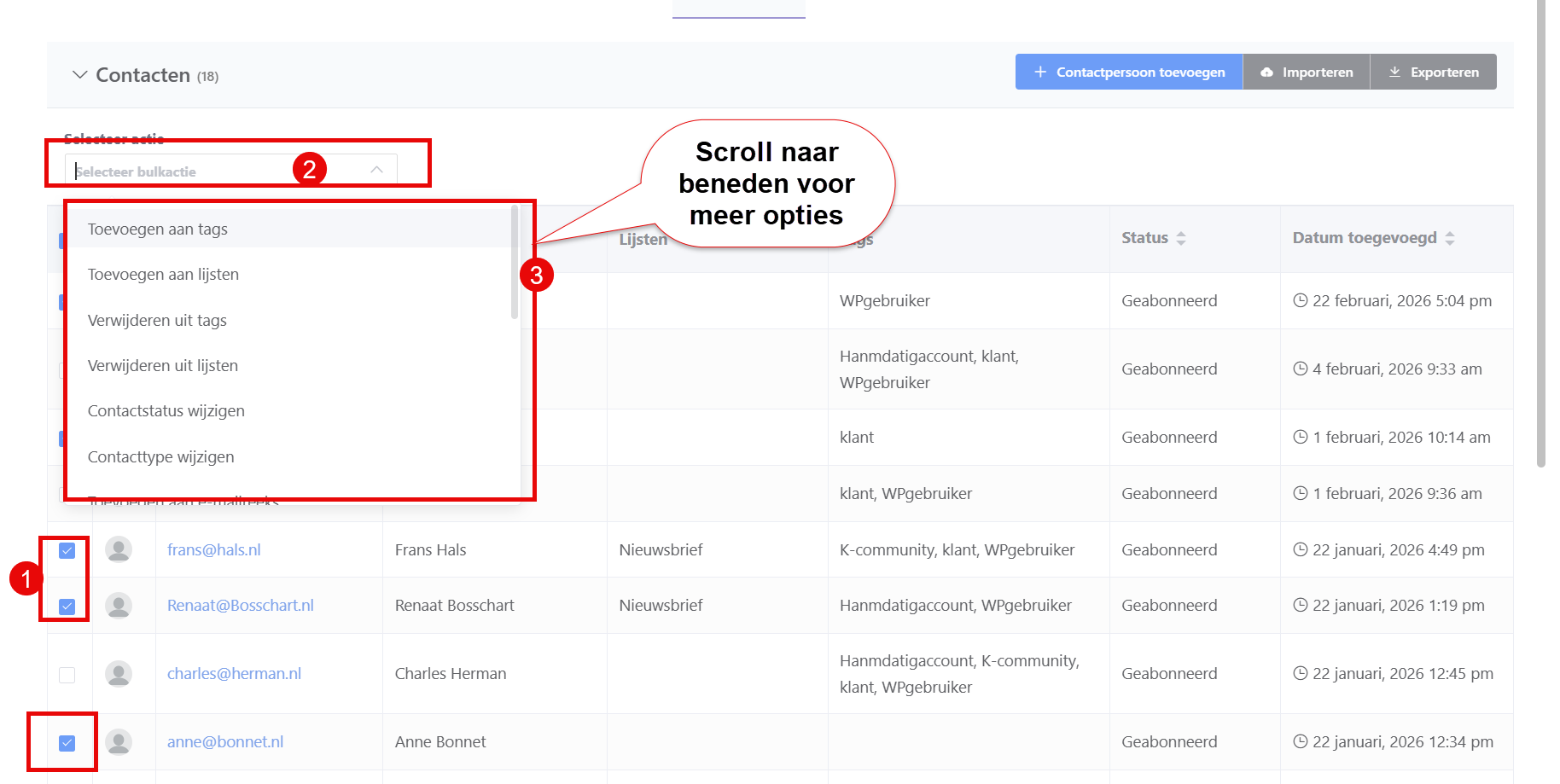
To manage several contacts at once efficiently:
- Select contacts by ticking the checkboxes
- Click Bulk actions at the top of the list
- Choose the action you want, such as:
- Adding or removing tags
- Changing the status
- Deleting contacts
- Adding to lists
This saves a lot of time when managing large contact lists. For safely deleting contacts in bulk we have a detailed guide available.
Editing individual contacts #
To view or edit a specific contact:
- Click the name or the email address of the contact
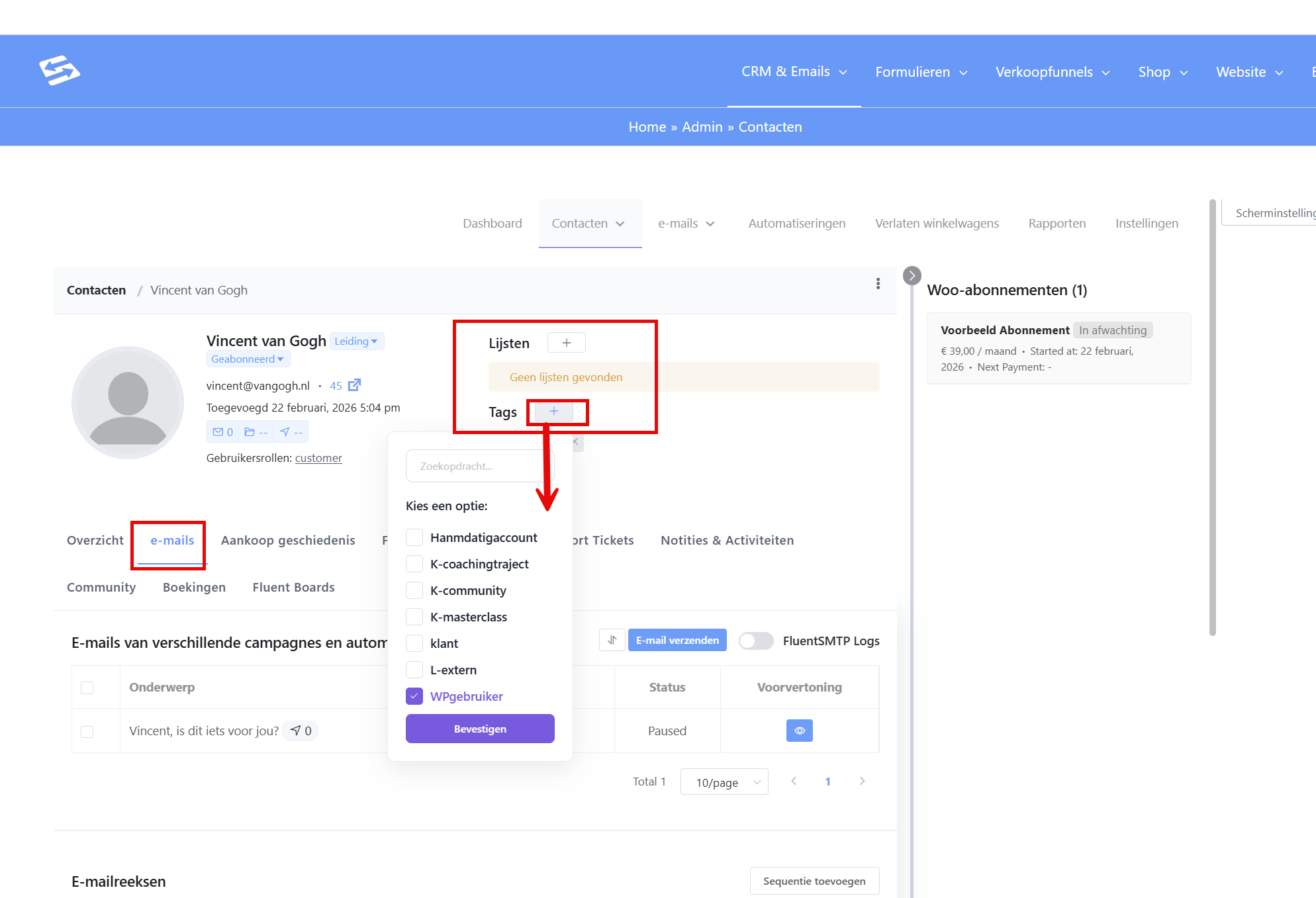
- You arrive at the individual contact profile, where you can:
- Edit personal details
- Manage tags and lists
- Add notes
- View the complete activity history
- Fill in custom fields
The contact profile also shows all emails sent to this contact and which actions the contact has taken.
Searching within contacts #
Use the search bar at the top of the dashboard to find specific contacts quickly, based on:
- Name
- Email address
- Phone number
- Company name
- Custom field values
The search function works in real time, so you see results as you type.
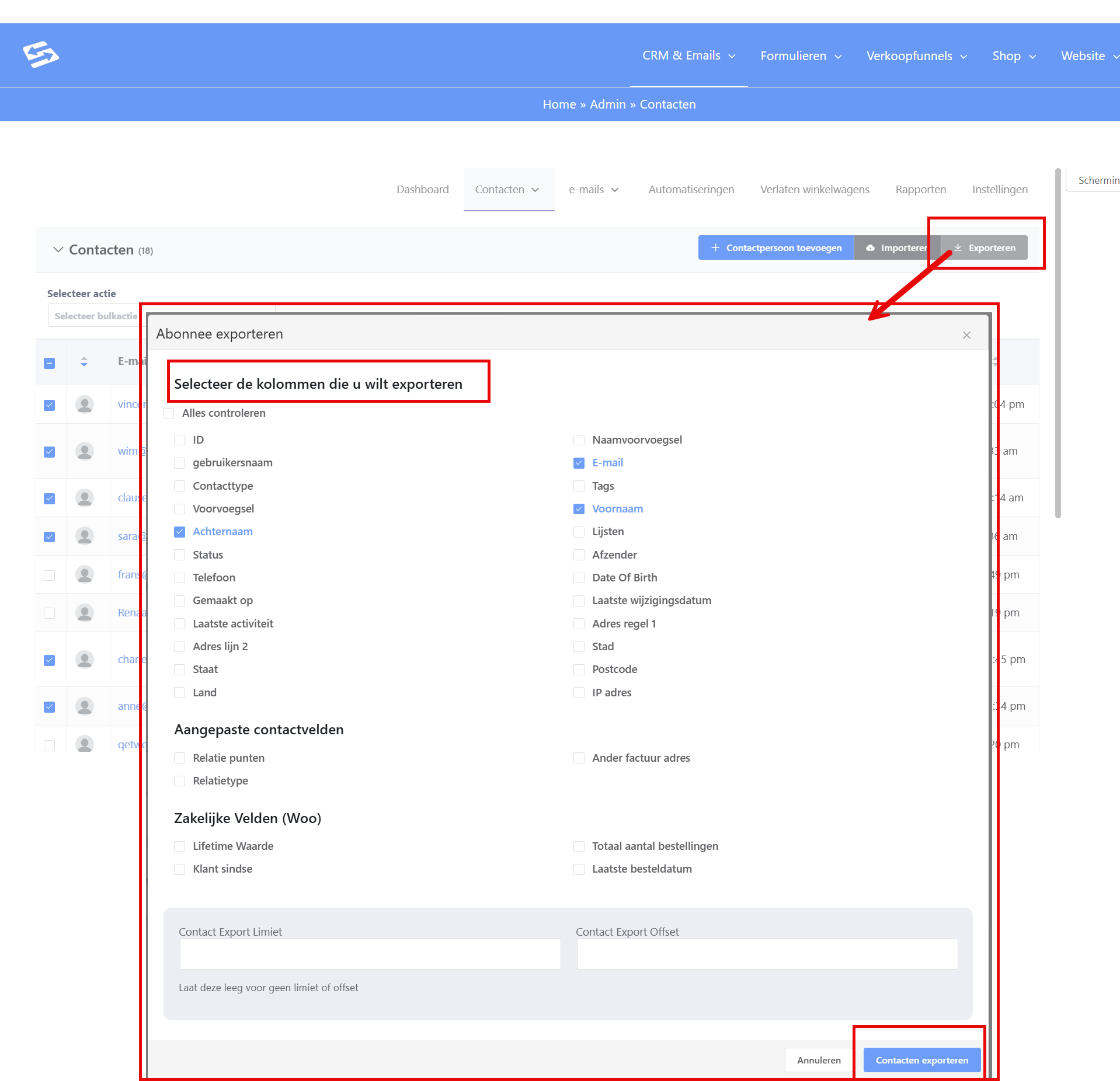
Exporting contacts #
You can export contact lists for use in other programs:
- Filter the contacts you want
- Click Export at the top of the dashboard
- Choose which fields you want to include in the export
- Download the CSV file
This is useful for reporting or for sharing contact details with external parties.
Tips #
The contacts dashboard is designed to give you a complete overview of your relationship database, so you can make data-driven decisions about your email marketing and customer communication. By checking and cleaning up your contact list regularly, you keep your database healthy and your deliverability high.
The contacts dashboard in Autorespond is based on FluentCRM Pro, included in your package. Read the FluentCRM documentation


