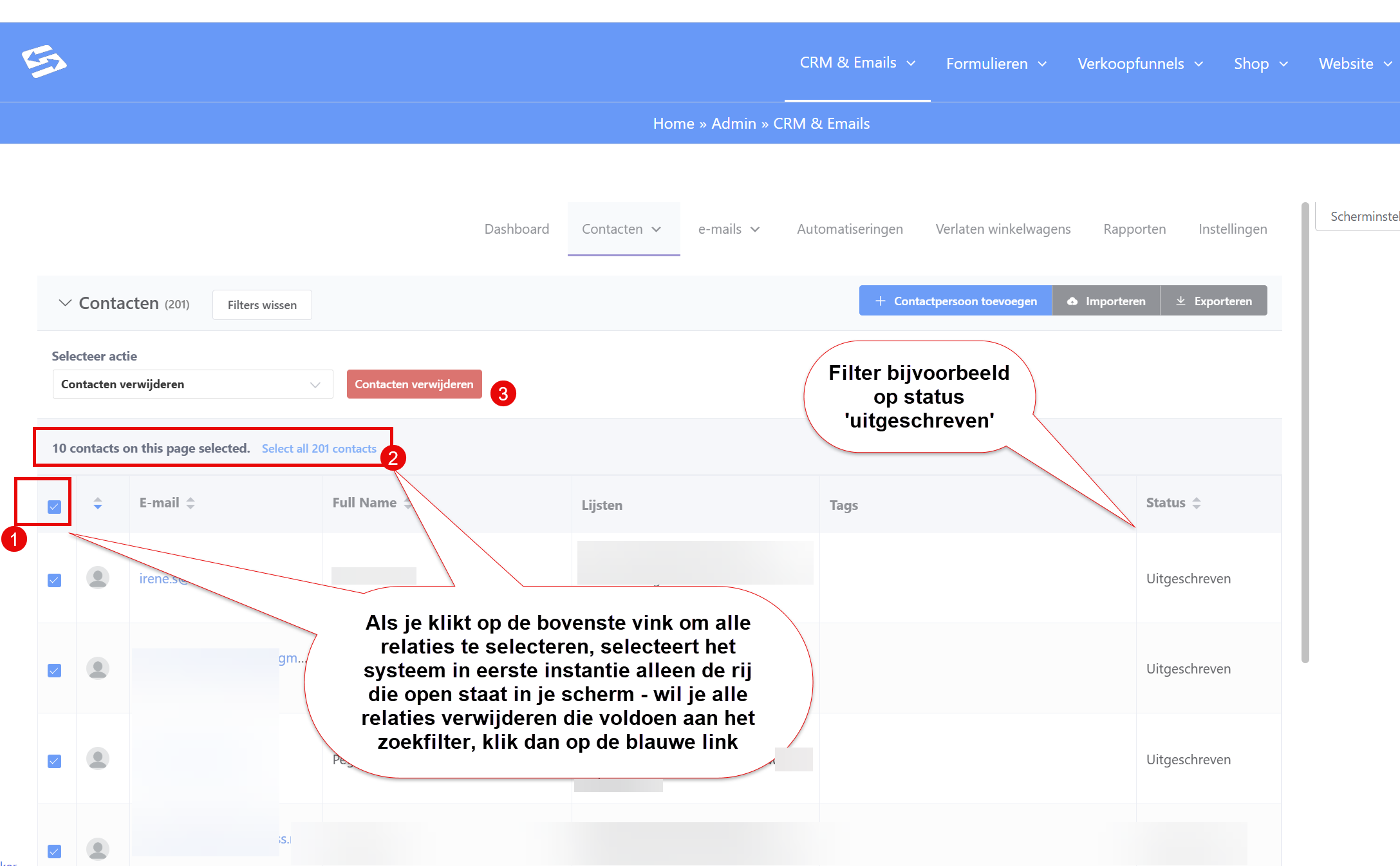
If you want to remove contacts from the CRM in bulk, first filter on what those contacts have in common, then tick the box to select all contacts (and click ‘select all contacts’ if there are more contacts than the ones shown on your current screen), then choose ‘Delete contacts’ under ‘Bulk actions’ and click ‘Delete contacts’.
If, for example, you want to remove everyone who has unsubscribed in one go, filter on the status ‘Unsubscribed’:
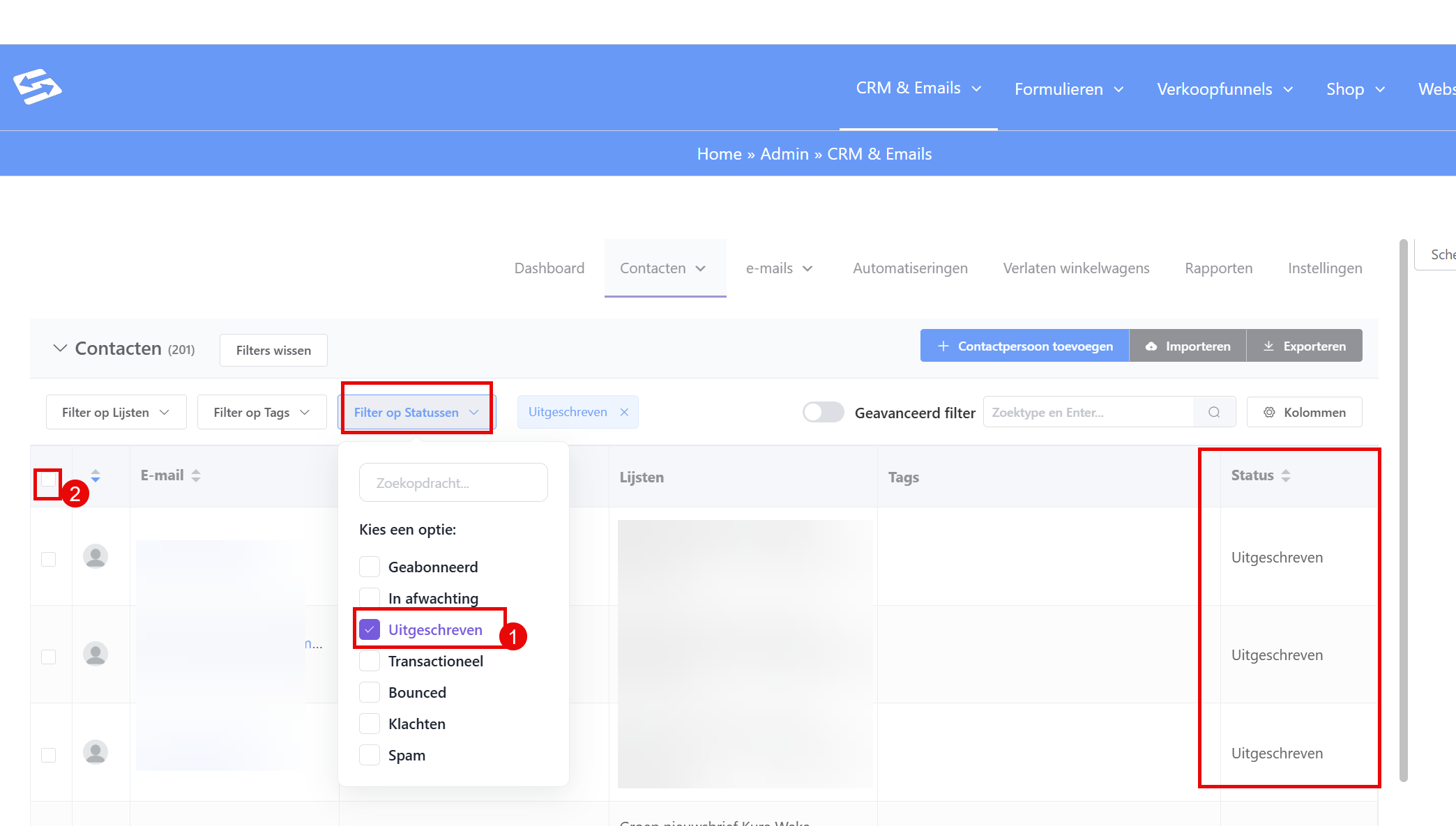
Then tick the box at the top of the list to select every row.
When you tick that top box, the system initially selects only the rows that are open on your screen. If you want to delete every contact that matches the filter, click the blue link ‘select all contacts’ and then the button ‘Delete contacts’: