Have you worked with Buckaroo as your payment provider for years, or did you start out with Sisow (Sisow was acquired by Buckaroo and now carries that name too)? Then you do not necessarily have to move to another provider when you switch to the new Autorespond. The standard payment provider we recommend is Mollie, but on request we will set up the Buckaroo connection for you in your shop and sales funnels. In this article you can read when that is useful, what we arrange for you and what you set up yourself.
The payments in your Autorespond shop run through WooCommerce. For Buckaroo we install the official Buckaroo connection for WooCommerce in your environment; it is not included in the package as standard.
1. Mollie or Buckaroo: what is the difference? #
Mollie is the payment provider that is ready in every Autorespond environment by default. You connect it yourself with an API key and it is immediately suitable for iDEAL, credit card, Bancontact and direct debit for subscriptions. For most customers Mollie is the simplest choice; the explanation is in Connecting Mollie to your shop with an API key.
Buckaroo is a good alternative if you already have an account and a running contract there, for example because you took payments through Buckaroo or Sisow in the old Autorespond. You then keep your current rates, your payouts and your existing payment methods. The only difference in practice: the connection is installed by us, and you enter the keys yourself afterwards.
2. What we arrange for you #
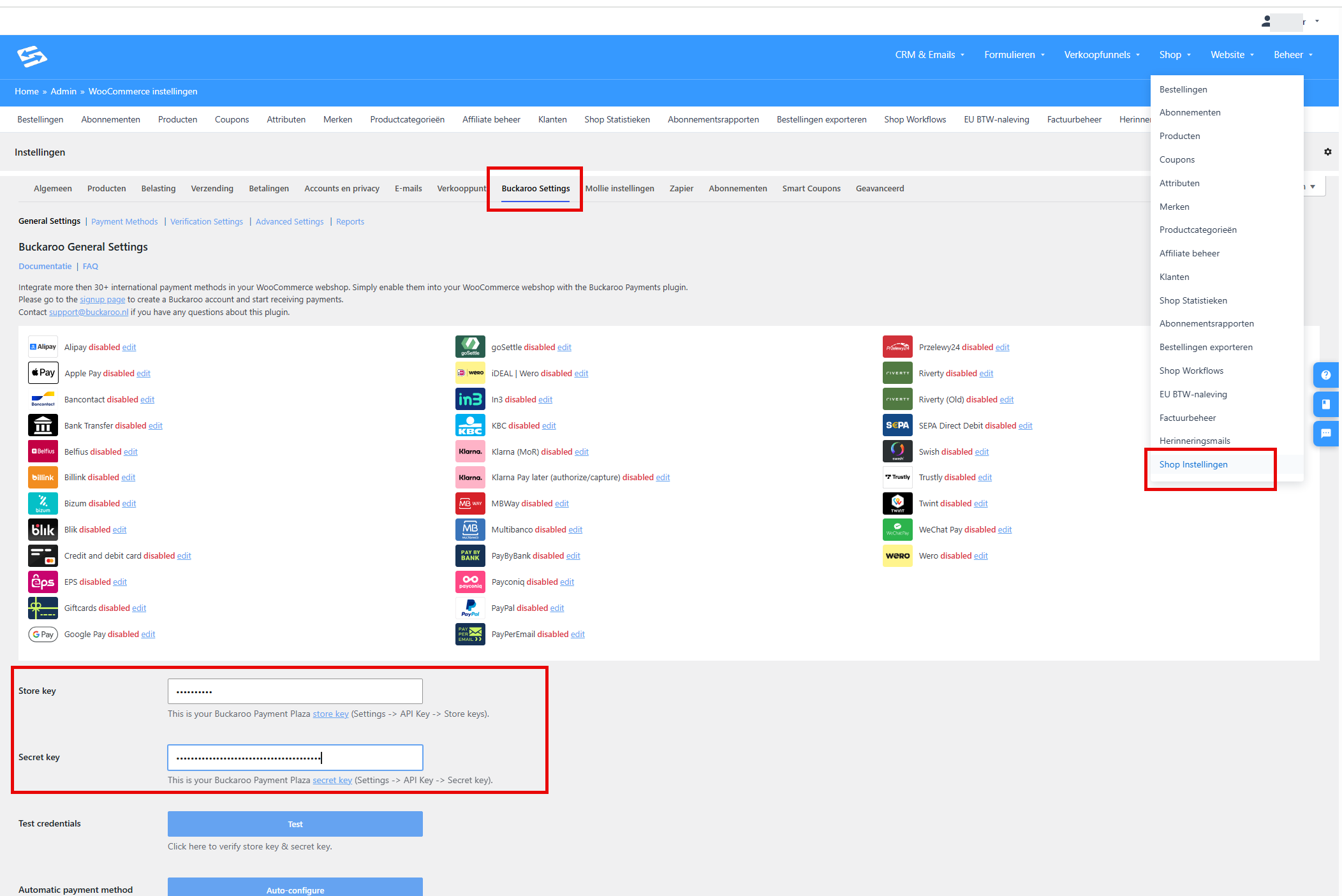
Request the connection through support. We then install and activate the Buckaroo connection for WooCommerce in your Autorespond environment and let you know that it is ready. From that moment you see an extra Buckaroo tab under Shop → Shop Settings.
You enter the keys of your Buckaroo account yourself, even if you already worked with Buckaroo or Sisow in the old Autorespond. We cannot carry the keys over from the old system; you collect them in Buckaroo Plaza, as described below.
3. Collecting your Buckaroo keys #
You need two details from your Buckaroo account. You find them in Buckaroo Plaza, the management environment of Buckaroo, under Settings → API Key (the API keys section):
- Store key (also called Website key or Merchant key): the key of your website. In Plaza under Settings → API Key → Store keys; in older versions of Plaza under Settings → Websites, the General tab.
- Secret key: the secret key that secures the payments. It is under Settings → API Key → Secret key; in older versions under Configuration → Security → Secret key.
Treat the Secret key like a password: anyone who has it can process payments on your account. Never put it in an ordinary support email. If you do want us to enter the keys for you, send them through the secure address [email protected].
4. Entering the keys and activating the connection #
- Go to Shop → Shop Settings and click the Buckaroo tab.
- At the top you see the list of payment methods. Scroll down, past that list, until you see the Store key and Secret key fields.
- Paste your Store key and your Secret key into those fields.
- At Test credentials, click Test. Buckaroo then checks whether the keys are correct.
- At Automatic payment method configuration, click Auto-configure. The connection looks at which payment methods are active in your Buckaroo account and switches those on in your shop in live mode. You first get a confirmation question before that is applied.
- Click Save changes at the bottom.
5. How to check that it works #
- Open one of your order links in a private or incognito window and complete the order including the payment. Use a small amount or a product with a test price.
- In Shop → Orders, check whether the order is set to Processing or Completed; that means Buckaroo has passed the payment through.
- In Buckaroo Plaza, check whether the transaction is visible there.
Do you want to add or switch off a payment method later? You do that through Shop → Shop Settings → Payments: every Buckaroo payment method is listed there as a separate line that you can switch on or off.
6. Good to know #
- Subscriptions and direct debit: if you work with subscriptions or instalment payments, discuss that with support in advance. Not every Buckaroo payment method is suitable for automatic follow-up payments; for subscriptions Mollie is usually the simplest route.
- Two providers at once is possible: Buckaroo and Mollie can be active alongside each other, each with their own payment methods. One provider is usually clearer for your customers and your records.
- Still looking for the name Sisow? Sisow no longer exists as a separate service; your Sisow account has become a Buckaroo account and you log in to Buckaroo Plaza.
Related articles #
- Connecting Mollie to your shop with an API key
- Payment options in the shop checkout and for manual orders
- From e-Act to the new Autorespond: step-by-step migration guide with go-live checklist
Frequently asked questions #
Can I use Buckaroo or Sisow in the new Autorespond? #
Yes. Mollie is the standard payment provider we recommend, but on request we install the Buckaroo connection for WooCommerce in your environment. Sisow was acquired by Buckaroo, so an old Sisow account simply keeps working through Buckaroo Plaza.
Which details do I need to connect Buckaroo? #
Your Store key and your Secret key from Buckaroo Plaza (Settings → API Key). You enter those yourself under Shop → Shop Settings → Buckaroo tab. That also applies if you already worked with Buckaroo or Sisow in the old Autorespond: we cannot carry the keys over from the old system.
Do I have to move from Buckaroo to Mollie? #
No. If you have a running Buckaroo contract with rates you are happy with, you can keep using it. We recommend Mollie for new shops and for subscriptions with direct debit, because you set up that connection yourself in a few minutes.


