You can now also keep your projects and tasks in Autorespond (Boards) up to date from your own AI assistant. “Create a task for next week’s newsletter and put it in Marketing”, “What is still open for Peter this week?” or “Move all tasks labelled Waiting to the In progress column”: your assistant does it through a secure connection (MCP). In this article you switch the connection on and read what you can do with it.
Project management in Autorespond is based on FluentBoards, included in your package. Read the FluentBoards documentation
Good to know: the connection is extended regularly. Ask your assistant what it can do straight after connecting (step 3). The overview of all AI connections in Autorespond, including the legal basis and the secure set-up, is in Connecting your AI assistant to Autorespond: all connections at a glance.
What can your assistant do with your boards? #
- Keep an overview: retrieve boards and columns, search tasks, show “my tasks” and open work per person.
- Manage tasks: create, update, move between columns, archive, assign to team members and add labels to tasks.
- Work things out: create subtasks and subtask groups, add comments.
- Structure: create new boards, columns (stages) and labels, if the user is allowed to.
The assistant sees exactly the boards the connected user is a member of, with the same permissions. Do you want the AI to reach only the “Marketing” board? Then make the AI user a member of that board only.
Step 1: switch the connection on #
- Go to Administration → Project management and click the cog (Settings) in the top right.
- Choose MCP for AI Agent on the left.
- Switch Enable MCP for AI Agents on and copy the endpoint URL.
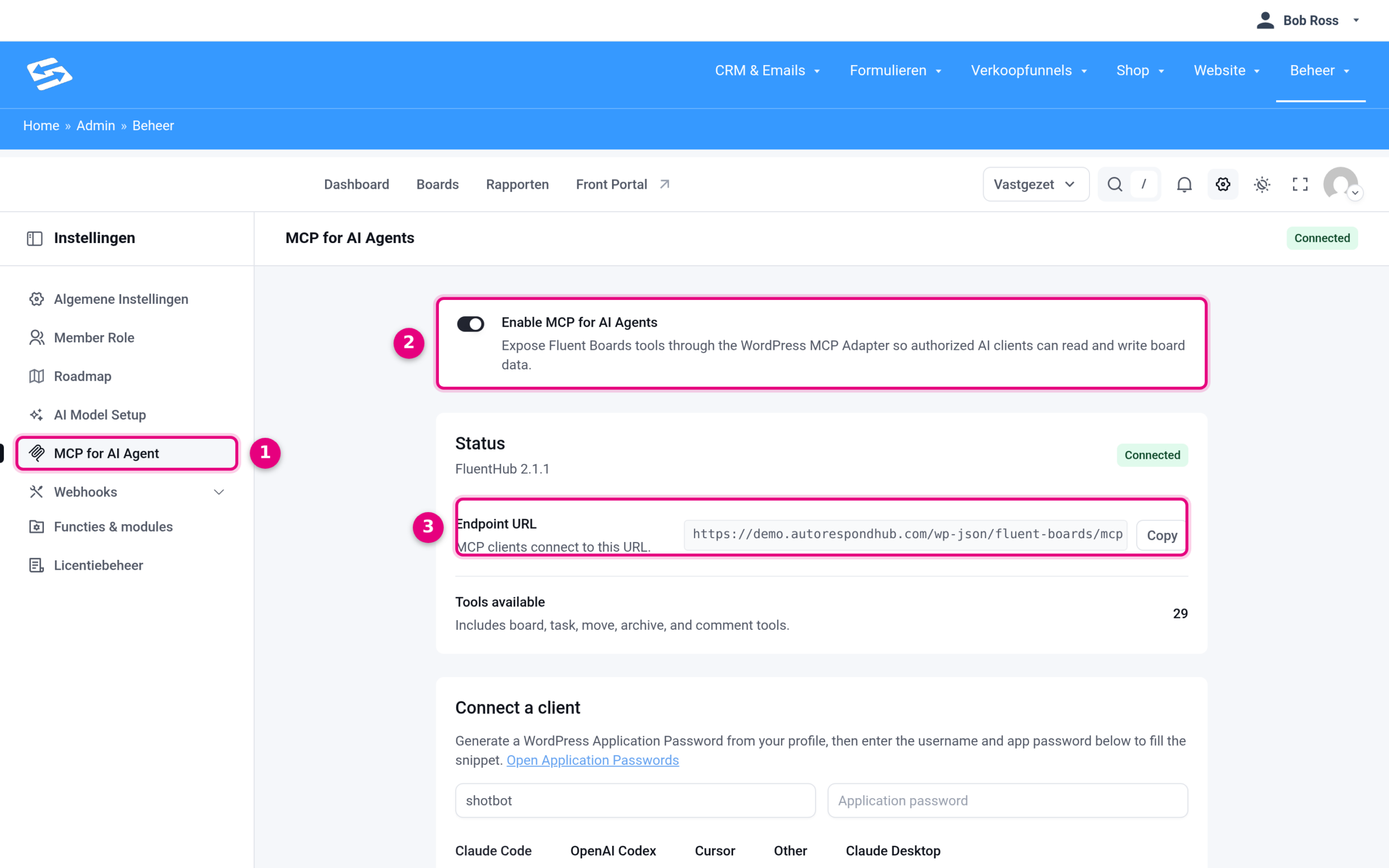
- MCP for AI Agent: the menu item in the settings.
- Enable MCP for AI Agents: the main switch of the connection.
- Endpoint URL: the address of your connection (it ends in
/wp-json/fluent-boards/mcp). Below it you will find Connect a client: enter your user name and application password and you get the ready-made command for your AI program.
Step 2: an AI user with an application password #
- Under Users, create a separate user for the AI (role Subscriber) if you do not have one yet, and in Project management make that user a member of the boards where the AI may help out.
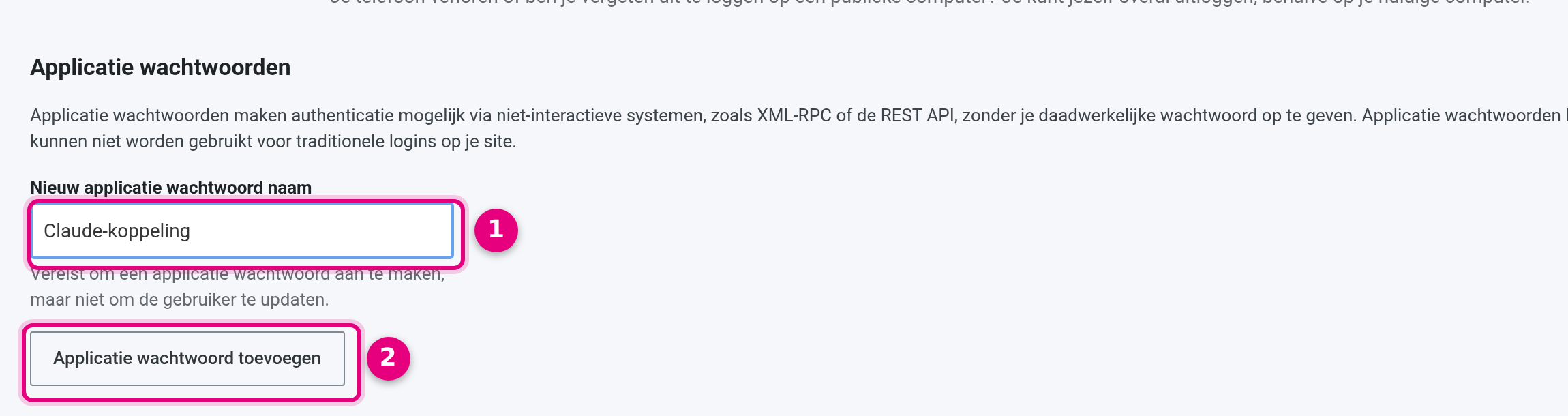
- Open that user, scroll to Application passwords and create a new password with a recognisable name. Copy it straight away.
- Enter the user name and application password under Connect a client, choose your program (Claude Code, Claude Desktop, Cursor or Codex) and paste the result into your program.
Step 3: ask your AI what is possible #
Straight after connecting, ask this question so that your assistant retrieves and remembers the current functions itself:
“You are connected to the boards of my Autorespond site. First retrieve the context, show which boards you can see and summarise what you can do for me. Remember this. Do not move, archive or assign anything without my confirmation.”
Examples of what you can ask afterwards: “In the Marketing board, create a task ‘September newsletter’ with a deadline of Friday and assign it to Anna”, “Which tasks have been in In progress for more than two weeks?”, “Add five subtasks for the content pages to the task ‘Website refresh’” or “Give me a summary of all comments on task X.”
Tips #
- Have the AI make a proposal first (“this is what I would create”) and only then carry it out, certainly for bulk actions.
- A separate AI user makes it visible in the activity log which changes were made by the AI.
- Finished with the connection? Switch the toggle off or revoke the application password; both take effect immediately.


