Do you sell books that are supplied by Managementboek? Then you can connect your webshop directly to Managementboek. Every paid book order is passed to Managementboek automatically, and they handle the shipment to your customer. That way you do not have to retype anything and no order goes missing. Were you already using this integration in the previous version of Autorespond? Then it works in exactly the same way here, with the same API key.
The Managementboek integration is a built-in function of your Autorespond environment, included in your package. You can read more about Managementboek itself at managementboek.nl.
Worth knowing beforehand #
- The integration is intended for publishers and authors who have their own account (with an API key) at Managementboek and whose books are part of the Managementboek range. If you do not have an account yet, contact Managementboek first.
- Only order lines for products with a 13-digit ISBN (EAN-13) in the SKU field are passed on. Products with a different SKU (services, for example, or digital products you supply yourself) are skipped automatically by the integration. So only give an ISBN as the SKU to the products Managementboek has to supply.
- The integration is switched off by default and only starts doing anything once you deliberately switch it on and enter your API key.
- Every order is passed on automatically at most once, so never twice. You can always send an order (again) by hand with the order action Forward to Managementboek (see the last step).
Step 1: put the ISBN in the SKU field of your book products #
The integration uses the SKU field to recognise which products have to go to Managementboek. Open each book product via Shop → Products and check the SKU field:
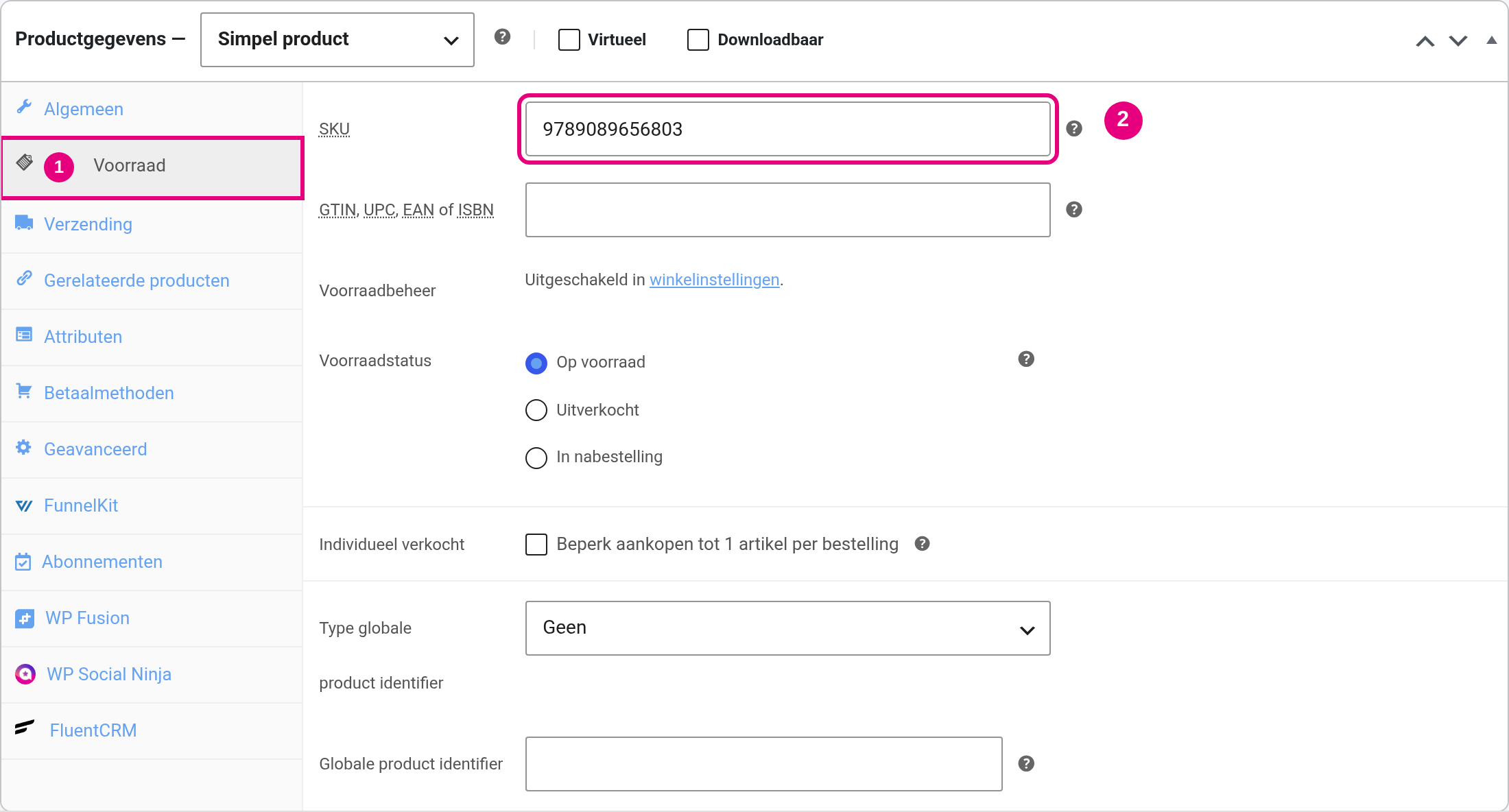
- In the Product data block, open the Inventory tab.
- Under SKU, enter the 13-digit ISBN of the book, without dashes or spaces (9789089656803, for example). Note: the separate field “GTIN, UPC, EAN or ISBN” below it does not count for this integration, the ISBN really has to be in the SKU field.
Step 2: switch the integration on #
In the menu, go to Administration → Integrations. Here you see all the external services that are connected to your environment or can be connected to it.
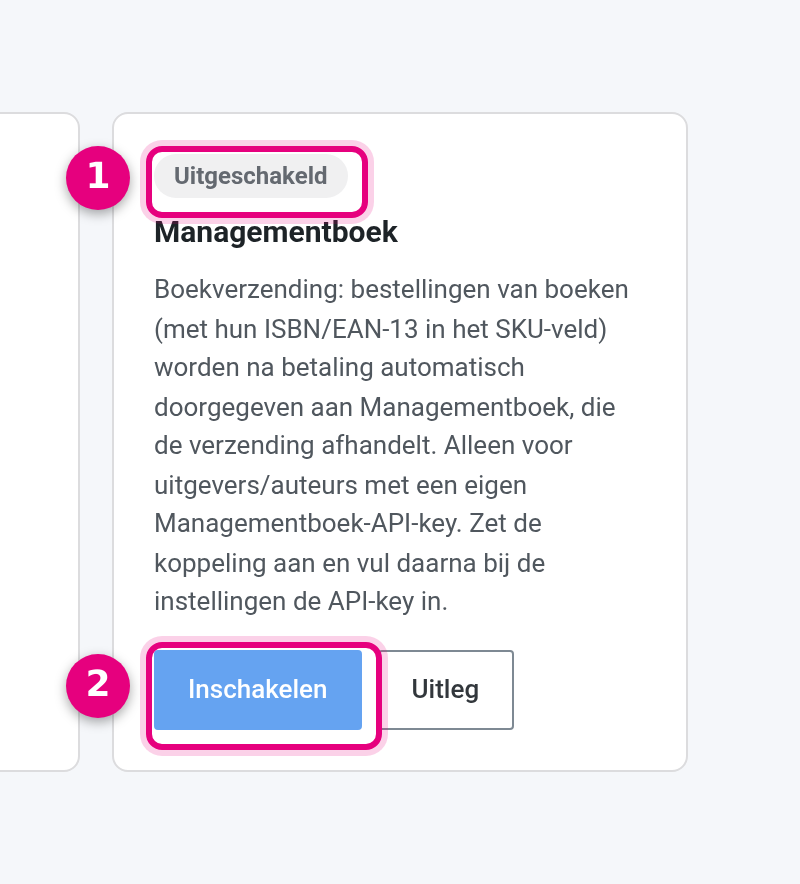
- The status badge shows whether the integration is switched on. By default it says “Disabled”.
- Click Enable. The tile then shows “Not yet connected” and a Settings button appears, which takes you to the next step.
Step 3: fill in the settings #
Click Settings on the tile (the screen is also reachable via Shop → Managementboek) and work through the fields:
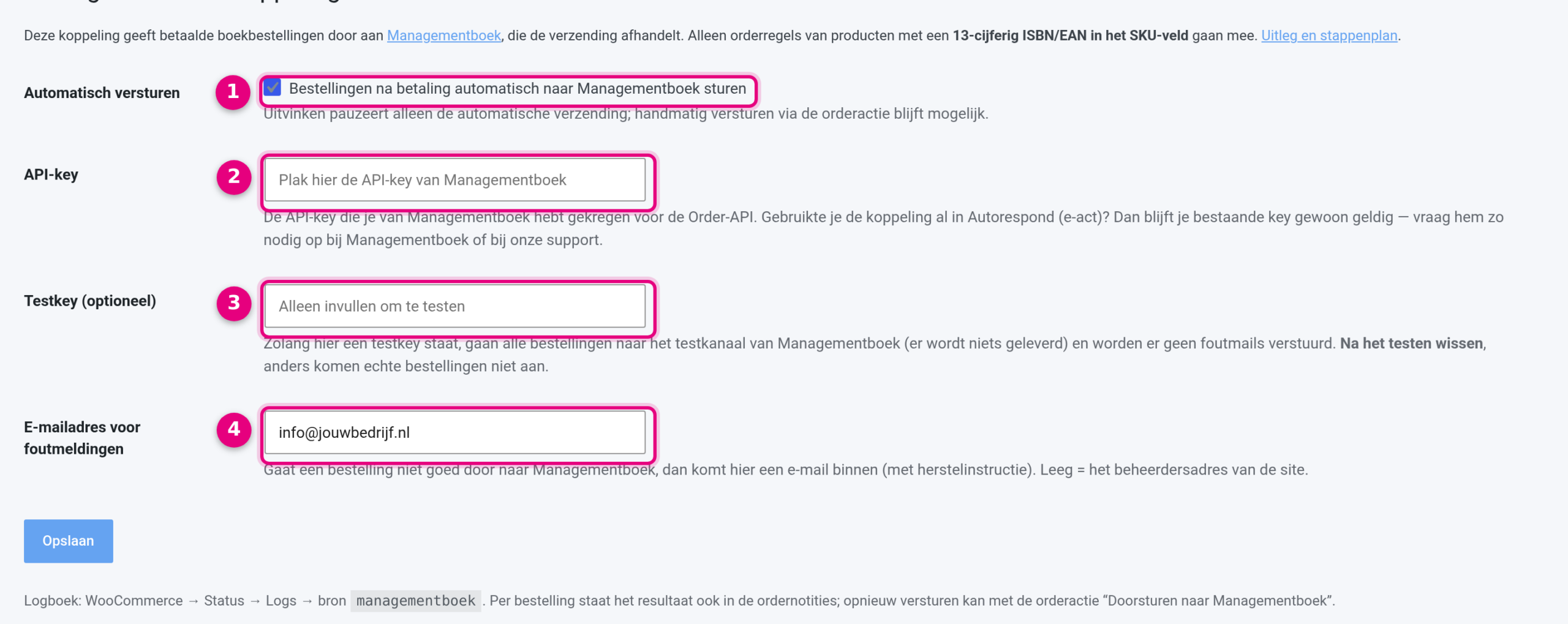
- Send automatically: leave this box ticked. Unticking it only pauses the automatic forwarding of new orders; sending by hand through the order action remains possible.
- API key: paste the API key you received from Managementboek here and click Save. If you were already using the integration in the previous version of Autorespond, this is the same key as it was then. If you no longer know it, request it from Managementboek or from our support team. After saving, the key is shown masked; leave the field empty to keep the stored key.
- Test key: only fill this in if you want to test the integration (see step 4). As long as a test key is entered here, all orders go to the Managementboek test channel and nothing is delivered. So clear it again after testing.
- Email address for error messages: if an order does not reach Managementboek properly, an email arrives at this address explaining what went wrong and how to put it right. If you leave the field empty, the integration uses the administrator address of your site.
Step 4: test the integration with the test key #
Managementboek has a separate test channel, so you can check the integration without a book actually being shipped. This is how you test safely:
- Enter the test key under Test key (request it from Managementboek or from our support team) and click Save. A message appears saying that test mode is active; no error emails are sent while it is on.
- Place a test order with a book from your range and complete the payment, or open an existing order and run the order action Forward to Managementboek (see step 6).
- Open the order and look at the order notes (right-hand column): after a successful test there is a note starting with “Managementboek test response”.
- Finished testing? Clear the test key (tick “clear key” and save). From that moment on, orders really do go to Managementboek.
Step 5: how to follow what happens #
From now on everything runs by itself: as soon as an order is paid, the integration passes the book lines to Managementboek, including your customer’s delivery and billing address. You see the result per order in the order notes (open the order via Shop → Orders):
- On success there is a note “Managementboek order created” with the Managementboek order number and, if it is known, the planned shipping date.
- Orders without products that have an ISBN SKU are skipped silently; no note goes with those.
- You will find a complete record of everything the integration does under Shop → Status → Logs, source managementboek.
Step 6: if something goes wrong #
If the forwarding fails once (because of an outage or an unknown postcode, for example), nothing happens silently: the order gets a note with the error message and you receive an email at the address you set. The order has not been registered with Managementboek at that point. This is how you put it right:
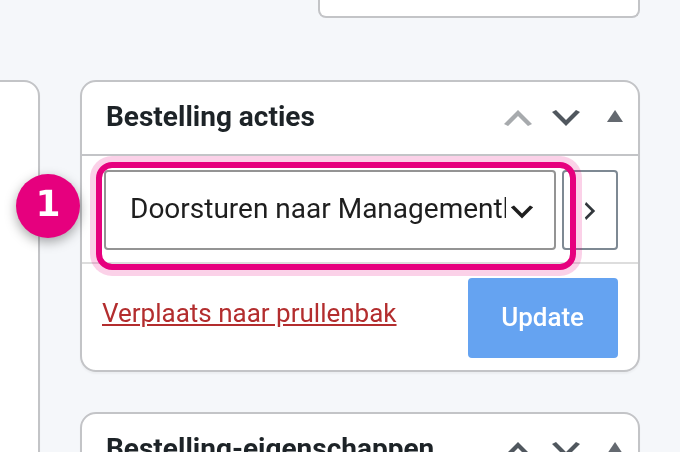
- Open the order, choose Forward to Managementboek in the Order actions block and click the arrow button next to it. The integration then submits the order again straight away, and the result appears in the order notes once more.
Does the same error keep coming back, or are you unsure what the message means? Send us a message through the support button and we will take a look with you.


