Your shop keeps you informed automatically: if a product is nearly sold out, an order comes in or a payment fails, your environment sends a notification about it. Those notifications are meant for you as the owner, but they only reach the right address if that address has been filled in. In this article you go through all the notifications and see where to set the receiving address for each one.
The shop in Autorespond is based on WooCommerce (and, for subscriptions, WooCommerce Subscriptions), included in your package. Read the WooCommerce documentation
Two types of address: your notification address and the technical administrator address #
Worth knowing up front: alongside your own email address, your environment also has a technical administrator address. We use that address to catch critical technical notifications such as error messages and update reports, so we can step in before you notice anything. A number of shop notifications fall back on that same address as long as nothing else has been filled in, and your stock or order notifications then do not reach you. The solution is always the same: enter your own email address on the notification. Where that field sits for each notification is described below.
Stock notifications: low stock and out of stock #
If your shop tracks stock, you receive a notification when a product drops below the threshold (“low stock”) and when it sells out. Useful for physical products, but also for something like a training course with a limited number of places. Go to Shop → Shop settings, open the Products tab and click Inventory there.
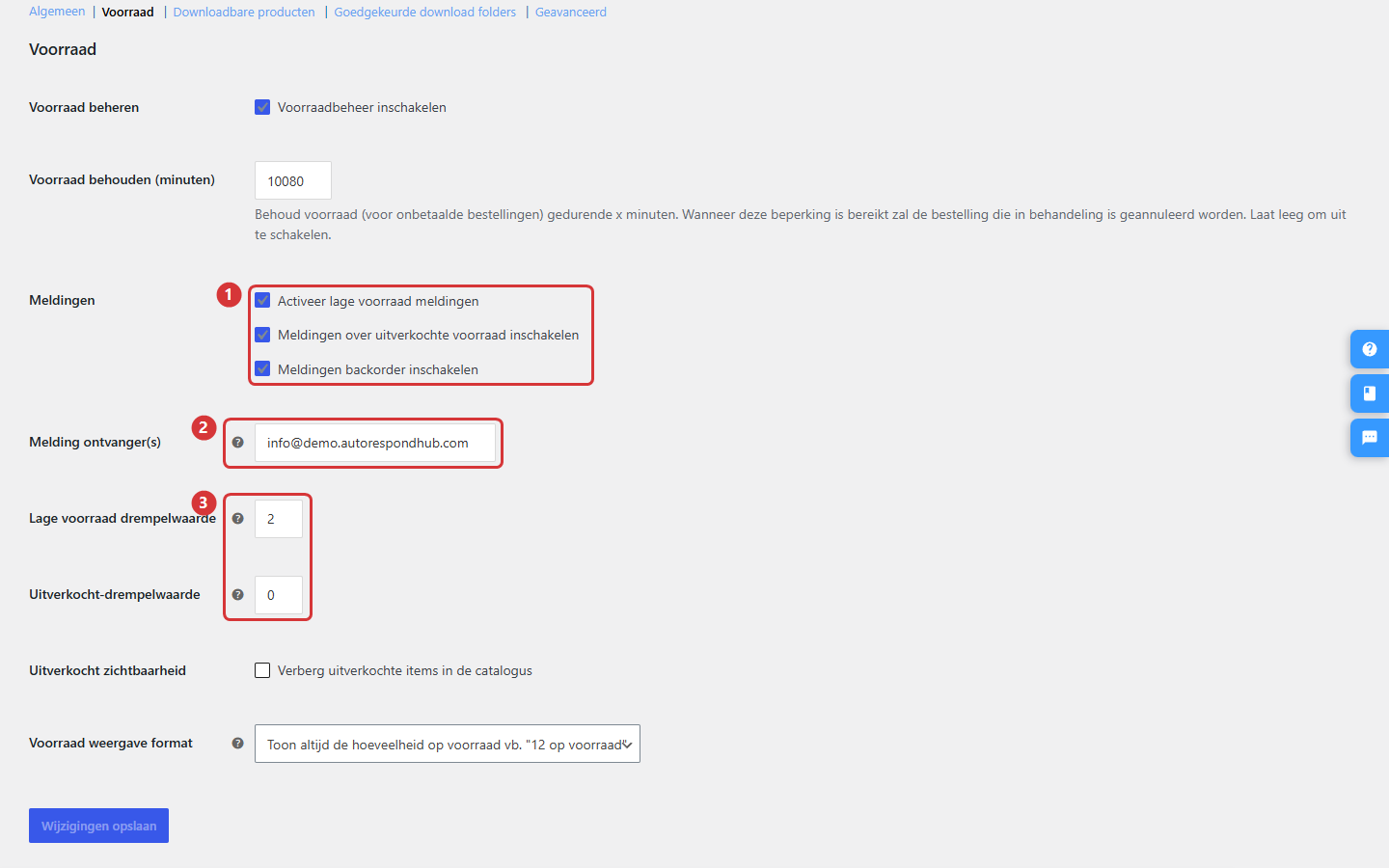
- Notifications — the checkboxes “Enable low stock notifications”, “Enable out of stock notifications” and “Enable backorder notifications” determine which stock notifications your shop sends. If they are off, your shop does not send that notification at all.
- Notification recipient(s) — this is the field that matters: the email address the stock notifications go to. Enter your own email address here. Several addresses are possible too, separated by commas, for example your address and that of a colleague who manages the stock.
- Thresholds — at “Low stock threshold” you set the quantity at which the “low stock” notification is triggered, and at “Out of stock threshold” when a product counts as sold out. These values apply to your whole shop; you can deviate from them per product in the stock settings of that product.
Click Save changes at the bottom. From the next stock change onwards, the notifications arrive at the new address.
Notifications about orders #
As well as the emails your customer receives (such as the order confirmation), your shop also sends notifications to you as the owner: on a new order, a cancelled order and a failed order. Each of these notifications has its own recipient field. Go to Shop → Shop settings and open the Emails tab:
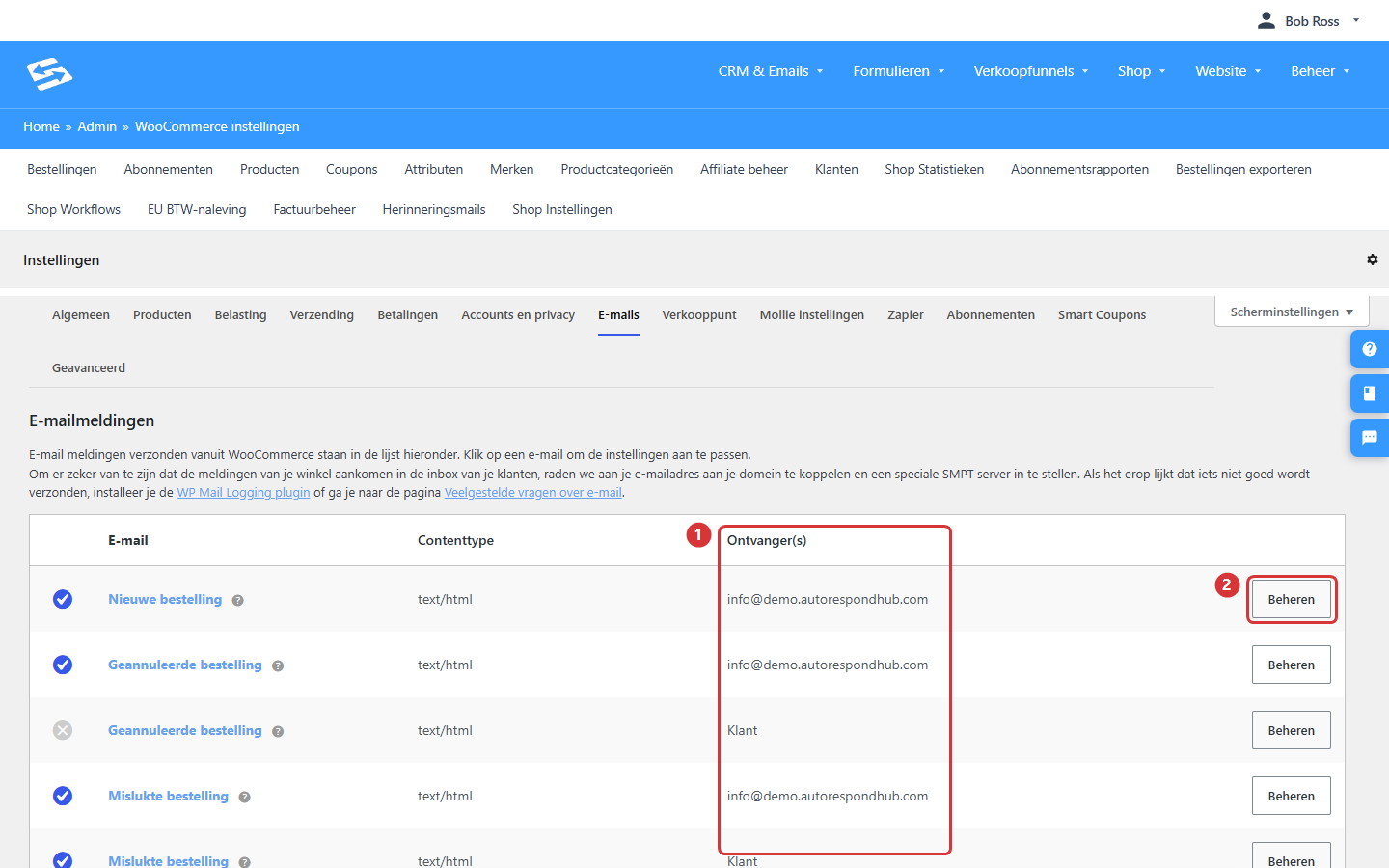
- The Recipient(s) column — here you see at a glance where each notification currently goes. If it says Customer, it is an email to your customer (such as the order confirmation) and you do not need to set anything. If it shows an email address, it is a notification for you, and your own address belongs there.
- Manage — click this button behind a notification (“New order”, for example) to open the settings of that single email.
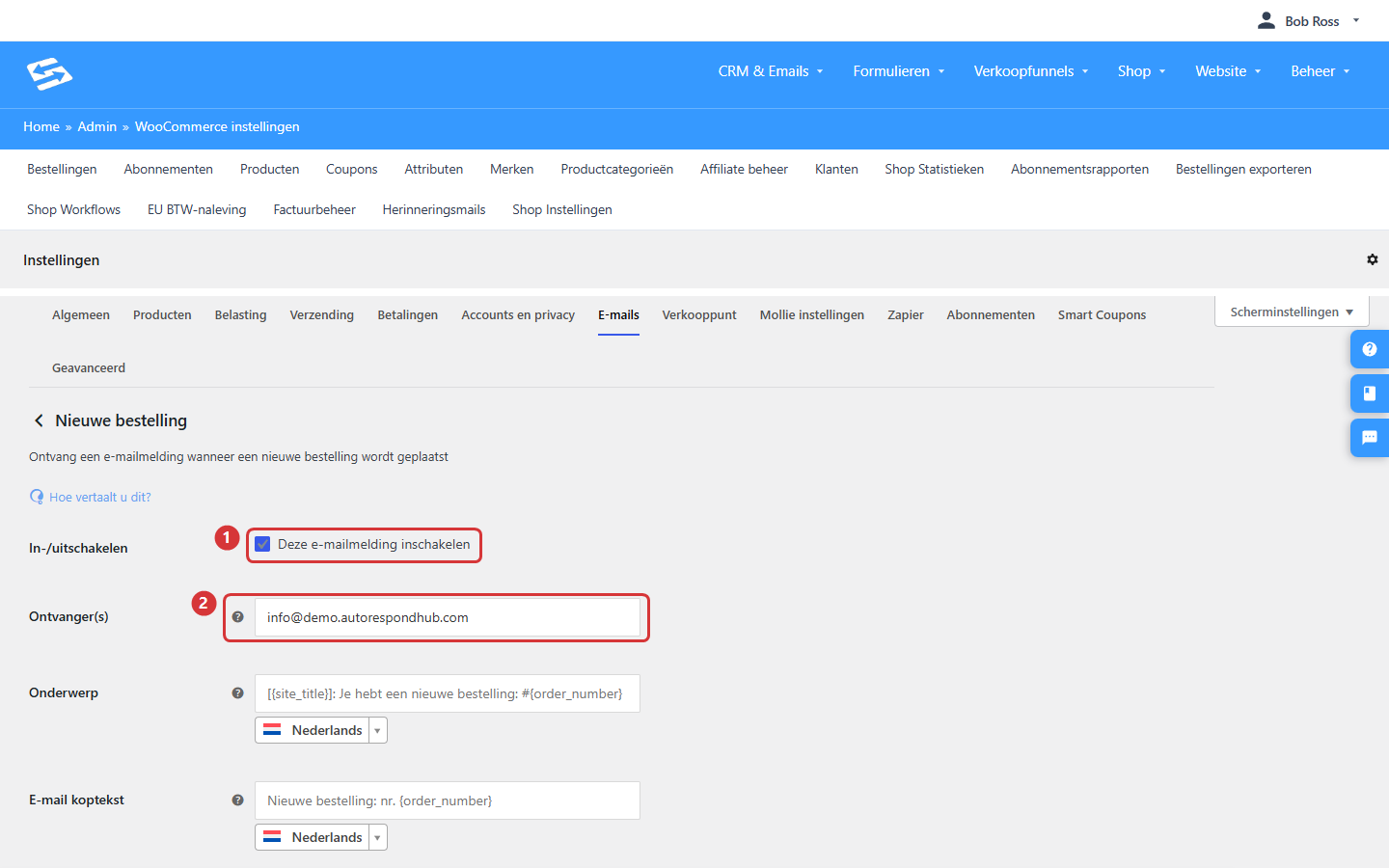
- Enable this email notification — this checkbox determines whether the notification is sent at all. If you would rather not be emailed about every new order, switch it off here. The order itself is not affected.
- Recipient(s) — enter your own email address here. If you leave this field empty, the notification falls back on the technical administrator address and does not reach you. Several addresses are possible here too, separated by commas.
Click Save changes and repeat this for the other notifications with an email address in the Recipient(s) column. We certainly recommend putting the “Failed order” notification on your own address: it tells you that a customer wanted to pay but the payment did not go through, which is exactly the kind of order you want to follow up.
Notifications about subscriptions #
If you sell subscriptions or payments in instalments, that same Emails tab contains a few more notifications for you. They work in exactly the same way: open the notification with Manage and enter your own address at Recipient(s). These are the notifications concerned:
- New renewal order — a subscription has been renewed successfully and a new instalment order has been created.
- Subscription switched — a customer has moved to a different subscription (from monthly to yearly, for example).
- Cancelled subscription — a customer has cancelled their subscription.
- Expired subscription — a subscription has reached the end of its term.
- Suspended subscription — a subscription has been paused temporarily.
- Failed automatic payment — an instalment payment has not gone through and your environment is retrying. Like the failed order, this is a notification to take seriously: it concerns revenue that would otherwise quietly disappear.
The exact name can differ slightly per notification, but you can always recognise the ones meant for you by the description underneath: it says the email goes to the administrator or recipient(s) rather than to the customer.
What you do not need to change #
Leave the technical administrator address itself alone. It receives notifications about the technical side of your environment, such as critical error messages, update reports and security signals, and those belong with our management so we can act quickly if something happens. On new environments we set the notifications from this article to your email address at handover; this article is here for when you want to check, change or extend the address with an extra recipient.
Frequently asked questions #
I am not receiving the stock notifications, what now? #
Check three things: are the stock notification checkboxes switched on (Shop → Shop settings → Products → Inventory), is your email address in the Notification recipient(s) field, and is the threshold higher than zero? Then also take a look in your spam folder. If nothing arrives after that, open a support ticket and we will take a look with you.
Can I send notifications to several people? #
Yes. In every recipient field you can enter several email addresses, separated by commas. That way your assistant can follow the order notifications while the stock notifications go to you alone.
Do my customers see these notifications as well? #
No. The notifications in this article are purely for you as the owner. Your customers receive their own emails, such as the order confirmation and the invoice, and those are separate from these settings. How the sender and reply address of those customer emails work is described in the article about the sender of your shop emails below.
I would rather receive fewer notifications, is that possible? #
Certainly. Every notification has its own on/off checkbox: the stock notifications in the inventory settings, and the order and subscription notifications each on their own page under the Emails tab. Switching them off has no effect on the orders or subscriptions themselves.


