You send a mailing and the bottom stays empty: no unsubscribe link, no company name, no address line. Sometimes there is only a small “view in browser” line and nothing else. It stands out, because that footer is exactly what should sit under every mailing.
In nearly every case it is not your account and not the sending that is at fault, but one setting attached to that one email. Below you work through the five causes, from the most common to the rarest. For each cause you read what you see on your screen, which clicks take you there to check it, and what to switch to solve it. You do not have to work through all of them: as soon as you find the right one, you are done.
The email footer in Autorespond is based on FluentCRM, which is included in your package. Read the English documentation
How the footer normally ends up under your email #
Autorespond has one global email footer for your whole account. It holds your company name, your address and the unsubscribe link. Every individual email is allowed to do something different with it: take the global footer, show a custom footer, or show no footer at all. That difference is behind almost every report of a missing unsubscribe link.
This is where you find the global footer itself:
- Go to CRM & Emails and click the Settings cog at the top right of the CRM bar.
- Click Global email settings in the left hand column.
- Scroll to the Email footer settings block.
- The Email footer field holds the text that goes under your emails. Make sure it contains an unsubscribe link at the very least.
- Click Save at the top right.
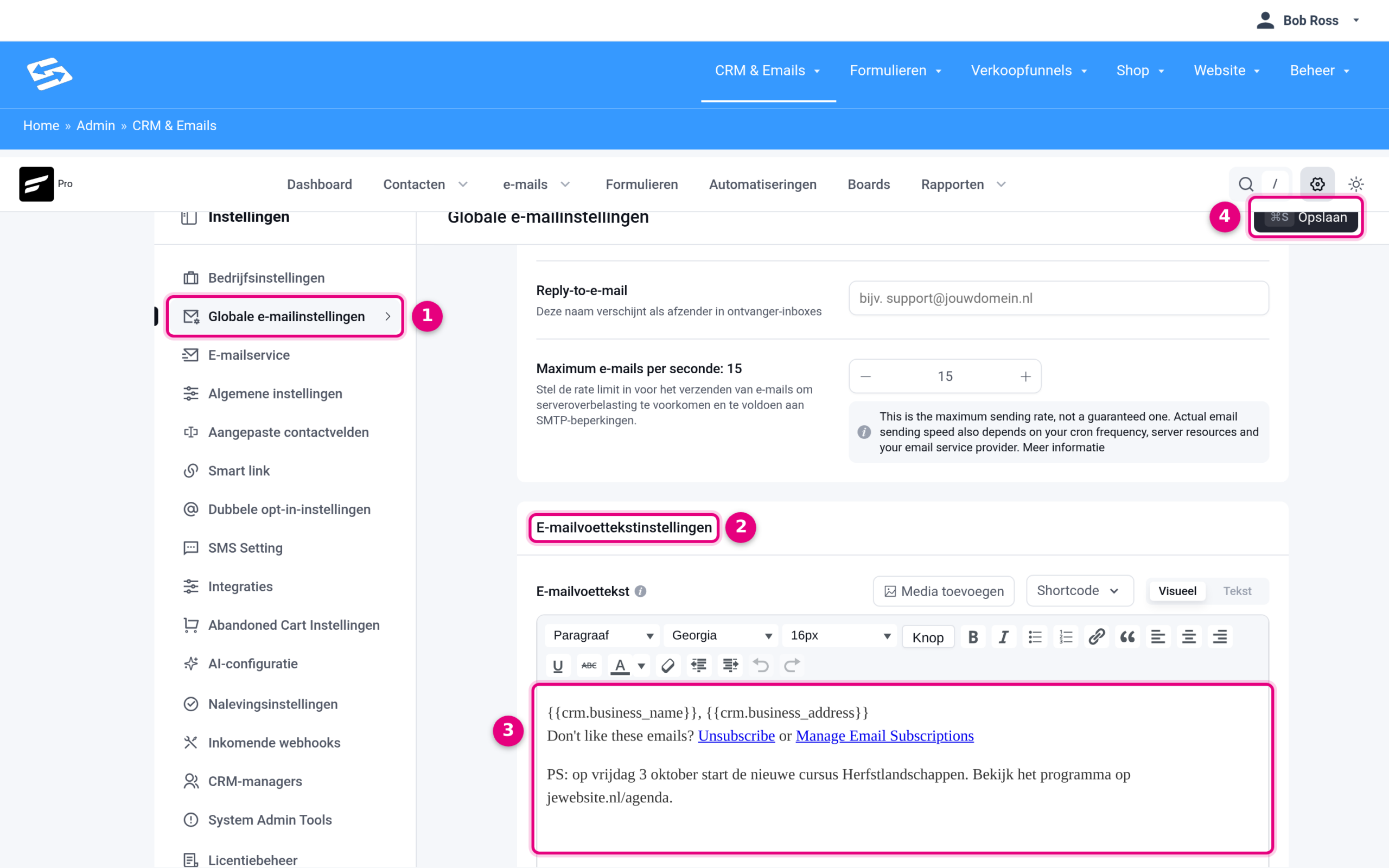
- Global email settings: the menu item in the left hand column. Below it are the other settings screens, such as Email service, Double opt-in settings and Compliance settings.
- Email footer settings: the block that holds the global footer. Above it you find the Reply-to email address and the maximum number of emails per second, among other things.
- Email footer: the text field itself. The Shortcode button adds fields such as the unsubscribe link and the link to the email preferences, Add media puts an image in it, and Visual and Text switch between the formatted view and the HTML view.
- Save: stores the change. What you put here applies from that moment on to every email that uses the global footer.
Is there a proper footer here with an unsubscribe link and you still do not see it under your email? Then work through the five causes below.
Cause 1: the email uses a custom footer instead of the global one #
What you see: under your email there is only a “view in browser” line or a single sentence, and nothing else. The company details and the unsubscribe link are missing entirely, while the global footer in your settings is properly filled in.
Why this happens: every email has its own choice between the global footer and a custom footer. If that choice is set to custom, the global footer is ignored completely, unsubscribe link and all. On emails that came across from a previous system, that choice is regularly set to custom, with the “view in browser” link as its only content. That explains exactly what you are seeing. So on migrated mailings, always check this setting first.
How to check it on an email from the Visual builder, the classic editor or raw HTML #
This applies to your email templates too, because they carry the same setting.
- Open the email or the template through CRM & Emails → emails.
- At Email body, click the cog at the top right of the editor.
- The Email style settings and footer settings window opens. Click the Footer settings tab.
- Look at Email footer type to see which of the two options is on.
- If Use custom email footer is on, you have found the cause. Set it to Use the global email footer.
- Click Update settings and then save the email or the template itself as well.
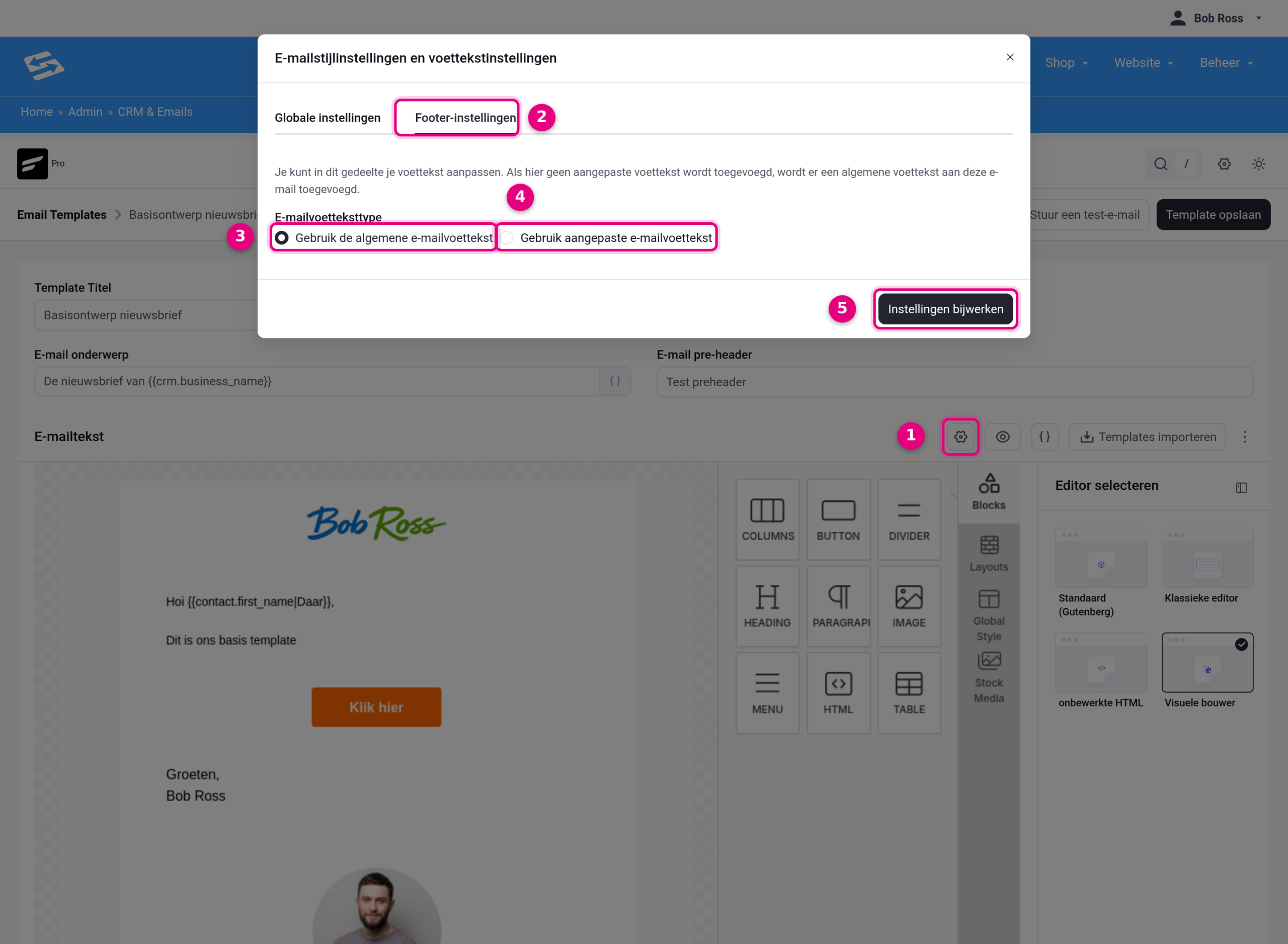
- The cog above the editor. It opens the style and footer settings of this email. The buttons next to it are the eye for a preview, the braces for inserting fields, and Import templates for pulling in an existing design.
- Footer settings: the tab with the footer choice. On the Global settings tab beside it are the styling settings of the email and the option to switch the footer off entirely.
- Use the global email footer: the email takes the footer from your settings, unsubscribe link included. This is the setting you want.
- Use custom email footer: the email gets its own footer and ignores the global one completely. If you choose this option, a text field appears below it where you put that custom footer. Do not forget the unsubscribe link there.
- Update settings: saves your choice in this window. Then save the email or the template itself too, otherwise the change stays inside this window only.
How to check it on an email from the block editor #
- Open the campaign and click Edit email body.
- Scroll to the bottom of your email in the editor. The footer of this email sits below the white text area.
- Click that footer. The Email Footer window opens.
- Set the choice to Global Footer instead of Custom Footer.
- Click Done and save your email.
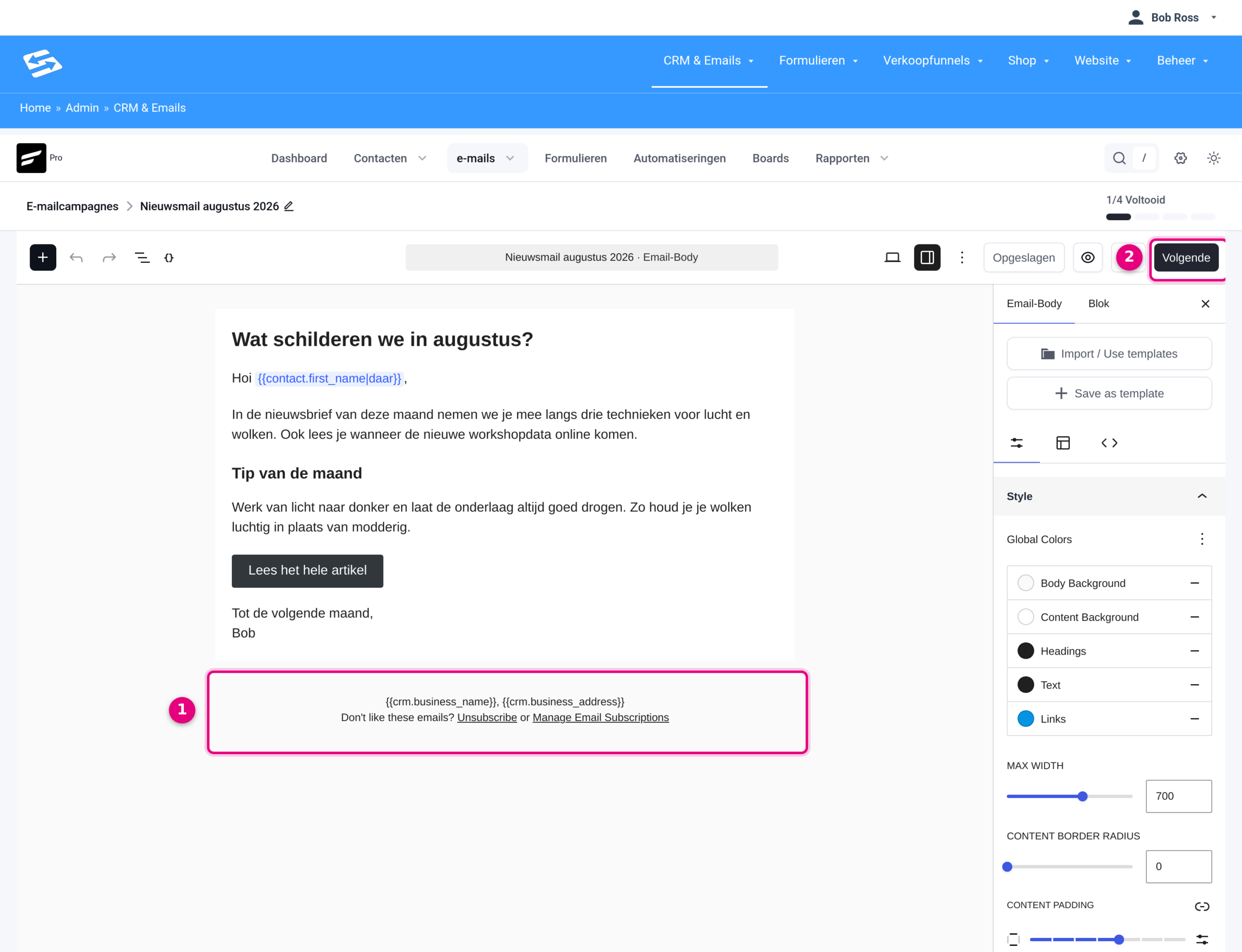
- The footer under your email. This is a rendering of what your recipient gets at the bottom. Click it to open the footer settings of this email. If there is nothing here, the footer has been switched off for this email (see cause 3).
- Next: takes you to the next step of your campaign, where you choose the recipients and the send moment. To the left of it you see the save status, the eye for a preview and the button to make the editor full screen.
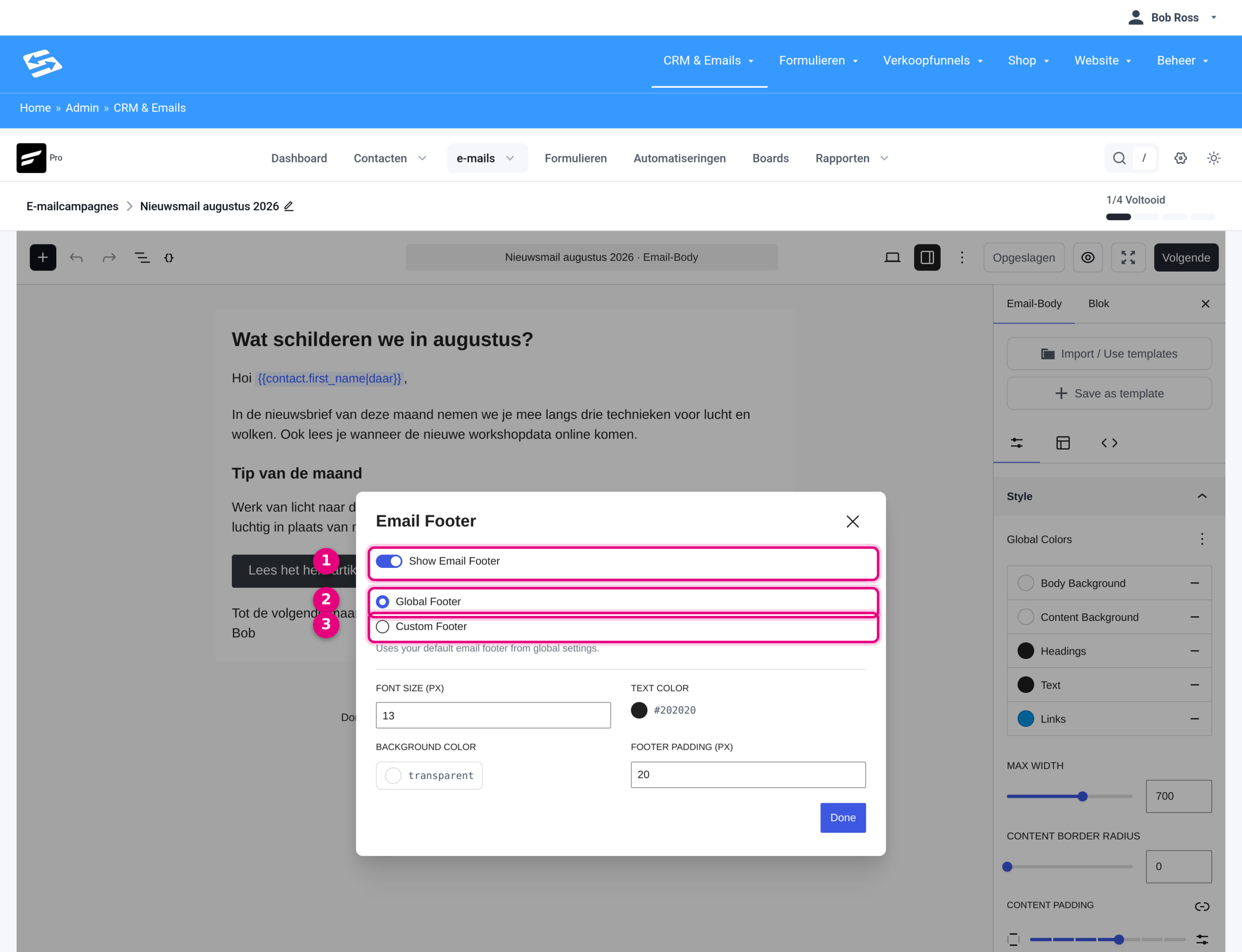
- Show Email Footer: if this switch is off, the email goes out without a footer and without an unsubscribe link. For an ordinary mailing you leave it on.
- Global Footer: the email uses the global footer from your settings. This is the setting you want. Below it, a confirmation says that the default footer from the global settings is used.
- Custom Footer: the email gets its own footer and ignores the global one. Below the choice are the styling fields for font size, text colour, background colour and the space around the footer. Done confirms the window.
If you have several emails from your previous system, go through all of them. The setting sits per email, so fixing one mailing says nothing about the next. To make a migrated email easier to edit at the same time, read Converting a migrated HTML email to the block editor.
Cause 2: the email comes from the Visual builder and is missing the footer shortcode #
What you see: your design looks exactly as you made it, but there is nothing at all below the last blocks. Not even after you have updated the global footer.
Why this happens: in the Visual builder the global footer is not attached under your design automatically. It only appears where you place the shortcode {{crm_global_email_footer}} in the design. If that shortcode is not there, the bottom stays empty. On designs that came across from a previous system, the shortcode is almost always missing.
How to check and fix it:
- Open the campaign or the template and go to the design in the Visual builder.
- Scroll to the bottom of the design and see whether there is a text block with
{{crm_global_email_footer}}in it. - If there is not, drag a text block into the bottom of your design.
- Put only
{{crm_global_email_footer}}into that text block, with no other text around it. - Save the design. From now on your global footer appears in that spot, unsubscribe link included.
The easiest approach is to do this once in the design you keep copying for new mailings. The footer is then in place automatically from that point on. Unsubscribe links in email templates: how shortcodes and footers work explains which other shortcodes exist and what they do.
Cause 3: the footer has been switched off for this email #
What you see: the bottom of your email is empty and stays empty, even after you have adjusted the global footer and set the email to use it. In the block editor you also see no footer block below your email.
Why this happens: you can switch the footer off entirely per email. That is meant for emails that deliberately should not carry one. If that switch is on by accident, the email goes out without a footer and without an unsubscribe link.
How to check and fix it in the Visual builder, the classic editor or raw HTML:
- Open the email or the template and click the cog at Email body.
- Stay on the Global settings tab.
- Look at Disable default email footer. The explanation below it is blunt: if you tick this, the email is sent without a footer, unsubscribe link and all.
- Untick the box and click Update settings.
- Save the email or the template.
How to check and fix it in the block editor: open the campaign, click Edit email body and click the footer at the bottom. In the Email Footer window, switch Show Email Footer on and click Done. If there is no footer at the bottom of your email to click at all, this is precisely the setting at work.
Cause 4: the email is marked as transactional #
What you see: one individual email you sent from a contact arrives without a footer and without an unsubscribe link, while your ordinary mailings have them.
Why this happens: an email can be marked as transactional. Transactional emails are messages that belong to an action, such as a confirmation or an invoice. They deliberately get no footer and no unsubscribe link, because you cannot unsubscribe from your own order confirmation.
How to find the tick box:
- Go to CRM & Emails → Contacts and open the contact.
- Click the emails tab.
- Click Send email. The Send custom email window opens.
- Scroll down in that window, past the layout area.
- There you find the tick box Mark this as a transactional email. Leave it unticked if you want the footer and the unsubscribe link to be included.
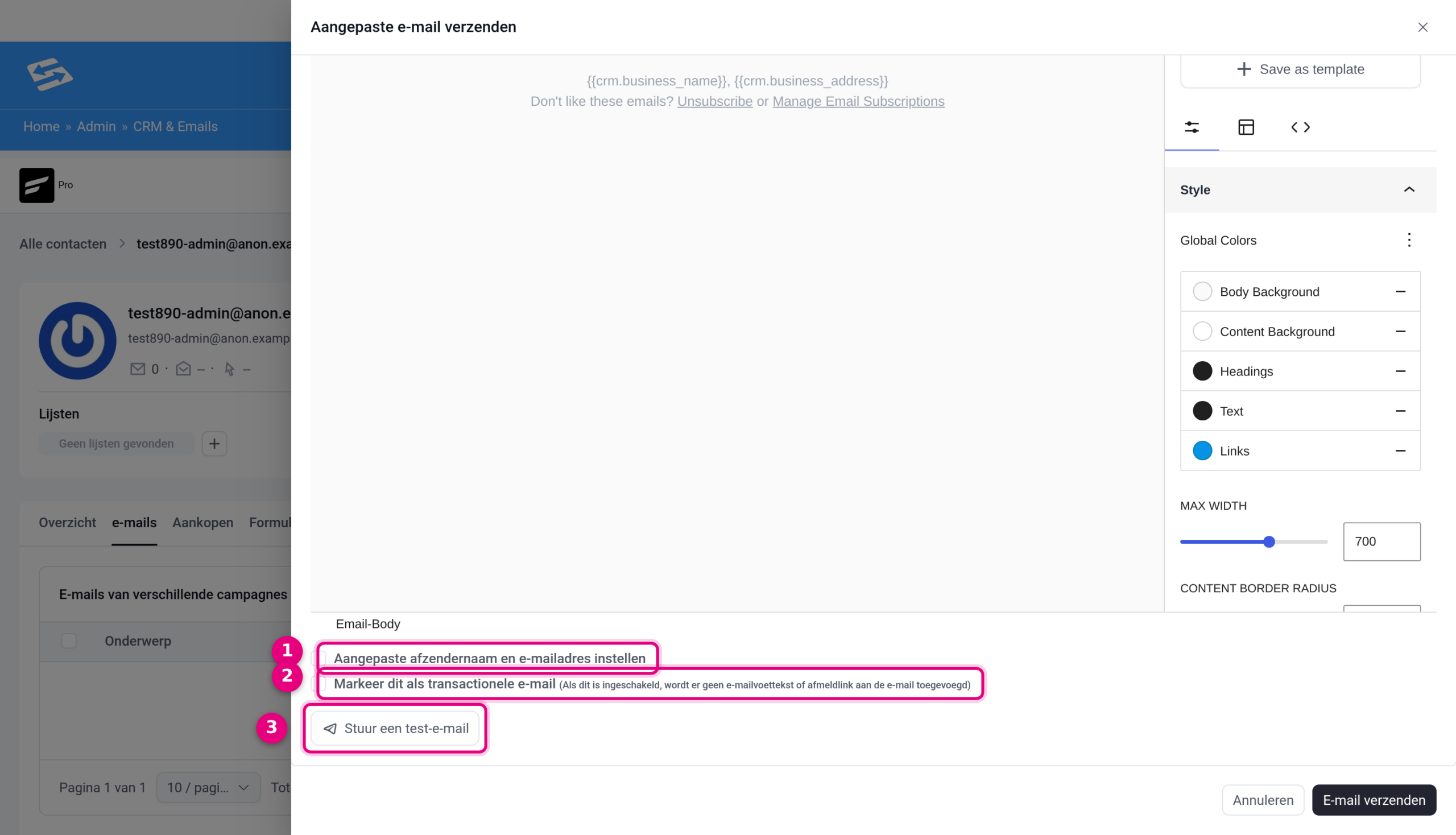
- Set a custom sender name and email address: sends this one email from a different name or address than your default sender.
- Mark this as a transactional email: the explanation sits right beside it. If this box is ticked, no email footer and no unsubscribe link are added to the email.
- Send a test email: sends the email to yourself first as a check. At the bottom right are Cancel and Send email, which sends the email to the contact for real.
Never mark an ordinary newsletter or offer as transactional. Commercial email should carry the unsubscribe link underneath it.
Cause 5: the email went to a loose address that is not a contact #
What you see: the footer is missing for one specific recipient, while other recipients of the same mailing do have it. Often it is an address of your own or of a colleague, where the email went as a notification or a check.
Why this happens: the unsubscribe link is personal. It belongs to a contact in your CRM, so that the recipient can unsubscribe with one click. If an email goes to a loose address that is not a contact, there is nothing personal to build, so the footer with the unsubscribe link stays away.
How to check and fix it:
- Go to CRM & Emails → Contacts and search on the email address of the recipient who is missing the footer.
- If you cannot find the address, that is your explanation.
- Add the address as a contact if you want the footer to appear underneath after all.
- If it is an internal notification to yourself, nothing needs to happen. Your real recipients get the footer as normal.
Good to know #
- The unsubscribe link does not work in a test email. A test email is not tied to a real recipient, so always judge the unsubscribe link in a real send to a test contact.
- Transactional emails should not have an unsubscribe link. If the footer is missing under a confirmation or an invoice email, that is the intended behaviour and you do not need to change anything.
- If you adjust the global footer, that carries through immediately into emails that use the global footer, including campaigns already queued to be sent. Emails from an automation that have already been prepared for a contact still keep the old version.
- If you set an email back to the global footer, check the rest of your mailings while you are at it. The setting sits per email, so it can be wrong on more of them.


