Do you sell digital or virtual products, such as courses, e-books or services? Then nothing has to be packed or shipped after the payment. That is why every Autorespond site has the workflow “Order status ‘Completed’ after payment” switched on by default: every paid order goes straight through to the final status Completed, without you having to do anything for it. This article explains what this workflow does exactly, which emails your customer receives as a result and when you would want to switch it off.
Shop Workflows in Autorespond are based on AutomateWoo, included in your package. Read the AutomateWoo documentation
What does this workflow do? #
Without this workflow your shop follows the standard route for physical webshops: a paid order gets the status Processing and stays there until the shop owner sets it to Completed by hand, for example after sending the parcel. For knowledge sellers that intermediate step is unnecessary. The workflow “Order status ‘Completed’ after payment” does that manual work automatically: as soon as an order is paid, the status is changed to Completed straight away.
That applies to every route by which an order gets paid:
- A successful online payment (iDEAL, for instance): the order goes to Processing and moves to Completed automatically a few seconds later.
- A bank transfer order that you move from On hold to Processing by hand once the amount has come in: the workflow takes that one straight through to Completed as well.
- An order that is On hold and has not been paid yet simply stays there: the workflow only responds at the moment an order becomes paid.
Which emails does your customer receive? #
The status emails of the shop keep working as normal. Because the order makes two transitions (to Processing and immediately afterwards to Completed), your customer receives two emails shortly after each other: first the “Order processing” email and immediately after that the “Order completed and/or shipped” email. You receive one “New order” notification, as always. If you want your customer to receive only one confirmation, switch off one of the two customer emails through Shop → Shop settings → Emails tab. Which email belongs to which status is explained in The order statuses of your shop explained.
Where do you find the workflow? #
Go to Shop → Shop Workflows. The workflow is there in the overview, with the toggle on the right set to active.
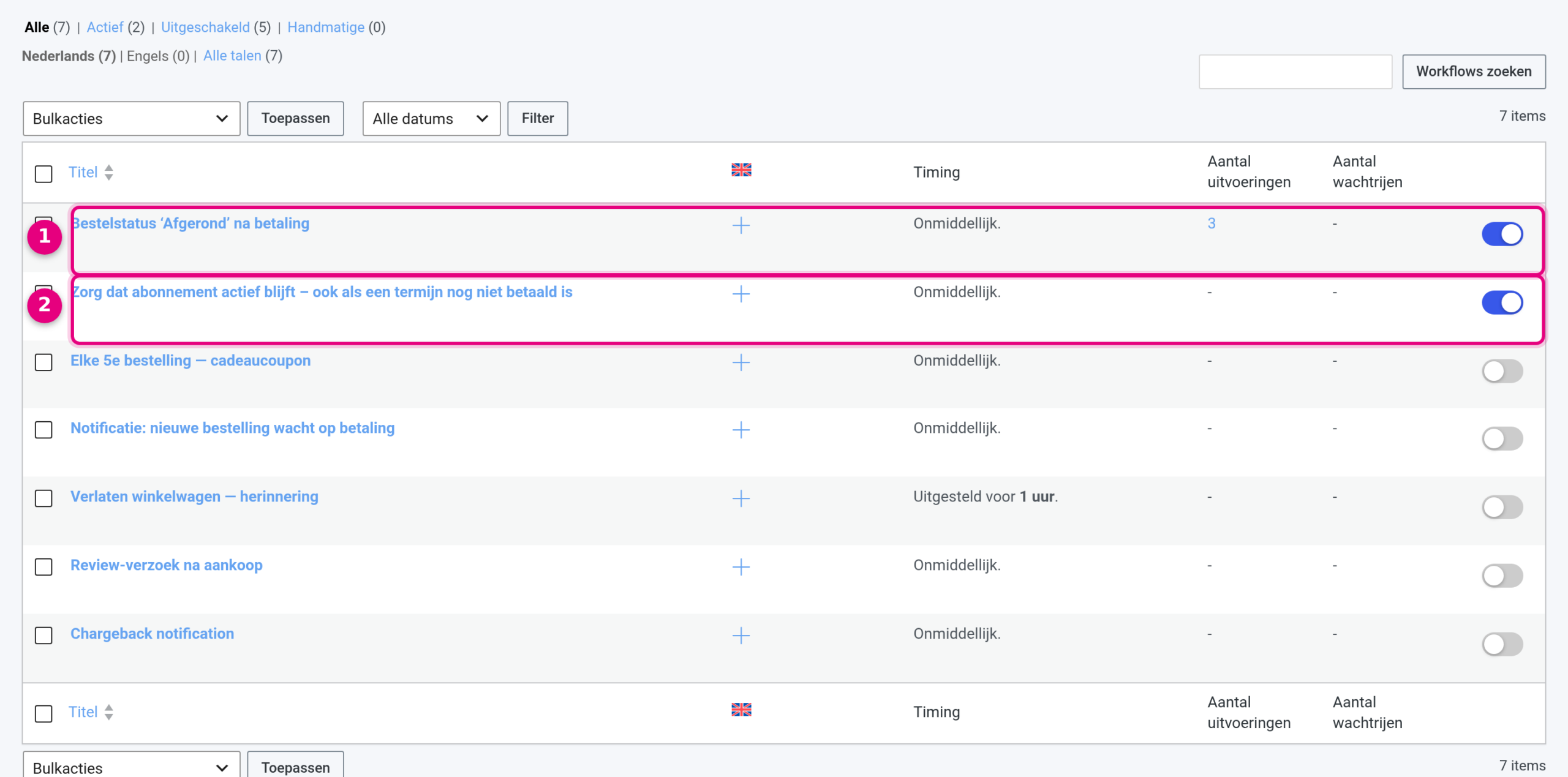
- The workflow Order status ‘Completed’ after payment: on the right, the blue toggle shows that it is active. The Run count column counts how often it has already run, so that counter also tells you whether it is doing its job.
- The second standard workflow, Keep the subscription active – even if an instalment has not been paid yet, should be switched on as well; we explain that one in the article about subscriptions in the related articles below.
If you open the workflow, you see how it is built up:
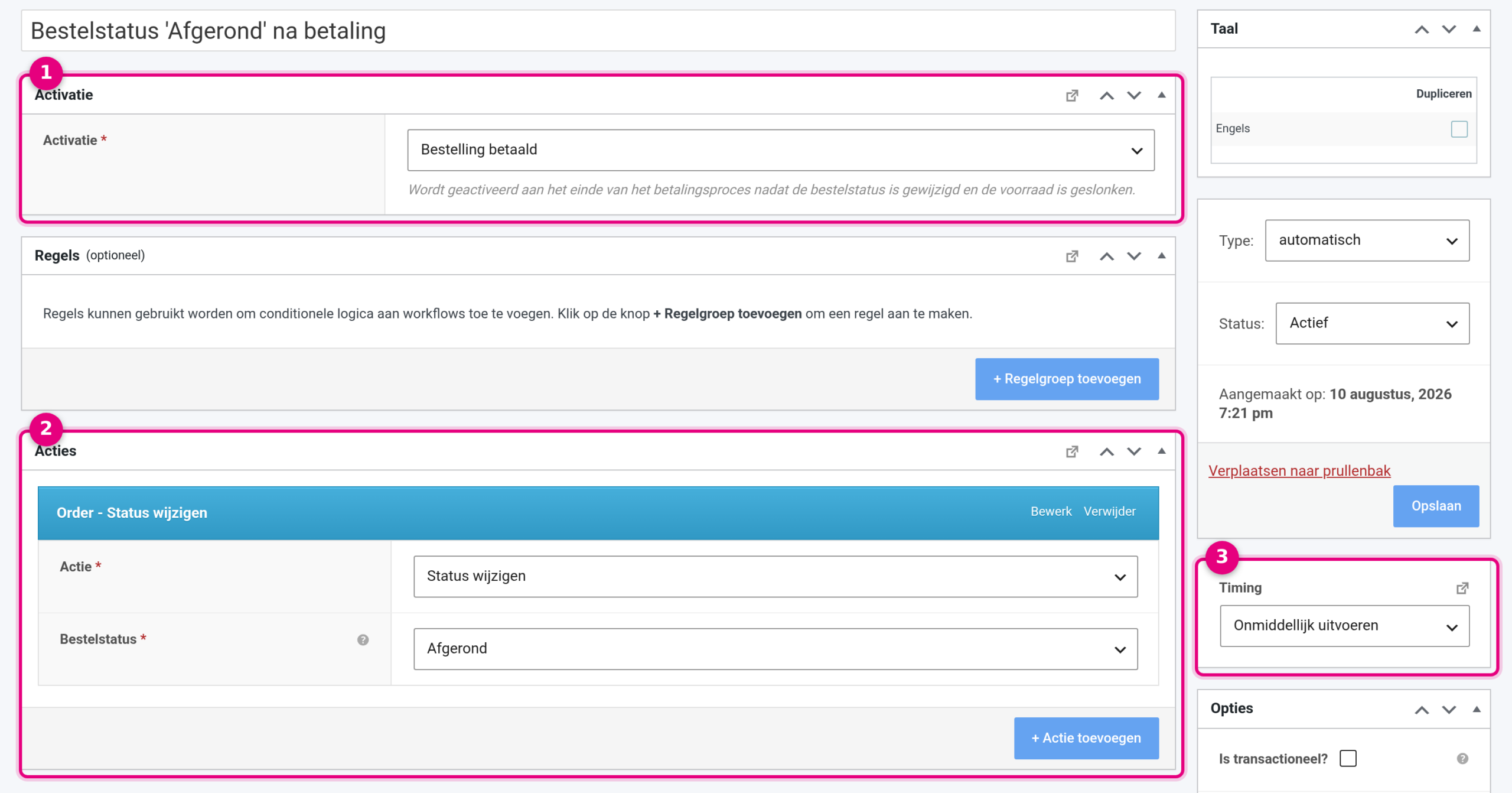
- Trigger: “Order paid”. This trigger fires at the end of the payment process, after the order status has been changed and the stock has been updated.
- Actions: “Order – Change status” with Change status as the action and Completed as the order status. No extra rules have been set, so this applies to every paid order.
- Timing: Run immediately. In the sidebar the workflow is set to Type automatic and Status active.
When do you switch it off? #
Do you send physical products that you have to pack and ship? Then you do want to use Processing as your work queue: paid means Processing, and only after shipping do you set the order to Completed yourself. In that case, switch the workflow off:
- Go to Shop → Shop Workflows.
- Click the blue toggle behind “Order status ‘Completed’ after payment”. The toggle turns grey and the workflow no longer does anything.
- From that moment on, paid orders stay on Processing until you complete them yourself from the order (Status field → Completed → Update).
When switching it off, bear in mind that automations running on the trigger “Order completed” (such as access to a course) will then only start at the moment you complete the order by hand.


