Sending a file with your email through a download link #
Do you want to send a PDF, a workbook or another file with your newsletter or campaign? In Autorespond you do not add an attachment to your email, you share the file through a download link. You upload the file once in the Media Library, copy the URL and place it in your email as a link or a button. This article takes you through those three steps.
Email marketing in Autorespond is based on FluentCRM, which is included in your package.
Why no attachments? #
In the old e-act system you could attach a file to your mailing. In Autorespond that option was deliberately left out. Emails with attachments are heavier and end up in the spam filter more easily, certainly with larger sends. A download link keeps your email light, improves deliverability, and has the added benefit that clicks on the link are measurable in your campaign statistics.
Step 1: upload your file to the Media Library #
In the menu, go to Website → Media Library.
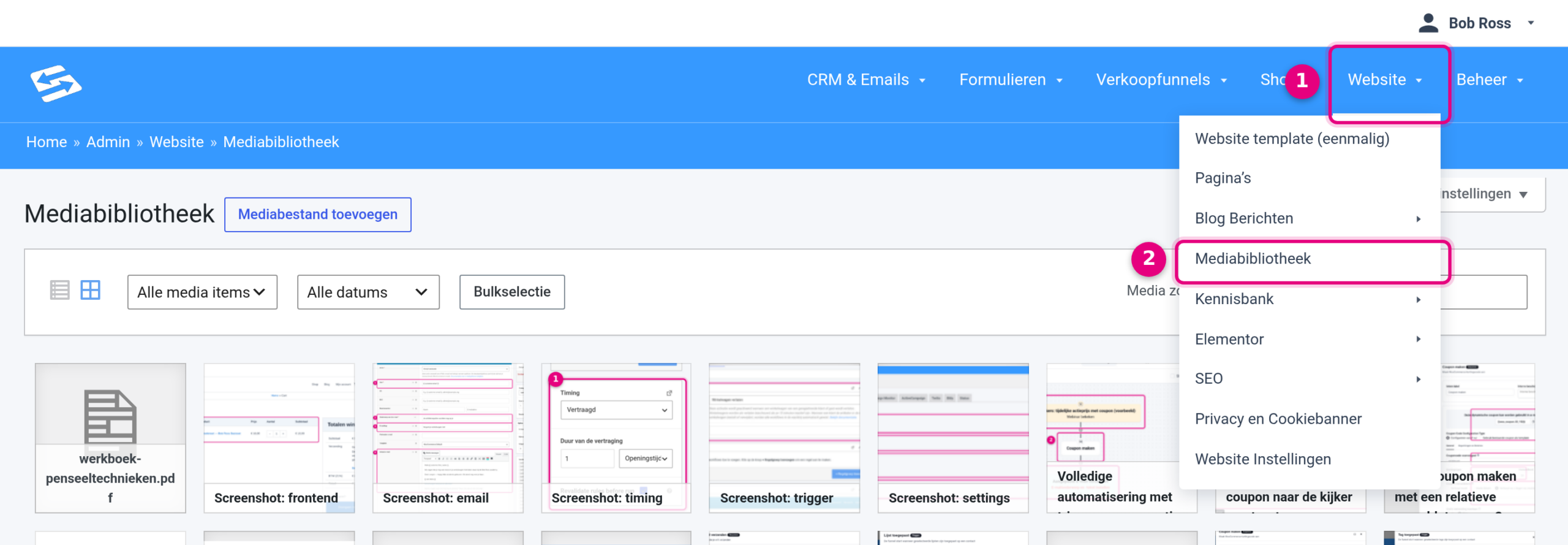
- Click Website in the menu bar.
- Choose Media Library. This holds every file you have uploaded: images, but also PDFs and other documents.
Now upload your file:
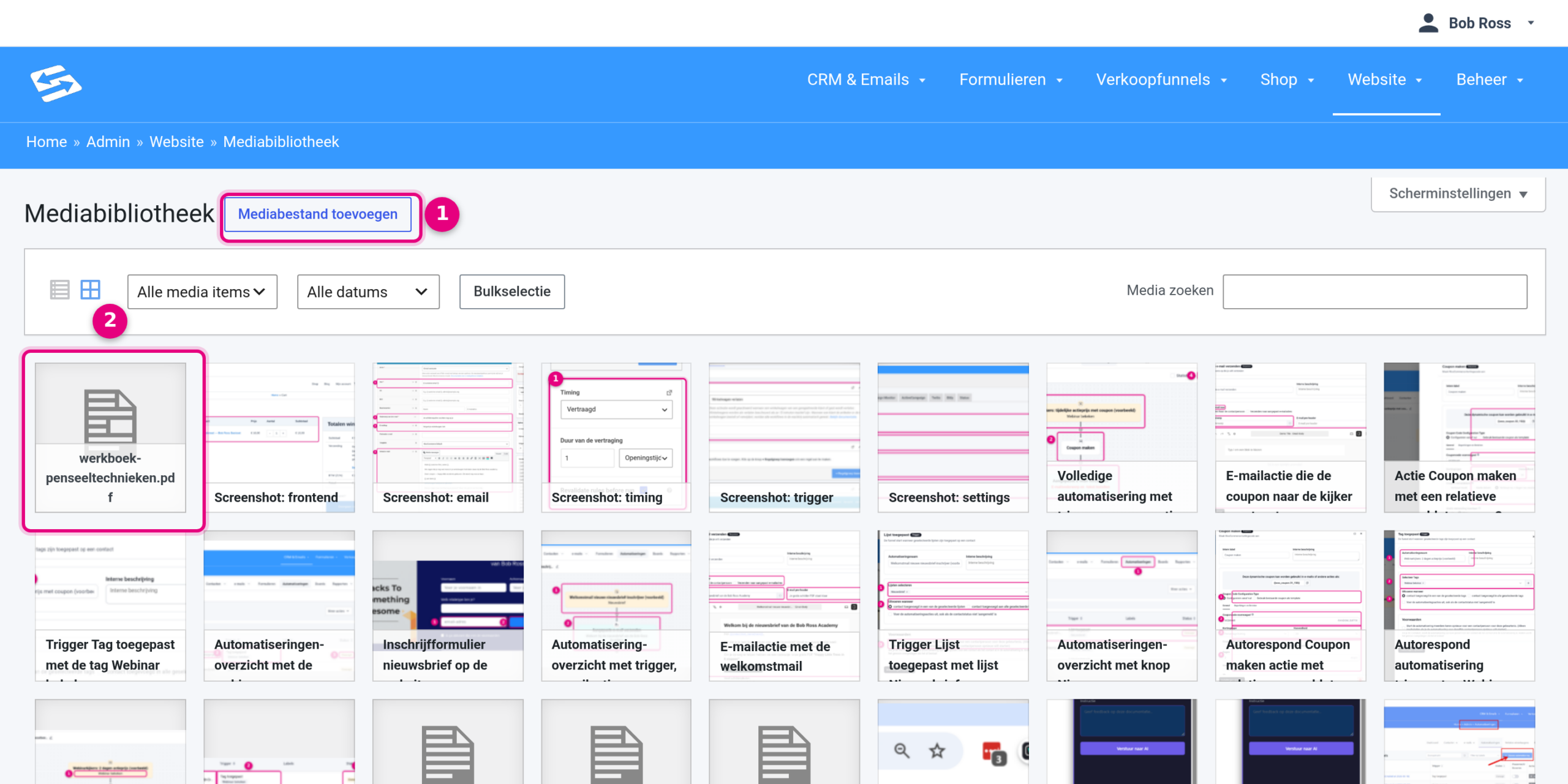
- Add media file: click this button and drag your file into the upload area, or click Select files to choose it from your computer.
- After uploading, your file appears at the top of the overview. In this example that is a PDF containing a workbook.
Step 2: copy the URL of the file #
Click your file in the Media Library. The Attachment details panel opens.
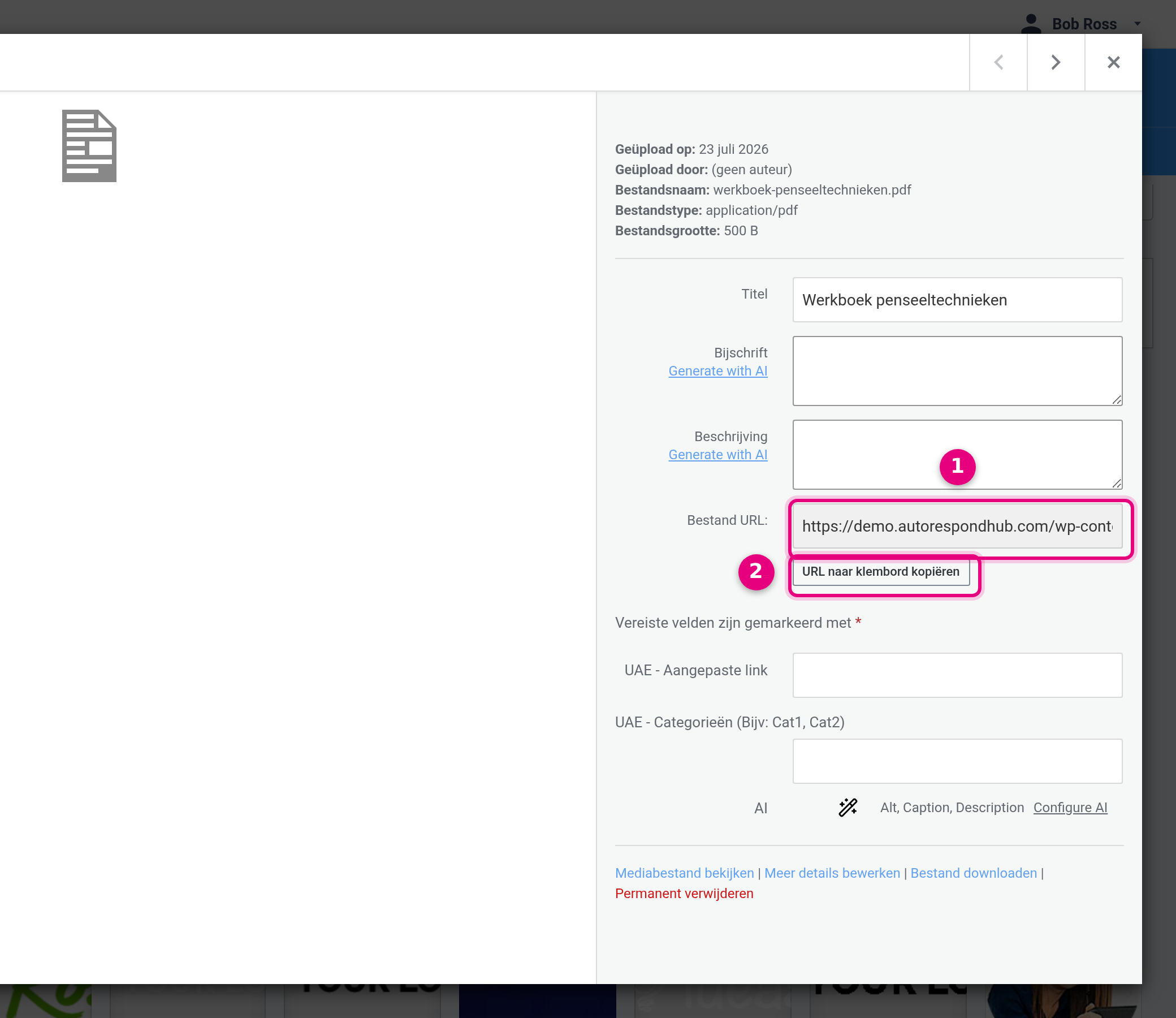
- File URL: this is the full download link to your file.
- Copy URL to clipboard: click this button and the link is on your clipboard, ready to paste.
Step 3: place the link in your email #
Open your campaign, email sequence or template in the email editor and type the text that should become clickable, for example “Download the workbook here (PDF)”. Select the text and press Ctrl+K (Mac: Cmd+K), or click the link icon in the toolbar of the text block.
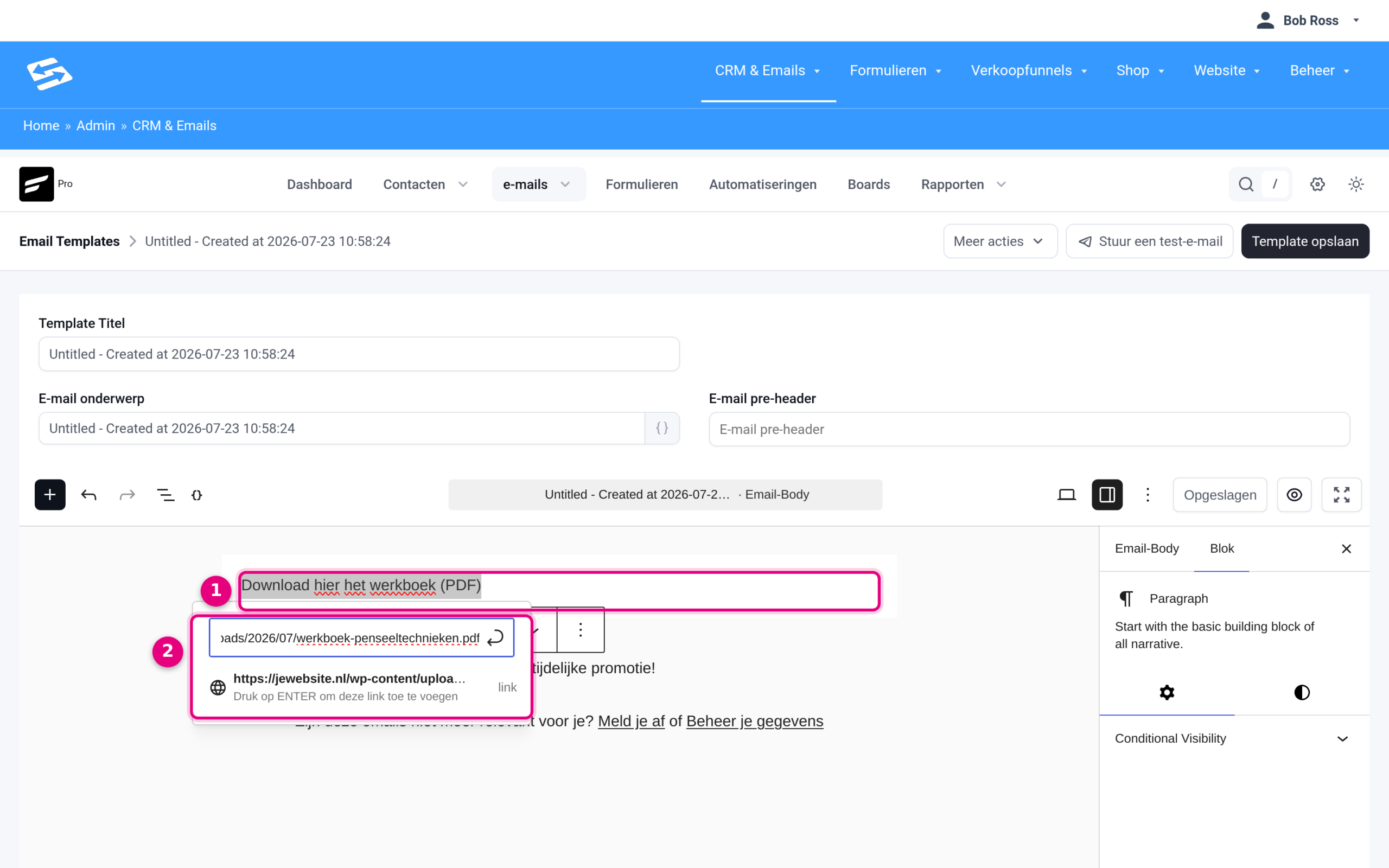
- Selected text: this text becomes the clickable download link in your email.
- Link field: paste the copied file URL here and press Enter to add the link.
Would you rather have a prominent button than a text link? Add a Buttons block through the block inserter (+), type the button text and paste the file URL into the link field of the button. Everything else works the same way.
Tip: is this a free giveaway that subscribers receive after completing a form? Then you can also have the PDF generated automatically, including the subscriber’s own details. Read how that works in Generating and sending a free PDF automatically after a form sign-up.
Good to know #
- Anyone who has the link can download the file. The Media Library is public, so do not put confidential or personal data in it.
- If you later replace the file by uploading a new version with the same name, that version gets a new URL. In that case, update the link in your emails and automations too.
- Clicks on the download link appear in the statistics of your campaign, so you know how many recipients requested the file.


