Do you want your logo and menu to fall seamlessly over your page banner or hero image, without a separate bar above it? Then you use a transparent header. The header gets a see-through background and the content of your page moves up underneath it, so that the header and your image blend into each other.
The transparent header in Autorespond is based on the Astra Pro website theme, included in your package. Read the Astra documentation
What a transparent header does #
A transparent header sets the background of your top bar to see-through and pulls the content of your page upwards. As a result, your header and the top part of your page merge: your logo and menu sit over your image, video or coloured heading instead of in a separate bar above it.
This creates a clean, modern effect that works particularly well on landing pages, portfolio pages or coaching pages with a large hero image. On pages that start at the top with text or a white background, a transparent header is usually less useful. More about that further on.
Setting up the transparent header #
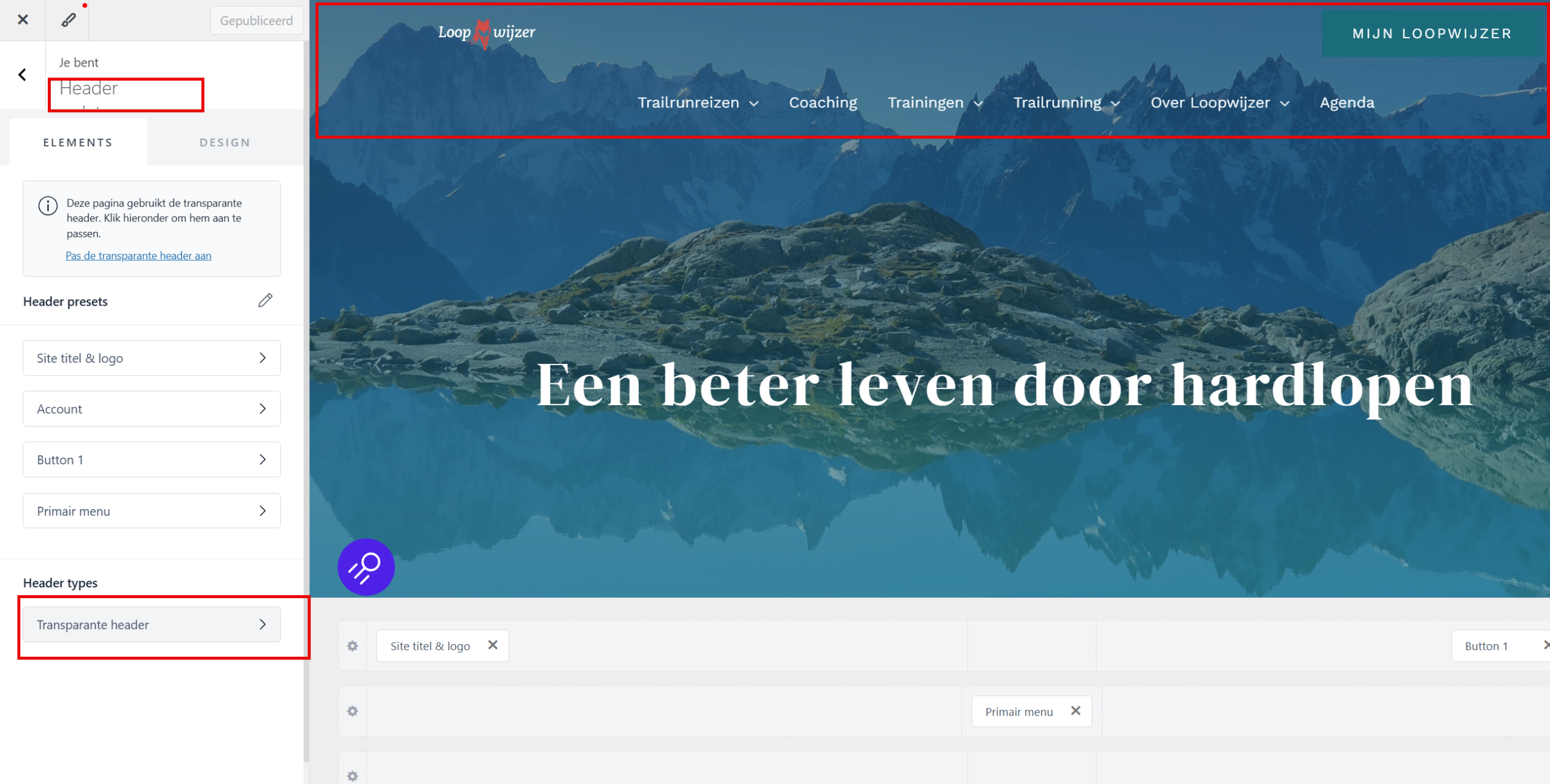
You set the transparent header centrally through the Customizer. You can switch it on as the default if you like: from that moment the setting applies to your whole website, with the option to exclude certain pages. You can also leave it switched off and only switch it on for specific pages (see the heading below)
- In the dashboard, go to Website → Website Settings to open the Customizer.
- Open the Header panel and click Transparent header at the bottom under Header types.
- Switch the option on to show the transparent header on your whole website and choose whether this applies to desktop, mobile or both.
- Set exceptions if you want. You can switch the transparent header off separately on your blog page, search results, the 404 page, all regular pages, all posts or your product pages.
- Do you want a different logo on the transparent header? Then set a different logo and the logo width you want. On the Design tab you adjust the colours of, among other things, the background, the site title, the menu and the buttons.
- Click Publish to apply your changes.
The colour settings on the Design tab matter: because your header now falls over your image, you usually choose a light or dark text colour that stays easy to read against the background underneath. Do you also want to change the logo in your header? Then read how to change the logo in your website header.
Setting or switching off the transparent header per page #
Sometimes you want the transparent header on most pages, but specifically not on one particular page, or the other way around. You arrange that per page, and that choice always takes precedence over the general setting from the Customizer.
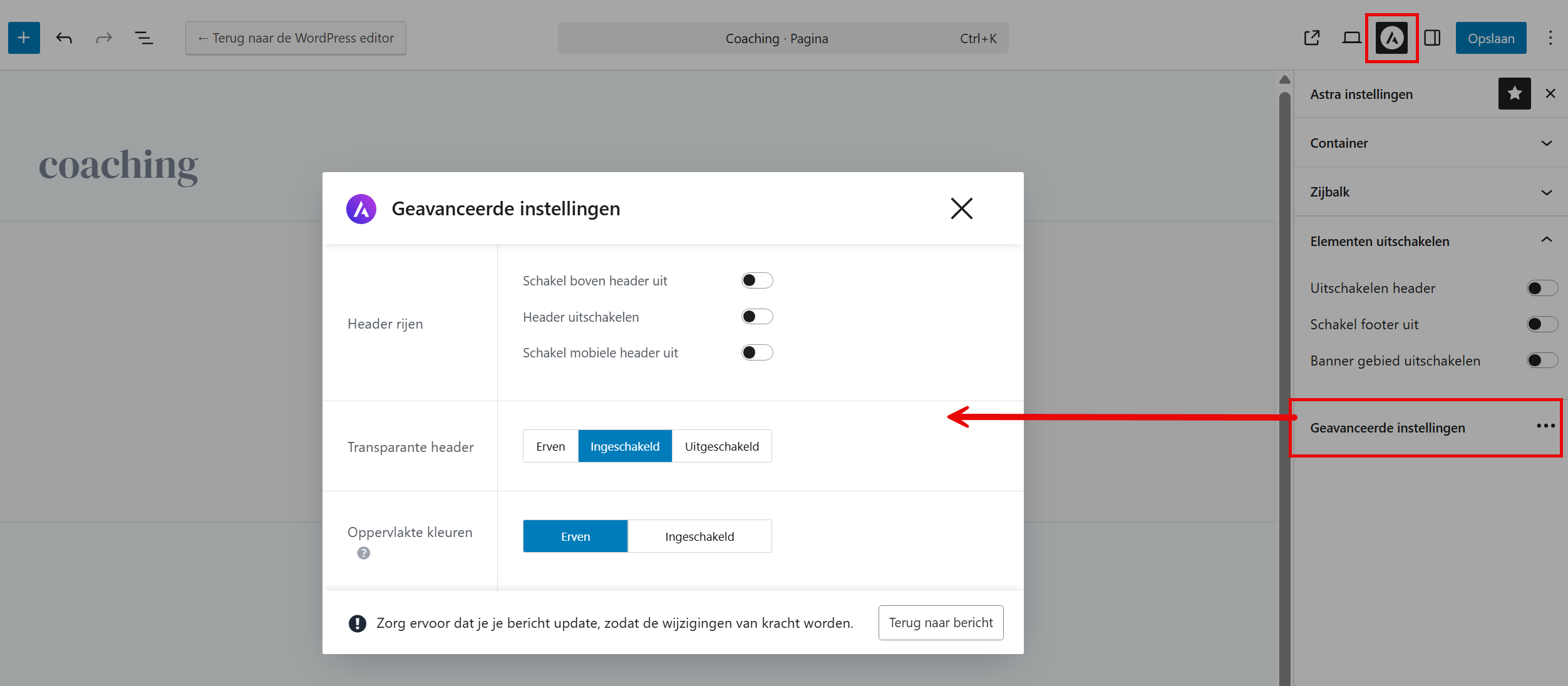
- Open the page or post you want to change through Website → Pages.
- Click the settings icon of the theme in the top right (the round icon with the letter A) and open Advanced settings.
- Under Transparent header, choose one of the three options:
- Inherit: the page follows the general setting from the Customizer. This is the default.
- Enabled: force the transparent header on for this page, even if it is switched off in general.
- Disabled: force the transparent header off for this page, even if it is switched on in general.
Then update the page or click Save, so that the change takes effect.
In the same window you will find a few more handy options: you can switch off the entire header, the top header row or only the mobile header per page. Under Surface colours you can also set different colours for this specific page.
When to use a transparent header #
A transparent header comes into its own best in these situations:
- A landing page with a full-screen hero image or video that your logo and menu should fall over.
- Coaching, portfolio or event pages with a large heading at the top.
- A clean design in which you do not want a visible bar at the top of the page.
Mind the readability: if a page starts at the top with text or a white background, your logo and menu may disappear from view. In that case set the transparent header to Disabled on such a page, or adjust the colours so that everything stays clearly visible.
Do you not see your change on your website straight away? Then clear the cache through Administration → Cache toolbox first and refresh the page.
Frequently asked questions #
What is a transparent header? #
A transparent header is a top bar with a see-through background. Your logo and menu then fall over the content of your page, such as a large image or video, instead of sitting in a separate coloured bar above it. That gives your website a clean, modern effect.
How do I switch the transparent header off on one page? #
Open the page in the editor, click the settings icon of the theme in the top right and go to Advanced settings. Under Transparent header, choose Disabled and update the page. This choice per page takes precedence over the general setting.
Why are my logo and menu hard to read with a transparent header? #
Because the header now sits over your page content, the background underneath determines the readability. On the Design tab, choose a text and menu colour that contrasts with your image or background, or switch the transparent header off on pages with a light top.
Does the setting per page take precedence over the general setting? #
Yes. A setting you choose per page (Enabled or Disabled) always takes precedence over the general setting in the Customizer. If you choose Inherit per page, the page does follow the general setting of your website.


