Sometimes you do not want to give a customer a discount straight away, but only after a number of renewals. Think of a loyalty discount that starts automatically after the first year, or a price you want to adjust in stages as a subscription runs longer. You do not arrange that with a fixed coupon at sign-up, but with an automated workflow that adds a coupon to the running subscription at the right moment.
This feature is based on AutomateWoo. Read the AutomateWoo documentation, included in the shop extension with Autorespond
The Shop & Sales funnels extension is an optional extension you can add to your Autorespond package. This extension adds the complete webshop functionality, including subscriptions, sales funnels and shop automation. More information about this extension
How it works #
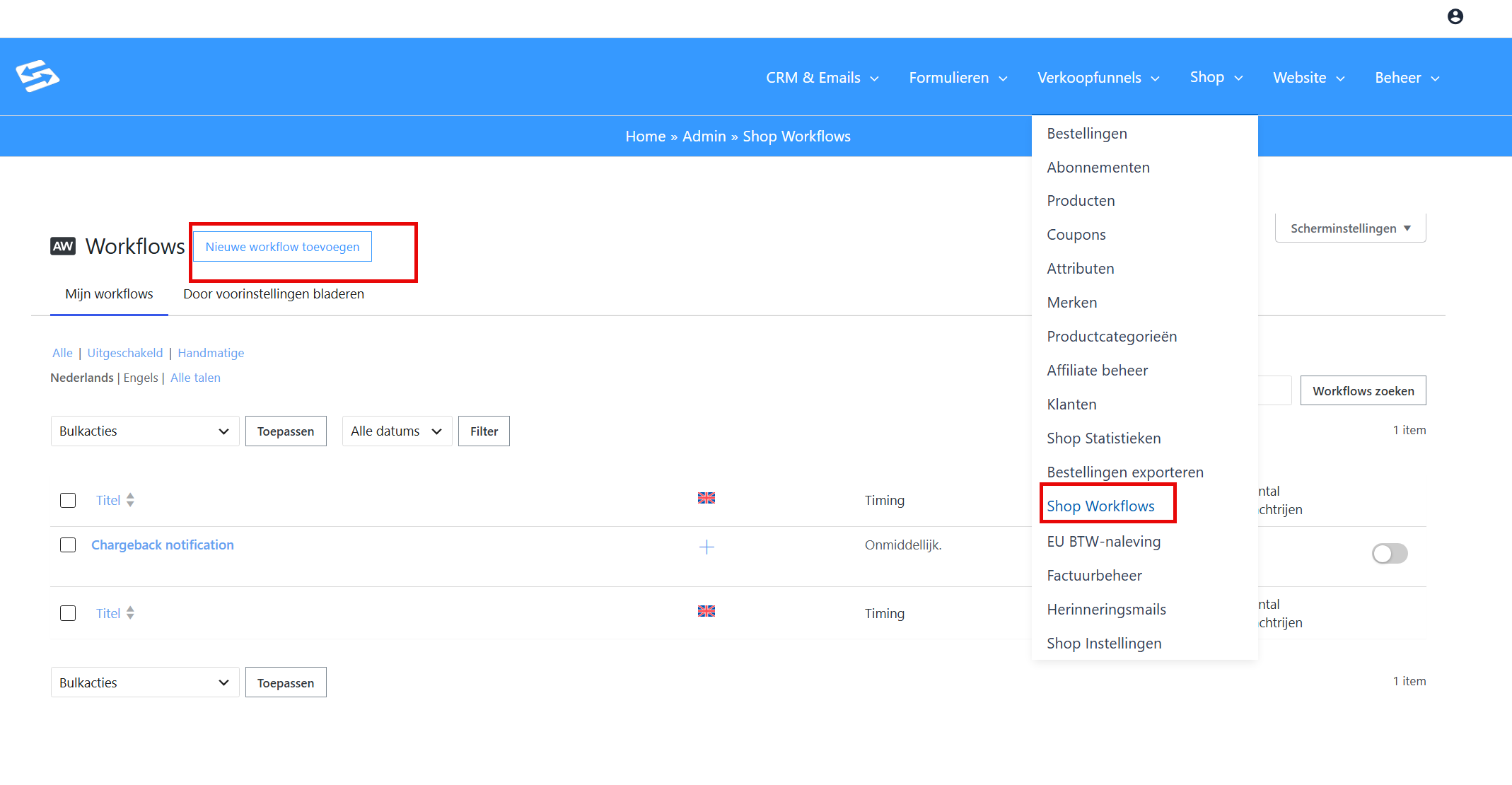
Through the menu Shop > Shop Workflows you create a workflow that starts on every renewal payment of a subscription. With a rule you determine at which payment the action may be carried out. The action then adds a coupon to the subscription automatically, so the customer receives that discount on all following renewals.
Make sure you have already created the coupon you want to add before you set up the workflow. To be used in a workflow, the coupon must be of the type ‘Recurring’. How to set up such a coupon is explained in the article ‘Setting up a recurring discount with a coupon‘.
Example: adding a loyalty coupon at the twelfth renewal #
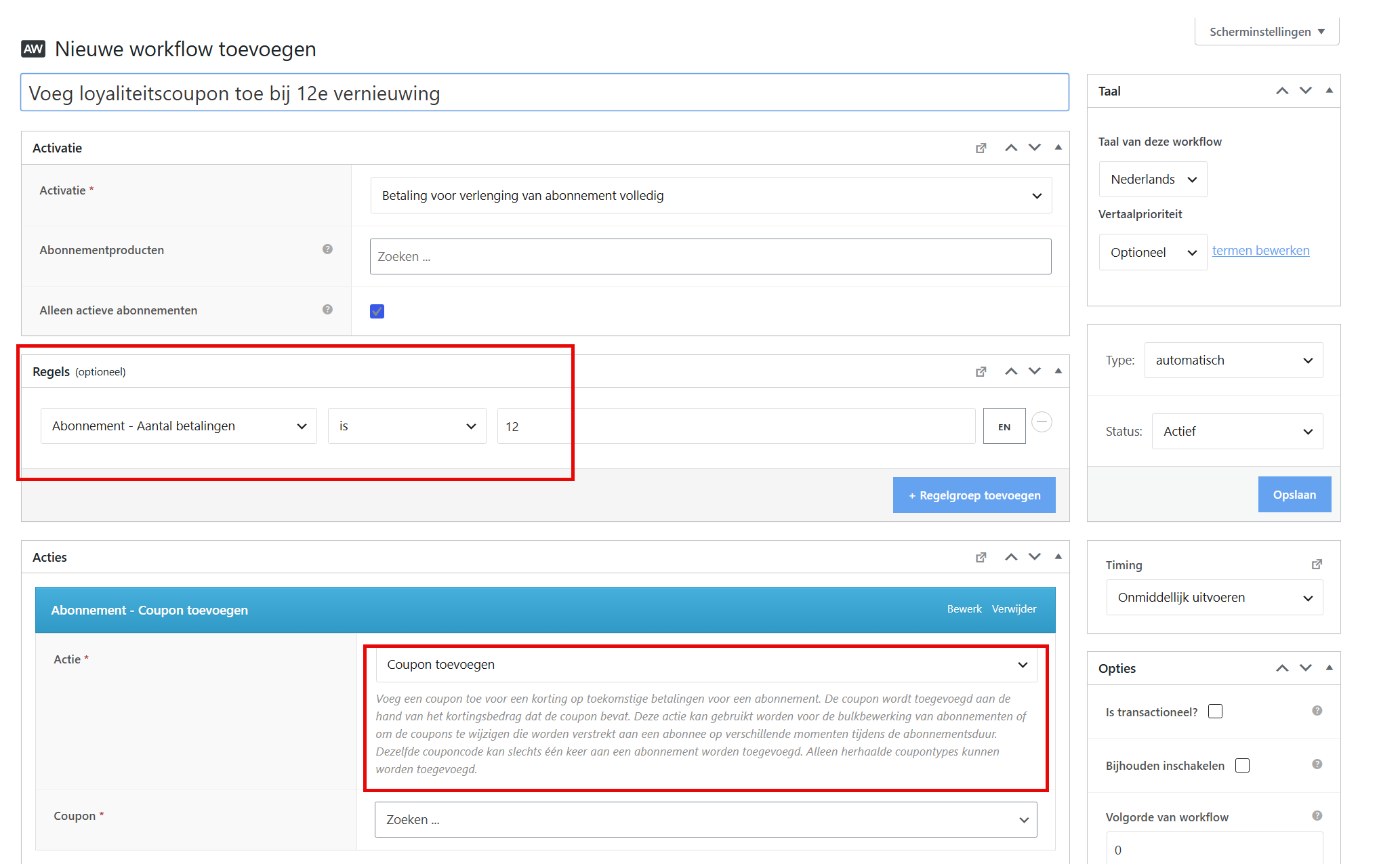
In this example you automatically add a coupon at the moment a customer pays for the twelfth time, which amounts to a full year of a monthly subscription. Go to Shop → Shop Workflows and click ‘Add new workflow’. Give the workflow a recognisable name, for example Add loyalty coupon at 12th renewal.
Step 1 – Setting the trigger #
Under ‘Trigger’, choose Subscription renewal payment complete. The workflow then starts every time a renewal payment is processed. If you like, tick ‘Active subscriptions only’ to limit the workflow to subscriptions that are still active.
Step 2 – Adding a rule #
Under ‘Rules’, add a new rule and set: Subscription – Payment count is 12. Without this rule the coupon is added at every renewal. With this rule the action is only carried out at the moment the twelfth payment is processed.
Step 3 – Setting the action #
Under ‘Actions’, add the action Subscription – Add coupon. Set ‘Action’ to Add coupon and select the recurring coupon you want to attach to the subscription under ‘Coupon’.
Step 4 – Activating the workflow #
Set ‘Status’ to Active and click ‘Save’. The workflow is now active and carries out the action automatically at the next twelfth renewal payment.
Important to know #
Only coupons of the type ‘Recurring’ can be added to a subscription through a workflow. A one-off or fixed discount code does not work for this. In addition, the same coupon code can only be added to the same subscription once, so running the workflow again at a later moment has no effect if the coupon is already attached.
Other uses #
The same approach also works for a staged price. By setting up several workflows on different payment counts, each with a different coupon, you can let the effective price rise or fall step by step as a subscription runs longer.
Would you rather have a welcome discount stop automatically after a fixed number of terms? Then the field ‘Active for x payments’ on the coupon itself is usually the simplest route. That is explained in the article ‘A discount for only the first terms of a subscription‘.
Do you also want a coupon to be applied automatically at the sign-up itself? You can read about that in the article Applying a coupon automatically.
Frequently asked questions #
Can I use any coupon in a workflow for subscriptions? #
No, only coupons of the type ‘Recurring’ can be added to a subscription through a workflow. A one-off discount code does not work in this type of action. Create the coupon first under Shop → Coupons before you set up the workflow.
What happens if the workflow runs twice for the same subscription? #
The same coupon code can only be attached to a subscription once. If the workflow runs again for a subscription that already has the coupon, this has no effect. The discount simply stays active.
Can I also have a discount removed automatically after a number of renewals? #
Yes, you can do that with a second workflow using the same trigger logic. Use the action ‘Subscription – Add coupon’ with ‘Action’ set to ‘Remove coupon’ and set the payment count you want in the rule. You can also use the field ‘Active for x payments’ on the coupon itself if you want the discount to stop after a fixed number of terms.
Does the workflow also apply to existing subscriptions? #
The workflow only starts at the moment a renewal payment is processed after the workflow has been set to active. Existing subscriptions whose twelfth payment already took place in the past are not processed retroactively.


