You want to attract new subscribers with an appealing starting offer: a discount for the first three months, then the normal rate. That is exactly what you set up with a recurring coupon for which you limit the number of terms. After that number of payments the system removes the coupon automatically and from then on the customer pays the full amount, without you having to do anything.
This function is based on WooCommerce Subscriptions. Read the WooCommerce Subscriptions documentation, included in the shop extension with Autorespond
The Shop & Sales Funnels extension is an optional extension that you can add to your Autorespond package. This extension adds a complete webshop, subscription management and sales funnels to your environment. More information about this extension
How it works #
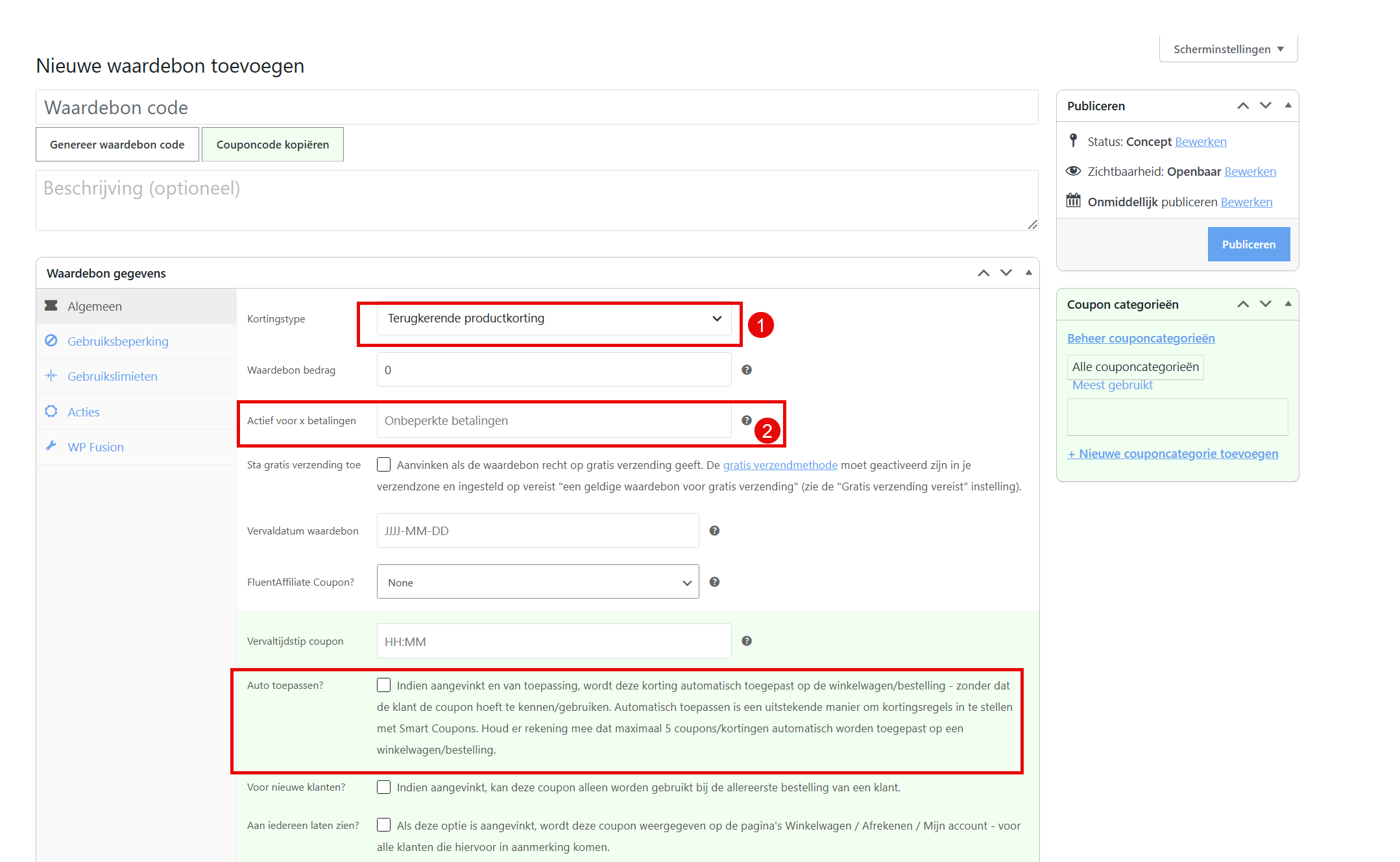
This builds on an ordinary recurring coupon. The basic steps, creating the coupon, choosing the discount type and entering the amount or percentage, are described in the article Setting up a recurring discount with a coupon. Go to Shop and open Coupons, under Discount type choose Recurring product discount or Recurring product % discount, and under Coupon amount enter the amount or percentage.
The only difference from an ordinary recurring coupon is in one field: Active for x payments. Normally you leave this field empty, so that the discount keeps applying for as long as the subscription is active. For a welcome discount you enter the number of terms you want here, for example 3 for the first three payments. As soon as that number is reached, the coupon is removed from the subscription automatically and the customer pays the full rate from the next renewal onwards.
Setting it up step by step #
- Go to Shop and open Coupons.
- Create a new coupon or open an existing recurring coupon.
- Under Discount type choose Recurring product discount or Recurring product % discount.
- Under Coupon amount enter the discount amount or the percentage.
- Under Active for x payments enter the number of terms for which the discount should apply, for example 3.
- Save the coupon.
Do you want the customer to get the discount automatically without entering a code? That is set up separately. See the article Applying a coupon automatically for how it works.
Important: how are the terms counted? #
Whether the very first payment counts towards the number depends on how the subscription is set up.
- No trial period and no future start date: the first payment counts. With a setting of 3 this means: the sign-up payment plus two renewals.
- A trial period or a later start date: the first payment falls outside the trial period or lies in the future. The counting then only starts at the first renewal.
Do you want to be sure the discount stops at exactly the right moment? Then place a test order with a subscription that has a short billing period, for example daily or weekly, so you can quickly check at which moment the coupon is removed. After that you can adjust the number of terms if needed.
Frequently asked questions #
What happens after the last discounted term? #
The coupon is removed from the subscription automatically as soon as the set number of payments has been reached. The customer automatically pays the full rate at the next renewal. There is nothing you have to do yourself.
Can I set the discount as a percentage or as a fixed amount? #
Both options are available. For the discount type choose Recurring product discount for a fixed amount, or Recurring product % discount for a percentage of the subscription amount.
Does this also work if I leave the ‘Active for x payments’ field empty? #
Yes, but then the discount applies for the full term of the subscription. Only fill in the field if you want the discount to stop after a certain number of terms.
How do I know whether the first payment counts? #
That depends on the subscription settings. If the subscription has no trial period and no future start date, the sign-up payment counts. Place a test order with a short billing period to check this before you take the subscription live.


