Set up a recurring discount with a coupon #
On a subscription, an ordinary coupon — a fixed amount or a percentage — only applies to the first payment. The discount is applied at the moment of sign-up, but on the next renewal the customer simply pays the full price. If you want the discount to come back on every renewal term, choose a recurring discount type. You set that up as follows.
This feature is based on WooCommerce Subscriptions. Read the WooCommerce Subscriptions documentation, included in the shop extension with Autorespond
The webshop functionality, including coupons and subscriptions, is part of the Shop & Sales funnels extension, an optional extension you can add to your Autorespond package. This extension adds the complete webshop, sales funnels and subscription management. More information about this extension
Creating a new coupon #
In the dashboard, go to Shop → Coupons and click Add coupon. At the top, enter a recognisable coupon code. This is the code the customer enters at the checkout to activate the discount. Use something descriptive, such as WELCOME20 or LOYALCUSTOMER, so that you can quickly see what the coupon is for in the overview later on.
Choosing the right discount type #
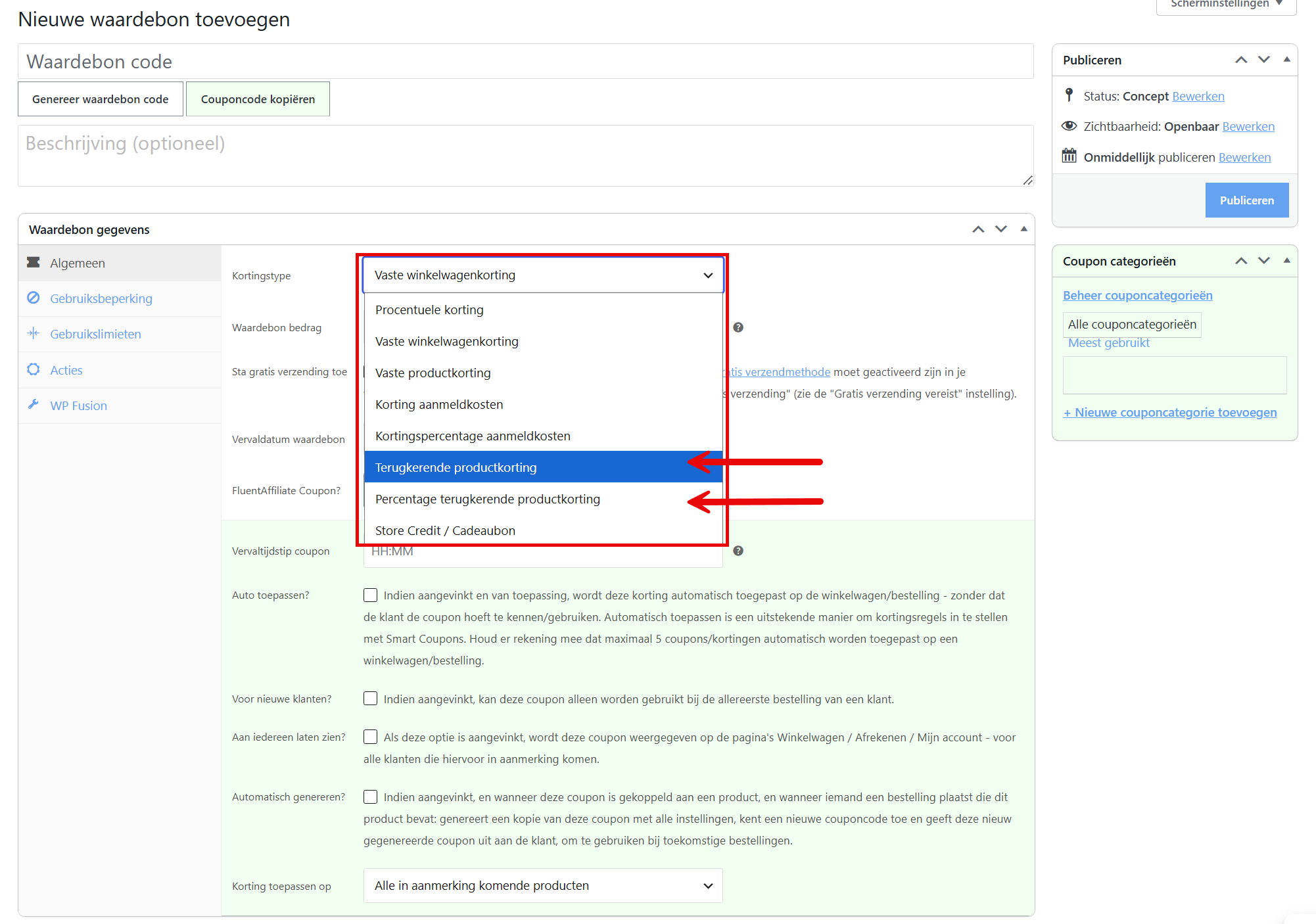
In the Discount type field, choose one of the two recurring types:
- Recurring product discount — a fixed amount that is deducted from the subscription amount on every payment term. The discount always stays the same, regardless of the price of the subscription.
- Recurring product percentage discount — a percentage of the subscription amount. The discount moves with the price: if the subscription amount changes, the discount in euros changes too.
The difference is most noticeable if you ever change the subscription price. A fixed discount coupon of €5 always keeps giving €5 off, even if you make the subscription more expensive later. A percentage of 20% automatically gives more discount if the subscription price goes up. Choose on the basis of what you want to offer: predictable for you, or scaling with your price.
Entering the discount amount #
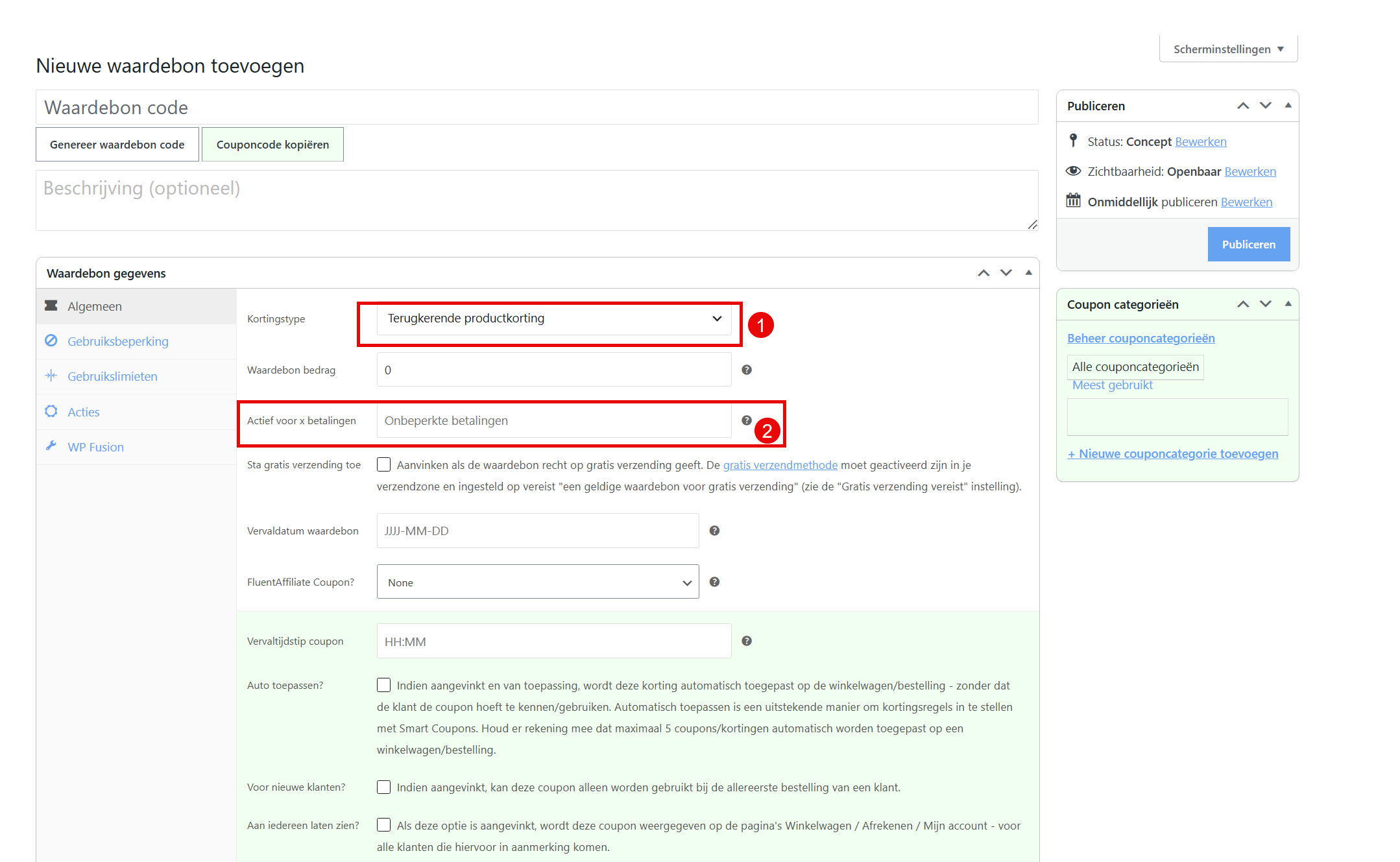
Under Coupon amount, enter the amount or the percentage, without a euro or per cent sign. For a fixed amount you type, for example, 5 for five euro off per term. For a percentage you type, for example, 20 for twenty per cent off.
Setting the duration of the discount #
The Active for x payments field determines how many terms the discount applies to. If you leave this field empty, it is set to Unlimited payments and the customer gets the discount on every renewal for as long as the subscription is active. That is the right setting if you want to offer a recurring discount for the full duration.
If you want to limit the discount to a limited number of terms, for example only the first three months, have a look at the article about a discount for the first terms of a subscription only.
Setting restrictions and limits #
On the Usage restriction tab you can set additional conditions. You can, for example, enter a minimum order amount, or restrict the coupon to one or more specific products. That way you prevent the discount from being applied to subscriptions it is not meant for.
On the Usage limits tab you set how often the coupon may be used in total, and how often per customer. If you leave these fields empty, usage is unlimited.
If you want the discount to be applied automatically at the checkout, without the customer having to enter the code, read the article about applying a coupon automatically.
Saving the coupon #
Click Publish or Update to save the coupon. The coupon is then active straight away and ready for use. Customers who enter the code at the checkout get the discount applied on every renewal term, for as long as their subscription runs.
Frequently asked questions #
What is the difference between an ordinary coupon and a recurring coupon on a subscription? #
An ordinary coupon only applies to the first payment of a subscription. On the following renewals the customer pays the full price. A recurring coupon, with the discount type ‘Recurring product discount’ or ‘Recurring product percentage discount’, is applied again on every payment term for as long as the subscription is active.
When do I choose a fixed amount and when a percentage? #
Choose a fixed amount if you always want to give exactly the same discount, regardless of the subscription price. Choose a percentage if you want the discount to scale with the price, which is handy if you may change your subscription prices in future.
How do I make sure the discount only applies to certain products? #
Open the coupon and go to the Usage restriction tab. Add the specific products the coupon is valid for there. The discount is then only applied if the customer has one of those products in the subscription.
Can I limit a coupon to a certain number of terms? #
Yes. Enter the number of terms you want under Active for x payments. If you leave this field empty, the discount applies to all terms for as long as the subscription runs.


