With an outgoing webhook you automatically pass contact details from Autorespond on to Make, so that Make can carry out an action in other software you have connected in your scenario. You use this method when an event in Autorespond is the starting point: a contact is added to a list, receives a tag, or buys something, and that event sets an action in another program in motion through Make.
If you want to do the reverse, letting another application decide what happens in Autorespond, such as creating or tagging a contact from an external system, you need an incoming webhook. You can read how that works in the article Setting up incoming webhooks.
Step 1: create the webhook in Make #
Before you set anything up in Autorespond, you have to create a webhook URL in Make. That is the address Autorespond sends the data to.
- Go to make.com and create a new scenario.
- Add Webhooks as the first module and choose Custom webhook.
- Click Add, give the webhook a recognisable name and save.
- Copy the webhook URL that Make generates, you need it in the next step.
You will find more information about creating webhooks in Make in the Make documentation on webhooks.
Step 2: add the outgoing webhook to your automation #
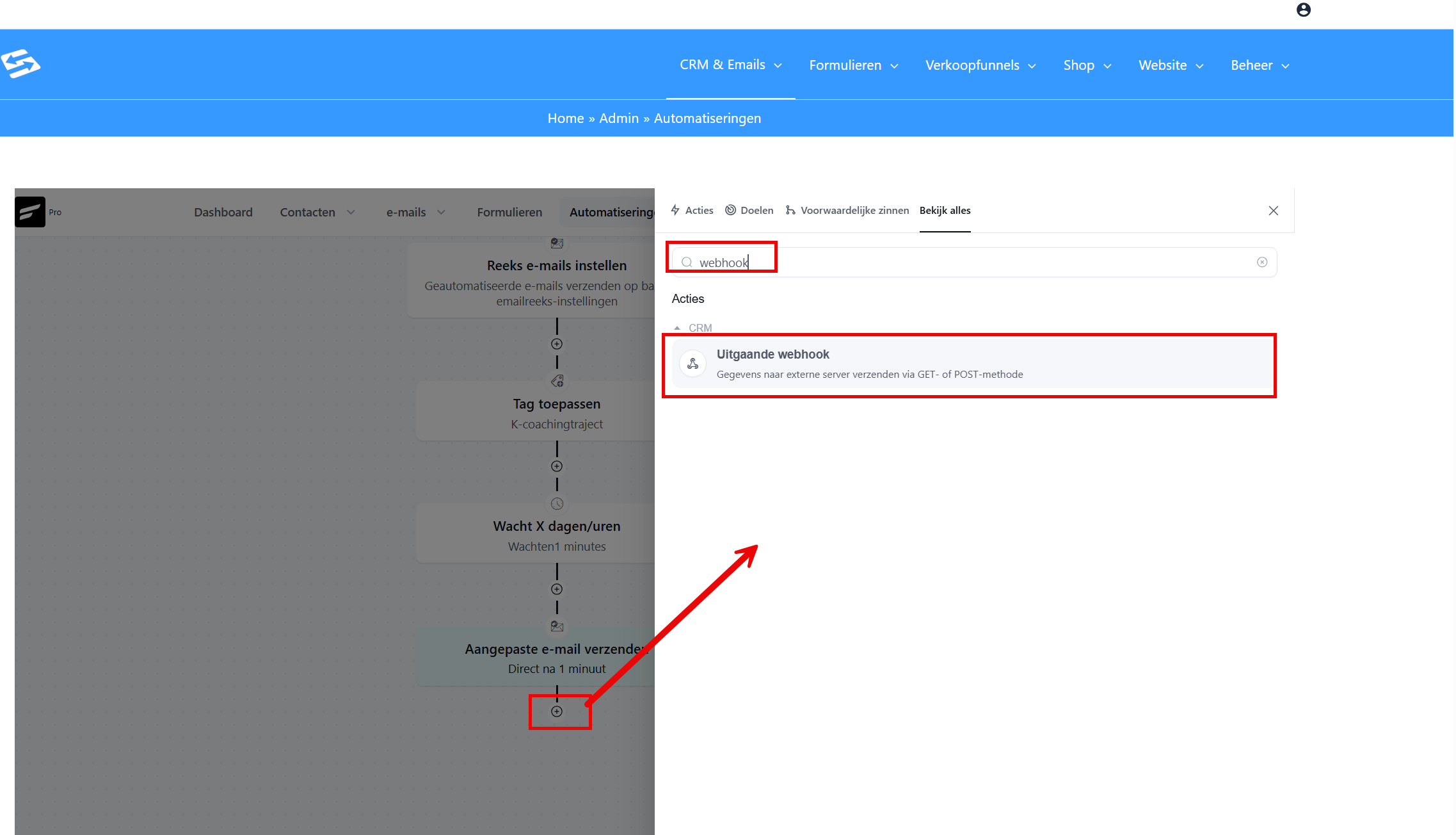
Open the automation in Autorespond that is to serve as the starting point, or create a new one with the trigger you want. Then add the outgoing webhook as an action.
- In the automation, click + to add a new action.
- Choose the action Send data to external server.
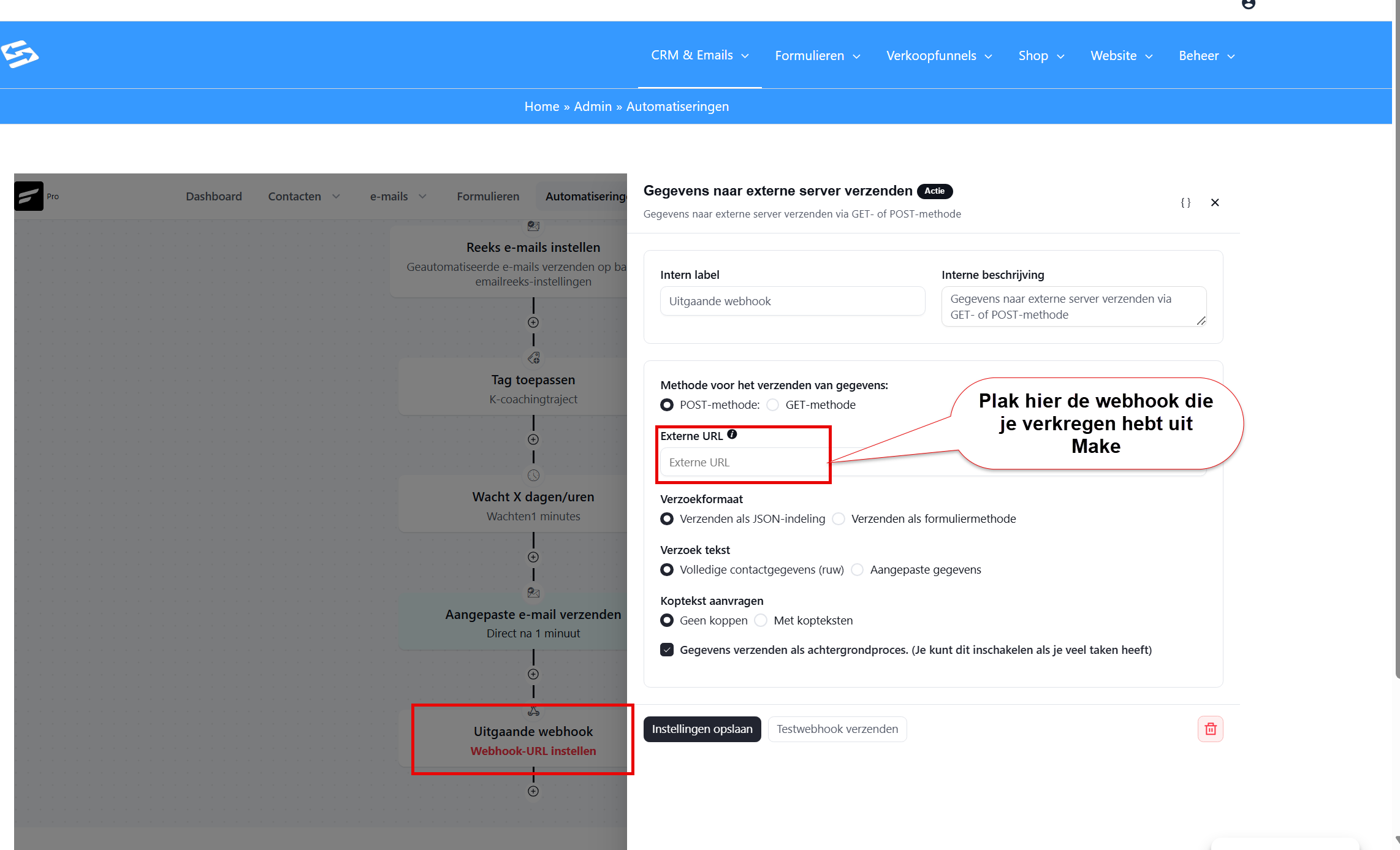
- Set the action up as follows:
- Method for sending data: POST method
- External URL: the webhook URL you copied in Make
- Request format: Send as JSON format
- Request body: Full contact data (raw), or choose Custom data if you only want to pass specific fields through
- Request headers: No headers
- Optional: tick Send data as a background process if the automation handles a lot of tasks at once.
- Click Save settings and publish the automation.
Step 3: let Make recognise the data structure #
Make is now waiting for a first data package so that it can recognise the field structure. Send a test message from Autorespond to let Make determine the structure.
- In Autorespond, go to CRM & Emails → Contacts and open a test contact.
- Use the option Add to automation to send the contact through the automation manually, or use the Send test webhook button in the action settings to send a test message straight away.
- Make receives the message and recognises all the fields automatically, such as first name, email address and any custom contact fields.
Make handles incoming webhooks as an instant trigger, which means the action follows the event in Autorespond almost immediately, with no delay.
Step 4: add the follow-up module in Make #
- After the webhook module, add a new module for the program in which you want something to happen, such as creating a row in Google Sheets, a task in Asana, or updating a contact in another CRM.
- Map the fields from Autorespond to the right fields in that program using the mapping function in Make.
- Set the scenario to ON to activate it live.
From that moment on, Autorespond automatically passes the contact details on to Make every time the automation runs, and Make handles the rest.
Would you rather use Zapier? #
Zapier works in much the same way as Make and is a popular alternative. You can read how to set up an outgoing webhook to Zapier in the article Setting up an outgoing webhook to Zapier.
An extra advantage of Zapier is that it works together with the WooCommerce Zapier extension included in our Shop package. That lets you trigger actions based on sales in your webshop as well, without having to build a separate automation. You can read how to set that integration up in the article Setting up the Zapier integration for WooCommerce.
Frequently asked questions #
What is the difference between an outgoing and an incoming webhook? #
With an outgoing webhook, Autorespond sends data to an external system as soon as something happens in an automation. With an incoming webhook, Autorespond receives data from outside to create or tag a contact, for example. Which one you need depends on where the action begins.
Can I choose which fields I pass on to Make? #
Yes. Under Request body, choose the option Custom data instead of Full contact data. You can then decide for yourself which contact fields are sent along, including custom contact fields you have created in the CRM.
How quickly does Make process the data after Autorespond sends it? #
Make handles webhooks as an instant trigger. The data usually arrives in Make within a few seconds of the automation carrying out the action. There is no delay caused by a polling interval, as there is with some other integration methods.
Do I have to activate the Make scenario before the integration works? #
Yes. Set the scenario in Make to ON before the integration goes live. As long as the scenario is set to OFF, Make does receive the data but no follow-up actions are carried out.


