Setting up email sequences again after migrating from the old Autorespond #
Individually scheduled emails from the old Autorespond system are not migrated to the new system. This means you have to set up your existing automatic mail series again, as an email sequence or as an automation.
The difference between email sequences and automations #
The new Autorespond offers two ways to send automated emails:
- Email sequence: a simple series of emails sent automatically at fixed intervals after a contact is added (for example day 1, day 3, day 7)
- Automation: a fuller workflow with triggers, waiting times, conditions and a range of actions
Creating an email sequence #
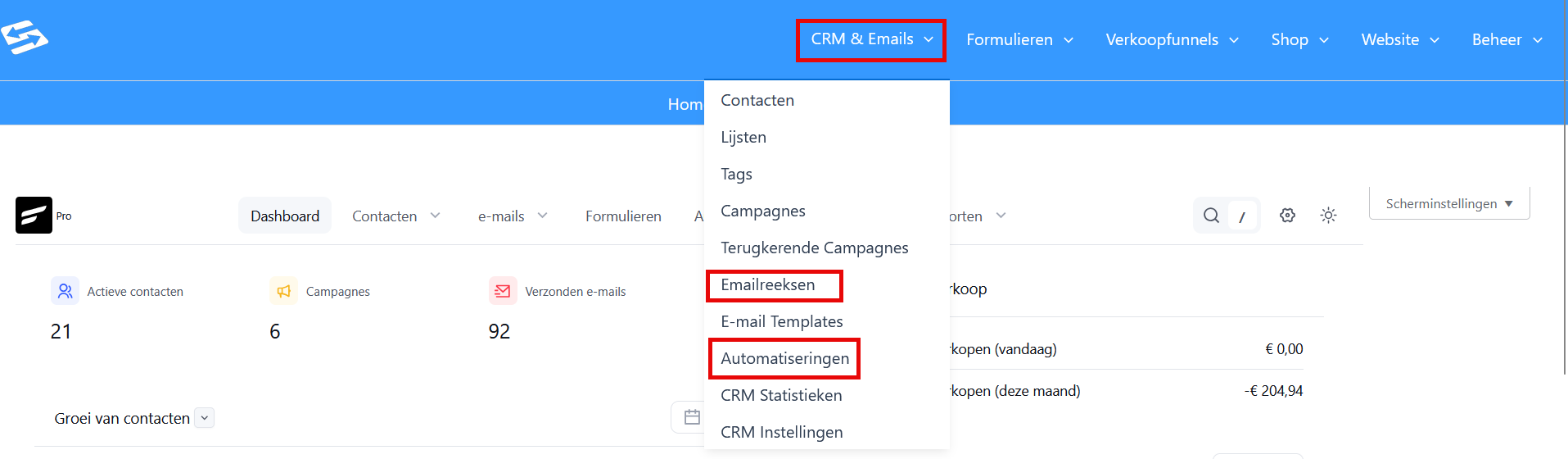
- Go to CRM & Emails → Email Sequences
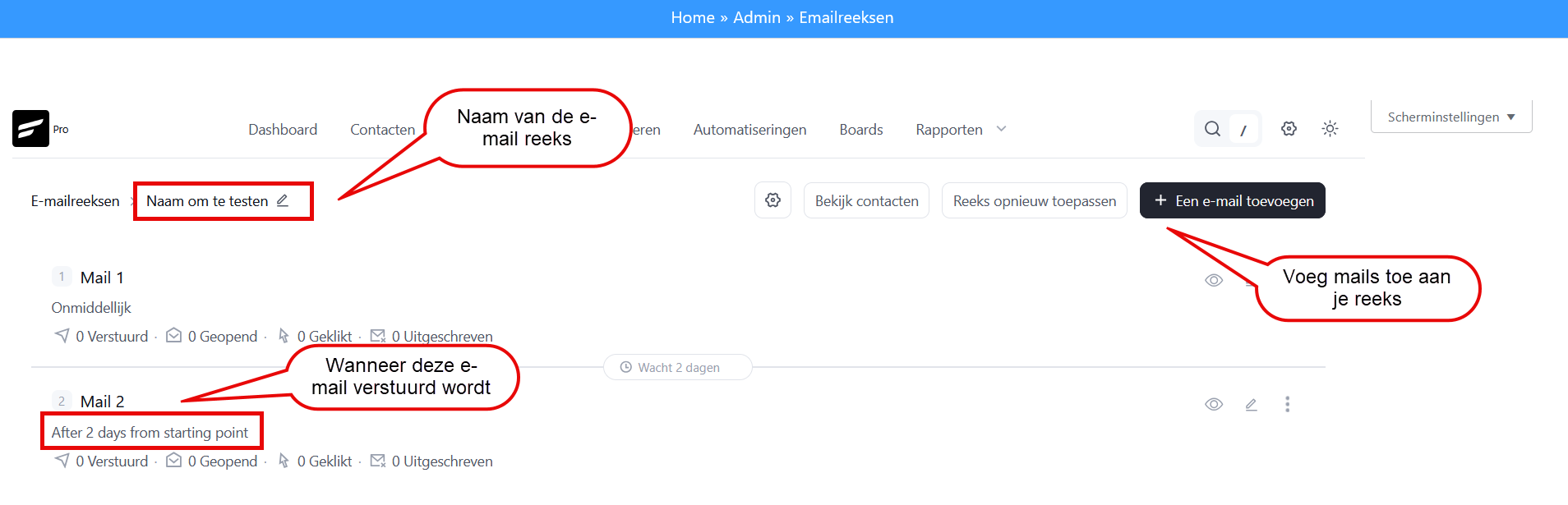
- Click “Add sequence”
- Give the sequence a name and a description
- Add emails
- For each email, set the number of months, days, hours or minutes from the start of the sequence
Starting an email sequence for existing contacts #
For contacts that already existed before the migration and need to receive the sequence again:
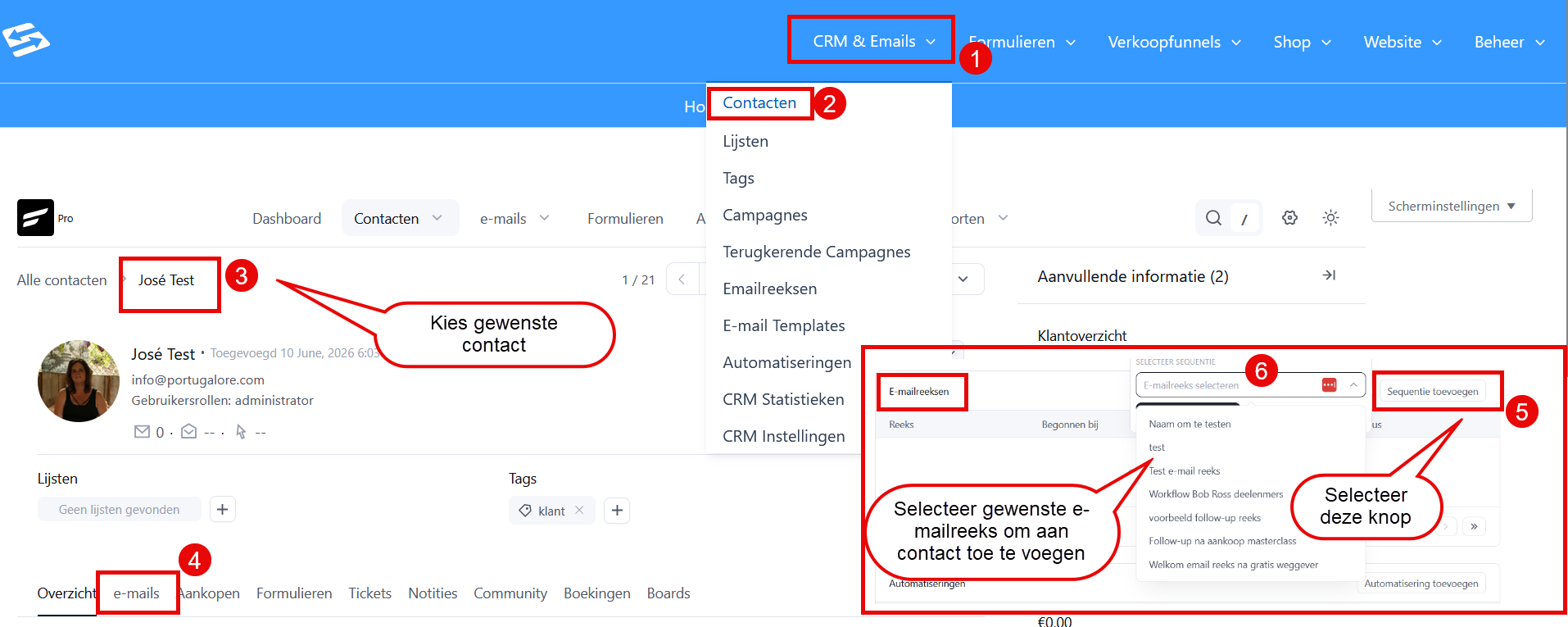
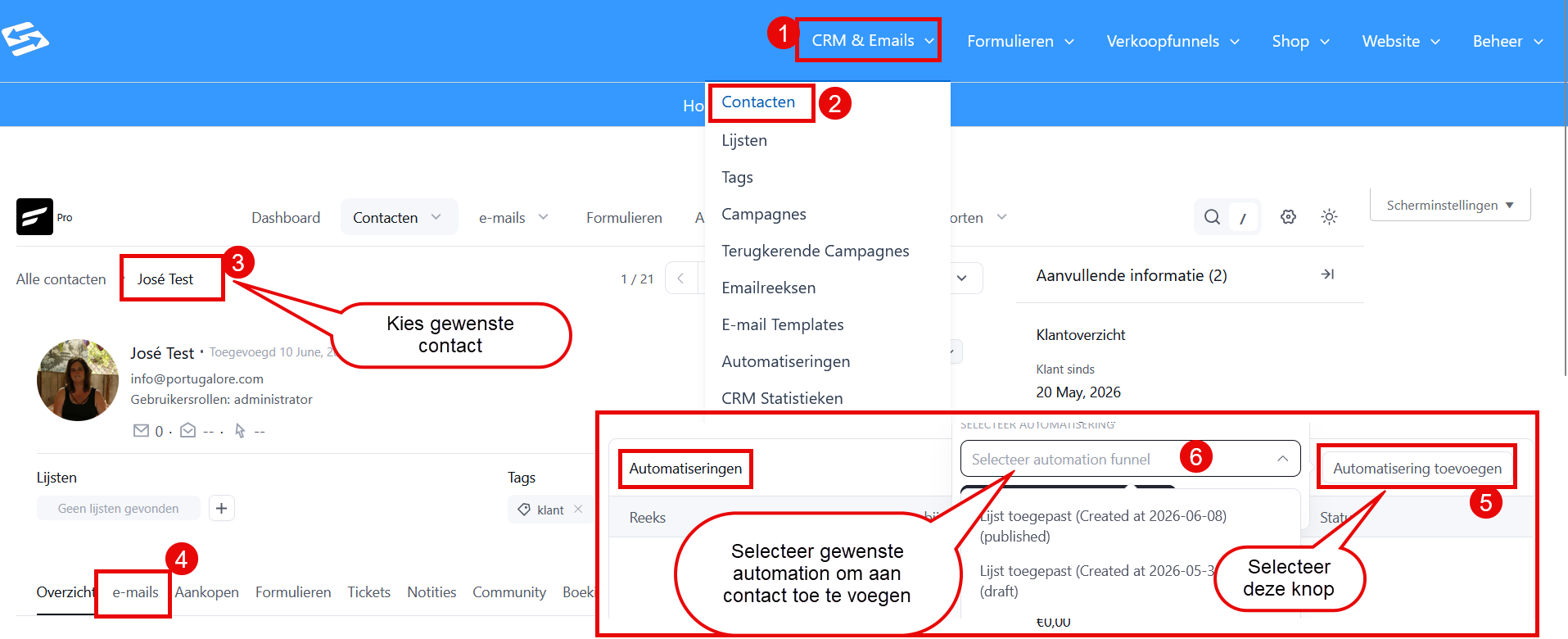
- Go to CRM & Emails → Contacts
- Open the contact profile
- Click the “Emails” tab
- Scroll to the “Email sequences” section
- Click “Add sequence” and select the sequence you want
Using an automation for more complex series #
If you need more control (setting conditions, different paths, actions other than email alone), automations are the better fit for sending a series of emails:
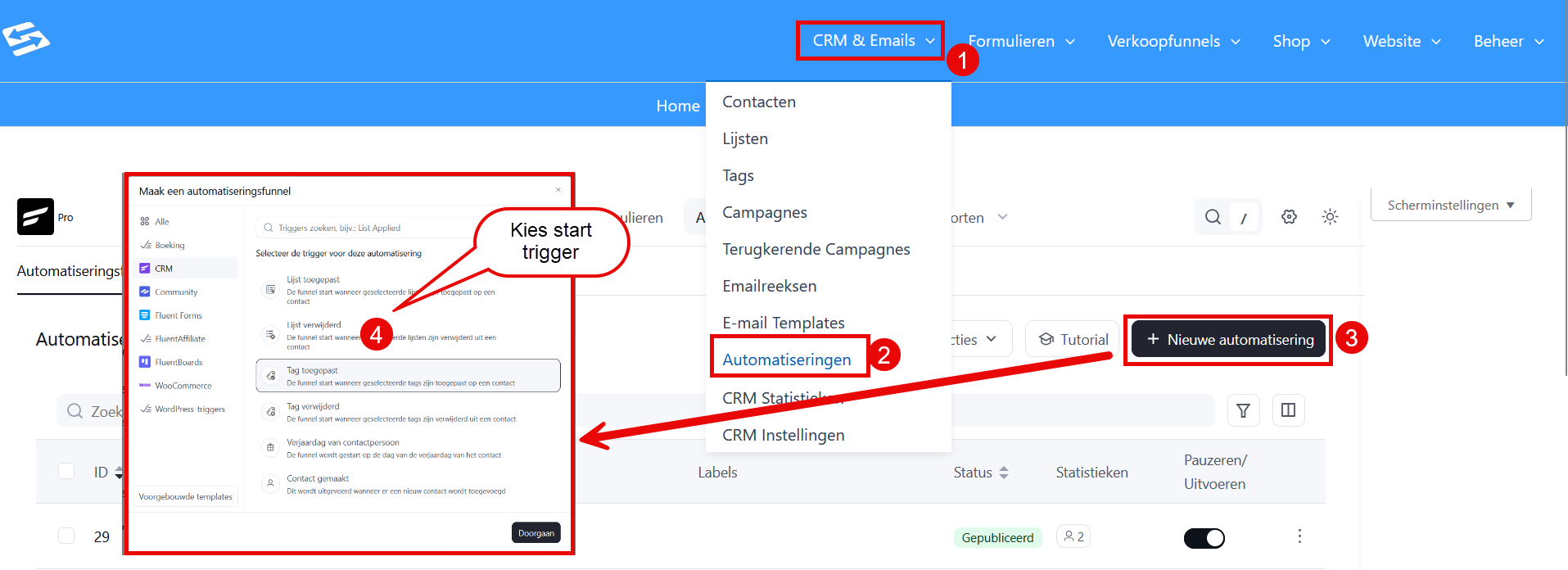
- Go to CRM & Emails → Automations
- Click “New automation”
- Choose a trigger (for example “Tag applied”)
- Build the workflow with wait actions and email actions
- Activate the automation
Starting an automation for existing contacts #
For contacts that already existed before the migration and for whom you want to start the automation (again):
- Go to CRM & Emails → Contacts
- Open the contact profile
- Click the “Emails” tab
- Scroll to the “Automations” section
- Click “Add automation” and select the automation you want
Adding contacts in bulk #
To add several contacts to an email sequence or automation at once:
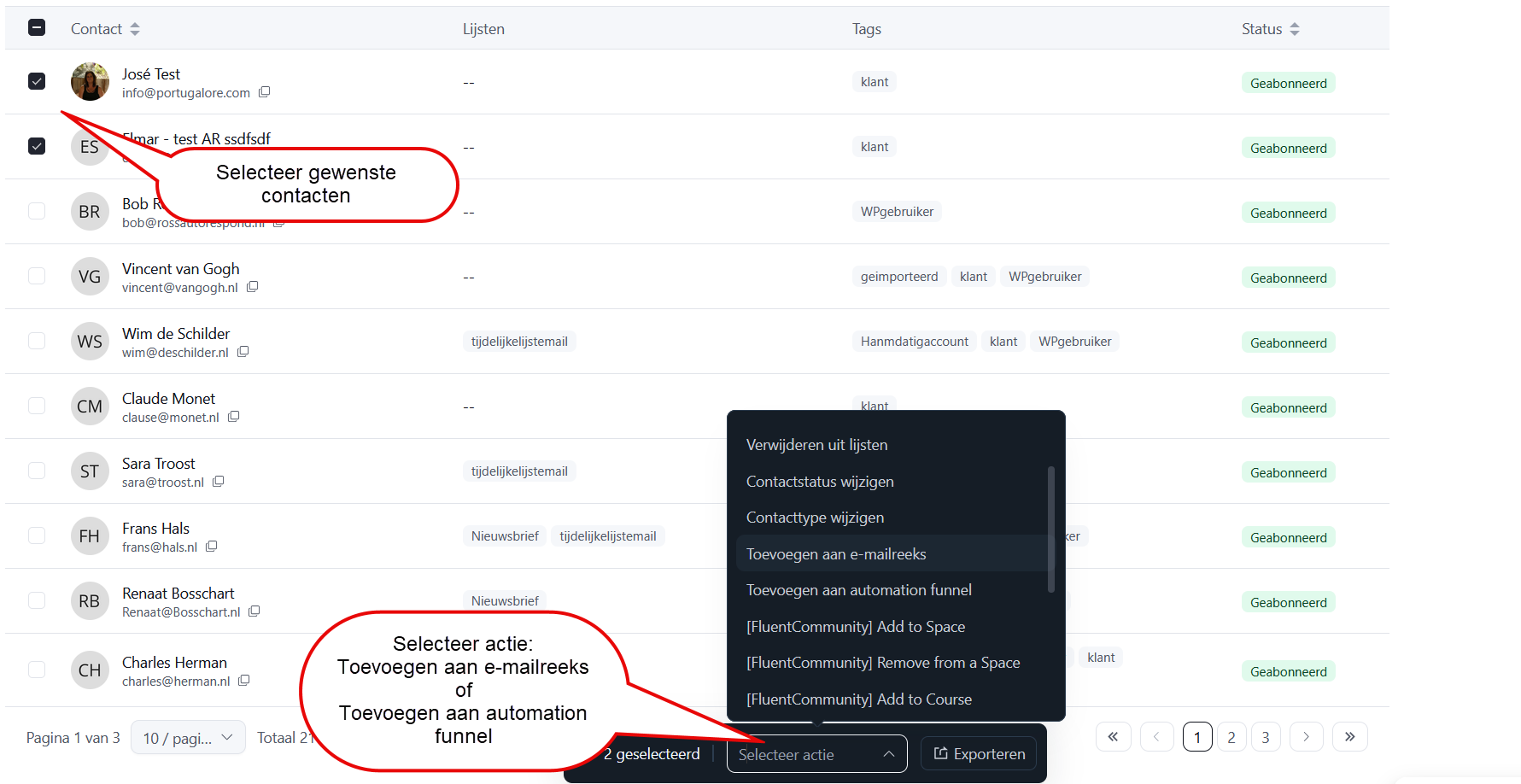
- Go to CRM & Emails → Contacts
- Select the contacts you want with the checkboxes
- Choose “Bulk actions” → “Add to email sequence” or “Add to automation funnel”
- Select the email sequence or automation you want
- Click ‘Confirm’
Frequently asked questions #
Why were my scheduled emails not migrated?
Individually scheduled emails are too specific and too tied to their context to transfer automatically. The new system works with reusable sequences that are more flexible and easier to scale.


