e-boekhouden.nl has developed its own integration for WooCommerce webshops. This integration passes orders automatically to your bookkeeping in e-boekhouden.nl through the WooCommerce API.
How to connect e-boekhouden #
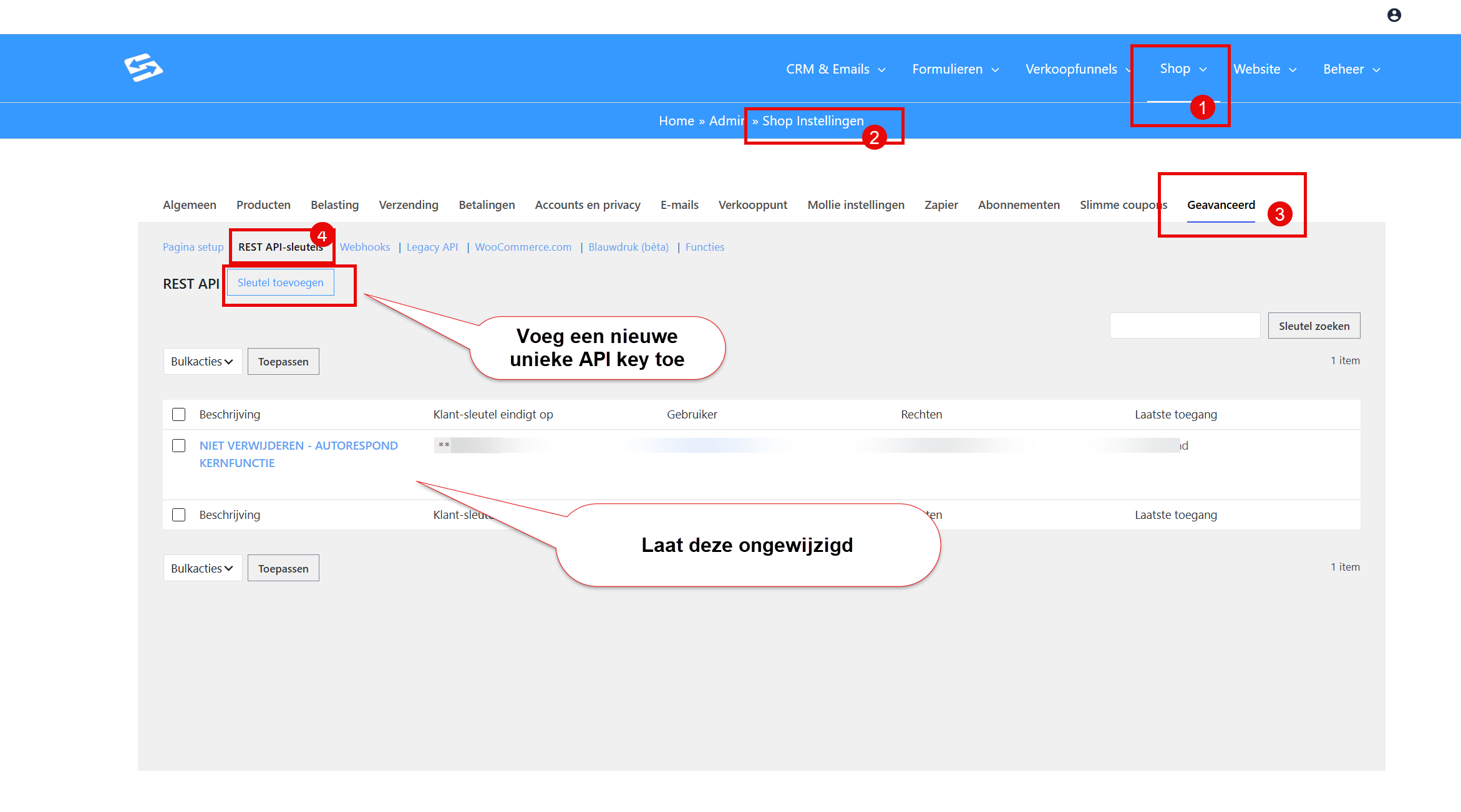
To connect e-boekhouden you need a unique API key from WooCommerce, which you create via the menu Shop > Shop settings, Advanced tab, ‘Rest API keys’ sub-tab:
Setting up the integration #
Follow the step-by-step guide from e-boekhouden for the configuration:
Official guide: https://secure20.e-boekhouden.nl/klantenservice/kennisbank/2023?menu=1
For invoices within the Autorespond package we use the plugin ‘WooCommerce PDF Invoices & Packing Slips’. You can therefore select it while setting up the integration, so that invoice numbers are sent along as well. See this explanation from e-boekhouden: https://secure20.e-boekhouden.nl/klantenservice/kennisbank/437?menu=1
That guide contains every step needed to set the integration up correctly, including the required API details and configuration options.
Support if something goes wrong #
Because e-boekhouden.nl developed this integration themselves, it is best to contact e-boekhouden support directly for technical problems or questions about how it works. They know the solution best and can help you with specific configurations and error messages.
If you can’t create the API key in your shop, contact Autorespond support.
What is synchronised #
The integration makes sure order details are passed to your e-boekhouden administration automatically. That saves manual data entry and creates a seamless transition between your webshop and your bookkeeping.
For more information about exactly which data is synchronised and how to configure specific settings, consult the e-boekhouden guide.
The connection with e-boekhouden.nl runs through your shop’s API key. You set it up yourself; nothing extra needs to be activated in your Autorespond environment.
Frequently asked questions #
Are there any costs attached to the e-boekhouden integration? #
There are no costs on the Autorespond side. For the use of e-boekhouden.nl itself, their own rates and subscription terms apply.
Can I set up the integration myself? #
Yes. You create the API key in your shop yourself (Shop > Shop settings, Advanced tab, Rest API keys sub-tab, Read/Write permissions) and enter it in e-boekhouden.nl following their guide. No separate plugin is needed.
What if the integration does not work as expected? #
Contact e-boekhouden support first, because they developed the integration and know best how it works. If you can’t create the API key in your shop, contact Autorespond support.


