Sometimes you want a customer to agree explicitly to a specific condition during checkout, for example waiving the right of withdrawal on digital products. By including this as a required checkbox in the checkout, you record the consent in the order and, optionally, in the CRM.
The checkout fields are managed through FunnelKit and the CRM connection through WP Fusion, included in your package.
Step 1: create a custom field in FluentCRM #
Before you create the checkout field, first create the matching contact field in FluentCRM. That makes the connection easier to set up afterwards.
- Go to CRM & Emails → CRM Settings → Custom fields
- Click ‘Add field’
- Choose the field type: Checkboxes
- Give the field a clear name, for example: Agreement during order: customer waives the right of withdrawal
- Add one field value, for example: Agreed: customer waives the right of withdrawal
- Save
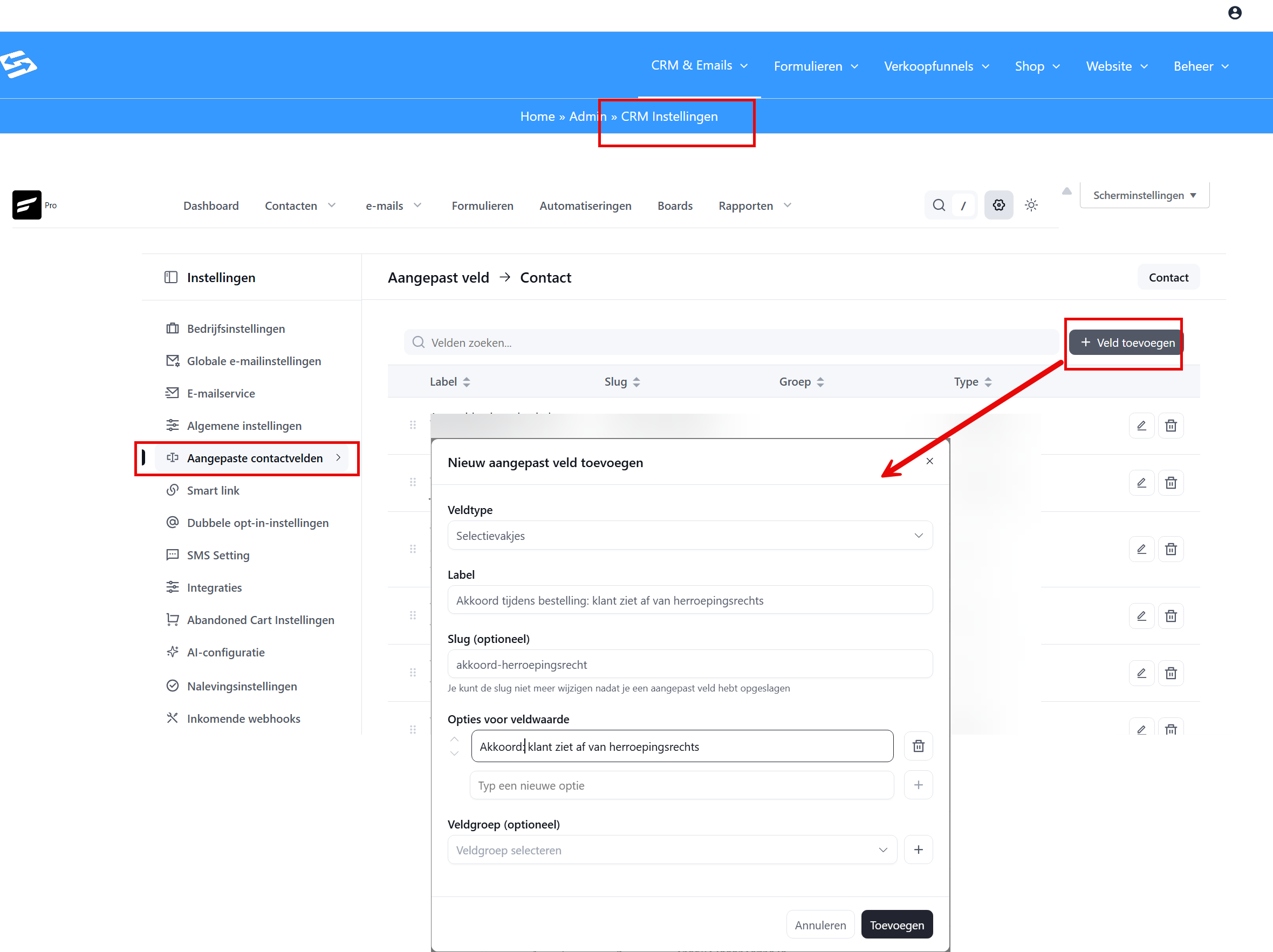
This field is now available in the contact profile and can be linked to the checkout field later.
Step 2: add a required checkbox to the checkout #
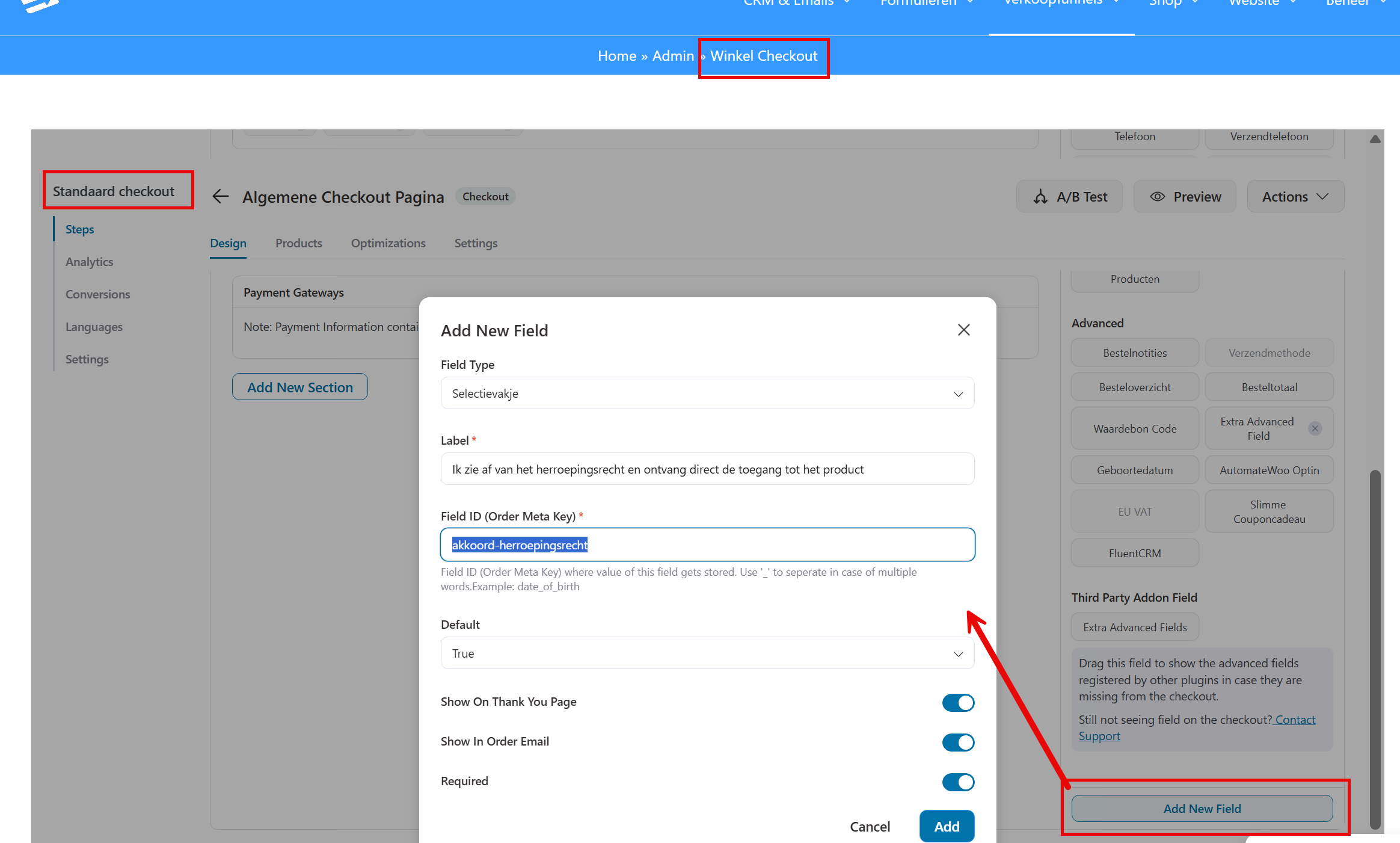
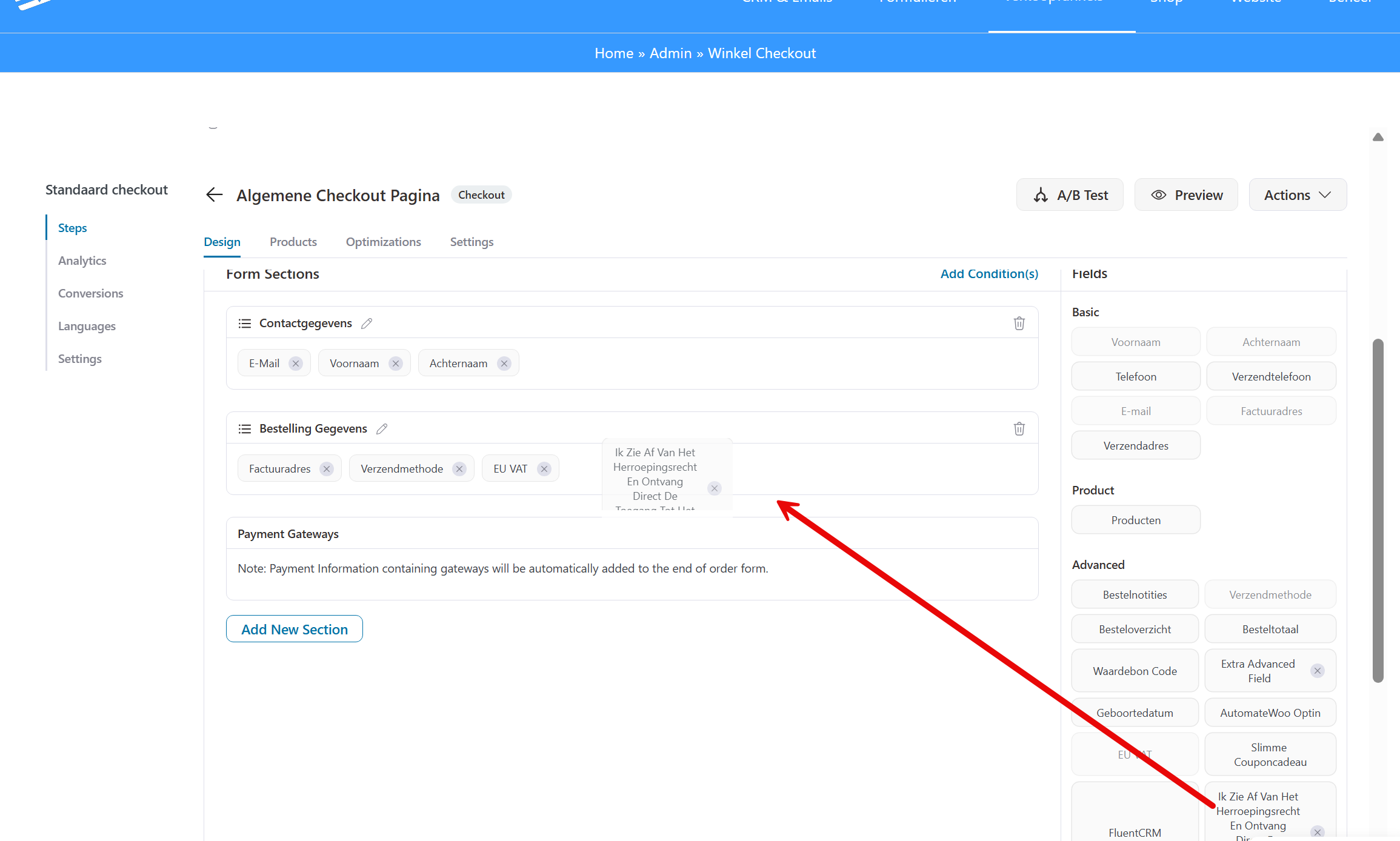
Next we add a new field to the checkout fields of the general store checkout.
- Go to Sales funnels → Store Checkout
- Open the general checkout page
- Go to the Fields tab
- Add a new field of the type Checkbox
- Set the following properties:
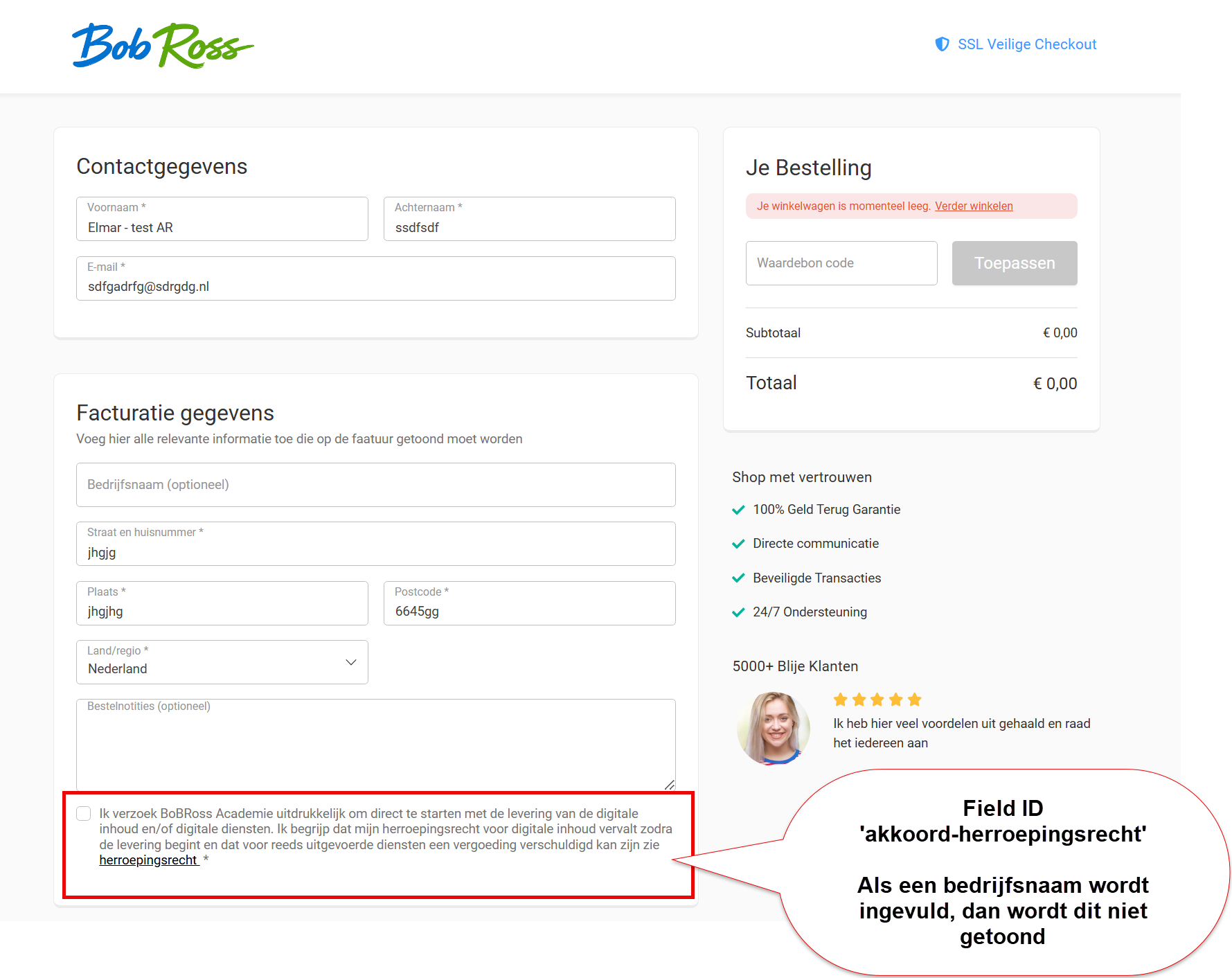
- Label: I waive the right of withdrawal and receive immediate access to the product
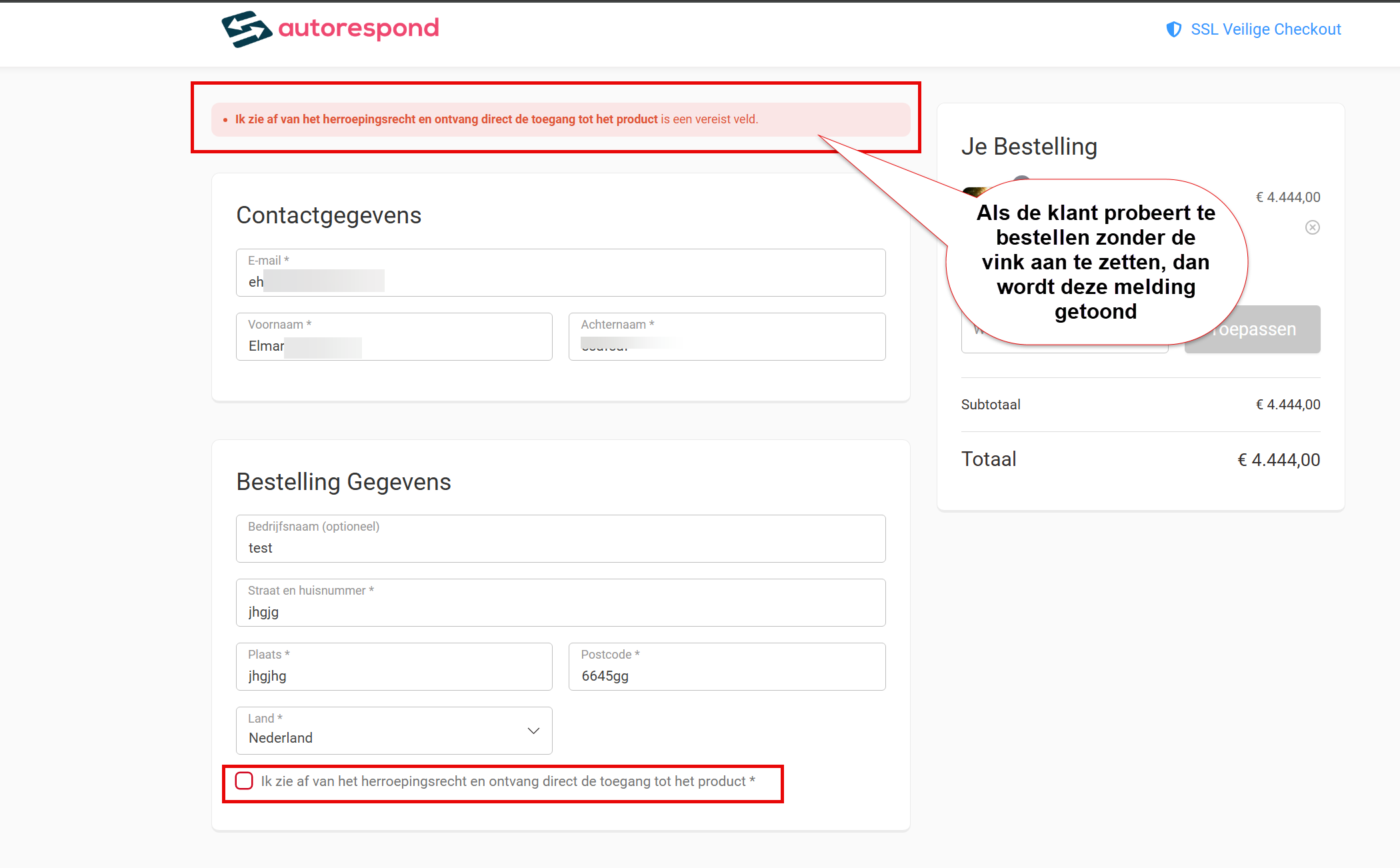
- Required: Yes (tick the box)
- Field name (field key): Set exactly this Field ID: ‘akkoord-herroepingsrecht’
- Optional: have the box ticked in advance by setting Default to ‘True’. Set this to ‘False’ if you want the customer to tick the box themselves
- Save
The checkbox now appears on the checkout page and cannot be skipped. The customer’s choice is saved automatically as metadata in the order.
Step 3: check the logging in the order #
After a test order you can check in the order whether the checkbox value has been saved:
- Go to Shop → Orders → open the test order
- Scroll to the section with custom fields or order metadata
- There you will see the field name (akkoord_herroepingsrecht) with the value the customer ticked
This is the legal record of the consent.
If you used exactly the Field ID ‘akkoord-herroepingsrecht’, the checkbox is hidden automatically when a customer enters a company name. We set it up this way because the right of withdrawal does not apply to B2B sales. If you do want to keep showing it when a company name is entered, give the field a different Field ID.
Step 4: link the checkout field to the CRM field through WP Fusion #
Through WP Fusion you link the checkout field to the custom contact field in FluentCRM, so the value also becomes visible in the customer’s CRM profile.
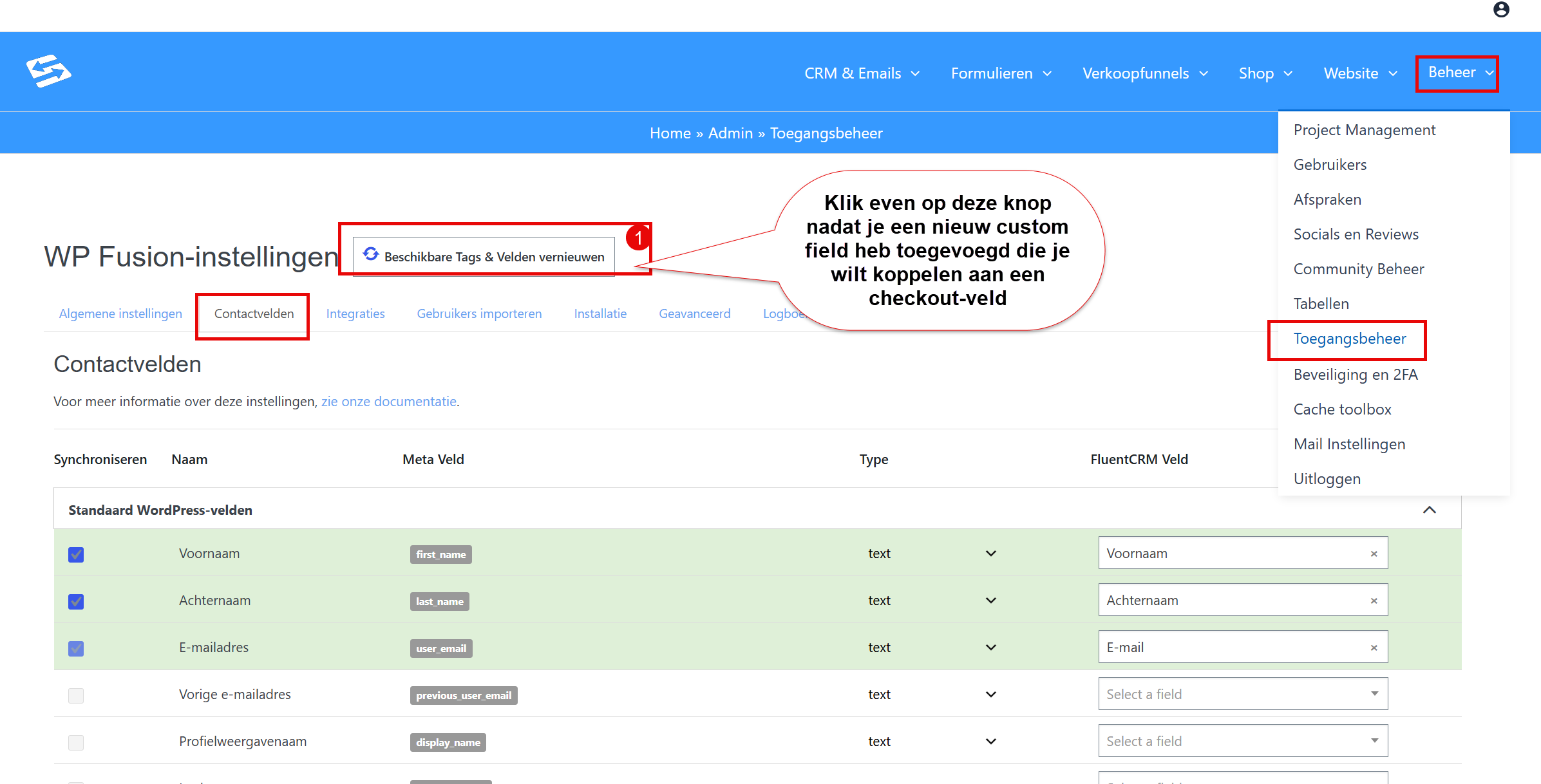
- Go to Administration → Access management
- Go to the Contact fields tab
- First click the button ‘Refresh available tags and fields’
- Then reload the page (this is needed to make new fields appear)
- In the list in the left-hand column, look for the field akkoord-herroepingsrecht
- Link this field to the FluentCRM field ‘Agreement during order: customer waives the right of withdrawal’ in the right-hand column
- Save
From now on, every time a customer ticks the checkbox during an order, the value is synchronised automatically to the contact profile in FluentCRM.

Step 5: check the result in FluentCRM #
Place a test order and tick the checkbox. Then open the contact profile in FluentCRM and check whether the custom field ‘Agreement during order: customer waives the right of withdrawal’ contains the value ‘Agreed: customer waives the right of withdrawal’.
Important #
Only link the FluentCRM field in the write direction from checkout to CRM, not the other way round. This is about recording a consent at a specific moment; overwriting it from the CRM is not desirable.
For more information about custom contact fields, see also how to set up custom contact fields in the CRM.
Frequently asked questions #
Can I add several required checkboxes? #
Yes, you can add several checkboxes through Sales funnels → Store Checkout → Fields. Each checkbox gets its own field name and can be linked to a separate CRM field.
Are the checkbox values also saved for manual orders? #
No, checkboxes added through the checkout are only available for online orders placed on the website. For manual orders you can fill in the custom fields directly in the CRM.
How do I remove a checkout field again? #
Go to Sales funnels → Store Checkout → Fields and delete the field in question. Values already saved in orders are retained as historical data.


