Volume discounts encourage customers to order more by giving an automatic discount from a certain number of products or cart value. In Autorespond you set this up with Smart Coupons that are applied automatically, so customers do not have to enter a discount code.
Volume discounts in Autorespond are based on Smart Coupons, included in your package. Read the Smart Coupons documentation
Scenario 1: discount from a minimum number of items #
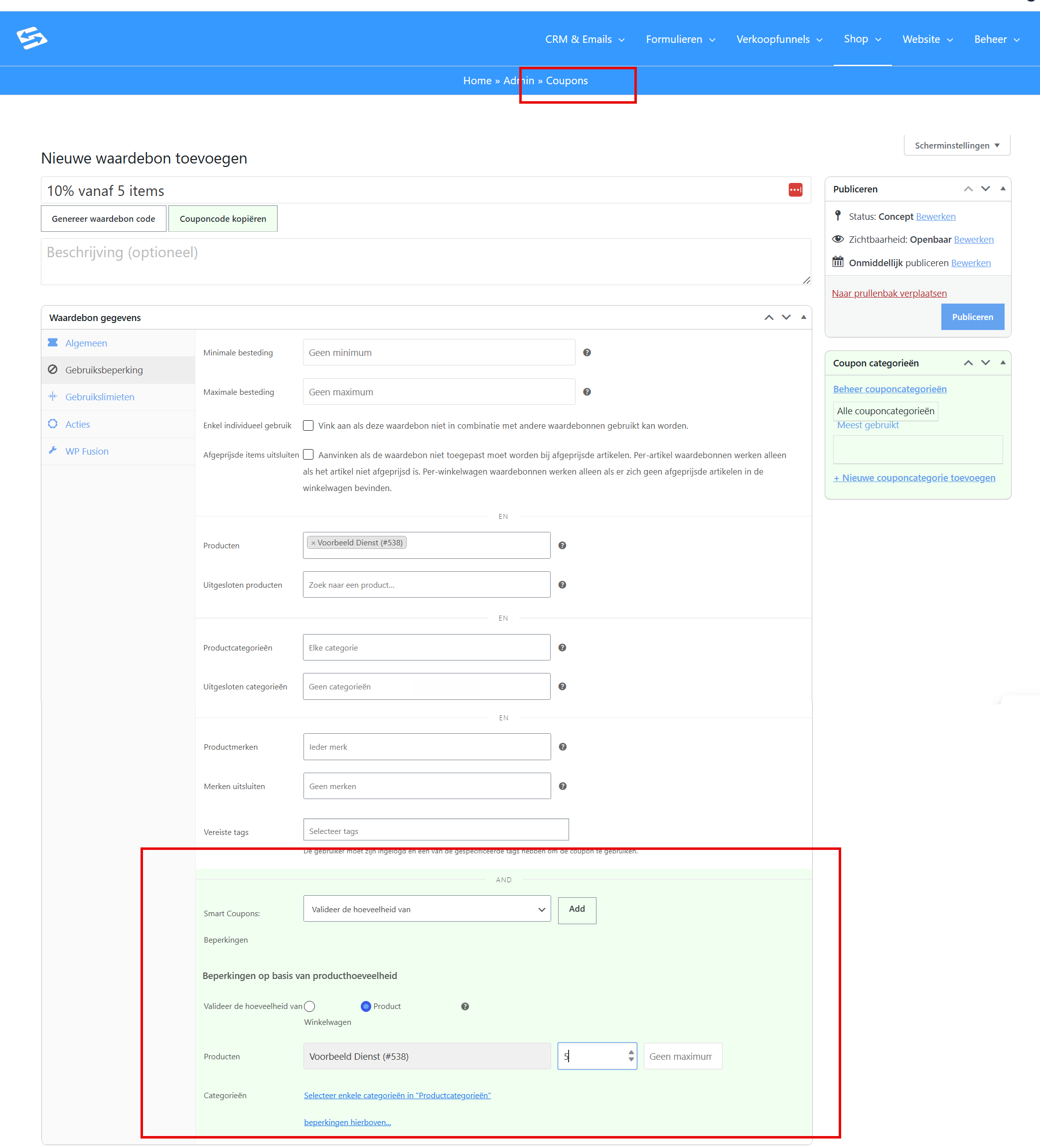
Suppose you want to give 10% discount from 5 products in the basket. These are the steps:
- Go to Shop → Coupons → Add new
- Give your coupon a clear name such as “10% from 5 items”
- Set the discount type to “Percentage” and enter 10
- Go to the “Usage restriction” tab
- Scroll to the “Product count” section and choose “Cart”
- Enter 5 at “Minimum quantity”
- Under “Smart coupons”, switch on the “Auto apply” setting
- Save the coupon
Customers now automatically receive 10% discount as soon as they have 5 or more items in their basket.
Scenario 2: discount for specific products only #
Do you want to give a discount only when customers order a particular product or product category? Follow the same steps but change the restriction:
- Follow steps 1 to 4 of scenario 1
- Under “Product count”, choose the option “Product” (for specific products) or “Category” (for a whole product category)
- Select the products or categories concerned from the list
- Enter the minimum quantity
- Switch on “Auto apply” and save
For example: 15% discount on a minimum of 3 items from the “Workshops” category, or on 10 units of a specific product.
Scenario 3: setting up a multi-tier volume discount #
For a real tiered discount with different discount levels, create a separate automatic coupon per level. For example:
- 5-10 items: 10% discount
- 11-20 items: 15% discount
- 21 items or more: 20% discount
Coupon 1: 10% for 5-10 items #
- Name: “Tier 1: 10% for 5-10 items”
- Discount type: Percentage, value 10
- Usage restriction tab: Minimum quantity 5, Maximum quantity 10
- Switch on “Individual use only” (prevents stacking)
- Switch on “Auto apply”
Coupon 2: 15% for 11-20 items #
- Name: “Tier 2: 15% for 11-20 items”
- Discount type: Percentage, value 15
- Usage restriction tab: Minimum quantity 11, Maximum quantity 20
- Switch on “Individual use only”
- Switch on “Auto apply”
Coupon 3: 20% for 21 items or more #
- Name: “Tier 3: 20% for 21+ items”
- Discount type: Percentage, value 20
- Usage restriction tab: Minimum quantity 21 (leave Maximum empty)
- Switch on “Individual use only”
- Switch on “Auto apply”
Important tips for volume discounts #
Avoiding overlapping ranges #
Make sure the quantity ranges do not overlap and set all volume discounts to “Individual use only”. This prevents several discounts from being applied at the same time or clashing with each other.
Progress bar in the side cart #
If you use the Sales funnels module, you can show a progress bar in the side cart. It shows customers how many items they still need to add to reach the next discount level. Set this up through Sales funnels → Store Cart.
Clearing the cache after changes #
If a change is not visible straight away, clear the cache through Administration → Cache toolbox. This makes new discount settings active immediately.
Frequently asked questions #
Can customers receive several volume discounts at once? #
No, if you switch on “Individual use only” for every volume discount, only the highest applicable discount is given. This prevents discounts from stacking.
Do volume discounts also work for digital products? #
Yes, volume discounts work for all product types in your webshop, including digital downloads and subscriptions.
Can I combine a volume discount with a manually entered discount code? #
Only if you switch off “Individual use only” on the automatic volume discount. Otherwise only the automatic discount is applied.
For more advanced discount rules, see also setting up scheduled sales for products.
Further documentation: How to restrict coupon by product quantity in cart


