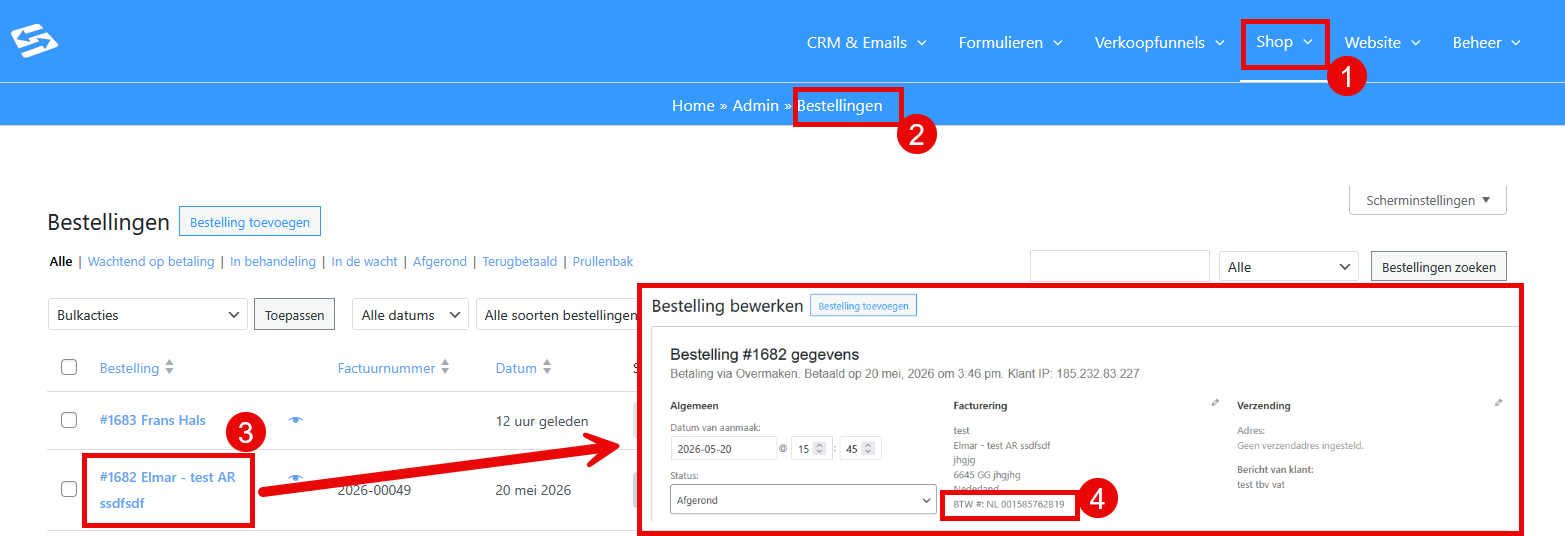
Saving and managing VAT numbers in customer profiles #
When a customer makes a purchase online and enters a VAT number, that number is stated on the invoice but not saved automatically in the customer profile. For future manual invoices you therefore have to add or look up the VAT number yourself.
Adding a VAT number to a customer profile #
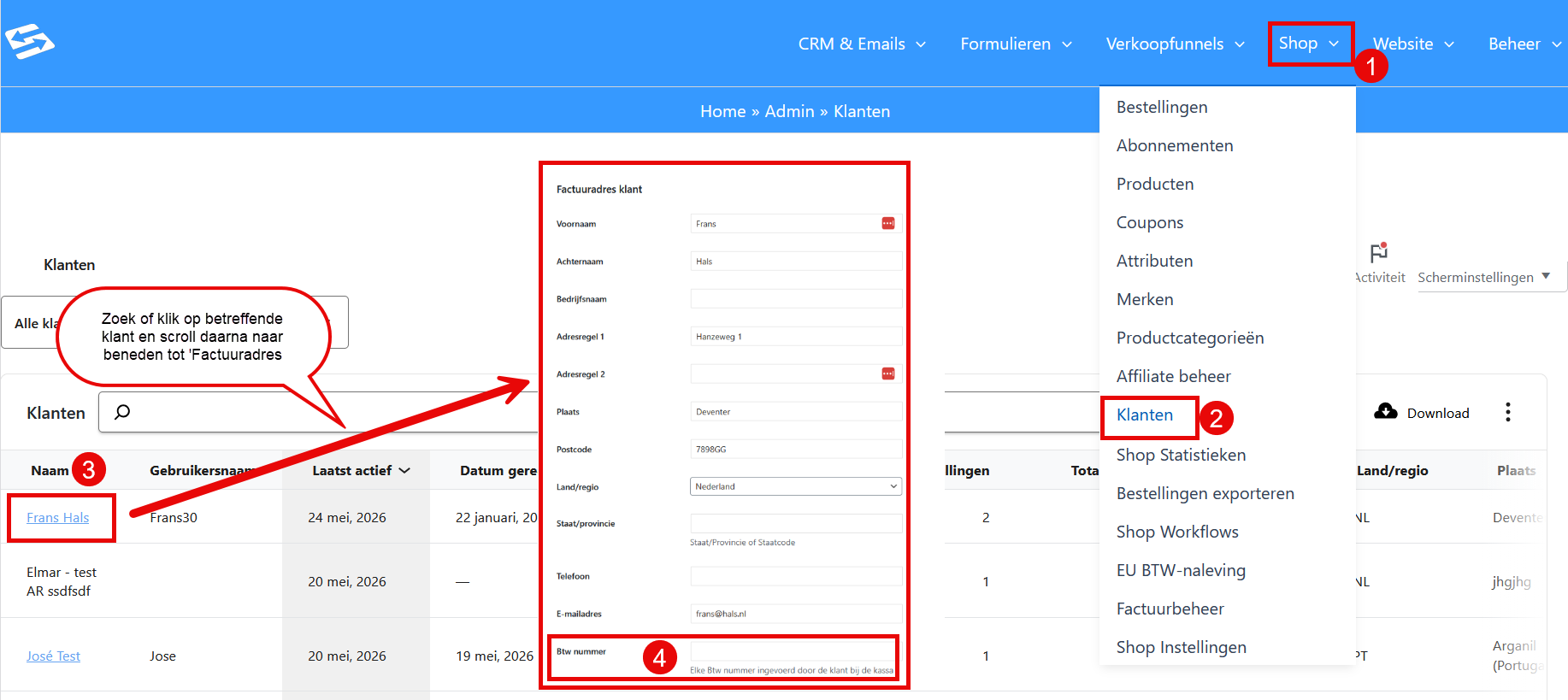
To add a VAT number to an existing customer:
- Go to Shop → Customers
- Find the customer in question with the search function or browse through the list
- Click the customer name to open the profile
- Scroll down to the ‘Customer billing address’ section
- Add the VAT number in the ‘VAT number’ field
- Click ‘Update user’ right at the bottom to save the changes
After saving, the VAT number appears automatically on future manual invoices for this customer.
Checking the VAT number for manual invoices #
When you create a manual order, the system automatically retrieves the saved customer details, including the VAT number. If the VAT number does not appear, it has probably not been saved in the customer profile.
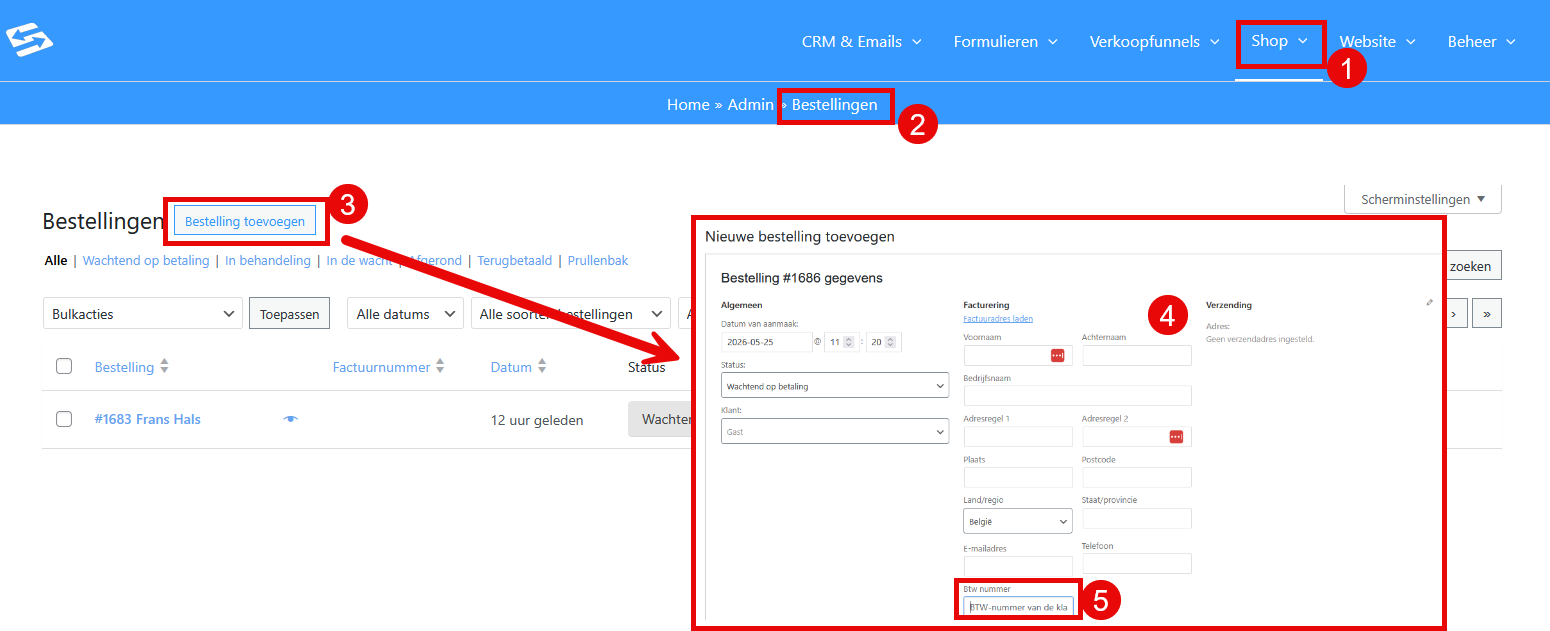
You can also enter the VAT number directly while creating a manual order, in the billing details of the order itself.
- Go to Shop → Orders
- Click ‘Add order’
- In the new screen, click the pencil icon to the right of ‘Billing’
- A little further down is the ‘VAT number’ field, which you can fill in manually
Why are VAT details not saved automatically? #
This is standard WooCommerce behaviour to protect privacy. Customers have to give explicit permission for their VAT details to be stored permanently. With online purchases the details are therefore only used for that specific transaction.
Frequently asked questions #
Why do I not see the VAT number in the customer profile while it is on the invoice?
VAT details entered during an online purchase are only used for that specific invoice and are not saved automatically in the customer profile. You have to add the VAT number manually through Shop → Customers.
Can I have VAT details saved automatically with every purchase?
This is not possible because of privacy considerations in WooCommerce. VAT details have to be added to customer profiles manually if you want to reuse them for future invoices.
How do I find the VAT number from an earlier purchase?
Go to Shop → Orders, find the order in question and look at the billing details. The VAT number is stated in the order details under ‘Billing’ and on the PDF invoice (for this, look in the right-hand column in the ‘PDF invoice’ block and click the ‘Invoice’ button.