Exporting orders to Excel with all the details #
With the export function you can export all orders from a given period to Excel in one go, including invoice numbers and customer details. This is far more convenient than the limited bulk action on the order list.
The export function in Autorespond is based on Advanced Order Export For WooCommerce, included in your package with the Shop & Sales funnels extension.
Exporting orders with the export function #
Go to Shop → Export orders. This function offers far more options than the bulk action at Shop → Orders.
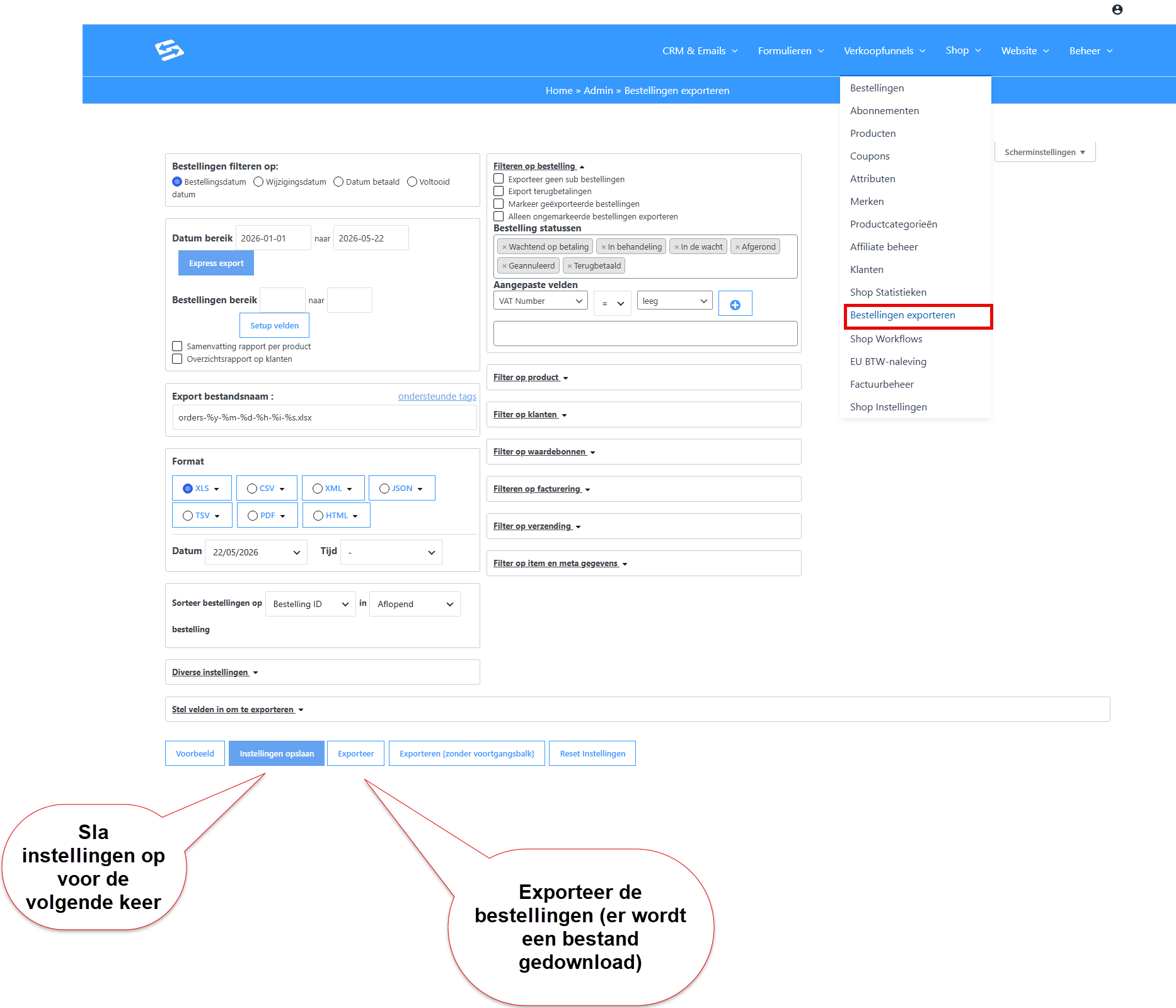
Advantages of the export function #
- No limit of 20 orders: export hundreds of orders at once
- Choose a specific period (a whole month, for example)
- More fields available, including invoice numbers
- Flexible filter options per order status, product or customer type
Setting up the export #
- Go to Shop → Export orders
- Set the date period you want
- Choose which fields you want to include in the export
- Set any extra filters (order status, products, and so on)
- Start the export
Difference from the bulk action #
The bulk action at Shop → Orders (through ‘Export as XLSX’) is limited to a maximum of 20 orders at a time and contains fewer fields. Always use Shop → Export orders for complete exports.
Frequently asked questions #
Can I export all the orders of a month at once? #
Yes, through Shop → Export orders you can set a specific date period and export all orders from that period in one go without a limit.
Why do I not see an invoice number in my export? #
The bulk action at Shop → Orders does not include the invoice number. Use Shop → Export orders to include the invoice number in your export.
Can I combine the first name and surname in one column? #
That depends on the field options available in the export settings. Check the export options to see whether a combined name field is available.


