By default only the product name appears on your PDF invoice. If you also want to show the product description, you can switch this on through the Invoice management customizer without writing any code.
PDF invoices in Autorespond are based on PDF Invoices & Packing Slips with Premium Templates, included in your package.
Adding the product description to the invoice #
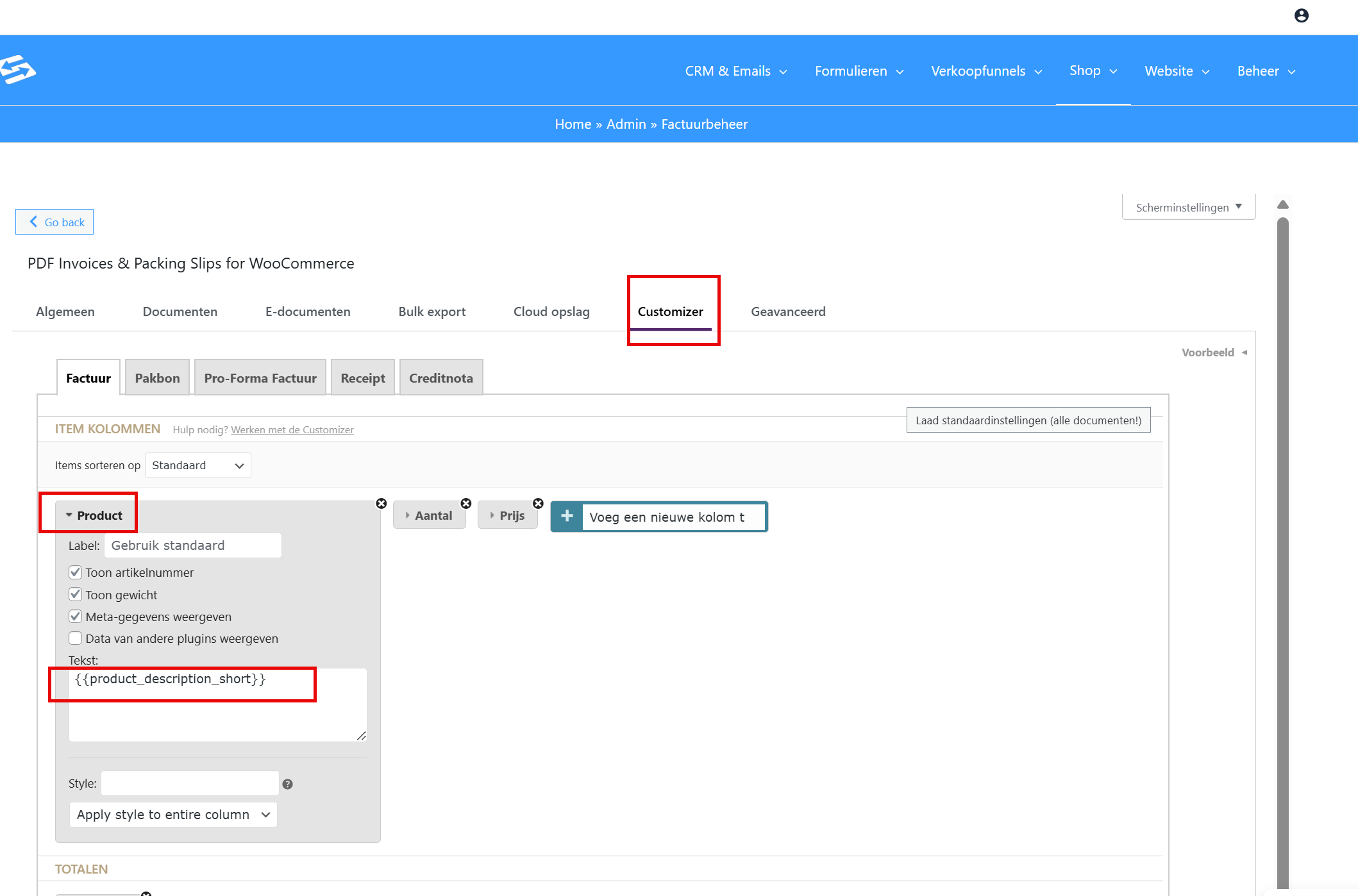
You can add the product description through the PDF Customizer, which is part of Invoice management:
- Go to Shop → Invoice management → ‘Customizer’ tab
- Find the product column in the ‘Columns’ section
- Click the product column to edit it
- Add the placeholder you want in the text field below the existing content
- Save your changes
Which placeholder to use #
You have several options for the product description:
- {{product_description_short}} — shows the short product description (recommended for invoices)
- {{product_description_long}} — shows the full product description
- {{product_description}} — shows the standard product description
- {{product_description_variation}} — shows the description of the product variation
Recommendation: use the short description #
The short product description ({{product_description_short}}) is the most suitable for invoices. This is the separate ‘Short description’ field that you can fill in for every product under Shop → Products. This description is concise and relevant for an invoice.
The full product description ({{product_description_long}}) usually contains the extensive text that also appears on your webshop page. That is often too long for an invoice.
An important difference: meta data versus product description #
Note that the ‘Display meta data’ option in the product column is something different from a product description. Meta data shows dynamic order data such as product variations (Colour: Blue, Size: L, for example). These are not fixed product descriptions but variable data per order.
What happens if the description is empty #
If you use {{product_description_short}} but a product has no short description filled in, nothing is shown on the invoice for that particular product. So make sure you fill in the description you want for your products under Shop → Products.
Frequently asked questions #
Can I show both the short and the long description on the invoice? #
Yes, you can add both placeholders one below the other in the product column. The short description then appears first, followed by the long description. This is usually not recommended, because invoices become very long.
Why can I not see a product description on my invoice? #
Check that you have added the placeholder correctly in the PDF Customizer and that the product actually has a description filled in under Shop → Products. If the field is empty on the product, nothing is shown on the invoice.
Can I change the styling of the product description? #
Yes, you can change the styling through the PDF Customizer. You can use HTML tags around the placeholder for italics or a different colour, for example. See how to set up PDF invoices for more customisation options.


