Generating order links for products and using them on landing pages #
As an entrepreneur you often want to share a direct link to a product on your landing page, in emails or on social media. Autorespond offers several ways to generate order links, depending on exactly what you want to achieve.
Order links in Autorespond are based on WooCommerce, included in your package with the Shop & Sales funnels extension.
Direct product page link #
The simplest way is a direct link to the product page. Customers then see all the product information, can choose variations and add the product to their basket.
- Go to Shop → Products
- Open the product you want a link for
- Copy the URL from your address bar
- Use this URL on your landing page or in your marketing
This link has the format: yourdomain.com/shop/productname/
Direct order link to the shop checkout #
Do you want a customer to be able to pay straight away after one click, without first passing the product page or the basket? Then use a direct order link: a link that opens the standard shop checkout with the product already in it. This is the link you put behind an order button on your landing page or in an email.
Copying the order link with one click #
Every product has a ready-made order link waiting that you copy with one click:
- Go to Shop → Products and open the product
- Look at the top right: directly below the Publish block (which you use to save the product) you will find the Direct order link block
- Click Copy link. The full order link is now on your clipboard and you can paste it anywhere
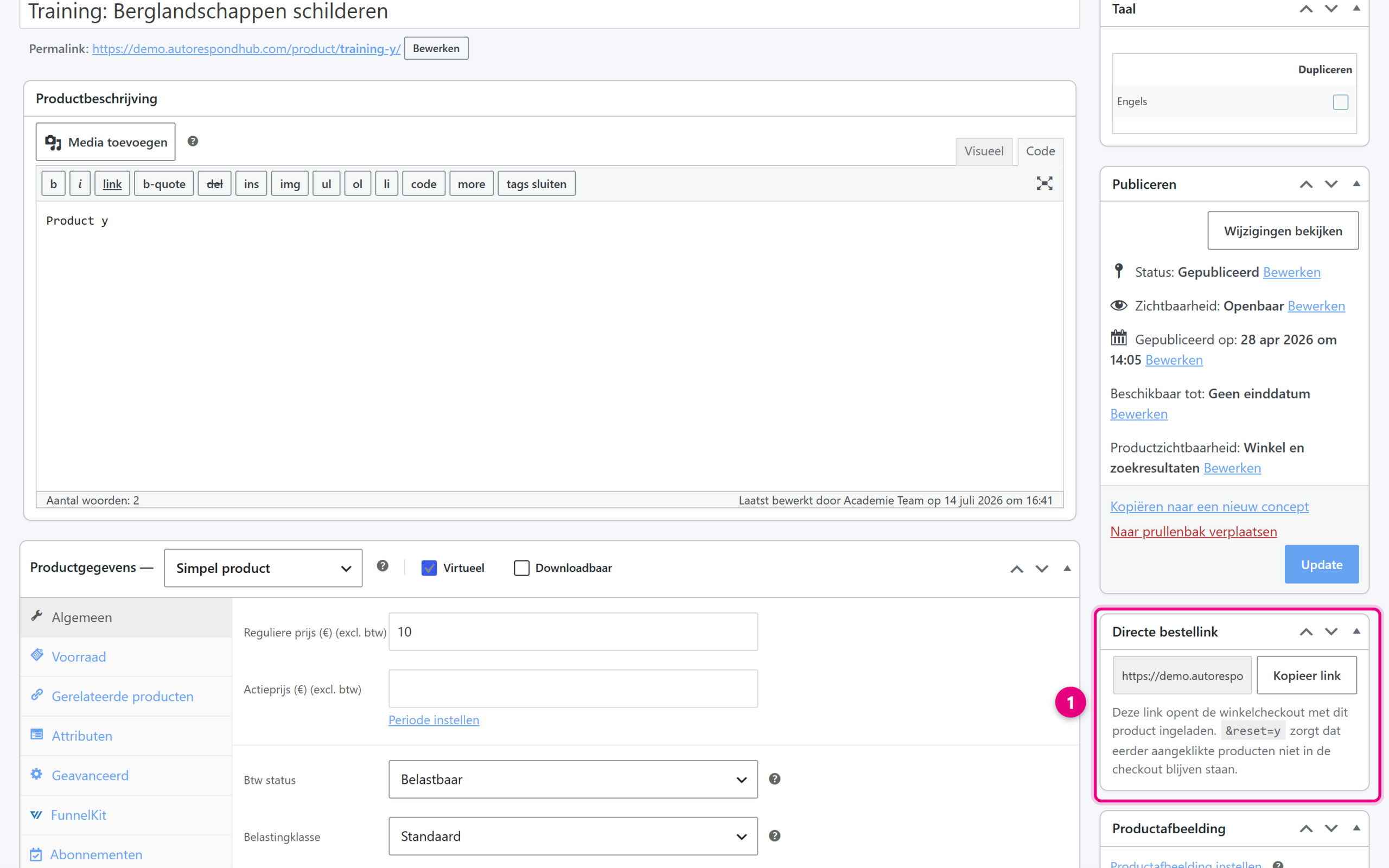
- The Direct order link block sits at the top right of the product, directly below the Publish block
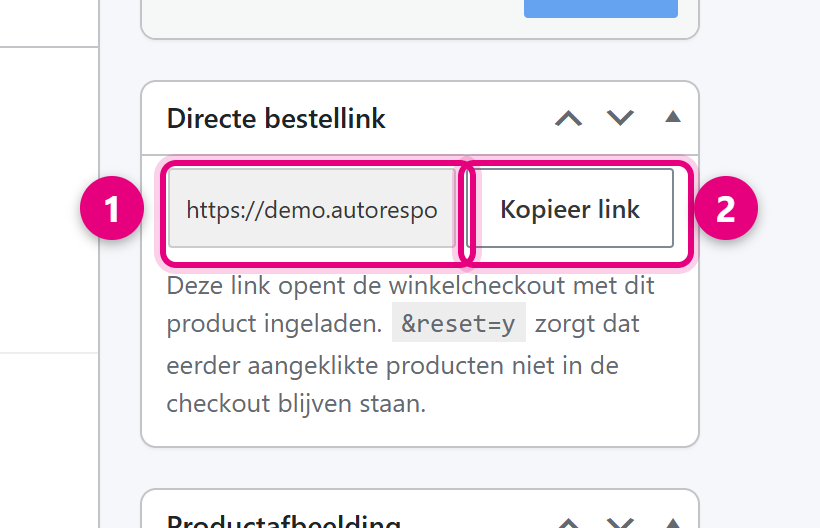
- The ready-made order link for this product, with your checkout URL, the correct product ID and the reset parameter already in it
- Copy link puts the full link on your clipboard in one click
For a variable product (a product with variations) this block automatically shows a separate order link per variation, because an order link always works on a specific variation.
Good to know: if you have set up your own funnel checkout for a product (through the FunnelKit tab in the product), the order link automatically opens that checkout instead of the standard shop checkout. That way your customer always ends up at the checkout you chose for that product. The Direct order link block shows this on the product when that is the case.
How the order link is built up #
You can also put the order link together yourself. The basis is the URL of your standard shop checkout, the checkout page you manage through Sales funnels → Shop Checkout. How to set up that page is explained in Adapting the general shop checkout and thank-you page to your wishes. By default the URL is:
https://yourdomain.com/checkouts/checkout/
After that you put ?add-to-cart= followed by the product ID:
https://yourdomain.com/checkouts/checkout/?add-to-cart=123
We recommend always adding &reset=y after that:
https://yourdomain.com/checkouts/checkout/?add-to-cart=123&reset=y
Why? If the customer has clicked this or another order link before, those products would otherwise be remembered and still be in the checkout. With reset=y the basket is emptied first, so that only the product from the link is ready. The copy button above adds this automatically.
Please note: if you have changed the URL (slug) of your checkout page, use your own checkout URL as the basis. The copy button in the product takes this into account automatically, so the copied link always contains the correct checkout URL of your site.
Finding the product ID #
If you put the link together yourself, you need the product ID:
- Go to Shop → Products
- Hover your mouse over the product name – the ID appears in the URL at the bottom of your browser
- Or: open the product for editing and look at the URL:
yourdomain.com/wp-admin/post.php?post=123– the number after “post=” is the product ID
The result for your customer #
If the customer clicks the order link, the shop checkout opens with the product ready to be paid for:
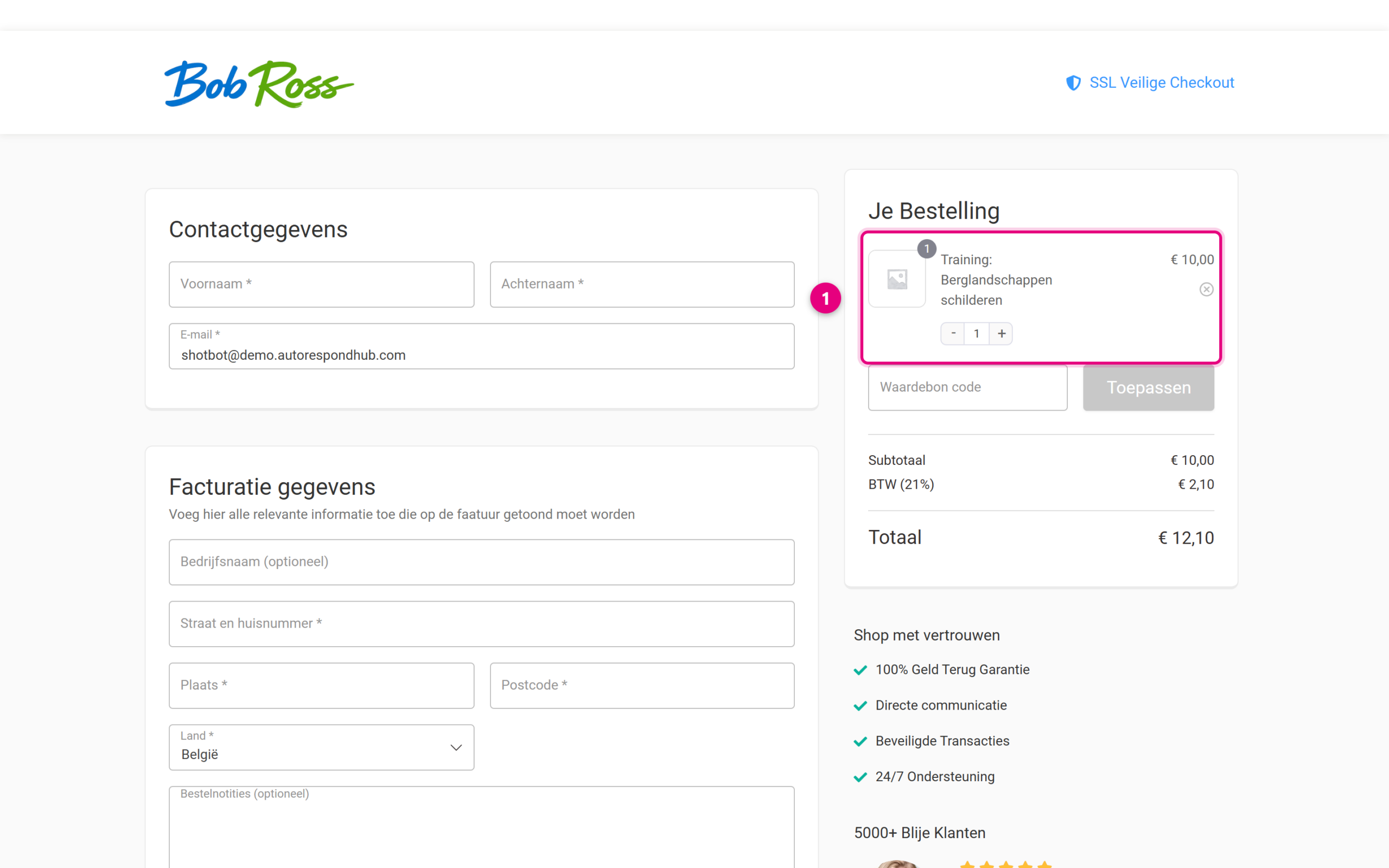
- The product from the order link is ready straight away in “Your Order” on the shop checkout, so the customer only has to fill in their details and pay
A customised checkout through sales funnels #
For more control over the buying process you create a sales funnel. This gives you your own landing page, a customised checkout and the option to add upsells and order bumps.
- Go to Sales funnels → Individual funnels
- Click ‘New funnel’
- Choose a template or start with an empty funnel
- Configure the steps: landing page, checkout, thank-you page
- Select the product you want to sell
- Publish the funnel and use the generated link
This option is ideal if you want to get a specific sales message across or offer extra products during the payment process.
Using links in your marketing #
Whichever method you choose, you can use the order links in:
- Email campaigns and automations
- Landing pages built in Elementor
- Social media posts
- External websites and adverts
- QR codes for offline marketing
Tracking and analysis #
All orders placed through these links are registered automatically in Shop → Orders. For extensive analysis of your sales funnels, look at the statistics under Sales funnels → Funnel analytics.
Frequently asked questions #
Can I apply a discount code automatically through the order link? #
Yes, add &discount_code=YOURCODE to the URL. This works for both direct product links and add-to-cart links.
Do order links work for variable products too? #
For variable products you use the variation ID instead of the main product ID. For a variable product, the Direct order link block in the product automatically shows a separate copy link per variation.
Can I add several products to the basket at once? #
Yes, use several add-to-cart parameters: yourdomain.com/?add-to-cart=123&add-to-cart=456 or create a sales funnel with a product bundle.
What does reset=y do exactly? #
That parameter empties the basket before the product from the link is added. This stops products from an earlier visit or another order link from still being in the checkout. Recommended on every direct order link.


