Would you like to know exactly how many visitors come to your website, where they come from and which pages are the most popular? In Autorespond you can easily connect Google Analytics 4 (GA4) and other tracking tools.
These settings help you make your marketing efforts measurable without having to dive into the code of your website.
In this article we explain step by step how to set up this connection.
Step 1: Go to the Analytics settings #
To reach the right settings, follow the navigation in the main menu of your Autorespond dashboard:
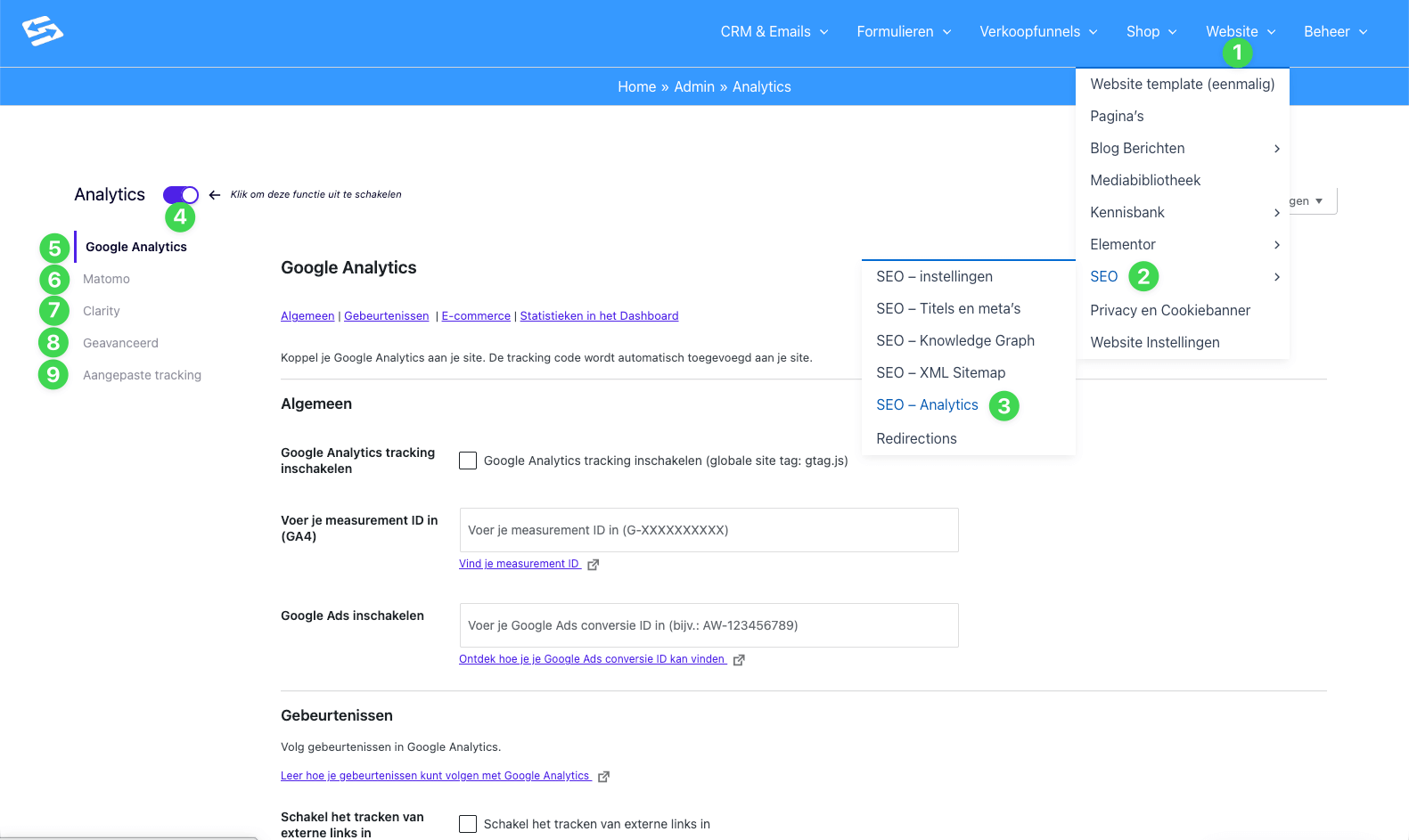
- In the top menu bar, click Website (see the green 1 in the image).
- In the drop-down menu that appears, hover over the option SEO (see 2).
- A new submenu opens. Click SEO – Analytics here (see 3).
Step 2: Activate the Analytics module #
Once you are on the page, the first step is to activate the functionality.
- Make sure the toggle next to Analytics is switched on (blue, see 4).
- Please note: if this is switched off, no data is collected, regardless of what you fill in below.
Step 3: Choose your tracking method #
On the left-hand side of the screen you see a vertical menu with various options. Here you choose which tool you want to set up:
- Google Analytics (5): The most widely used option for statistics (we cover this in more detail below).
- Matomo (6): A privacy-friendly alternative to Google Analytics.
- Clarity (7): For heatmaps and user recordings from Microsoft.
- Advanced (8): For specific settings around cookies and privacy.
- Custom tracking (9): Here you can place code from other services (such as the Facebook Pixel or the LinkedIn Insight Tag) in the <head> or <body>.
- See also our support doc: Connect Google Tag Manager and tracking scripts through the SEO settings
Setting up Google Analytics 4 (GA4) #
When you click Google Analytics (5) in the left-hand menu, you see the settings shown in the image above.
- Enable: Tick the box “Enable Google Analytics tracking”.
- Measurement ID: Enter your G-XXXXXXXXXX code here.
- Not sure where to find it? Log in to your Google Analytics account and go to Admin > Data streams.
Google Ads (optional): Do you advertise with Google Ads? Then enter your conversion ID here (for example AW-123456789) to measure conversions directly.
Events: Under the heading ‘Events’ you can tick extra options, such as “Enable outbound link tracking”. This is useful for seeing when people click through to another website.
Do not forget to click Save changes at the bottom of the page. *
Frequently asked questions (FAQ) #
Where do I find my Google Analytics Measurement ID?
Your Measurement ID can be found in your Google Analytics 4 property. Go to Admin > Data collection and modification > Data streams. Click your web stream and you will see the “Measurement ID” in the top right, starting with “G-“.
Can I use Google Analytics and Matomo at the same time?
Technically this is possible by filling in and enabling both tabs (5 and 6). Do bear in mind that loading several scripts can slightly affect the loading time of your page.
I do not see any data coming in to Google Analytics, what now?
It can take 24 to 48 hours before data is visible in GA4. Also check that you really set the toggle at point 4 to ‘on’ and that your Measurement ID contains no typing errors. If needed, use the ‘Realtime’ report in Google Analytics to test whether your own visit is registered.


