An XML sitemap is essential if you want to be found properly in search engines such as Google. See it as a map of your website: it tells search engines exactly which pages, posts and images are on your site and when they were last updated.
Within Autorespond this sitemap is generated for you automatically, but you keep control over what is and is not included. In this article we explain how to manage these settings.
Where do I find the XML sitemap settings? #
To open the settings for your sitemap, follow these steps in the Autorespond administrator menu:
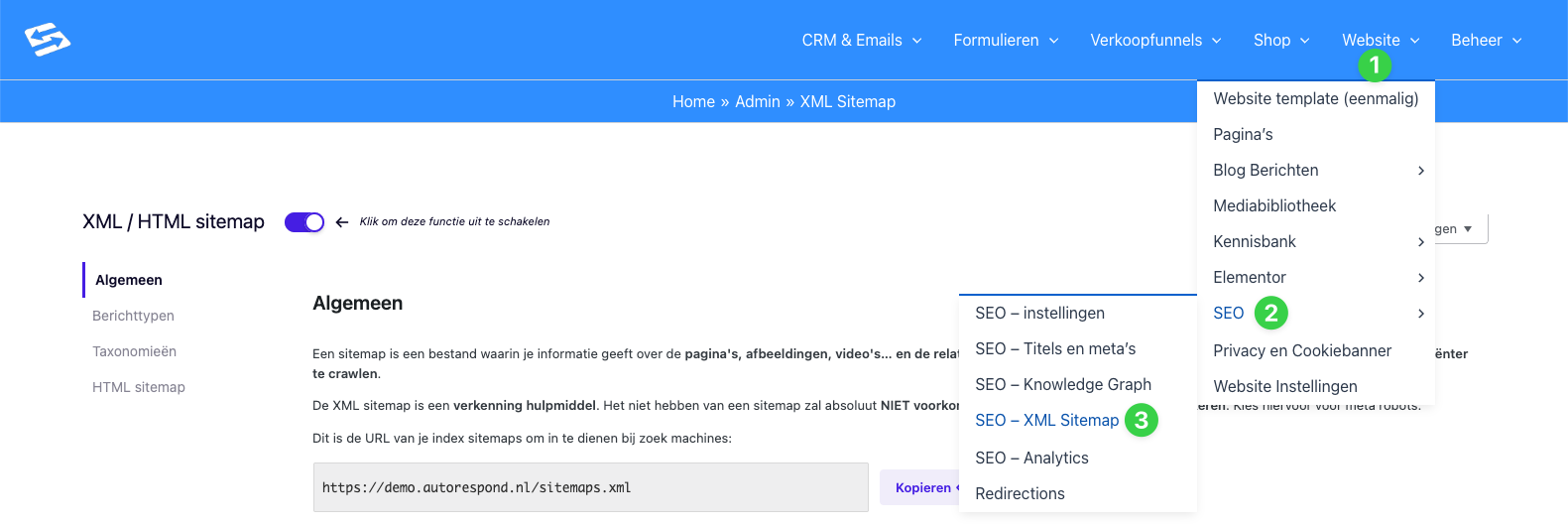
- In the blue menu bar at the top, go to Website (1).
- Hover over the menu item SEO (2) so that the submenu opens.
- Then click SEO – XML Sitemap (3).
You now reach the configuration screen of the sitemap.
Setting up the sitemap #
Once in the sitemap menu you see various options for fine-tuning your sitemap.
1. Switching the function on or off #
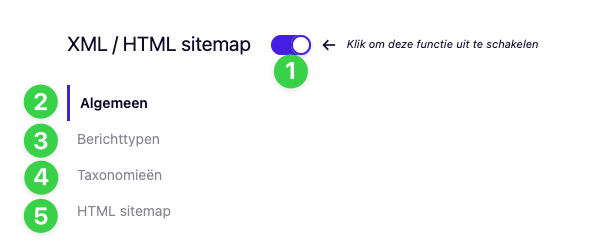
At the top of the page you see the toggle XML / HTML sitemap (1).
- Is the slider purple? Then the sitemap functionality is active. We strongly recommend this for every website.
- Do you want to switch the sitemap off? Then click the slider so that it turns grey.
2. General #
Under the tab General (2) you find the basic settings. The URL of your XML sitemap is also shown here (for example `yourdomain.com/sitemaps.xml`). You can use this link to submit your sitemap to Google Search Console.
You also find options here to notify search engines automatically (pinging) when you publish new content.
3. Post types #
Click Post types (3) to determine which kinds of pages are included in the sitemap.
- By default you want ‘Pages’ and ‘Posts’ (for your blog) ticked here.
- Do you have specific funnels or landing pages that you do not want in Google? Then you can exclude them here.
4. Taxonomies #
Under Taxonomies (4) you manage the groupings of your content, such as categories and tags.
- If you use category archives on your site, tick these.
- Do you use tags internally, but do they have no value for visitors? Then leave them out of the sitemap to avoid cluttering your search results.
5. HTML sitemap #
Besides the technical XML sitemap (for robots), under HTML sitemap (5) you can set up a sitemap for your visitors (people). This is a normal web page with a list of all your links. It can be useful for the usability of very large websites, but for most users it is optional.
Frequently asked questions (FAQ) #
Do I have to update my sitemap manually when I write a new blog?
No, that is not necessary. Autorespond updates the sitemap completely automatically as soon as you publish or change a page or post.
I see a 404 error when I open my sitemap URL, what now?
This can happen if the link structure of the site has been changed. In the menu, go to Website > Settings > Permalinks and click “Save changes” once (without changing anything). This resets the link structure and usually solves the problem straight away.
What is the difference between the XML and the HTML sitemap?
XML: Intended for search engines (Google/Bing). This is code that explains the structure of your site.
HTML: Intended for people. This is a readable list of links on a page of your website.
Why is my page not in the sitemap?
First check whether the relevant ‘post type’ is ticked at step 3 (see above). Also check that the specific page has not been set to “noindex” in the individual SEO settings of that page.


