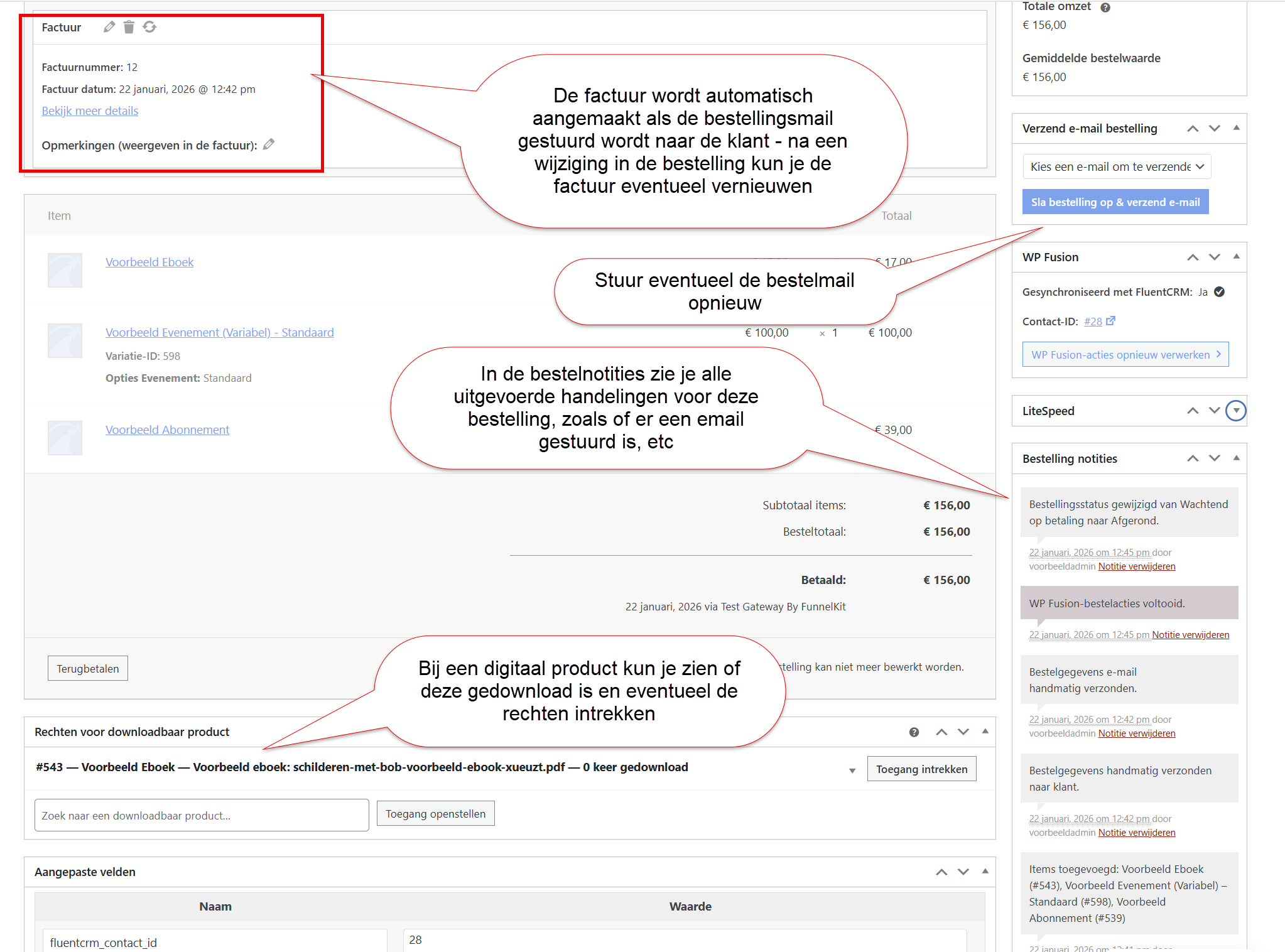
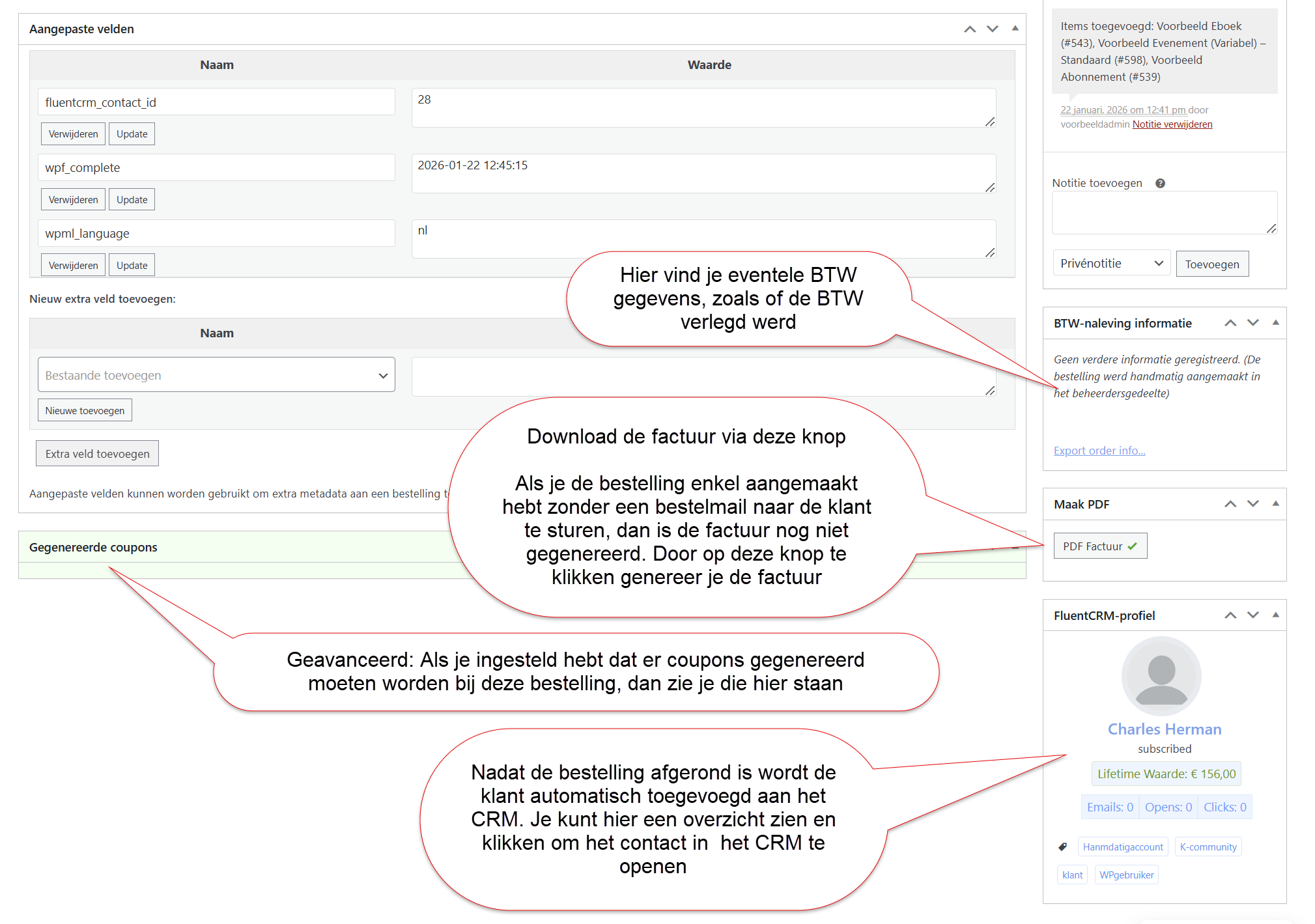
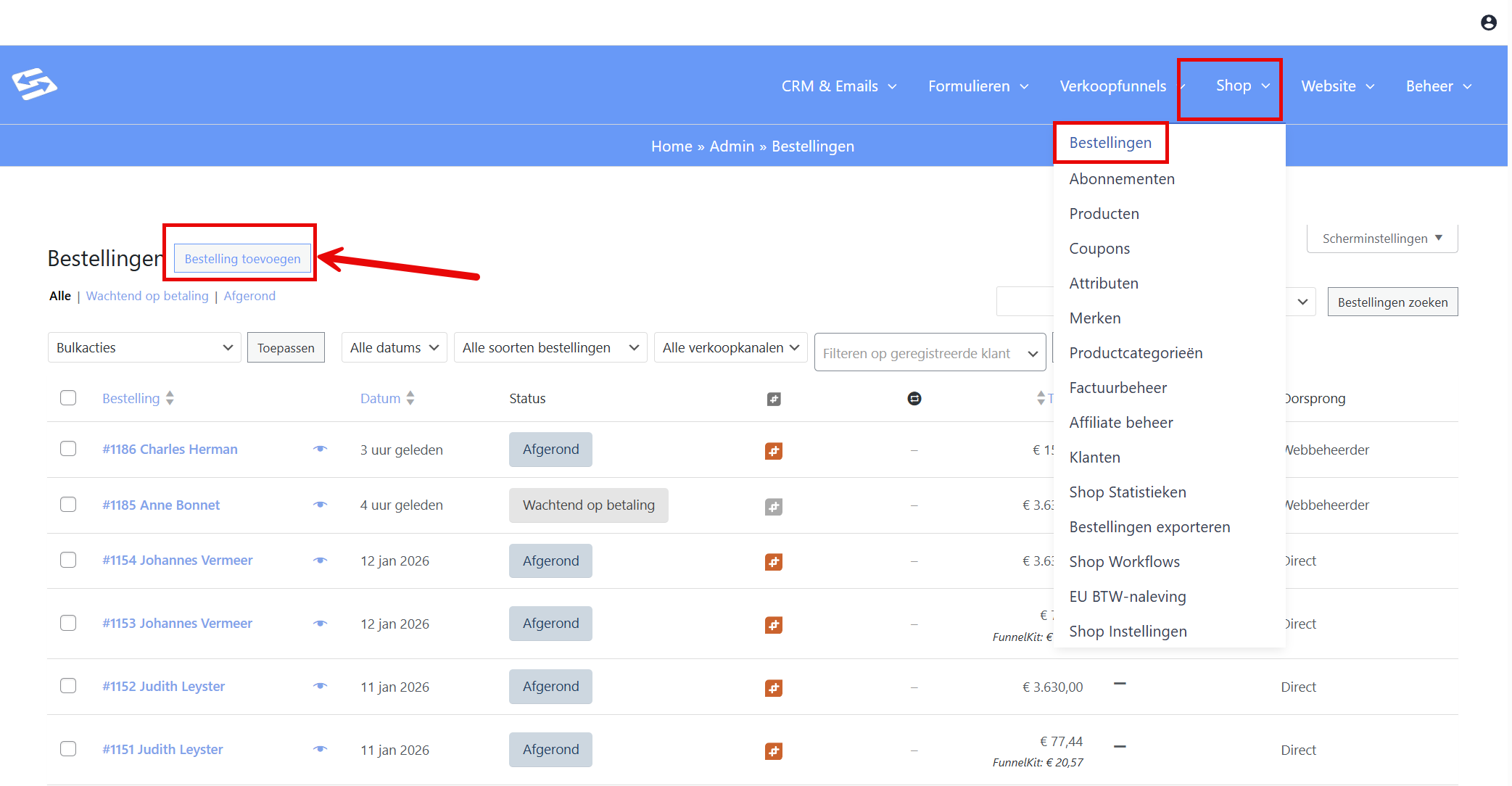
Do you want to create an order manually in WooCommerce? Go to the menu Shop > Orders and click ‘Add order’:
Now create your order:
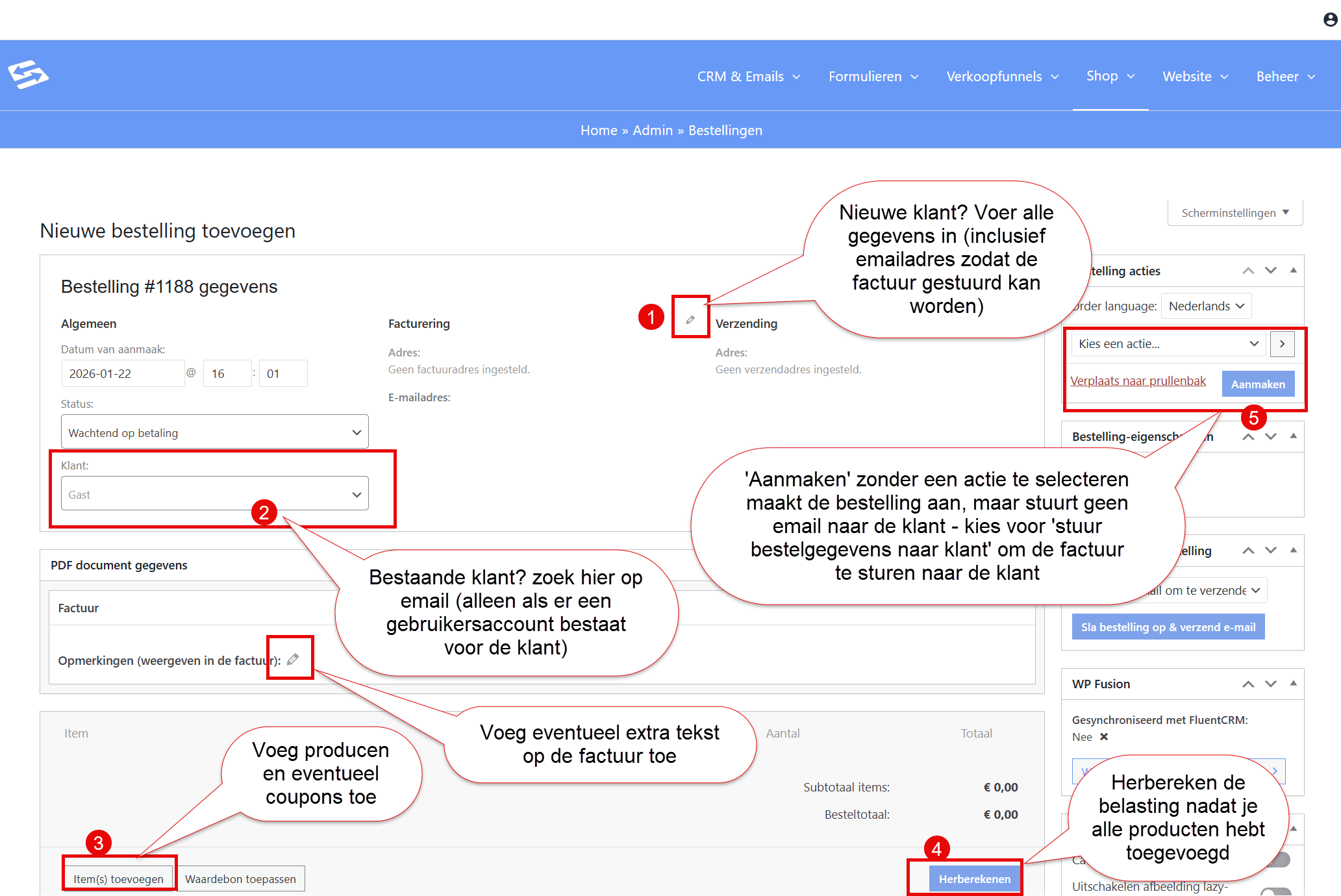
Important: After adding all products and any discounts, always click the ‘Recalculate’ button to calculate the correct VAT.
Once you have set everything up as you want it, you can create the order at the top right. If you want to send the order details, the invoice and the payment link to the customer, choose ‘Email invoice / order details to customer’.
Choosing an existing customer (or ordering as a Guest) #
At the top of the order screen, under Customer, you choose whose details are loaded. This list only contains user accounts. Do you not see someone there even though they are a contact in the CRM? That is correct: a CRM contact is not yet a user account. You then have two options:
- For a one-off order, leave the customer set to Guest and use the pencil icon next to Billing to enter the name, the address and the email address. An account is not needed in that case.
- Do you want to be able to load the customer more often, or does the customer need to be able to log in themselves? Then create a user account first, if you like directly from the CRM contact. You can read how to do that in creating a new customer manually.
Other settings in the order overview