This guide belongs to the Shop & sales funnels module. It is part of Email + Shop and Everything, and you can also add it to your plan on its own. See what the module does
When you create an order or invoice manually, you don’t want to retype the details of an existing contact every time. The “Customer” field in an order only searches user accounts, not your CRM contacts. That is why a new order has a separate “CRM contact” search field, and the contact page in the CRM has a button that opens an order for that contact straight away. The contact does not need a user account for this.
The Shop & Sales funnels extension is an optional extension you can add to your Autorespond package. If this extension is switched off, you won’t see the search field and the button described in this article.
1. Search for a contact in a new order #
- Go to Shop → Orders and click Add order.
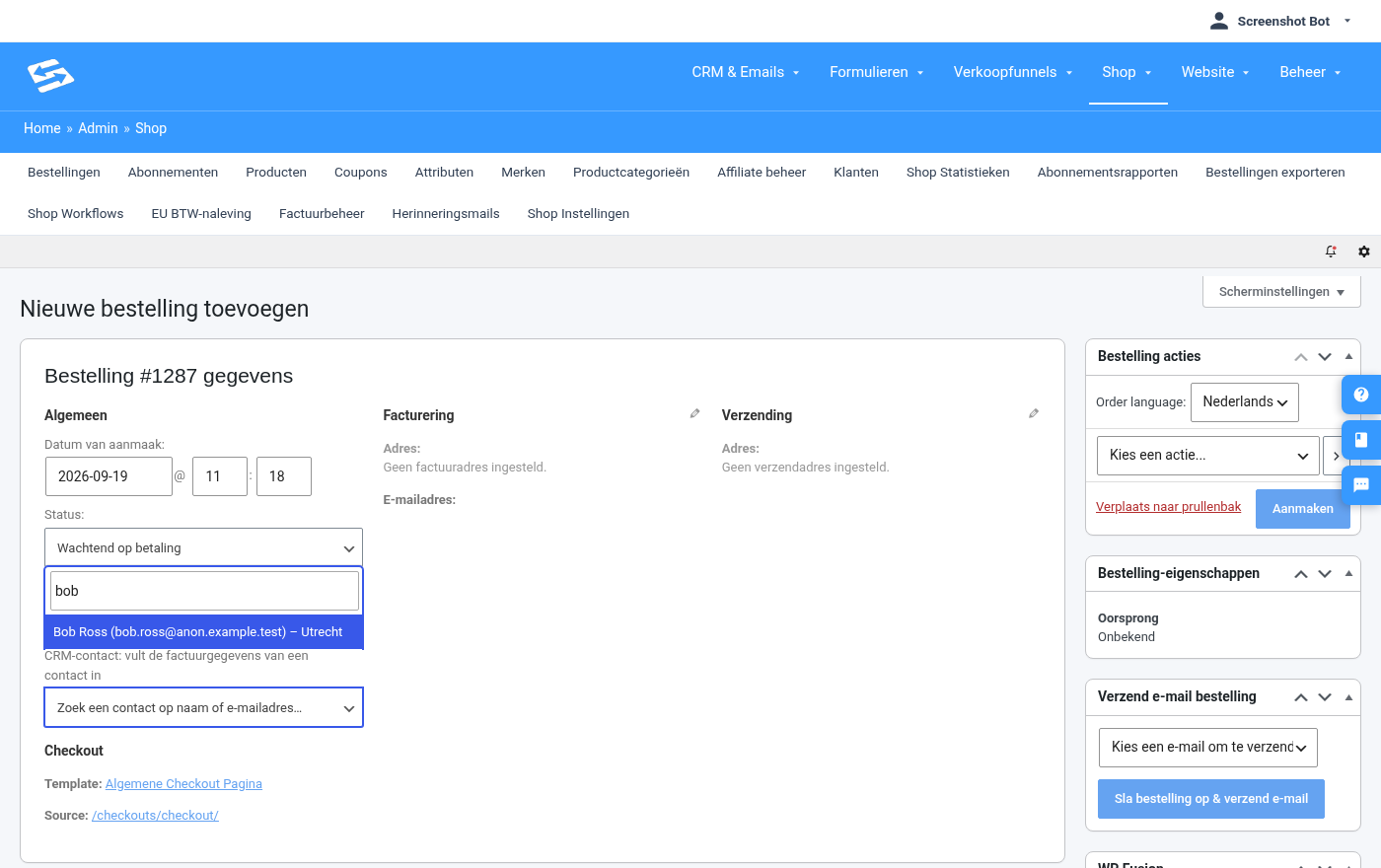
- On the left, below the Customer field, click in the CRM contact field.
- Type at least two letters of the name or email address. As you type, the matching contacts appear, with their email address and town.
- Click the right contact.
2. The details are filled in #
As soon as you choose the contact, the first name, last name, address, postcode, town, country, email address and phone number are filled in under Billing. If the contact has a company name or VAT number, those come along too. If the contact has a customer account, that account is set in the Customer field straight away. If the contact has no account, Customer stays on Guest, and that is fine.
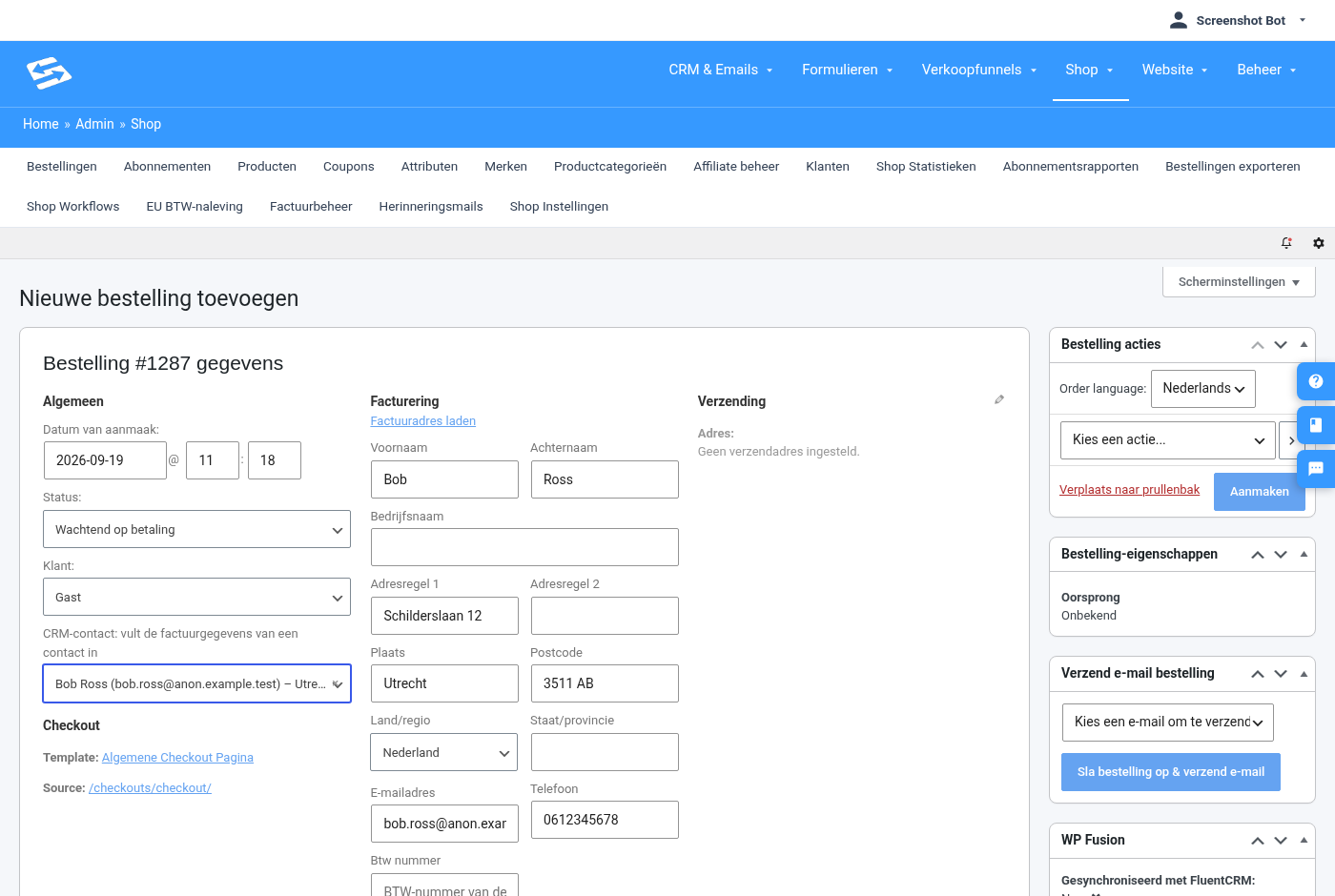
- Check the details and add anything that is missing. If something is often missing, add it to the contact in the CRM; it will then come along automatically next time.
- At the bottom, add the products with Add item(s) and click Recalculate.
- On the right, click Create.
3. Straight from a contact in the CRM #
If you are already in the CRM, it is even quicker. Open the contact through CRM & Emails → Contacts. On the right, under Additional information, you’ll find the Order block. Click New order for this contact: a new order opens with this contact’s details already filled in. Then add the products and click Create.
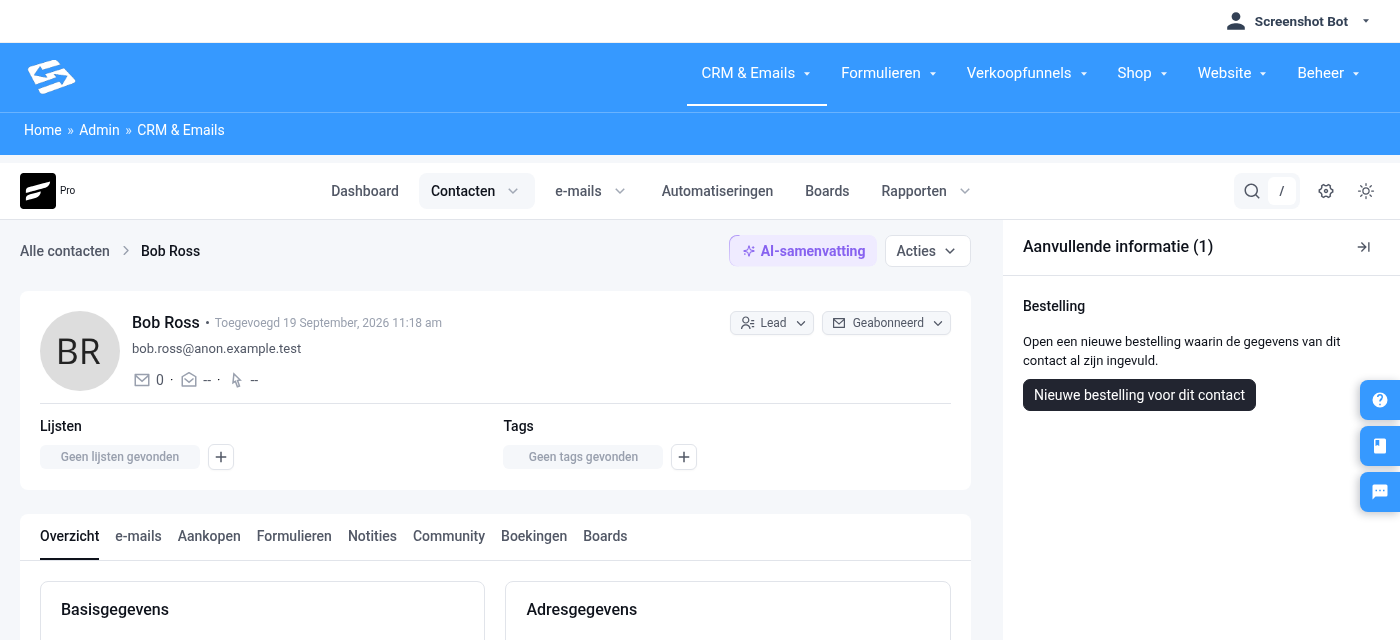
Don’t see the block? Click the arrow next to Additional information at the top right to expand the sidebar.
Good to know #
- The CRM contact search field is only available in a new order. In an order that has already been created, you change the billing details with the pencil icon next to Billing.
- You don’t need to create a user account for your customers to be able to invoice them. An order as a Guest is simply linked to the contact in the CRM, based on the email address.
- If you open an order with the button in the CRM and close the screen without clicking Create, nothing is created.
Frequently asked questions #
Why can’t I find my contact in the Customer field? #
The Customer field only searches user accounts. A contact in your CRM does not automatically have an account. That is why you use the CRM contact field below it, which searches all your contacts.
What if the person is not in my CRM yet? #
Create the contact first through CRM & Emails → Contacts, including the address. After that you’ll find them in the CRM contact field. You can also simply fill in the details in the order itself.
Are the contact’s details changed if I edit them in the order? #
No. What you change in the order applies to that order and its invoice. The contact in the CRM stays as it is.


