In the overview of your forms, two extra columns can appear next to the number of submissions: Views and Conversion. They show how often a form has been viewed and which share of those visitors actually filled it in. If you do not see those columns, your environment is not keeping track of these figures. It is a setting you switch on or off yourself.
These figures are about the performance of the form inside your own environment. If you want to pass sign-ups on as conversions to an advertising platform such as Google Ads or Facebook, you use tracking scripts for that. You can read about it in Measuring conversions on form sign-ups (Google Ads and Facebook).
Forms in Autorespond are based on Fluent Forms – included in your package. Read the English documentation
What the columns show #
Go to Forms in the top bar. If counting is switched on, the table has three columns with figures on the right.
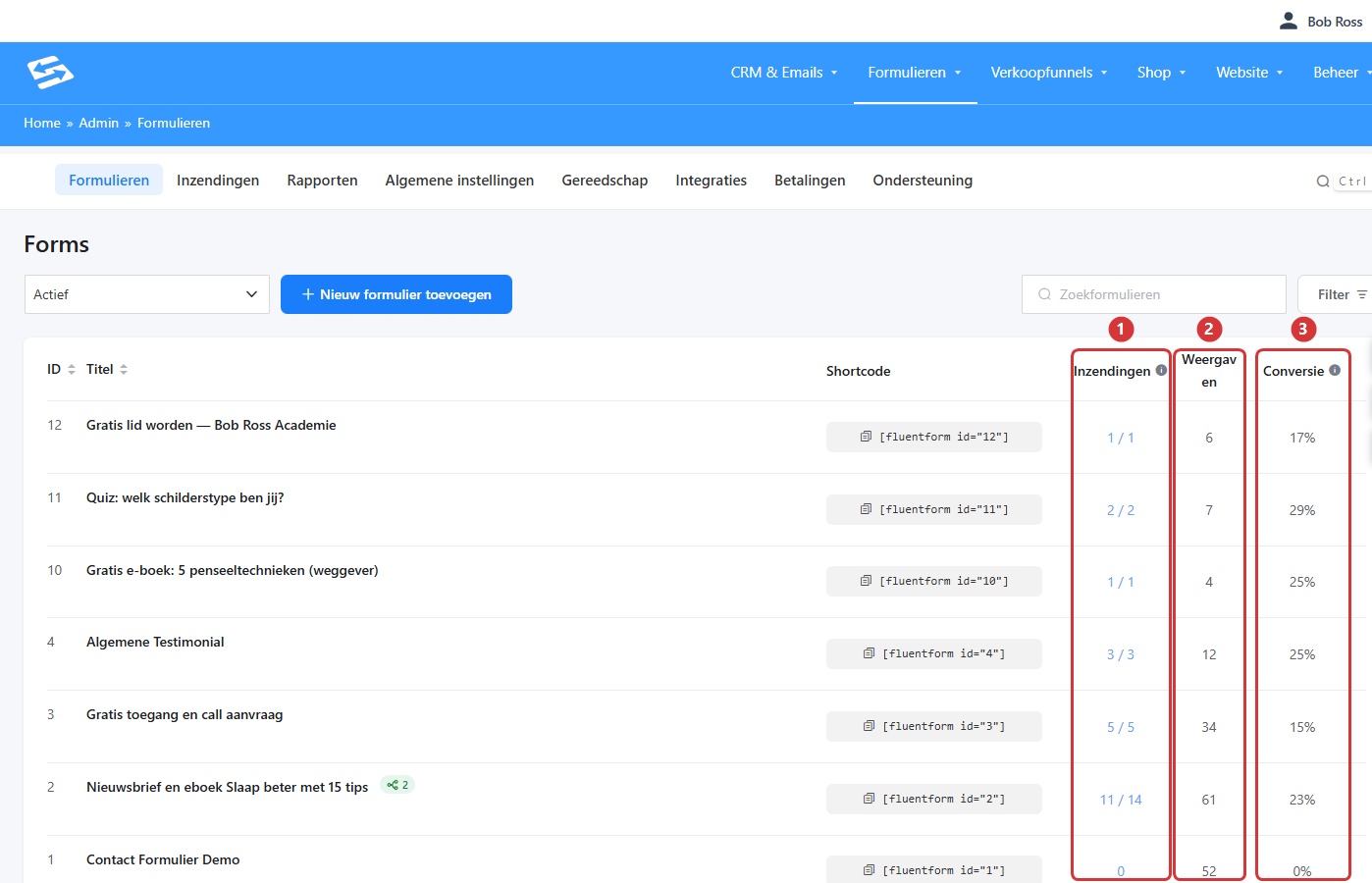
In the image: the forms overview with the columns Submissions (1), Views (2) and Conversion (3).
- Submissions. The first number is the number of submissions you have not opened yet, the second number the total number of submissions the form has ever produced. If it says 11 / 14, fourteen sign-ups have come in, eleven of which you have not looked at yet. Click the number to open the submissions.
- Views. The number of times the form has been shown to a visitor. This counts per unique visitor per page: if someone views the same page three times, that counts as one view. If the same form is on two different pages, a visitor who views both pages does count twice.
- Conversion. The share of submissions relative to the views, rounded up to whole percentages. With 61 views and 14 submissions that works out at 23%. This percentage always uses the total number of submissions of the form.
Switching counting on or off #
Counting is a setting for your whole environment: it applies to all your forms at once. You find it in the general settings of Forms.
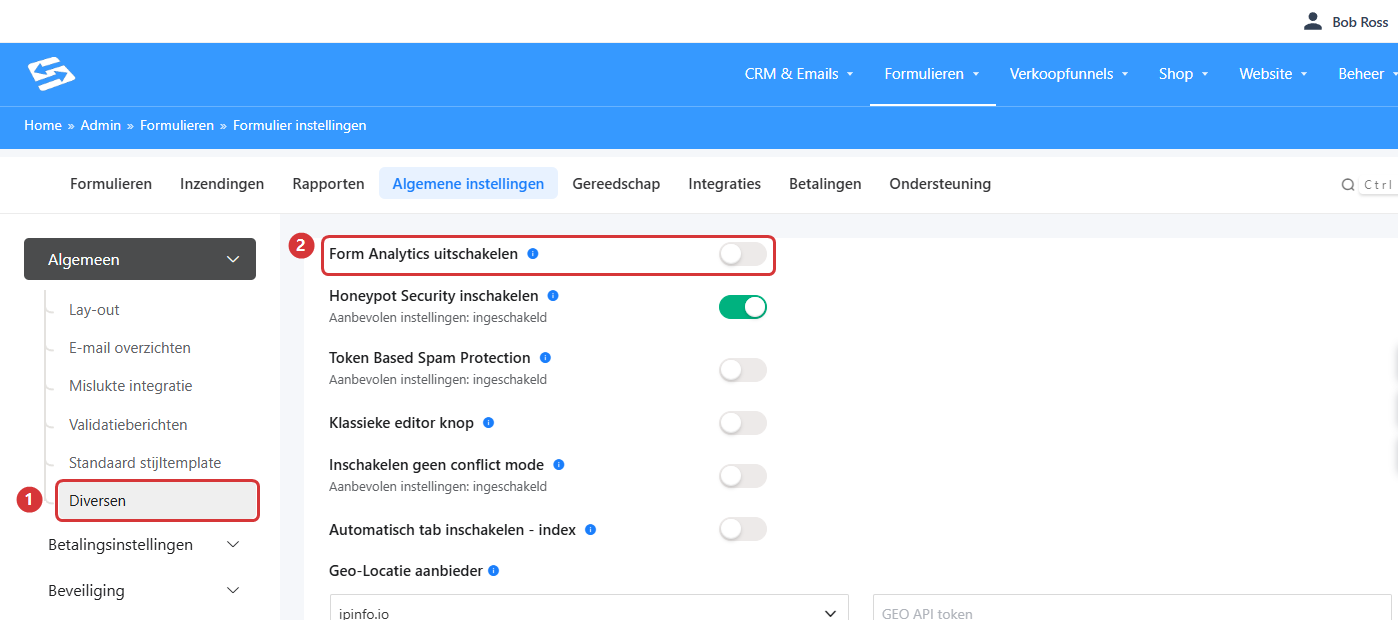
In the image: General settings ▸ Miscellaneous (1) with the Disable Form Analytics toggle (2). The toggle is off here, so views and conversion are being tracked.
- In the top bar, go to Forms and click the General settings tab.
- In the left-hand menu, click Miscellaneous under General (1 in the image).
- At the top you find the Disable Form Analytics toggle (2 in the image). Leave that toggle off: views and conversion are then tracked and you see the columns in your forms overview. If you switch the toggle on, counting stops and the columns disappear.
- Scroll to the bottom of the page and click Save settings.
- Go back to Forms. The Views and Conversion columns are now there, or have disappeared if you switched counting off.
New environments start with counting switched off. That is why you see the columns on one website and not on another.
From what moment the figures count #
Views are counted from the moment you switch counting on. The number of submissions, by contrast, includes everything the form has ever produced. In the first period after switching on, the conversion percentage can therefore come out high, and even go above 100%: more submissions are then known than registered views. After a few weeks of measuring, the percentage gives a realistic picture. If you want to start with a clean slate straight away, set the counter of that form to zero as soon as counting is switched on (see further on).
Views are only counted in the places where the form is shown through your own environment, on a page for example, in a sales funnel or on a landing page of the form itself.
What else counting gives you #
The columns are not the only thing that depends on this counting. Under Forms ▸ Reports ▸ Overview you see a graph with the number of views per day next to your submissions, and at Top Performing Forms you can switch from submissions to views. If counting is off, those parts stay empty with a message that the analysis is disabled.
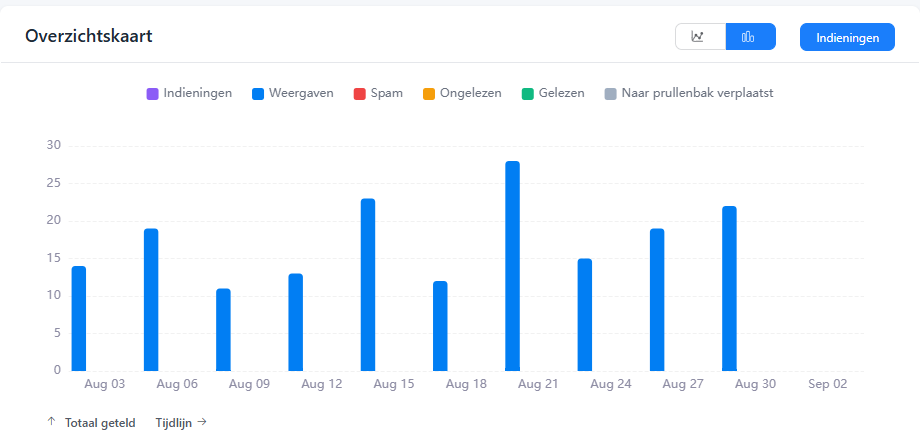
In the image: Forms ▸ Reports ▸ Overview shows the views per day as soon as counting is switched on.
Setting the figures of one form to zero #
Have you been testing on the page a lot yourself, or do you want to start measuring again after a redesign? Then you can clear the counting of an individual form.
- Open the form and go to the Submissions tab.
- Click Visual report at the top right.
- Click Reset form analytics at the bottom right (1 in the image).
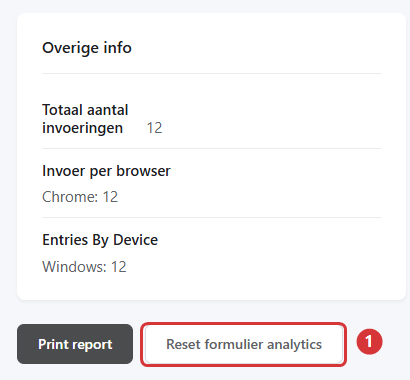
In the image: the Reset form analytics button (1) in the visual report of a form.
This clears the views and the associated visit data of that one form. The submissions themselves simply stay in place; the Views column starts at zero again and counts up from that moment.
What to watch out for #
- Visit data is stored. For every unique view, your environment keeps a record with the visitor’s IP address, the browser, the device and the page the form was on. If you switch counting on, include that in your privacy statement and your record of processing activities.
- Your own visits count too. Even when you look at the page yourself while logged in, that is counted as a view. On forms with little traffic, that distorts the percentage.
- With a lot of traffic, storage grows. Every unique combination of visitor and page produces a record. If you do not use the figures, it is tidier to leave counting switched off.
- The setting applies to all forms. You cannot switch counting on or off per form. Resetting can be done per form.
Frequently asked questions #
Why does it show a conversion of more than 100%? #
More submissions are known than registered views. That happens when the form already had submissions before you switched counting on. Set the counter of that form to zero and measure again, and the percentage will be correct.
I have switched counting on but do not see any figures yet #
The counter only starts running at the next visit to a page the form is on. Also check that you clicked Save settings after flipping the toggle, and then refresh the forms overview.
Do I lose my figures if I switch counting off? #
No. The views collected are kept, they are simply no longer increased and the columns disappear from the overview. If you switch counting back on later, it continues from the stored total.
Can I switch counting on for one form? #
No, the toggle applies to all your forms at once. You can clear the figures per form with Reset form analytics.
Does this measure my advertising campaigns as well? #
No. These figures stay inside your own environment. For conversion tracking in Google Ads, Google Analytics or Facebook you place tracking scripts on your thank-you page.
Related articles #
- Measuring conversions on form sign-ups (Google Ads and Facebook)
- See at a glance which forms and products are linked to your CRM
- Automatic report emails from your environment
- Creating your own form style and reusing it for all your forms
- Connecting Google Analytics and tracking tools to your Autorespond platform


