When you create a form in Autorespond, no link to the CRM is made by default. The reasoning behind this is that you can use forms for many different purposes and therefore do not always want a link with the CRM (think of anonymous surveys, or a form intended purely for a connection with an external application).
In most cases, though, you do want to add sign-ups to the CRM straight away, so you can follow up on contacts with tags, lists or automated emails. That is why Autorespond shows you directly in your forms and products overview whether that link with the CRM is set correctly, warns you about a new form that is not linked yet, and restores a missing link with one click. This article walks through every part.
Forms and the CRM in Autorespond are based on Fluent Forms and FluentCRM, included in your package. Read the English documentation.
The UI described in this document is not currently part of the standard Fluent Forms or FluentCRM functionality – these are extensions we developed ourselves.
On your forms: see immediately whether sign-ups reach the CRM #
Open Forms in the menu. Next to every form name you can now see at a glance how the form is connected to the CRM:
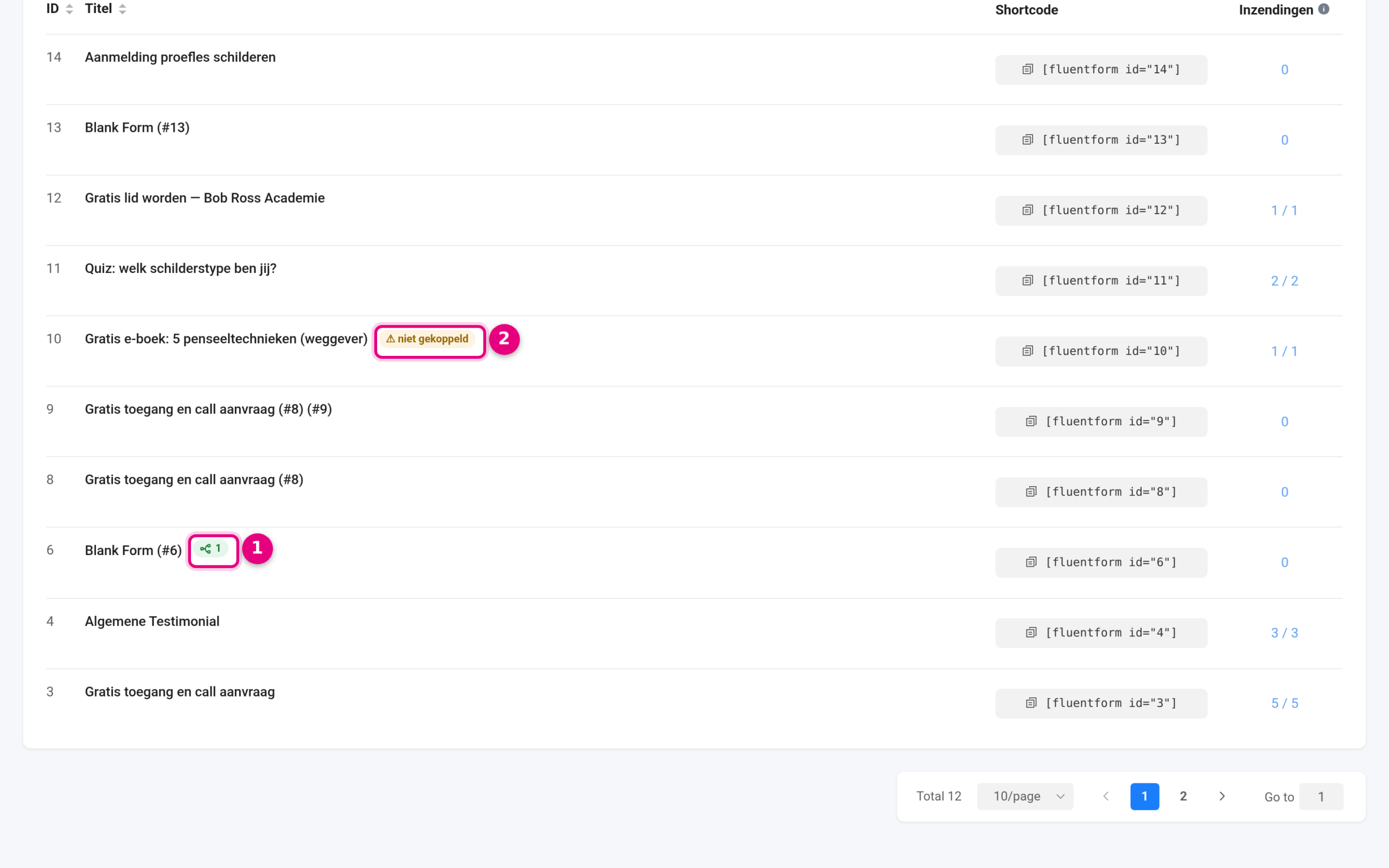
- Automation label — this form is the starting step of an automation. The number is the number of automations that start on this form. Green means at least one is live, grey means they are still in draft. Move your mouse over the label to see the names; click it to go straight to the automation (with several, you get a selection menu).
- ⚠ not linked — sign-ups from this form are currently not saved as a contact in the CRM: there is no CRM integration set up and no automation that starts on the form. This warning also appears when the CRM integration is switched on but the email field is not mapped, in which case everything looks fine while nothing quietly reaches the CRM. Click the label to fix this right away (see below).
Are you deliberately using a form without a CRM link (an internal test form, for example)? That is perfectly fine: the label is only a signal and changes nothing about how the form works.
New form? You get a warning automatically #
If you create a new form and save it while it is not yet linked to the CRM, a one-off notice appears. That way a new sign-up form can no longer stay live for weeks without anyone noticing that the sign-ups never reach your CRM.
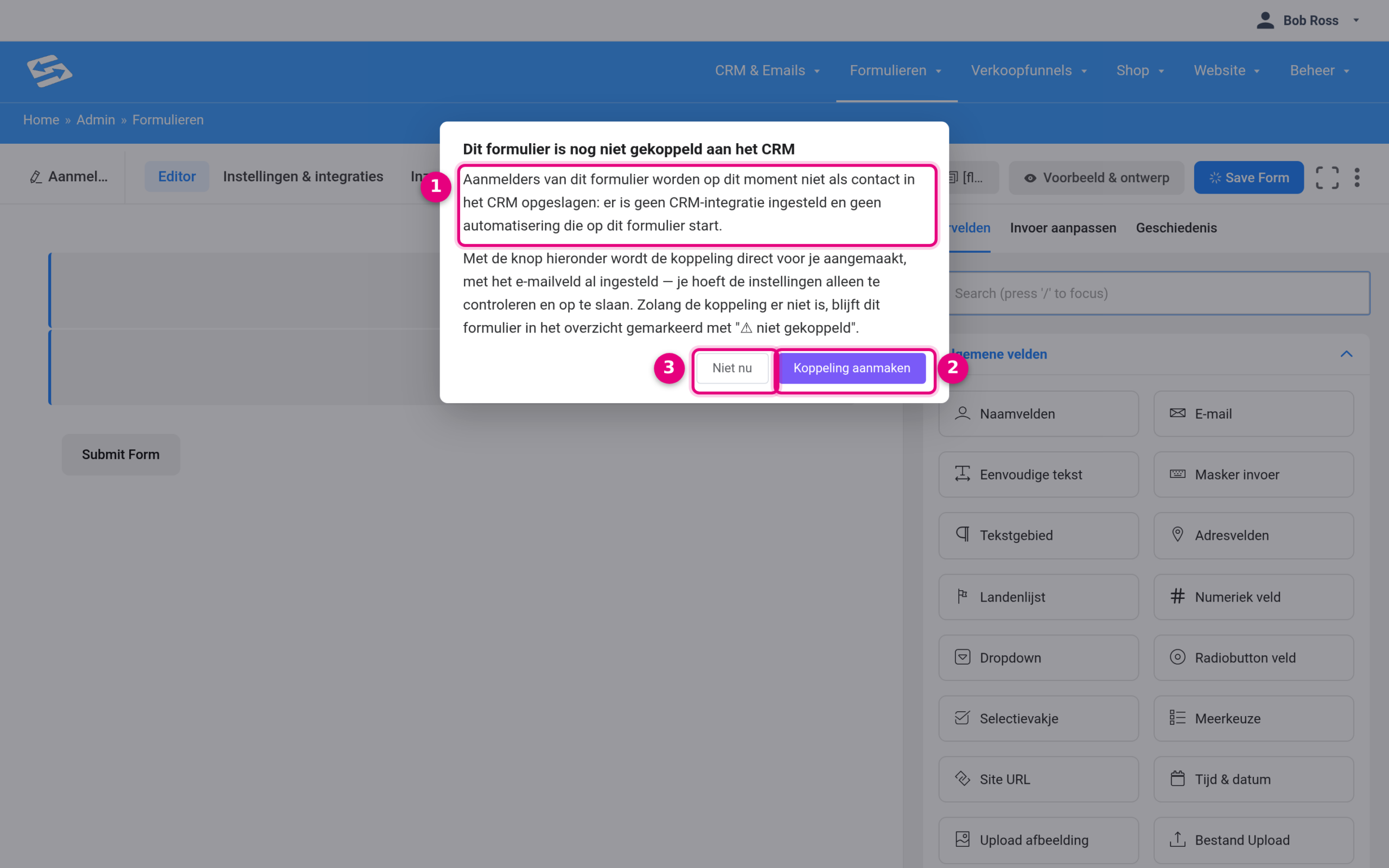
- The explanation — what is going on: sign-ups are not being saved as contacts at the moment.
- Create link — creates the CRM integration for you straight away, with the email field already set, and opens the integration screen so that all you have to do is check it and save.
- Not now — closes the notice. You will not see it again for this form, but the label “⚠ not linked” stays in the forms overview until the link is sorted out.
Creating the link in one click #
If you click “⚠ not linked” in the overview or “Create link” in the warning, the CRM integration is prepared for you automatically and you land straight in the integration screen:
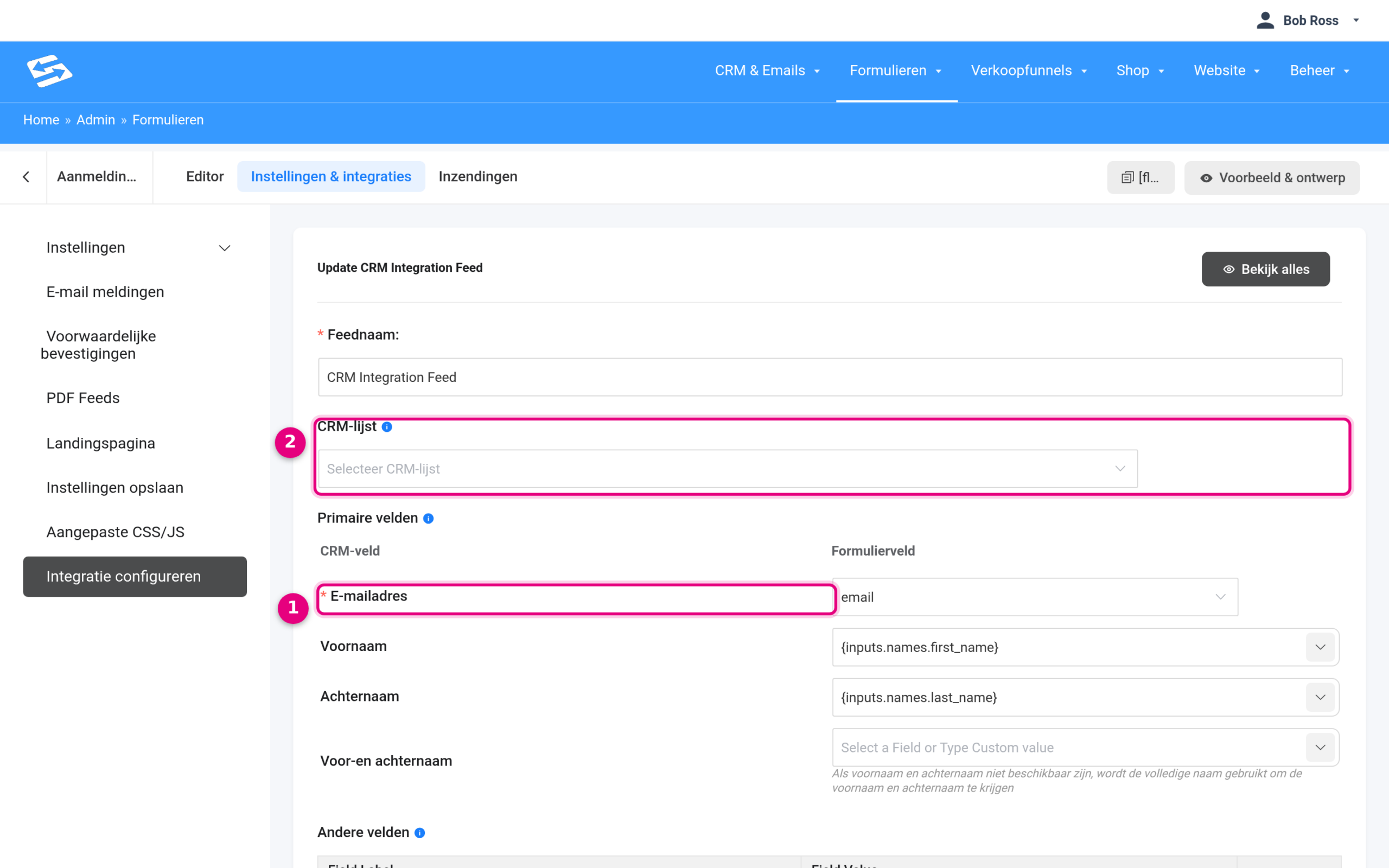
- Email address — the most important field is already mapped to the email field of your form. If your form also has name fields, first name and last name are set correctly as well (as you can see here with First name and Last name).
- CRM list — choose the list that new sign-ups end up in. If you also want to give sign-ups a tag straight away, scroll down a little to Contact Tags.
Check the settings and click the button at the bottom to save the integration. From that moment on, every sign-up is created as a contact in your CRM and the warning label disappears from the overview.
Would you rather do more than just save the contact, for example send a welcome series or assign a tag with follow-up steps? Then create an automation with the trigger “Form submitted”; in that case the form also counts as linked and the warning disappears. You can read how to set up such an automation in Automation: setting up workflows.
On your products: which automation starts after a purchase #
The same principle applies to your webshop: after a purchase you often want something to happen automatically, such as granting access, sending a thank-you email or assigning a tag. In the products overview (Shop → Products) you can now see per product whether an automation is ready for it:
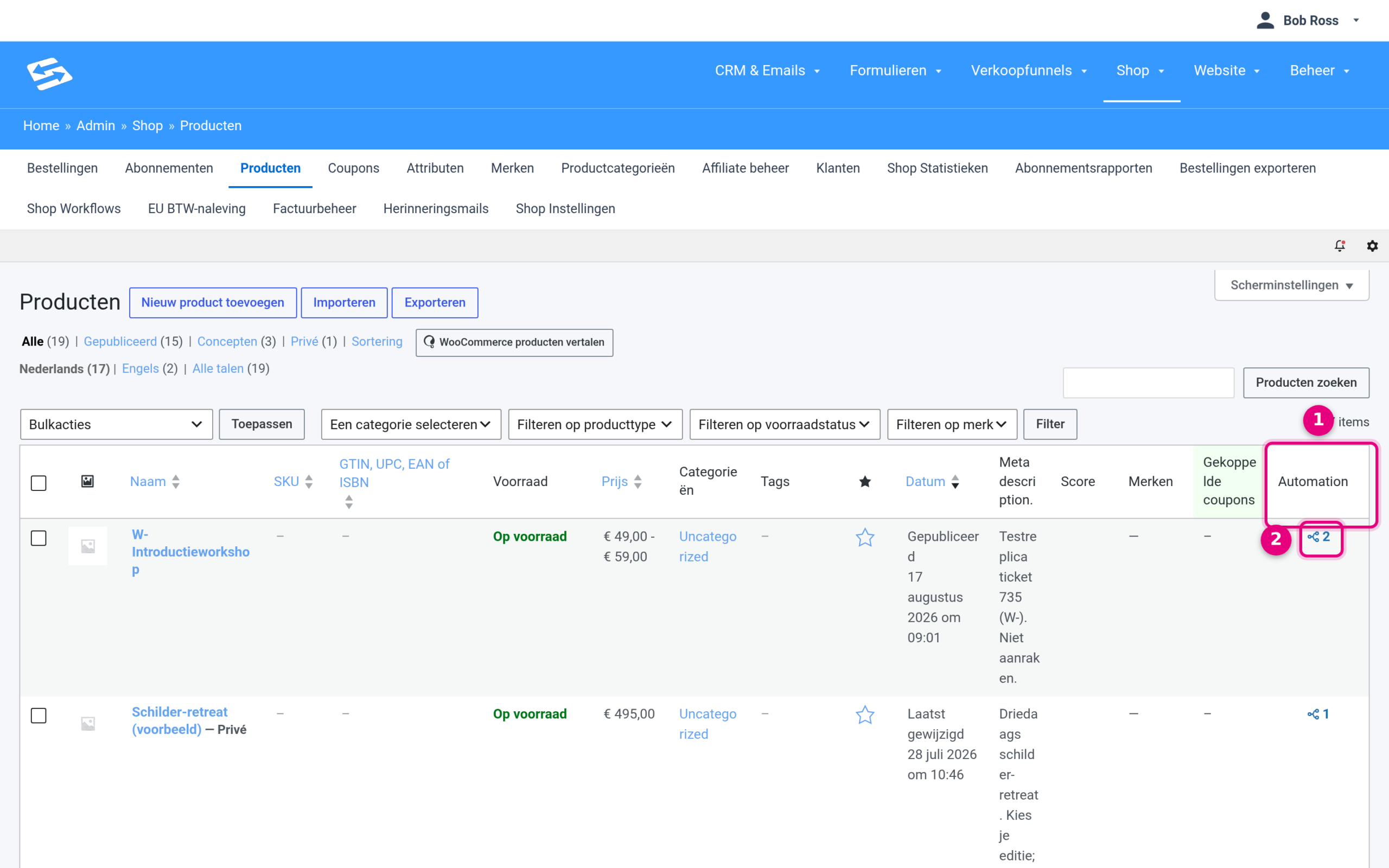
- The Automation column — sits on the far right of the overview.
- The number of automations that start on this product. Move your mouse over it to see the names; click to open the automation (with several, you get a selection menu). A dash means that no automation starts specifically on this product.
On the product itself: the Automations block #
When you open a product to edit it, you will find the Automations block in the right-hand column, directly below the Direct order link:
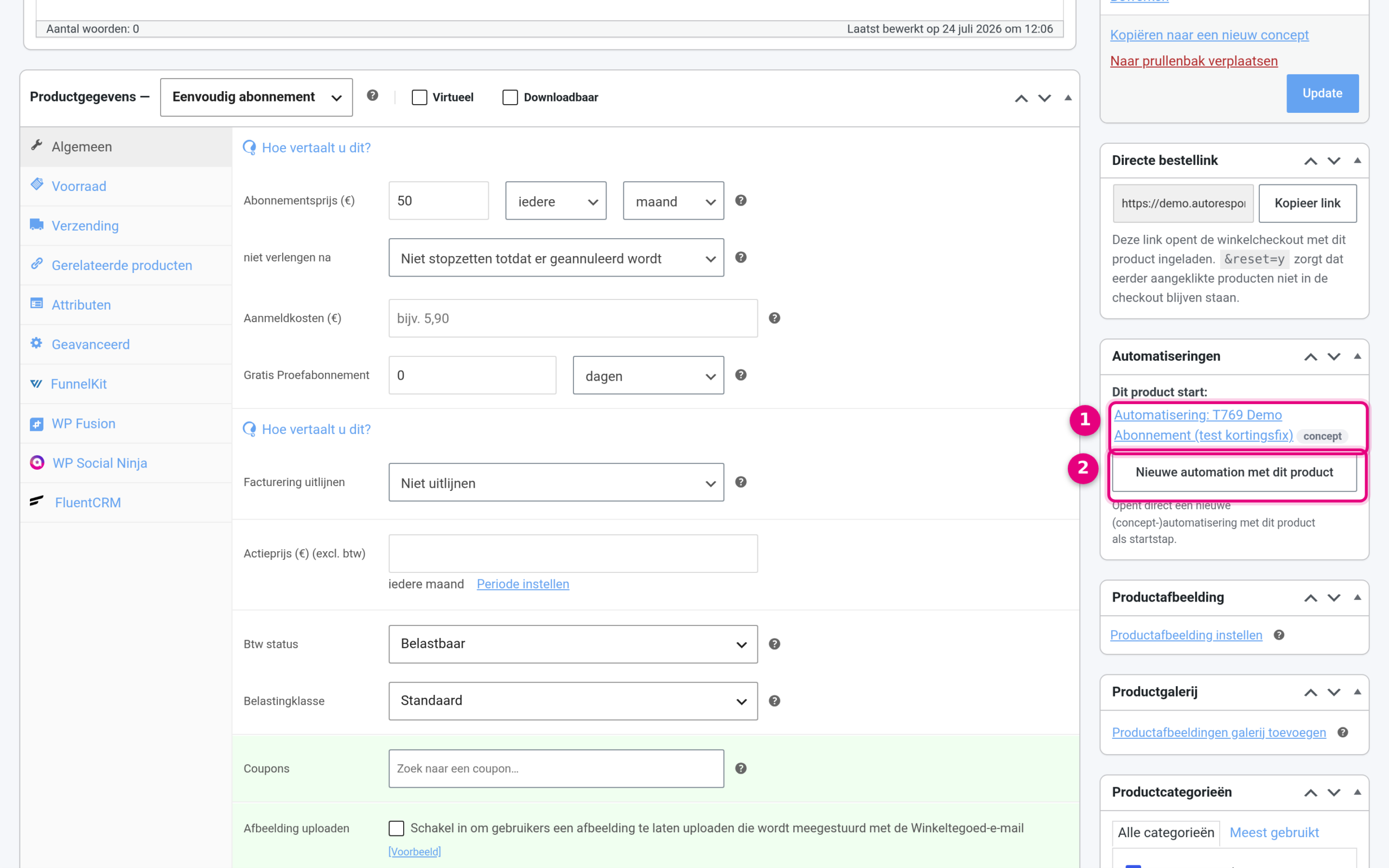
- This product starts — the automations that are set on this product, each with the status active or draft. Click a name to open the automation. If there are automations that apply to all products (without a product filter), they are listed separately here.
- New automation with this product — opens a new draft automation with this product as the starting step, so you do not have to set the trigger and the product filter yourself.
Starting a new automation from a product #
If you click “New automation with this product”, the automation editor opens with everything already prepared:
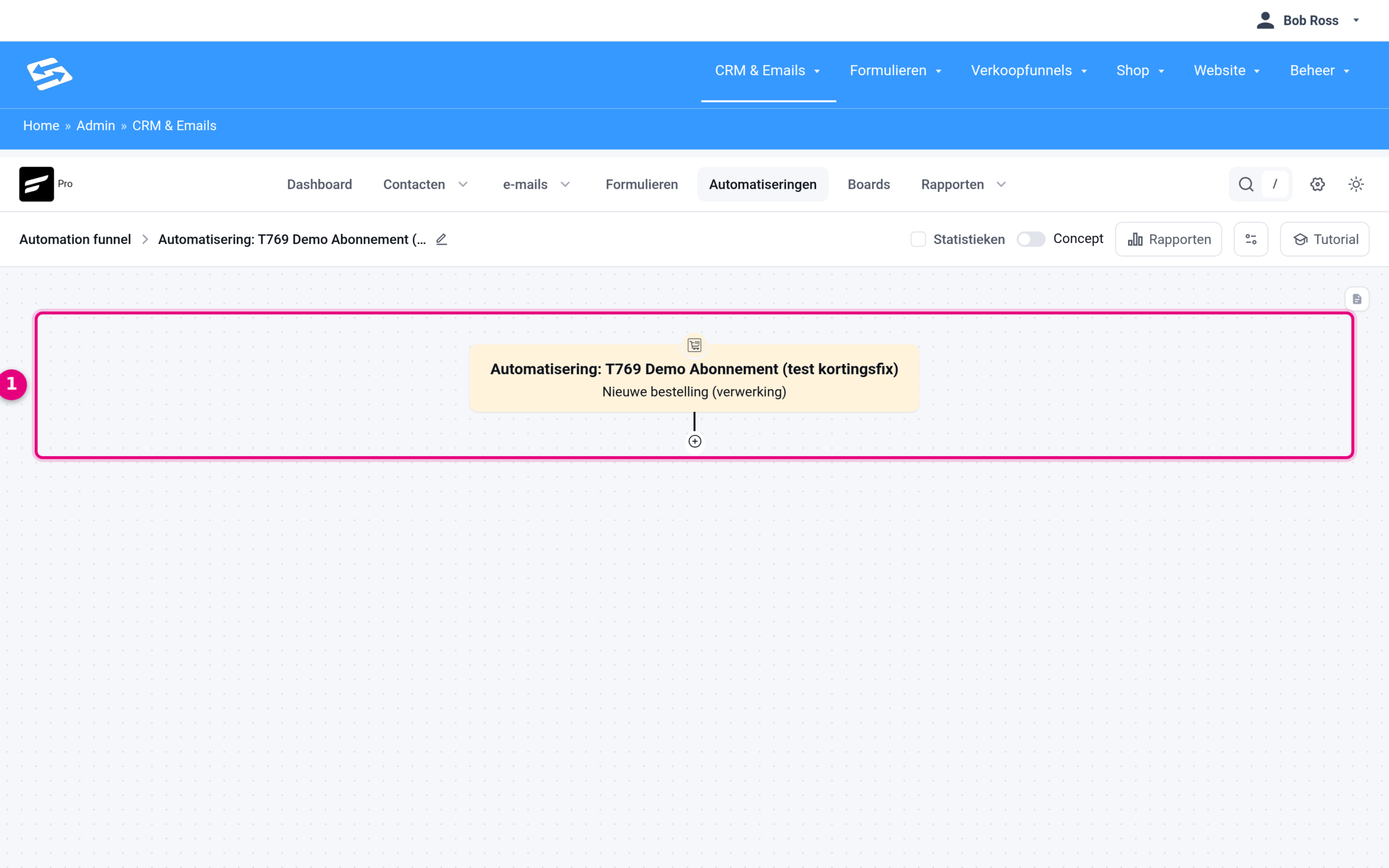
- The starting step — the trigger “New order (processing)” is already set, with your product as the condition. Click the plus sign underneath to add steps: assign a tag, send an email, grant access, and so on.
The automation is in draft and therefore does nothing yet. Once you have finished building it, flick the switch at the top right to activate it. You then test it with your own test order of the product: the automation has to be active in order to run, so use your own email address as the test contact and check that the steps are carried out before you promote the product widely.
Frequently asked questions #
I see “⚠ not linked”, but my form still works fine? #
That is correct: the form itself keeps working and you will find the entries under Forms → Entries. But as long as the link is missing, no contact is created in the CRM: the person signing up gets no tags or lists and cannot receive automated emails. So the label warns you about what does not happen.
The warning when saving has gone, how do I see this later on? #
The notice in the editor deliberately appears only once per form. The forms overview keeps showing the label “⚠ not linked” for as long as the link is not sorted out, and that is the fixed place to check whether everything is set correctly.
Does an automation count as a link too? #
Yes. A form is linked as soon as there is an active CRM integration with a mapped email field, or an automation that starts on the form. In both cases the person signing up is created as a contact and the warning disappears.


