A good community feels safe and personal, and that is not a coincidence, it is management. In this article you learn to work with the member list and profiles, share the work with moderators, and know what to do when something goes wrong: from deleting a post to blocking a member.
The community and course features in Autorespond are based on FluentCommunity, included in your package. Read the English documentation
1. The member list and profiles #
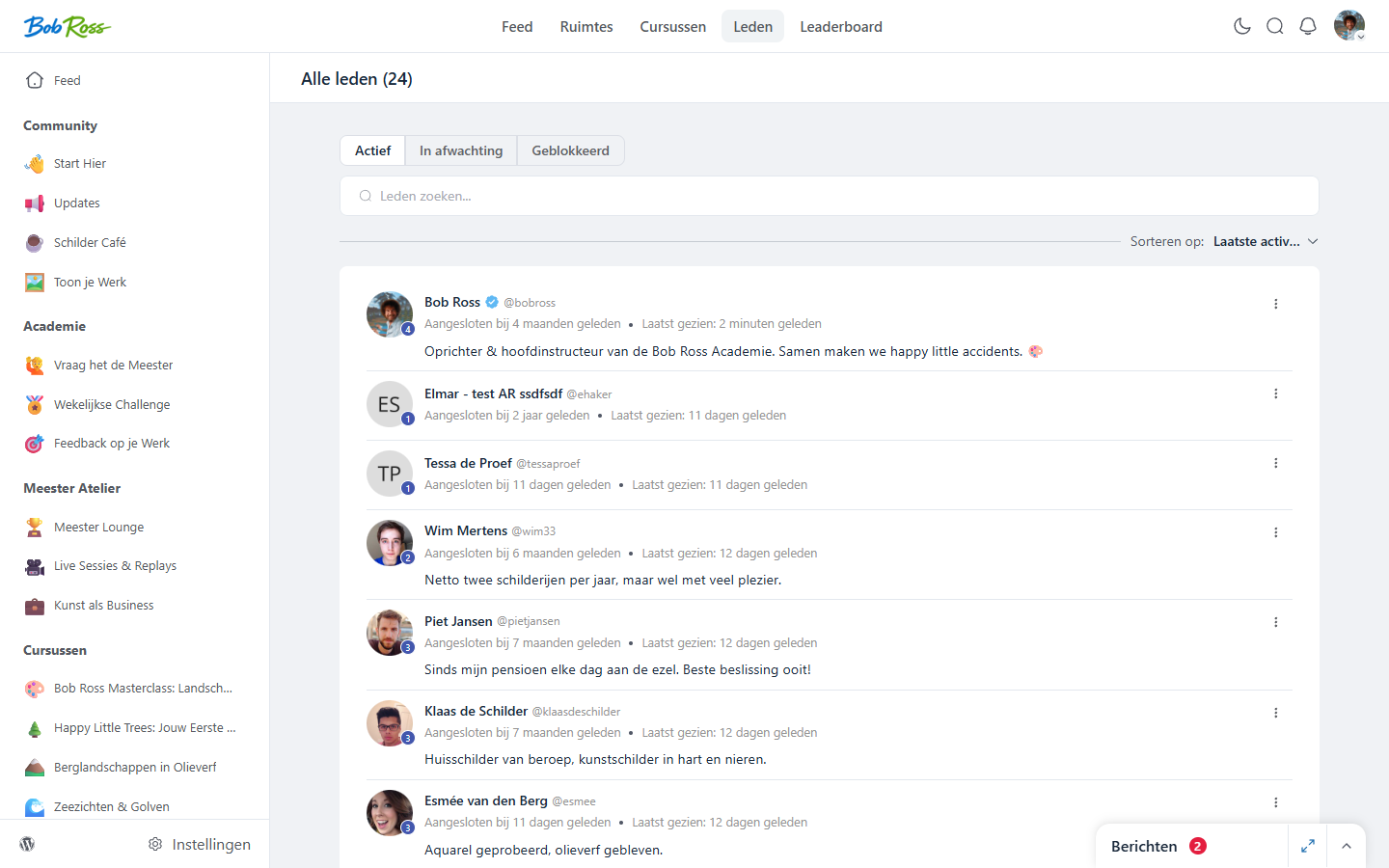
Under Members in the portal menu you will find the searchable member list. Every member has a profile with a photo, bio, badges and recent activity. As an administrator you can act straight from a profile: add the member to spaces or courses, award a badge, or send the member a message. Because every member is also a contact in your CRM, you can apply tags there as well, and with that arrange access automatically (see the article on access control).
2. Share the work: moderators per space #
- Open the space and go to the member overview of that space.
- Give a committed member the moderator role: they can then manage posts and comments in that space.
- Agree on expectations (response time, tone, when to escalate to you) and put those in a private team space or group conversation.
For portal-wide rights (all spaces, settings) you appoint administrators in the portal settings. Be sparing with that role; per-space moderators are usually enough.
3. Moderating content #
- Deleting a post or comment, through the menu on the post. Do it quietly and quickly; a public reprimand makes it bigger than it needs to be.
- Moderation settings, under Settings → Content moderation you decide how strictly the portal handles new content and reports from members.
- House rules, pin a short, positive code of conduct in your welcome space. Three rules everyone reads work better than ten nobody reads.
4. Blocking a member or letting them leave #
- Blocking, in the case of persistent misbehaviour you set the member’s community profile to blocked: the member can then no longer take part. Only do this after a private warning, and record what happened.
- Ending access, if a membership expires or is cancelled, the tag link handles the departure automatically: tag off, access gone. Nothing needs to be done by hand.
- Account and data, deletion requests (GDPR) are handled through the user management of your website; the community profile and the CRM data are part of that.
Frequently asked questions #
Does a blocked member see that they are blocked? #
The member can no longer post or take part in the community. Always communicate a block yourself by email, as clarity prevents support traffic and escalation.
Can I see who has not been active for a long time? #
Yes, the member list shows recent activity. Quiet members are not lost members: a personal “we miss you” email (automated if you like) brings back a surprising number of them.
Can members report each other? #
Members can report content to moderation; you and your moderators see those reports and handle them. The settings for this are under Content moderation.


