Alongside the feed, your community has a full chat: space channels where all members of a space chat together, group conversations for smaller teams, and private messages from member to member. Chat is direct and personal, ideal for everyday connection, while the feed remains the stage for content that needs to be kept. In this article you switch the chat on and set up all three forms.
The community and course features in Autorespond are based on FluentCommunity, included in your package. Read the English documentation
1. Opening the chat #
Members open the chat through Messages in the portal. On the left is the conversation list (channels, groups and private conversations mixed together, newest at the top), on the right the opened conversation. Unread messages show up in the counter, and members also receive an email notification when messages are waiting for them (configurable, see step 5).
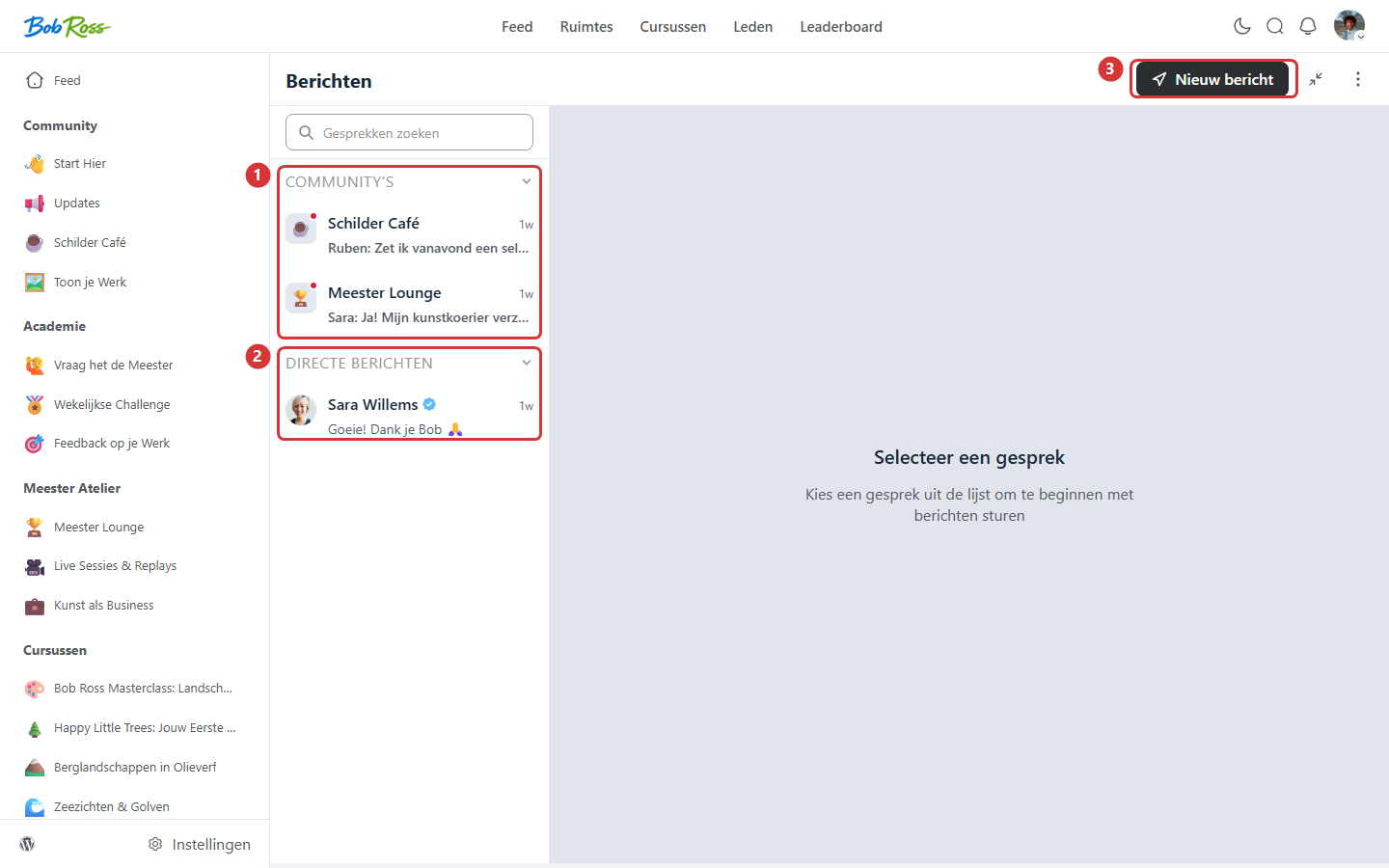
In the screenshot: 1) channels of your spaces · 2) direct messages · 3) starting a new conversation or group conversation.
2. Space channels: chatting with the whole space #
A channel belongs to a space: everyone who is a member of the space automatically joins the chat. Switch on a channel for your most sociable spaces, the coffee corner, or the lounge of your premium level. Not every space needs a channel: for substantive questions the feed is more suitable, because answers stay findable there for later members.
3. Group conversations #
A group conversation stands apart from a space: you choose the participants yourself. Think of a mastermind group, a challenge team or your own team meeting. Create a group through the button for a new message, give it a name and add the members. The creator of the group manages the participants.
4. Private messages #
Members can send each other one-to-one messages through a member’s profile or the button for a new message. As community owner you set the policy: in the chat settings you decide whether everyone may start a new private conversation, or only moderators and administrators. The latter is a sound choice for large communities or a younger audience: members can still reply to messages from you, but cannot approach each other uninvited.
5. Notifications: reachable without spam #
- Members see new messages straight away in the portal (the counter next to Messages).
- For those who are not logged in, an email notification about unread messages can be sent. You set the frequency in the chat settings; members adjust their own preference in their profile settings.
- Tip: choose a restrained default, for example no more than one email per day. A community that spams gets switched off.
Frequently asked questions #
I do not see a single conversation in the chat. Is that correct? #
The conversation list is personal: you only see channels of spaces you are a member of, and conversations you take part in. A brand new account therefore sees an empty list until it joins a space with a channel or someone starts a conversation.
Can I moderate or delete chat messages? #
Yes, administrators and moderators can delete messages. For persistent misbehaviour, block the member, see the article on managing and moderating members.
Is the chat real time? #
Messages come in quickly; for genuine real-time display (without refreshing) a socket connection can be activated. For most communities the default setting is more than sufficient.


