You have edited a text, replaced an image or changed a menu item, but your website still shows the old version. Chances are you are looking at a stored copy: the cache. Your website keeps ready-made copies of pages so they load very quickly, and your browser keeps such a copy too. After a change, a copy like that can lag behind for a moment. This article explains how to make the new version visible in two steps.
Caching in Autorespond is based on LiteSpeed Cache, included in your package. Read the English documentation
Step 1: refresh your browser cache first #
Always start with your own browser. It keeps a local copy of the page, which can make it show you an outdated version even though the website itself was updated long ago.
- Open the page where you expect the change.
- Force a refresh of the page: on Windows with Ctrl+F5 (or Ctrl+Shift+R), on Mac with Cmd+Shift+R. Your browser then fetches the page again instead of showing the local copy.
- Still not sure? Open the page in an incognito or private window. If you do see the new version there, it was only your browser cache and you do not have to do anything else.
Step 2: clear your website’s cache #
If the incognito window still shows the old version, the outdated copy is in your website’s own cache. This is how you clear it:
- Log in to the administration area of your website.
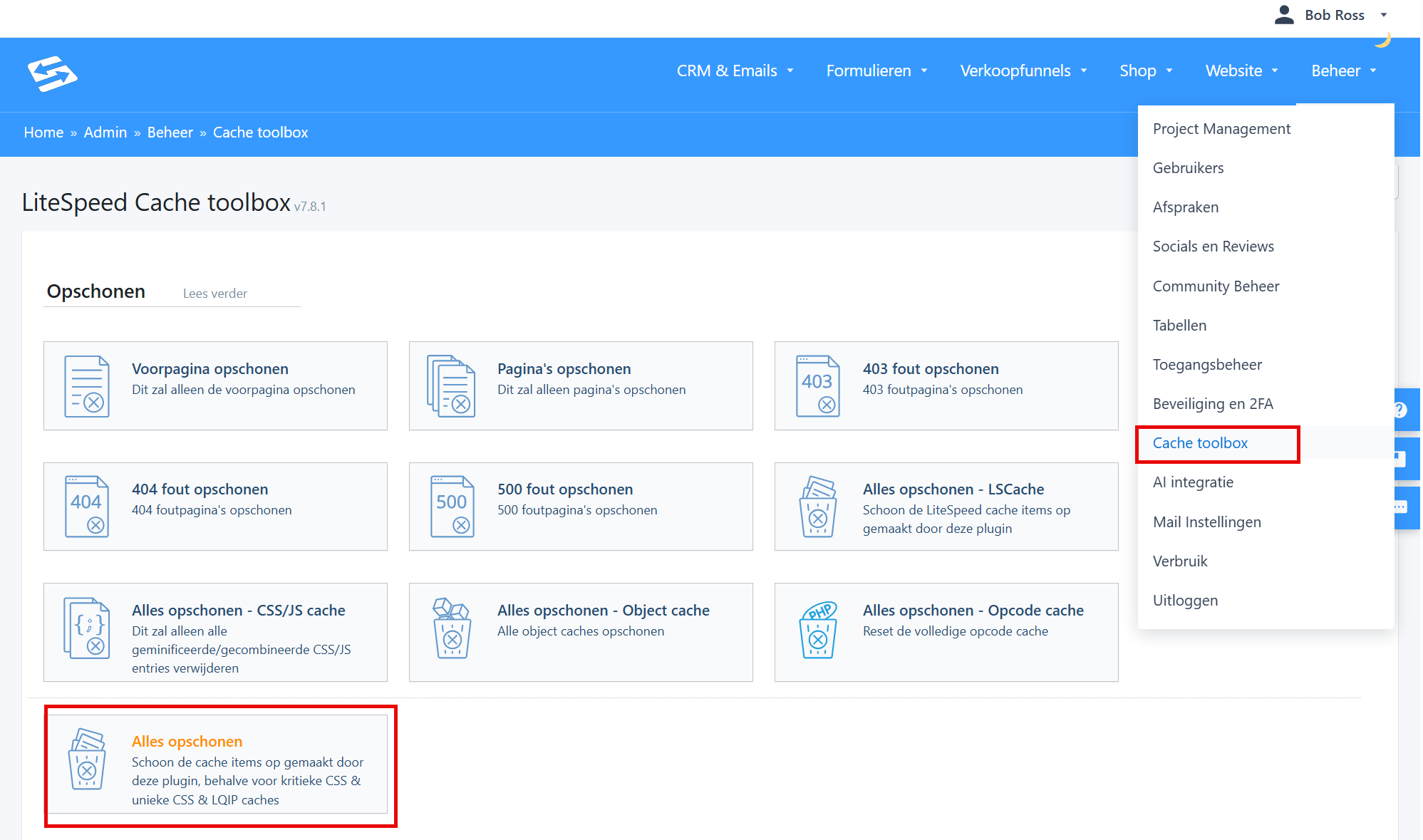
- In the menu, go to Administration → Cache toolbox.
- Click the Purge All button. All stored copies of your pages are now removed in one go; on the next visit your website automatically builds fresh copies.
- Open the edited page again in an incognito window and check that the new version is there.
When is clearing the cache useful, and when is it not? #
Clearing the cache is useful in these situations:
- You have changed a page, text, menu or the styling and visitors still see the old version.
- You have replaced an image or a download file and the old version keeps appearing.
In these situations clearing the cache serves no purpose:
- The change is in the administration area itself, for example in your contact list or settings. Those screens are not cached; what you see there is always current.
- You already saw the new version after the forced refresh in step 1. In that case your browser was the only culprit and the site cache is perfectly fine.
- Out of habit or “just to be safe”. The cache is exactly what makes your website fast; right after clearing it your site is temporarily a little slower until all the copies have been rebuilt. So only clear the cache if you see a concrete problem.
Still not showing? #
Do you still not see the change after both steps? Then something else may be going on, for example a change that was not saved or published. First check whether you can see the change in the administration area. If you cannot work it out, click the support button in your administration and mention which page and which change it concerns. The article How to get a fast and accurate answer from our support team explains which information helps us pick up your question straight away.


