Double opt-in does not work while testing: these are the causes #
You have set up the double opt-in through the CRM integration in your form, but during testing you do not receive a confirmation email. The cause is nearly always the way you are testing (while you are logged in) or the email address you are testing with (the address already exists in your CRM). This is down to two settings that can be switched on in the double opt-in settings of your form
The Forms module in Autorespond is based on FluentForms, included in your package.
Where do you find these settings? #
Go to Forms → Forms and open the form. Then go to Settings & Integrations → Integration configuration and open the CRM integration. Scroll to the section Double opt-in confirmation. Underneath it you will find the two options explained below.
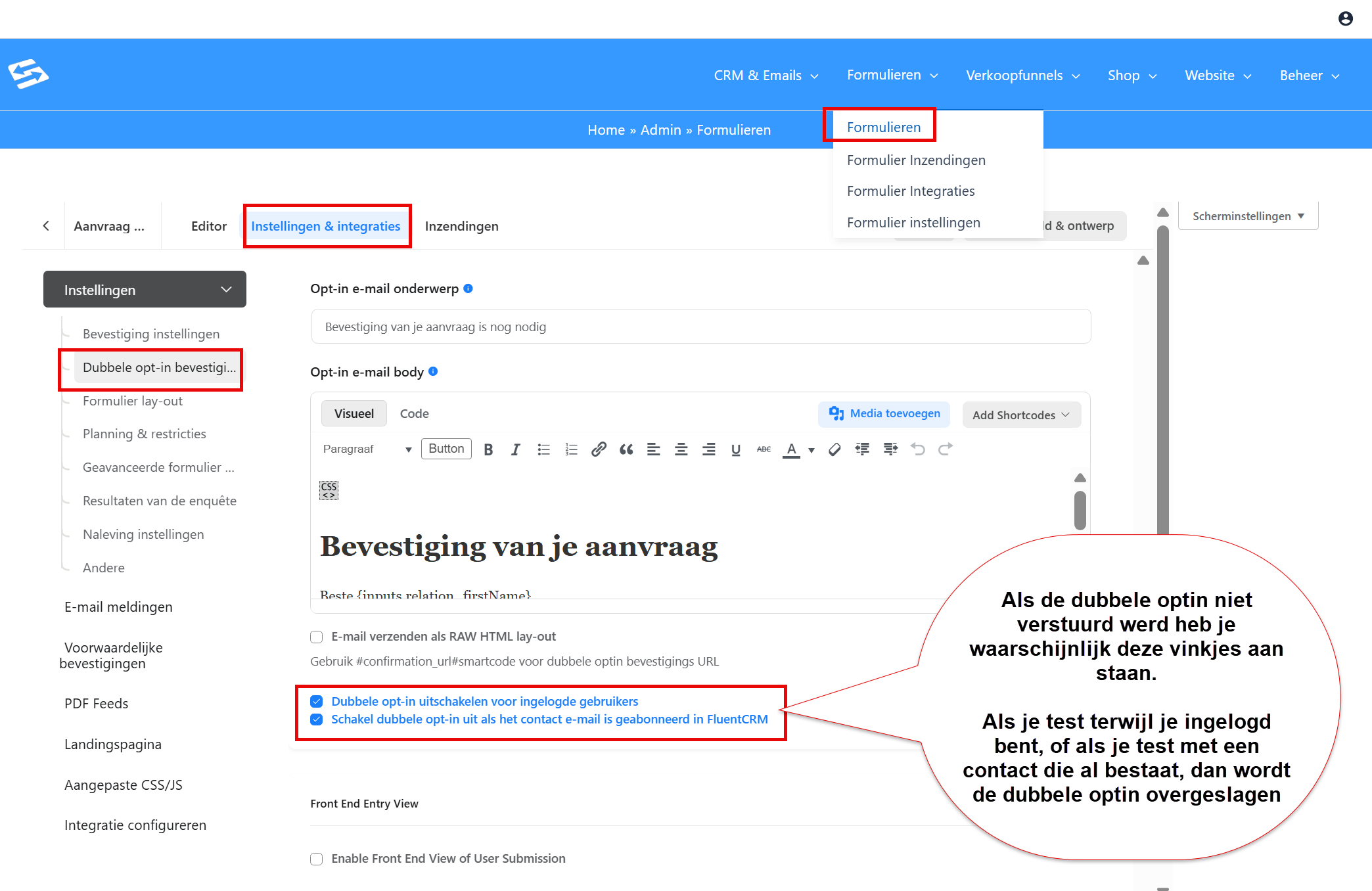
Cause 1: you are testing while logged in #
The setting ‘Disable double opt-in for logged-in users’ is switched on by default. This means that the double opt-in is skipped when you fill in the form while you are logged in to your Autorespond administration.
Always test in an incognito tab, therefore. In an incognito window your browser is not logged in, so the form behaves the way an ordinary visitor experiences it.
Cause 2: the email address already exists in your CRM #
The setting ‘Disable double opt-in if the contact email is subscribed’ is switched on by default as well. If the email address you are testing with already exists in the CRM, because you ran a test earlier or because the address is already listed as a contact, the double opt-in is skipped.
Always test with an email address that is not yet in your CRM. If necessary, delete the test contact from the CRM first before you test again.
Tip: testing with Gmail without creating extra addresses #
If you have a Gmail address, you can create several unique test addresses with that same address. Add a plus sign and any text you like after your user name, before the at sign:
[email protected] → [email protected] → [email protected]
Autorespond recognises each of these addresses as a unique email address and creates a separate contact for it. Gmail, however, simply delivers the emails to your normal inbox. This lets you test the double opt-in again and again without deleting existing contacts.
Frequently asked questions #
Why do I not receive a confirmation email when testing the double opt-in? #
The most common causes are that you are testing while logged in to your administration, or that the email address already exists in the CRM. Both situations mean the double opt-in is skipped automatically. Always test in an incognito tab with an email address that is not yet in your CRM.
How do I test the double opt-in correctly? #
Open an incognito tab so that your browser is not logged in. Fill in the form with an email address that is not yet in your CRM. If you use Gmail, you can use [email protected] as a unique test address, and the email will still arrive in your normal inbox.
Where do I set up the double opt-in for a form? #
Go to Forms → Forms, open the form and scroll to the section Double opt-in confirmation.


