Viewing form submissions #
Every time someone fills in a form on your website, that submission is saved automatically in your Autorespond administration. In the form submissions overview you can view and search all submitted data and, if needed, export it to an Excel file.
Forms in Autorespond are based on FluentForms Pro, included in your package. Read the English documentation
How to view form submissions #
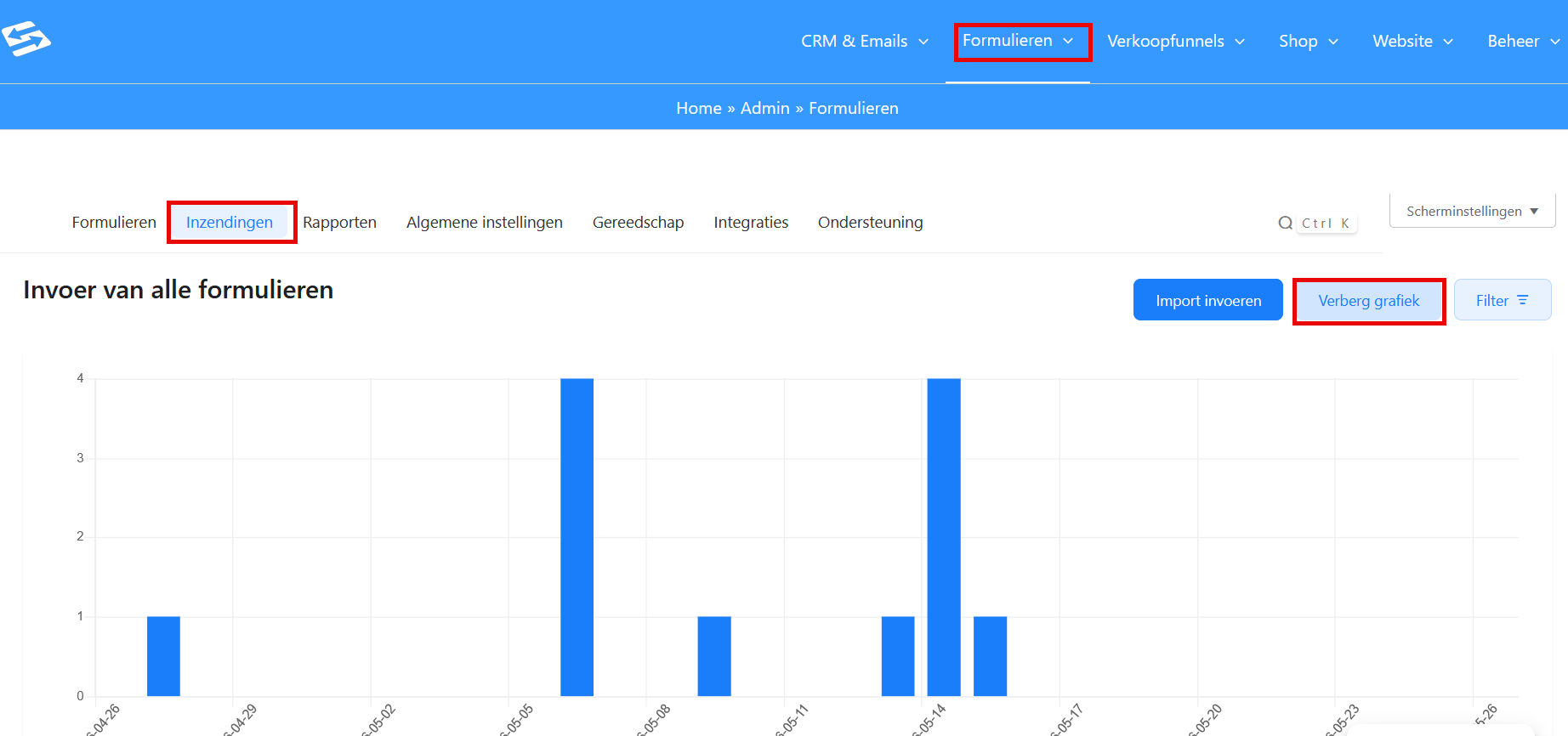
In your Autorespond administration go to Forms → Form Submissions. You first see an overview of the number of submissions across all your forms during the past month. Hide this chart with the ‘Hide chart’ button, or scroll down for a list of all submissions. Every row shows the key information: which form it concerns and when the form was filled in.
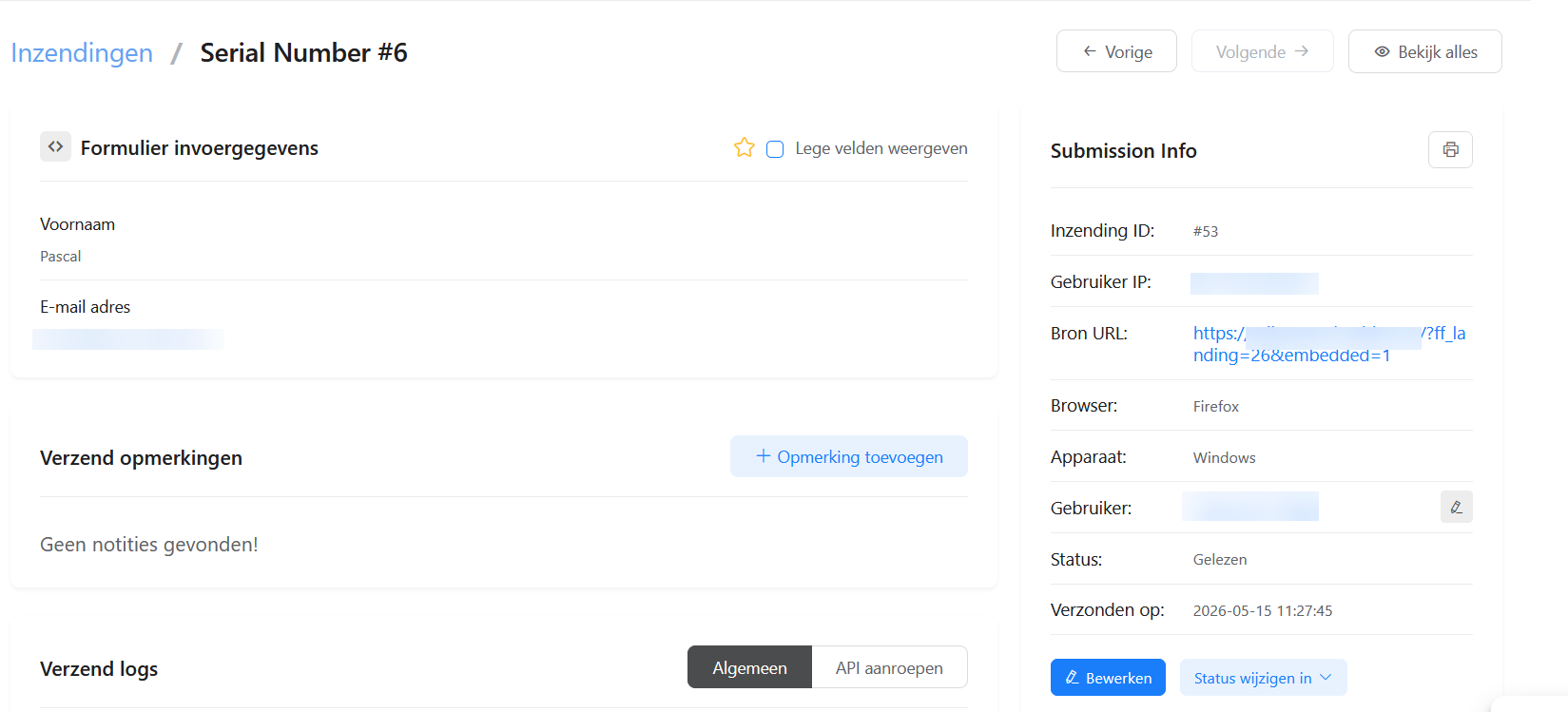
Click the ‘View’ button on the right of a submission to see all the submitted data. You then see the complete form as it was filled in, including all answers and any uploaded files.
Filtering on a specific form #
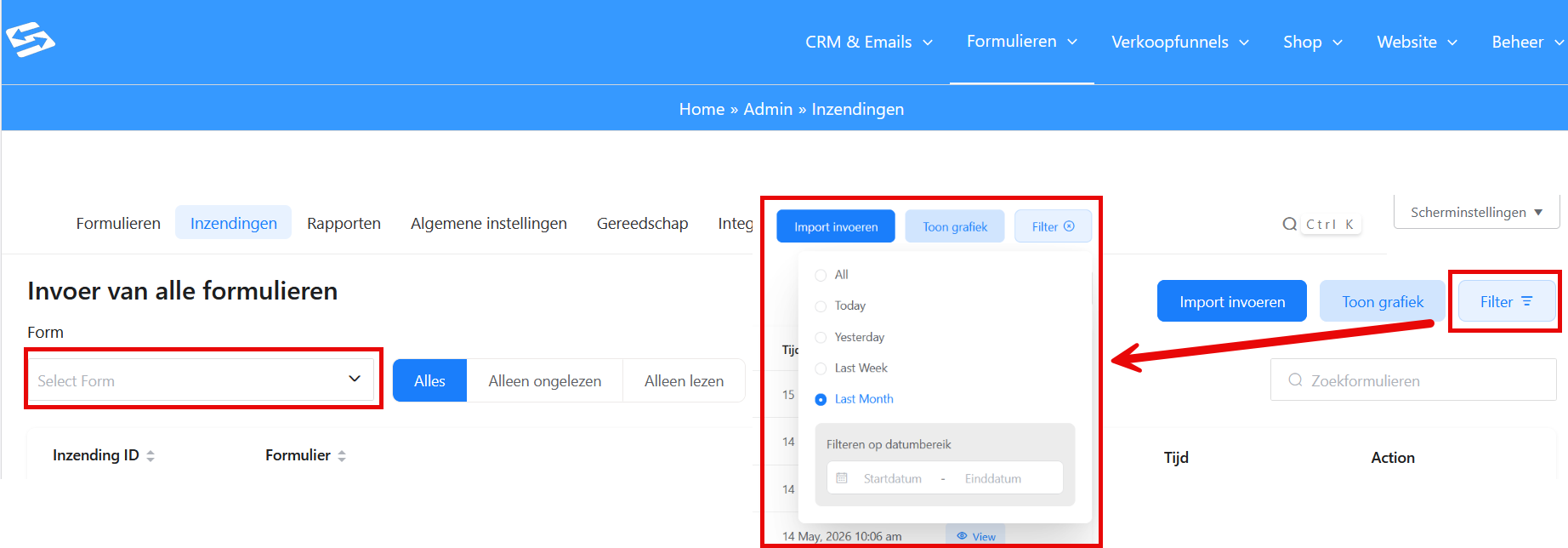
By default you see submissions from all forms mixed together. If you want to view submissions from one specific form only, use the ‘Select form’ drop-down menu at the top left of the page. Select the form you want and the list is filtered. With the ‘Filter’ button at the top right you can also filter on a particular time interval. A new screen opens in which you can choose between, for example, ‘All’, ‘Last week’ or set dates yourself.
Submission status #
Every submission has a status that indicates how the submission has been handled:
- Read: the submission has been viewed by an administrator
- Unread: the submission has not been viewed yet
- Favourite: the submission has been marked as important (this option is not yet shown in the submissions overview)
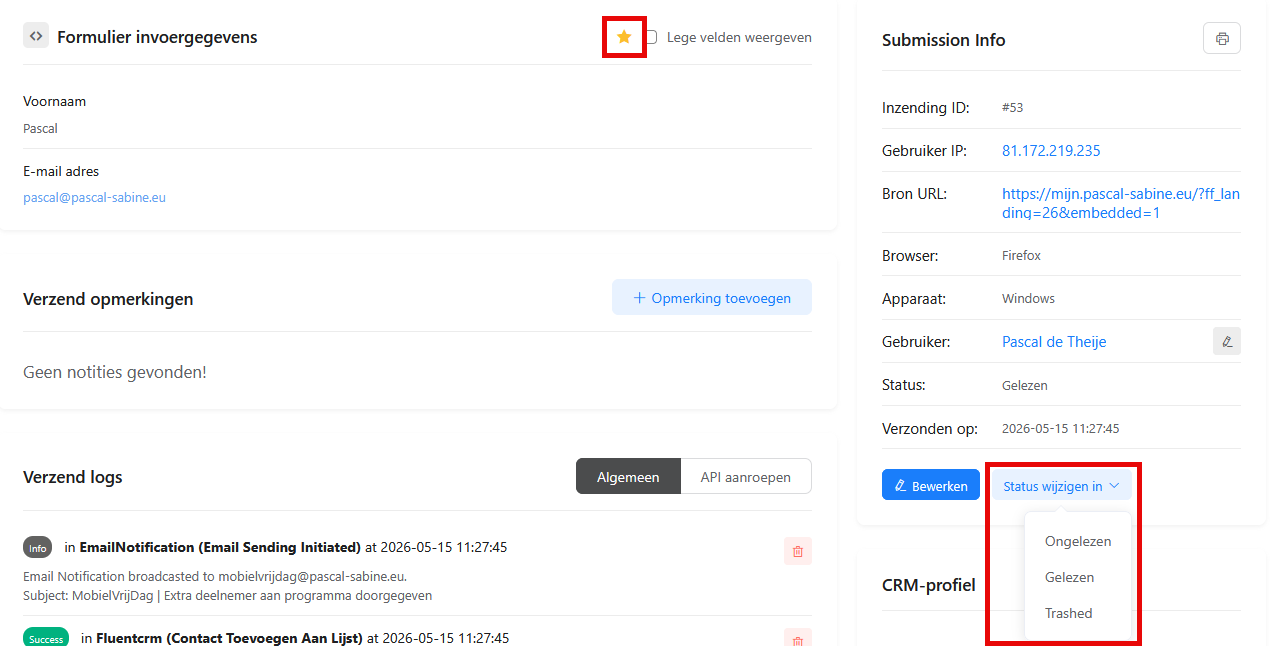
You can mark a submission as ‘Favourite’ by opening the submission and clicking the star at the very top, so that it turns orange. Click the star again and the ‘Favourite’ status is removed.
You can change the status to ‘Read’ or ‘Unread’ by clicking ‘Change status to’ at the bottom right and selecting the status you want.
Link with contacts in the CRM #
If a form is linked to your CRM, which we strongly recommend, a contact is created or updated automatically with every submission. From the submission you can go straight to the matching contact, at the bottom right under ‘CRM profile’, to view more information or carry out further actions.
For more information about linking forms to the CRM, see linking form sign-ups to the CRM.
Notifications for new submissions #
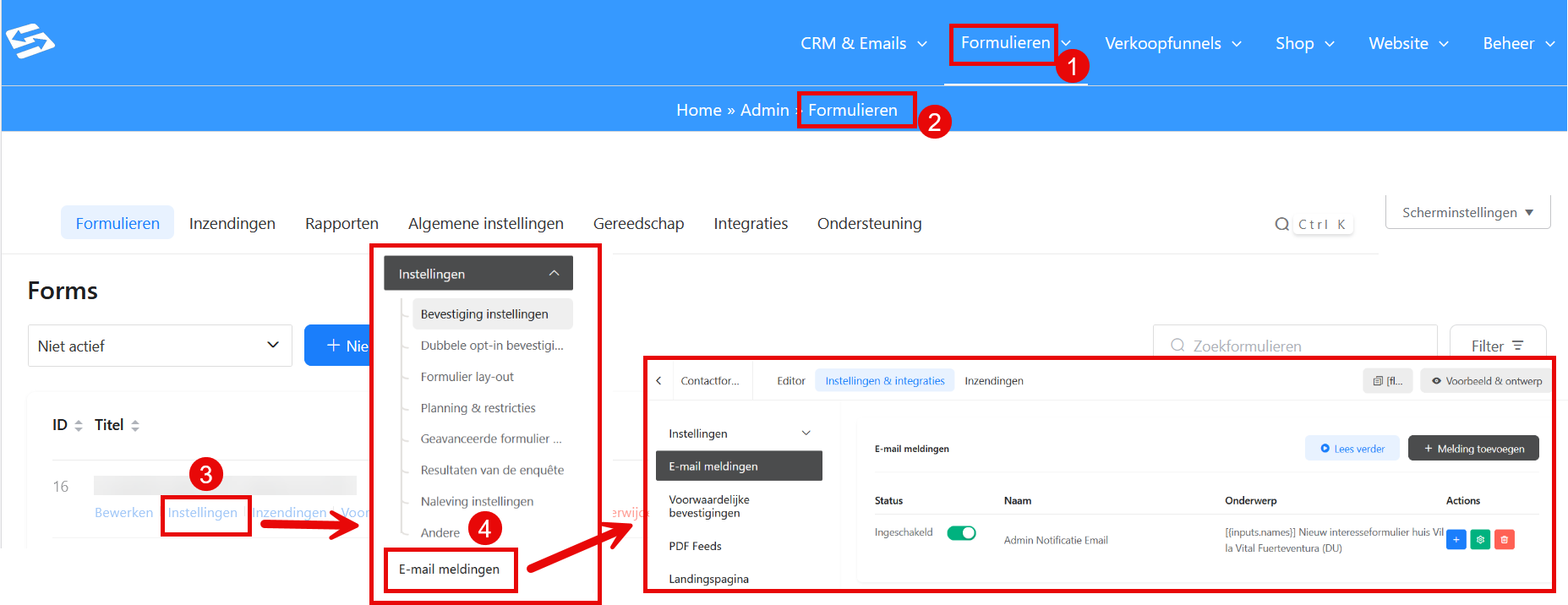
You can set up email notifications that are sent every time someone fills in a form. In your Autorespond administration go to Forms (1) → Forms (2), click ‘Settings’ (3) for the form you want and then ‘Email notifications’ (4). That way you never miss an important sign-up or contact request.
Frequently asked questions #
How long are form submissions kept?
Form submissions are kept permanently in your Autorespond administration, unless you delete them manually. There is no automatic clean-up of old submissions.
Can I delete submissions in bulk?
Not at the moment. You can delete them one by one: open the submission and change the status at the bottom right to ‘Trashed’.
Why do I not see any submissions from a specific form?
Check that the form has been set up and published correctly. Submissions only appear once the form has actually been filled in by visitors.


