Deleting and deactivating forms #
In Autorespond you can delete or (temporarily) deactivate forms that you no longer use. This keeps your forms overview tidy and prevents old forms from still being used by accident.
Forms in Autorespond are based on FluentForms Pro, included in your package. Read the English documentation
The difference between (temporarily) deactivating and deleting #
You have two options for taking forms out of your active list:
Temporarily deactivating means that the form is hidden but all data is retained. The form no longer works on your website, but you can activate it again later. All submissions remain available.
Deleting means that the form and all associated submissions are permanently discarded. You cannot undo this action.
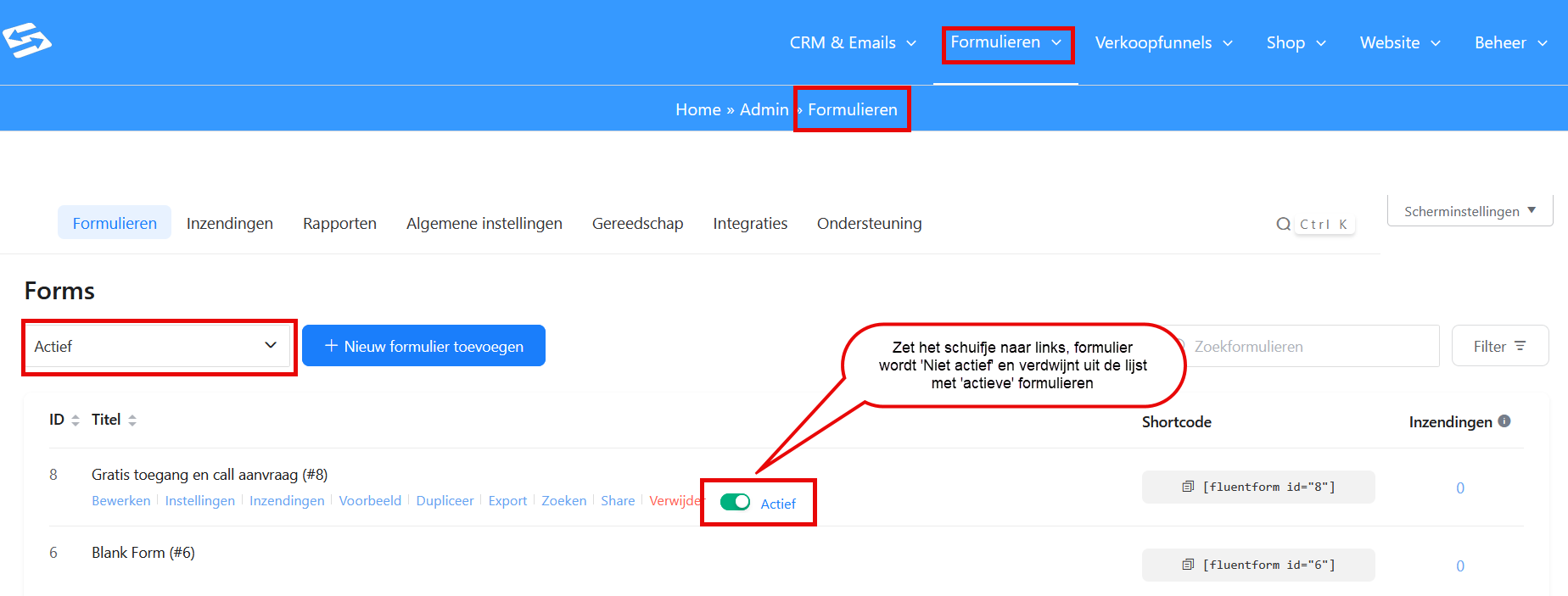
Deactivating a form (temporarily) #
This is the safest way to deactivate a form (temporarily):
- In your Autorespond administration, go to Forms → Forms
- Find the form that you want to deactivate (temporarily)
- Move the cursor over the name of the form; blue links then appear under the name
- Slide the green box “Active” to the left
- The form then becomes “Inactive”
The form now disappears from your active form list straight away. Visitors who still have a link to the form will see an error message. The form no longer works on your website until you activate it again.
Finding inactive forms and activating them again #
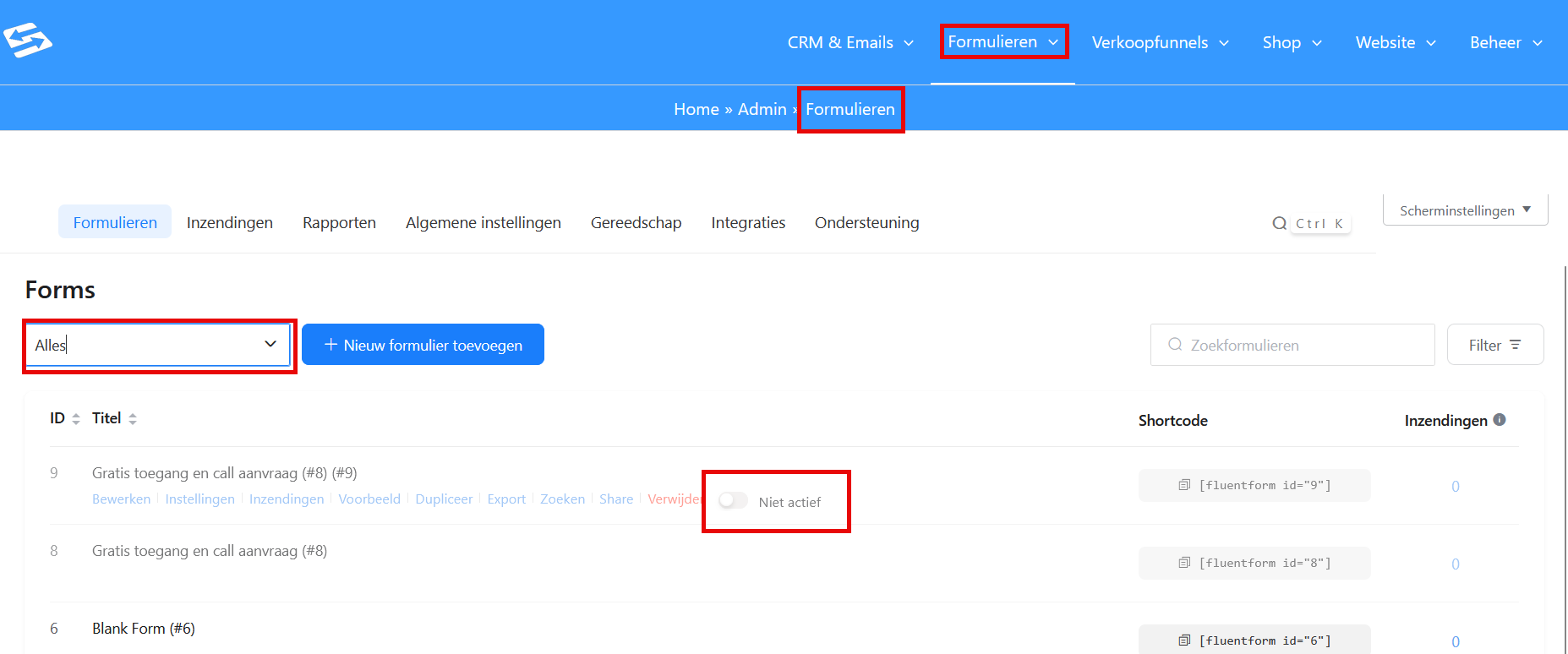
Inactive forms are not permanently gone. You can find them again as follows:
- Go to Forms → Forms
- In the dropdown menu at the top left, click “All” or “Inactive”
- Find the form that you want to activate again
- Move the cursor over the name of the form; blue links then appear under the name
- Slide the green box “Inactive” to the right
- The form then becomes “Active” again
Deleting a form permanently #
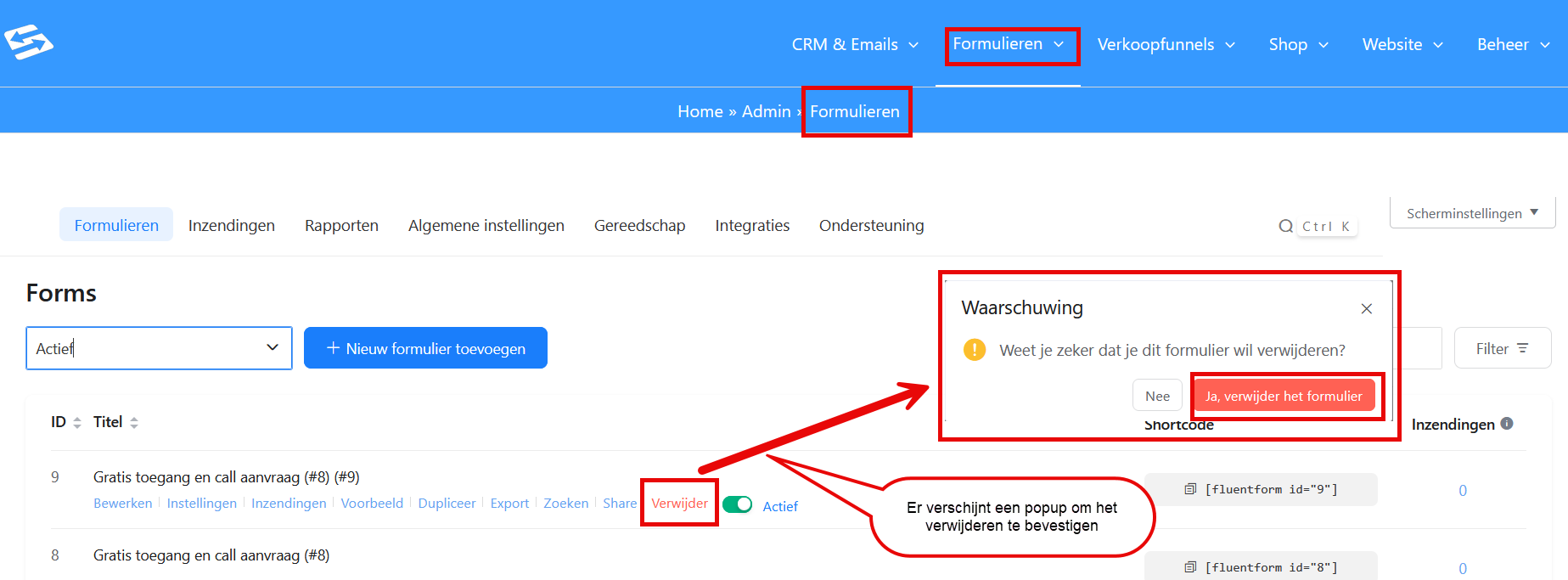
Please note: this is an irreversible action. All submissions of the form are deleted as well.
- Go to Forms → Forms
- Find the form that you want to delete for good
- Move the cursor over the name of the form; blue links then appear under the name
- Select “Delete”
- Confirm that you want to delete the form permanently
The system asks for a double confirmation because this action cannot be undone. Both the form and all associated submissions are permanently discarded.
What happens to linked automations #
If you set a form that is linked to an automation to inactive or delete it, the automation continues to exist but no longer works. The automation no longer starts because the starting form is no longer active.
So always check whether there are automations linked to the form before you set it to inactive or delete it. You can check this via the CRM connection of the form.
Frequently asked questions #
Can I recover a deleted form? #
No, once you have deleted a form permanently, it is gone for good, including all submissions. So if in doubt, always use the option to set the form to “Inactive” first.
What happens to submissions if I set a form to “Inactive”? #
All existing submissions remain available via Forms → Form Submissions. The form simply no longer works for new submissions.
How do I know whether a form is still being used on my website? #
Check the recent submissions of the form via Forms → Form Submissions. If there have been submissions in recent months, the form is in active use and archiving is safer than deleting.
Can I edit a form that is set to “Inactive”? #
Yes, you can still edit “Inactive” forms. They are only inactive for new submissions. Activate the form again to make it work live.


