Duplicating a form in Autorespond #
Duplicating a form in Autorespond is useful when you want to create a new form that closely resembles an existing one. Instead of building everything again, you copy the existing form and change only the parts that need to be different.
Forms in Autorespond are based on FluentForms Pro, included in your package. Read the English documentation
How to duplicate a form #
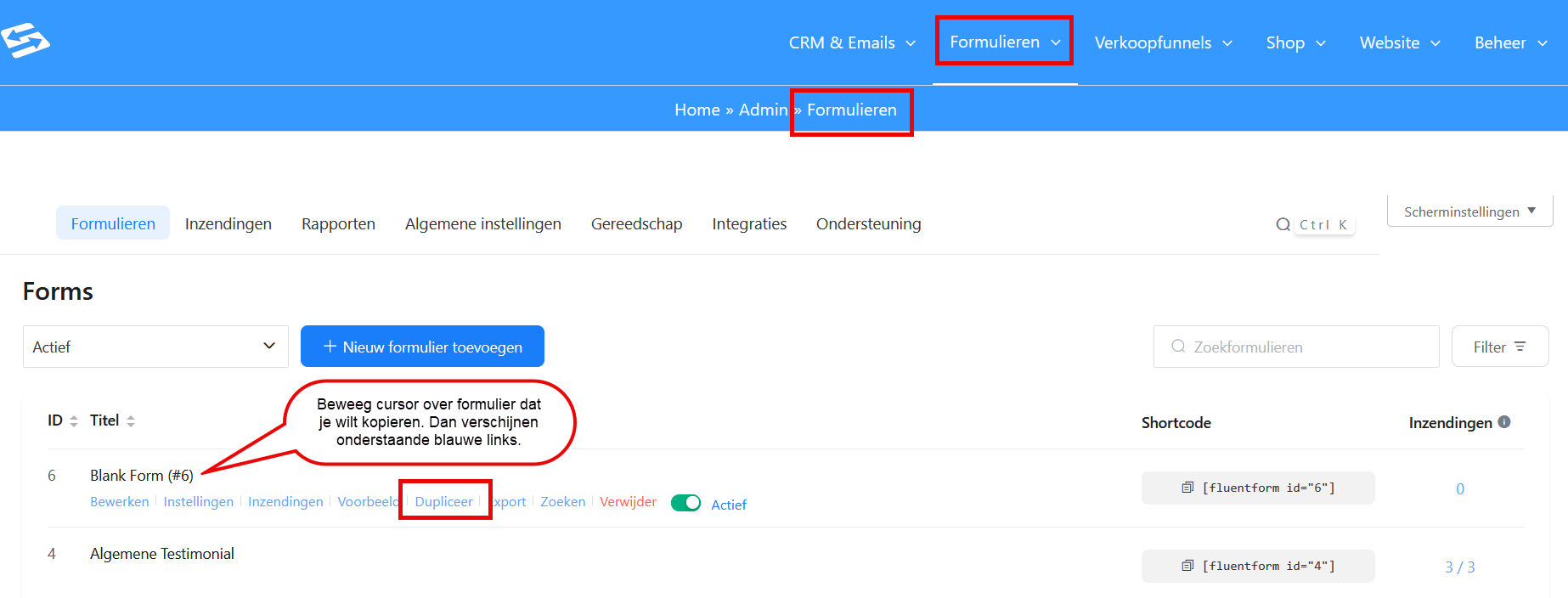
In your Autorespond administration, go to Forms → Forms. You see an overview of every form you have created. Move your mouse over the form you want to copy: buttons appear underneath the form name.
Click “Duplicate” under the form you want to copy. The system immediately creates an exact copy named “[Original name] – (#X)”, where X is the next ID number in sequence. The duplicated form automatically receives a new ID and a new shortcode “[fluentform_id=”X“]”.
Editing the duplicated form #
Once copied, you can edit the new form straight away. All settings from the original form are copied automatically:
- All fields and their configuration
- Design and styling
- Notification settings for administrators
- Confirmation messages for visitors
- Integrations with the CRM
- Conditional logic
Change the title of the form yourself to something recognisable. Then work through the tabs to adjust the parts that need to differ from the original form.
You can read more about the form editor at https://autorespondhub.com/docs/introduction-to-the-forms-editor/.
Checking integrations after duplication #
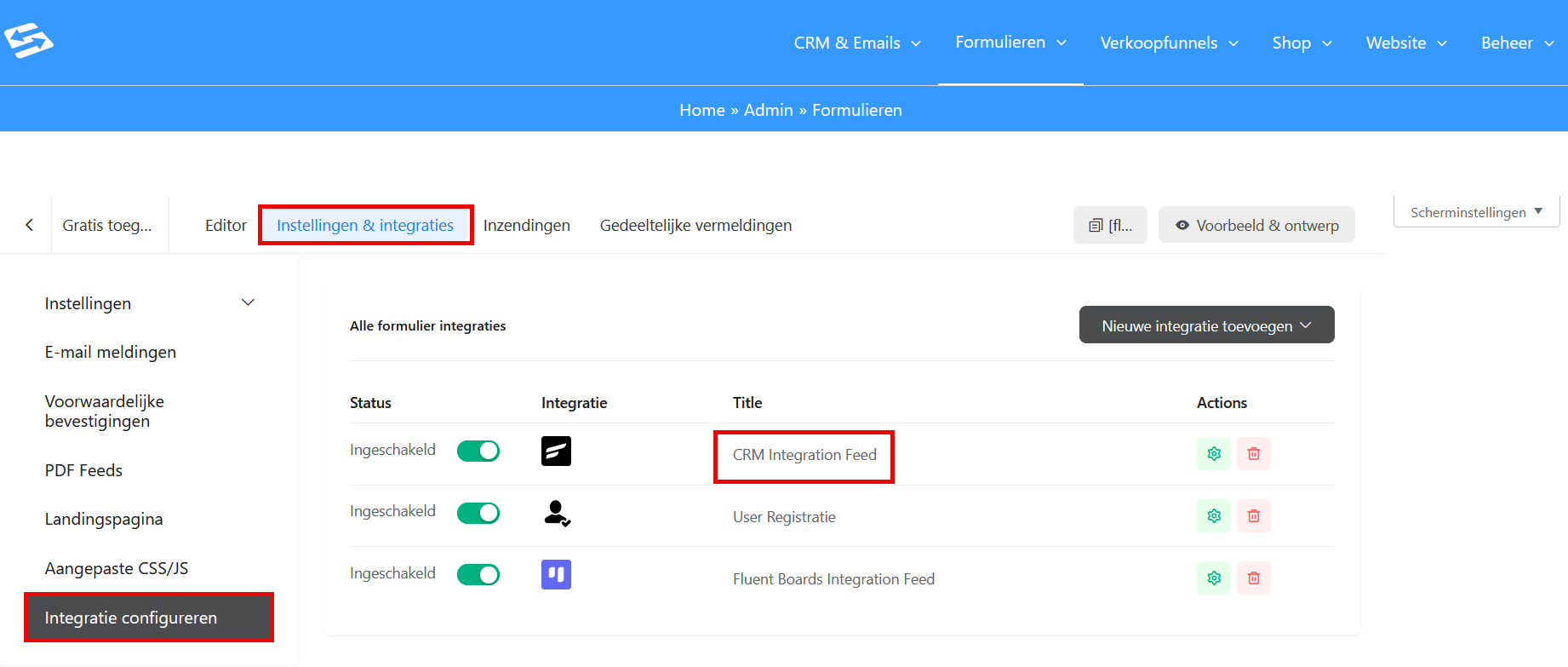
Pay close attention to the integration settings of the copied form. Go to Settings & Integrations → Configure integration. All connections with the CRM are copied as well, including:
- Lists that contacts are added to (via ‘CRM Integration Feed’)
- Tags that are applied automatically (via ‘CRM Integration Feed’)
- Custom fields that are filled in (via ‘CRM Integration Feed’)
- Double opt-in settings (in the left-hand menu via Settings → Double opt-in confirmation)
Check whether these settings are correct for the new form. You may want to add contacts from the new form to different lists or mark them with different tags.
For more information about connecting forms to the CRM, see also how to connect form sign-ups to the CRM.
Shortcode of the duplicated form #
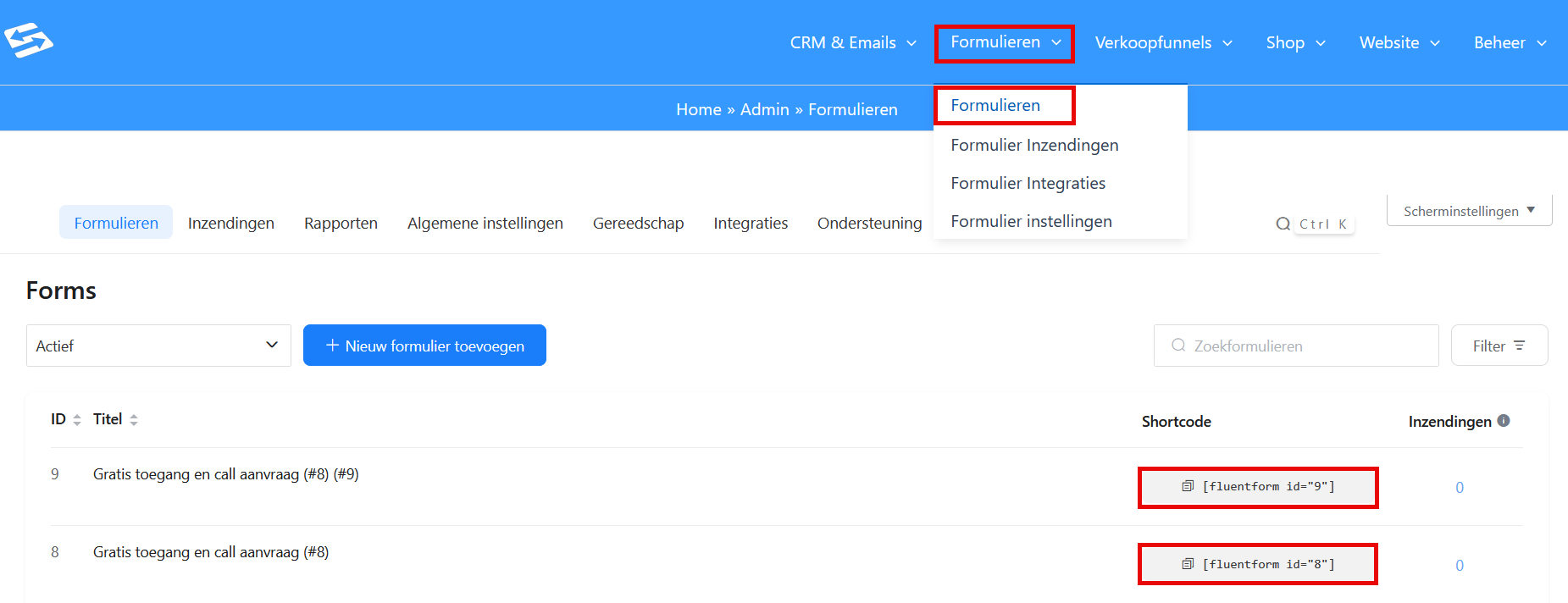
Every duplicated form automatically receives a new shortcode. You find it in the “Shortcode” column in the forms overview. Copy the correct shortcode when you want to place the new form on a page.
Take care not to keep using the shortcode of the original form by accident. Always check that you are using the shortcode of the right form, especially when both forms have similar names.
When duplicating is useful #
Duplicating a form is particularly useful in these situations:
- You want to create a form for a different audience with virtually the same fields
- You have an extensive form with a lot of conditional logic that you want to use as a basis
- You want to test different versions of the same form (A/B testing)
- You have a form with complex integration settings that you want to reuse
Instead of duplicating, you can also export and import a form. That is useful when you want to transfer forms to another Autorespond environment.
Frequently asked questions #
Is the design copied as well when duplicating? #
Yes, all styling and design are copied in full. The duplicated form looks exactly the same as the original, including colours, fonts and layout settings.
Does the duplicated form get the same shortcode? #
No, every duplicated form automatically receives a new, unique shortcode. You find it in the “Shortcode” column in the forms overview.
Are submissions from the original form copied as well? #
No, only the form structure and settings are duplicated. Existing submissions stay linked to the original form and are not transferred to the copy.


