Setting up group events in the Appointments module #
The Appointments module is an optional extension you can add to your Autorespond package. This module lets people book appointments online, comparable to Calendly. More information about this module
The Appointments module is primarily designed for individual bookings, but you can also set up group events where several attendees can sign up for the same date and time. This is useful for workshops, training sessions, webinars or community gatherings.
Creating a group event #
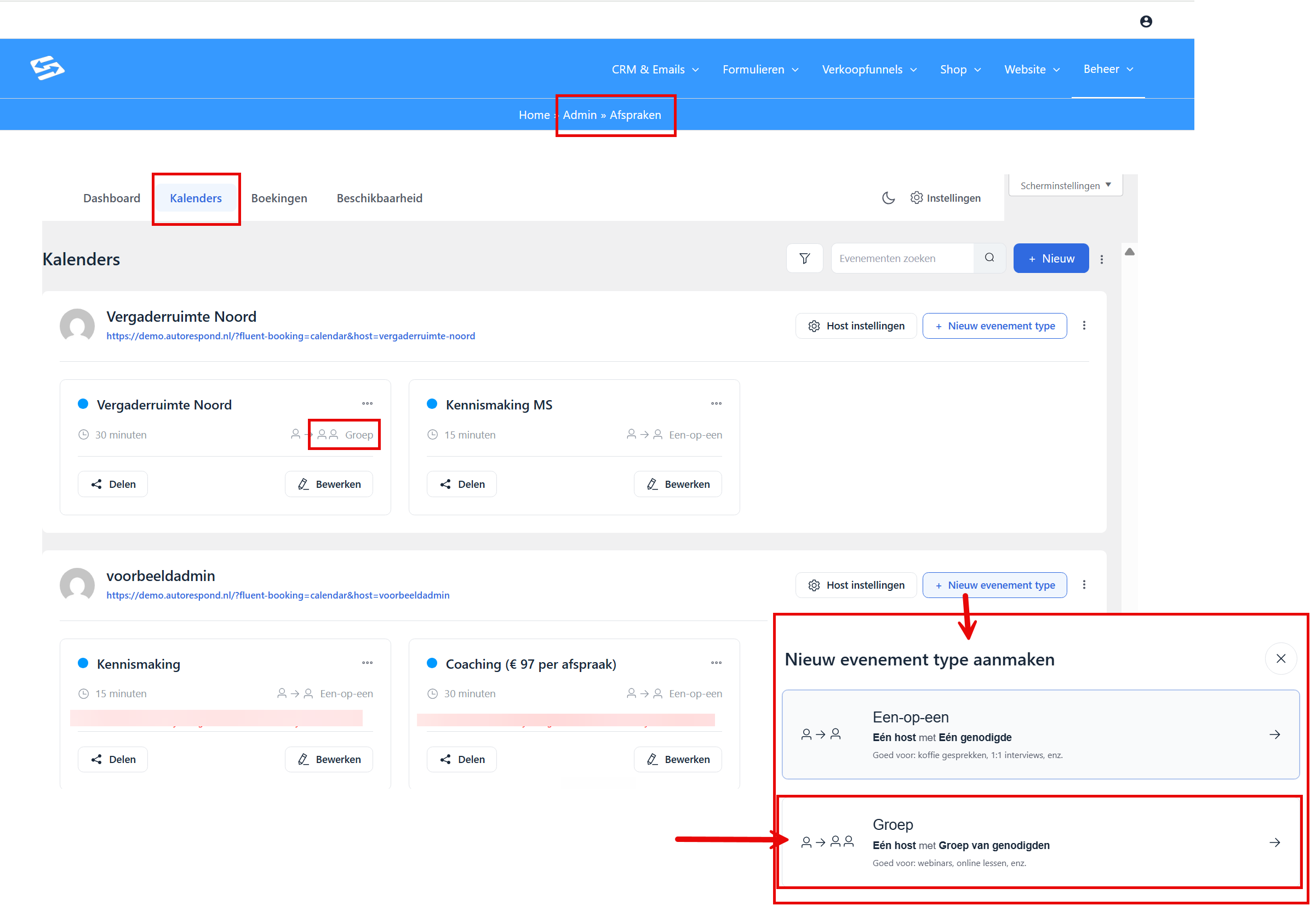
- Go to Manage → Appointments
- Select an existing host calendar or create a new host (see below on adding extra hosts)
- Click ‘New event type’ within the host calendar
- Set the option ‘Group’ under ‘Booking type’
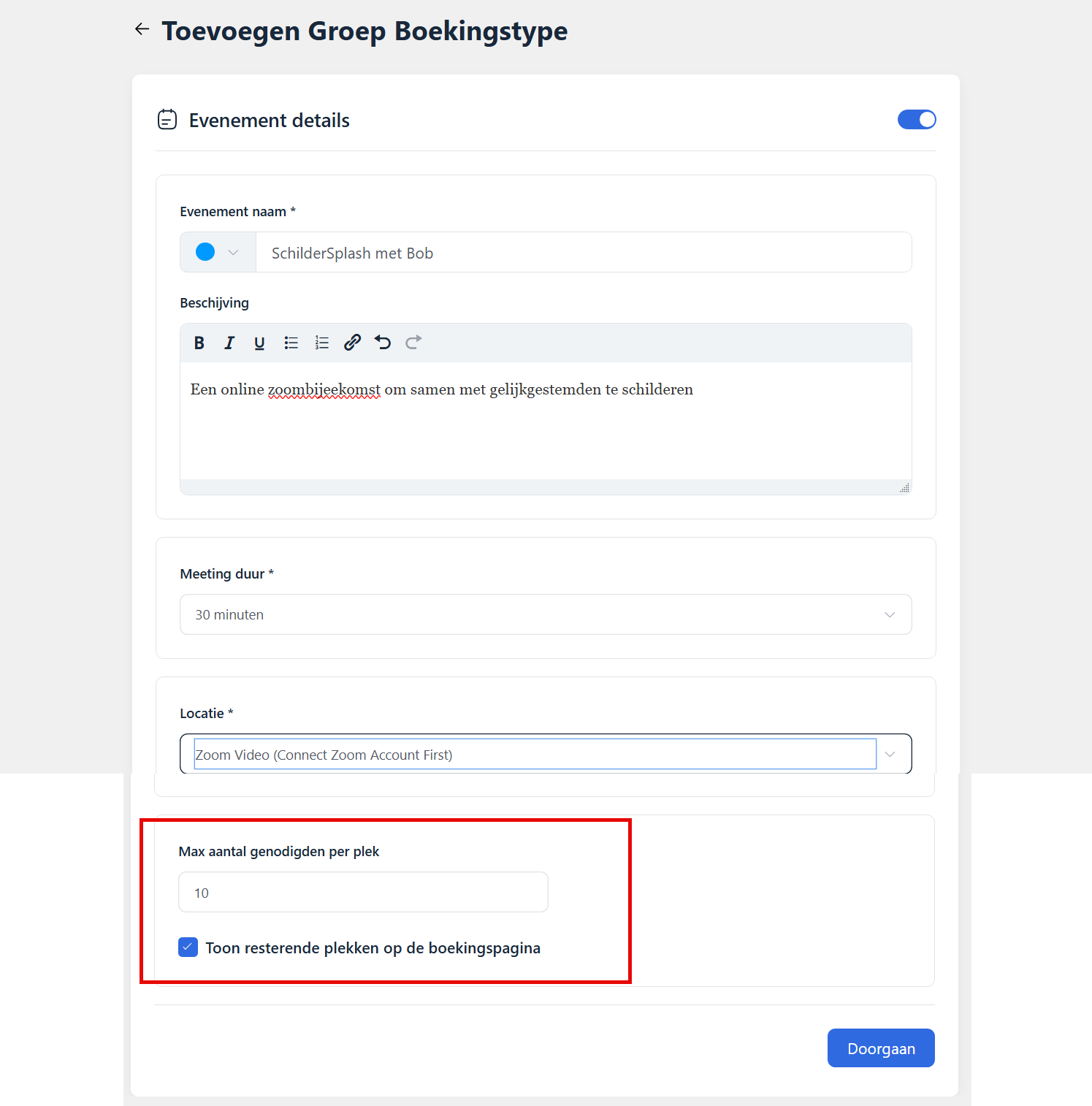
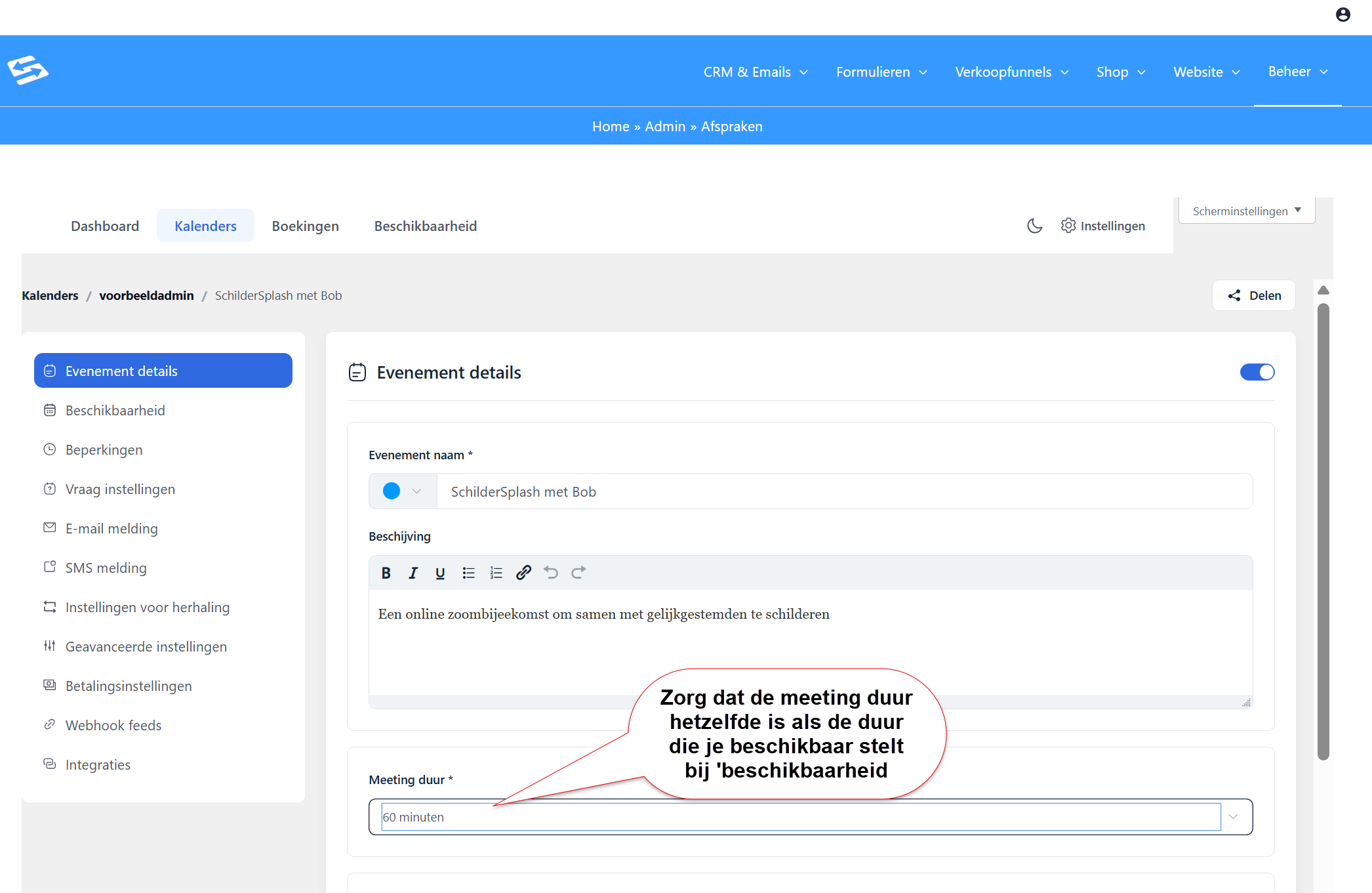
- Fill in the event details (name, description, duration, location)
- Fill in the maximum number of attendees
Setting availability for group events #
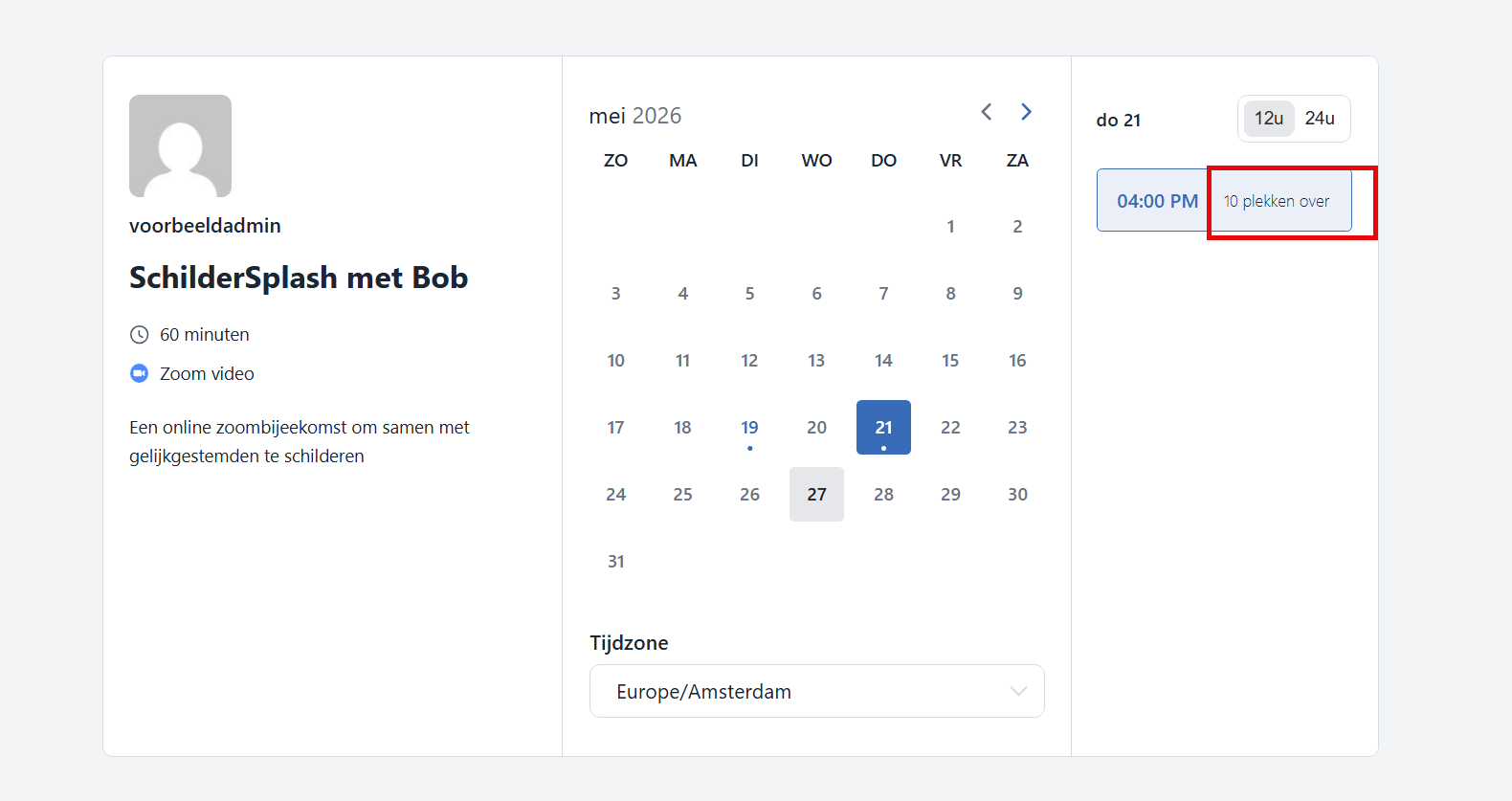
Unlike ordinary appointments, where customers choose from available time slots, for group events you often want to set fixed dates and times:
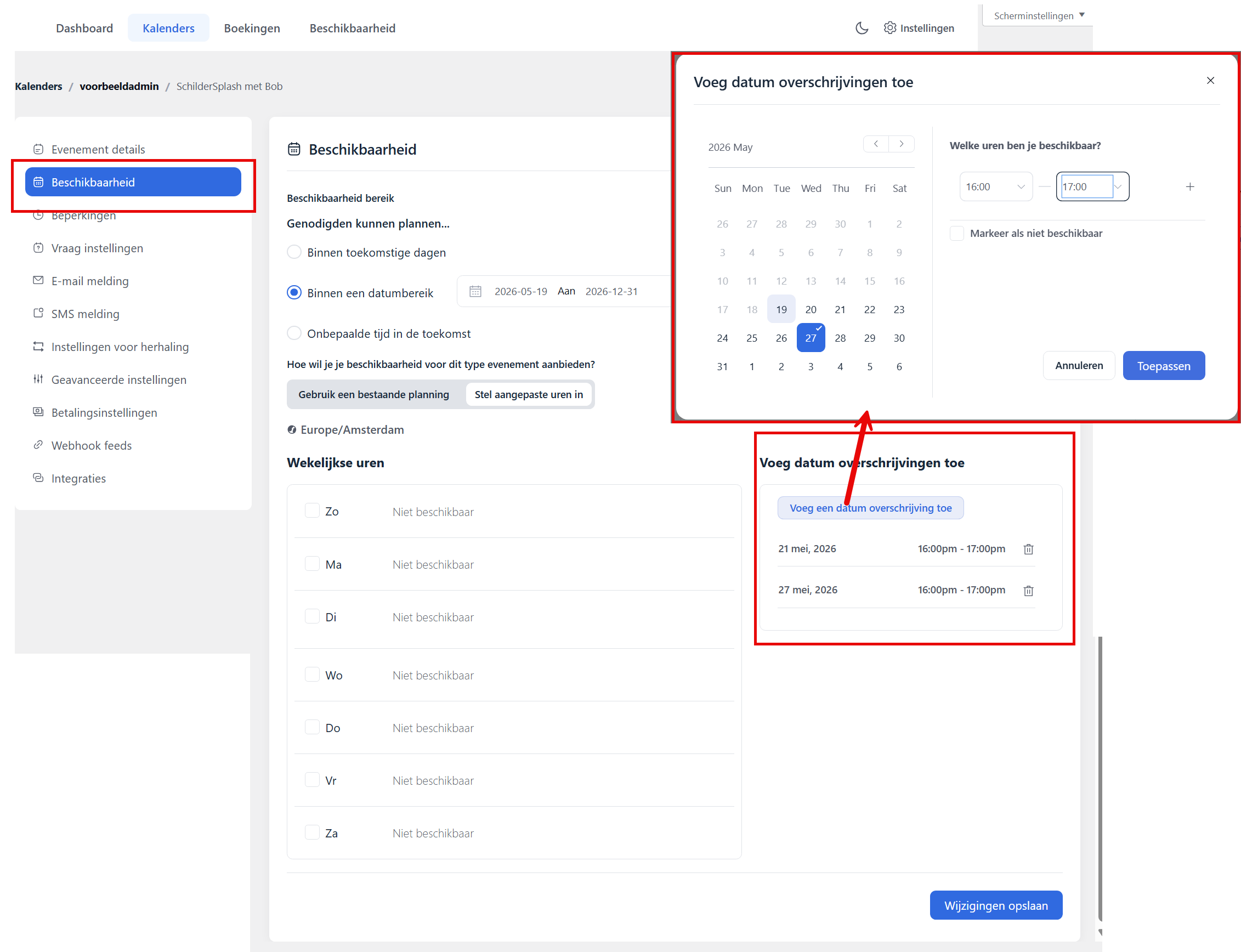
- Go to ‘Availability’ in the event
- Set a date range that covers your event
- Use ‘Date overrides’ to set specific dates and times
- Add an override with the exact time for each event date you want
CRM integration and automation #
You can have actions carried out automatically when someone signs up for a group event:
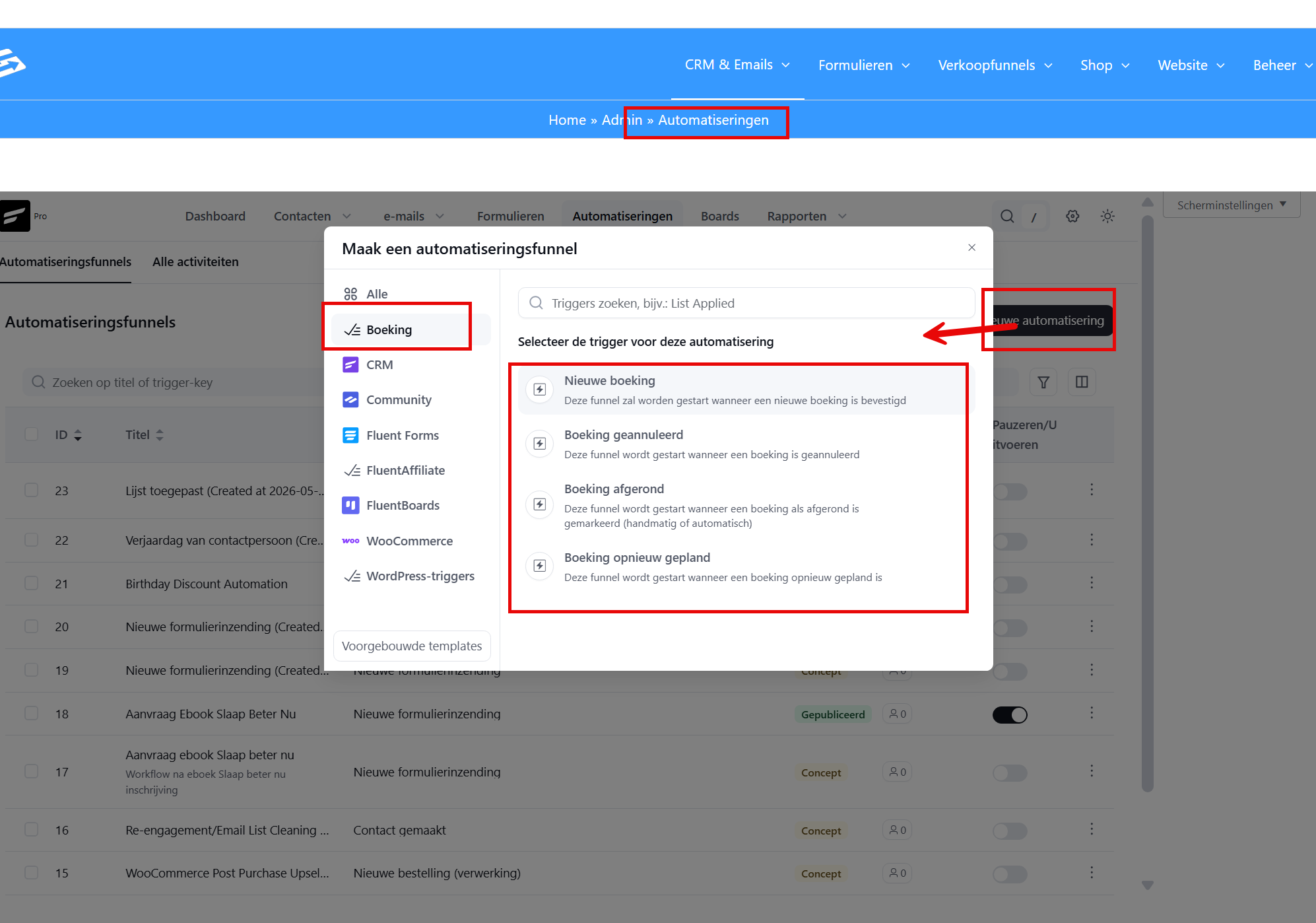
- Go to CRM & Emails → Automations
- Create a new automation
- Choose ‘Appointment booked’ as the starting step
- Select the event in question
- Add actions such as ‘Apply tag’ or ‘Update contact property’
For dynamic tags you can use variables that automatically contain the date or the event name.
Assigning a host to an event #
Every event must be linked to a host, and every host must be linked to a WordPress user:
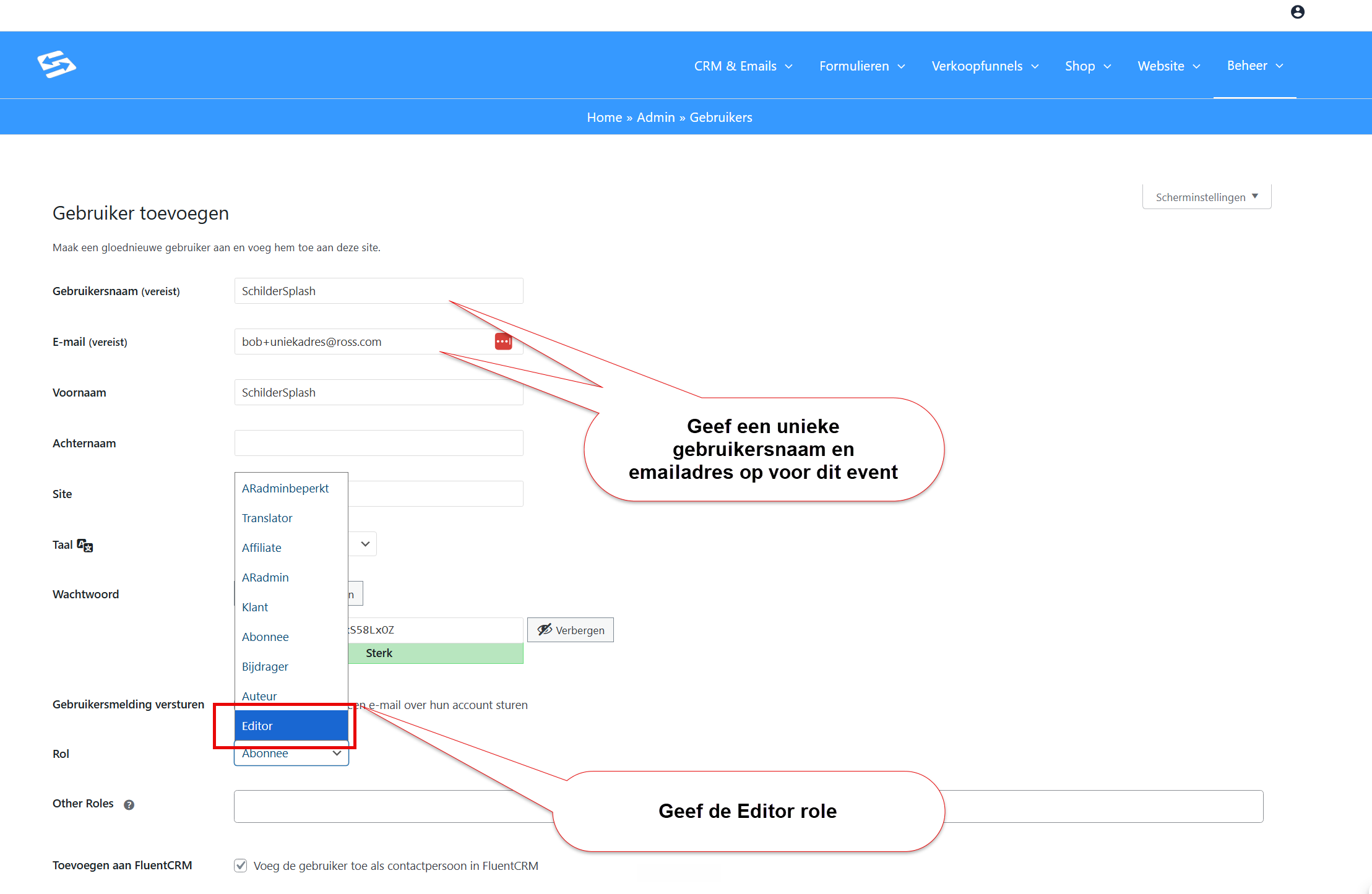
- Go to Manage → Users
- Create a new user (for example ‘Community Manager’)
- Give the user the role ‘Editor’ at minimum
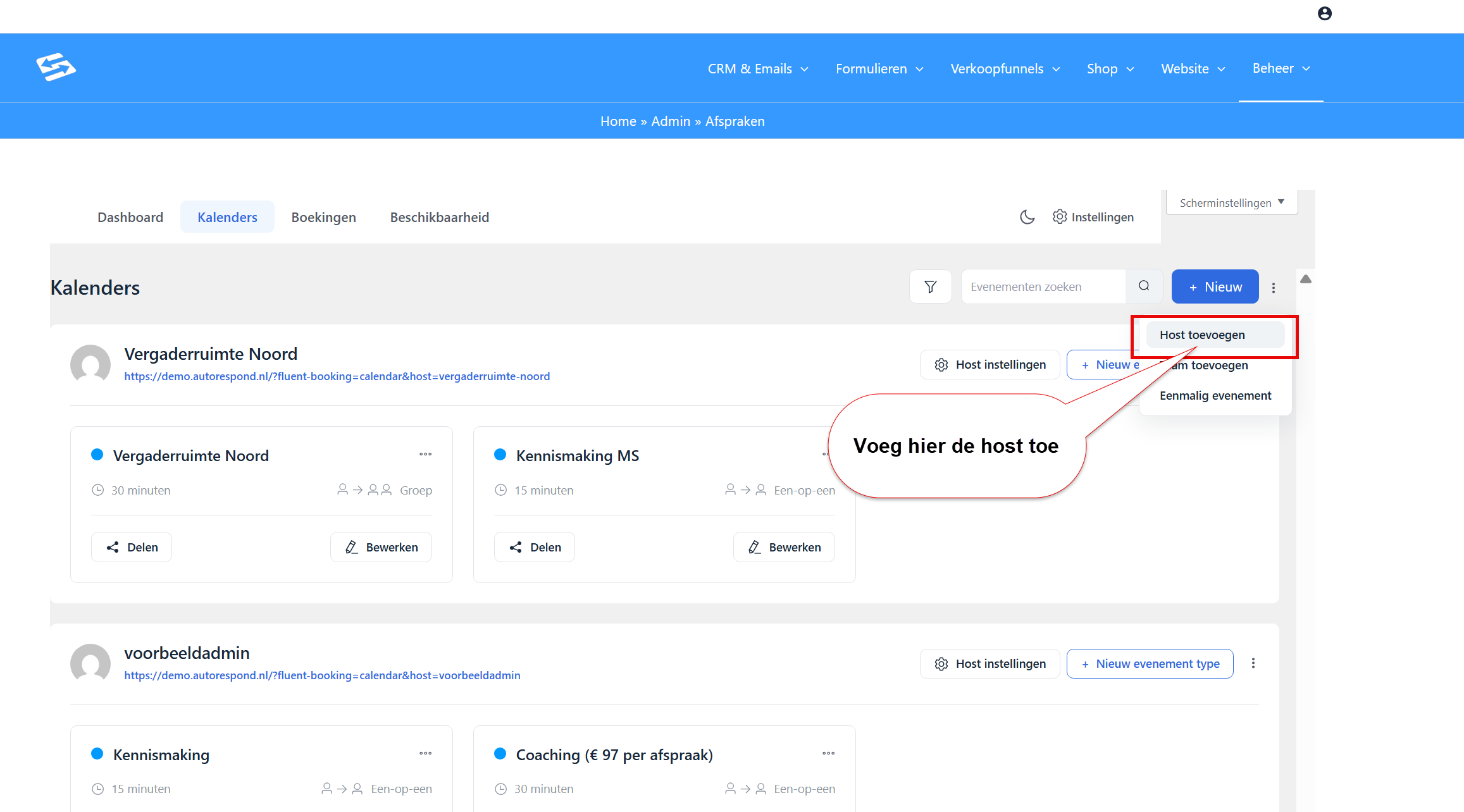
- Go back to Manage → Appointments → Calendars
- Click ‘+ New’ → ‘Add host’
- Select the user you have just created
Recording attendance #
The Appointments module has no built-in check-in function, but you can record attendance through the CRM:
- Through tags: Manually add a tag such as ‘eventname-date-attended’ to contacts who were actually present
- Through custom contact fields: Create a custom contact field for attendance registration and fill it in manually
Limitations of group events #
The Appointments module is primarily designed for individual bookings with availability windows. For group events this means:
- You have to set fixed times manually through date overrides
- There is no invitation system: attendees need to have the booking link themselves and book their own attendance
- You can add a contact to an event manually yourself through the ‘bookings’ tab.
- Attendance registration has to be done manually or through a separate form
Frequently asked questions #
Can attendees see each other at group events? #
No, attendees do not see who else has signed up. This is a privacy measure of the Appointments module. Only you as the owner see all bookings.
Can I set up a waiting list when the event is full? #
No, there is no waiting list function. Once the capacity is full, new attendees can no longer sign up. You can increase the capacity manually through the event settings.
How do I send reminders to all attendees of a group event? #
Use an automation that starts on ‘Appointment booked’ and applies a tag. Then create a separate campaign to contacts with that tag, or set up an email sequence that sends a reminder a few days before the event.


