Adding a name input field to forms #
A name input field in your forms lets visitors enter their full name. You can set this field up as a single text field or as separate fields for first name and last name, depending on how detailed you want the name data you collect to be.
Forms in Autorespond are based on FluentForms Pro, included in your package. Read the English documentation
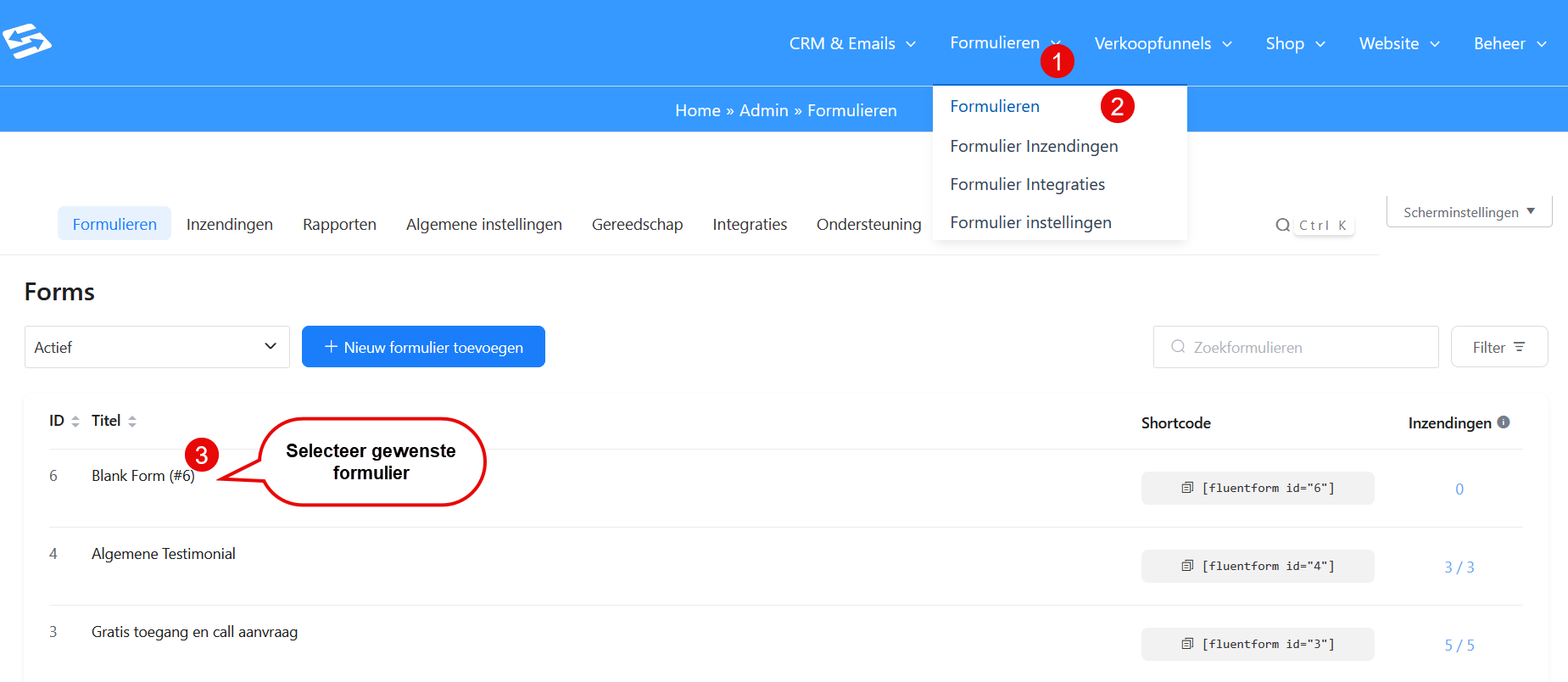
Adding a name input field #
In your Autorespond administration, go to Forms → Forms and open the form you want to add the name field to. In the form editor you will find the name input field under the section ‘General fields’.
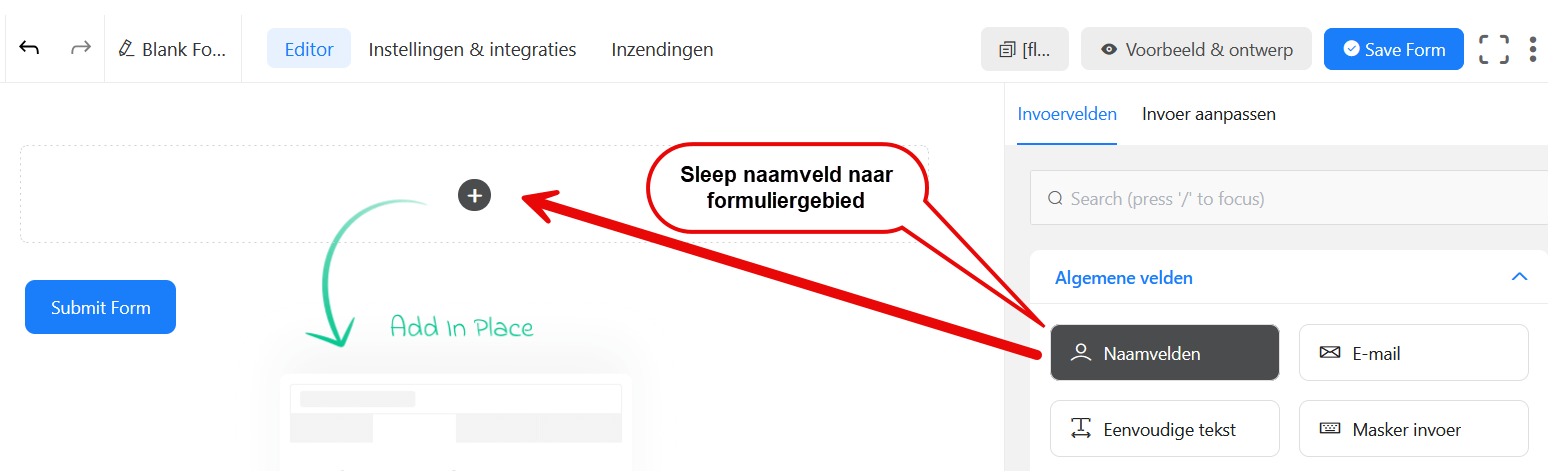
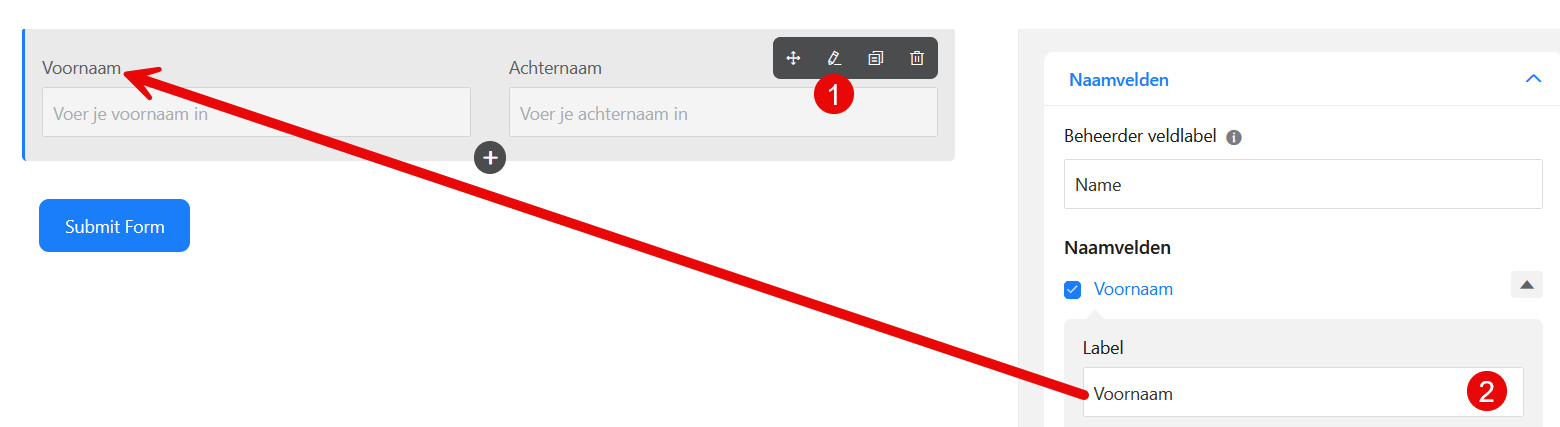
- Drag the ‘Name’ field from the field list to the position you want in your form
- Click the pencil icon on the field you added to open its settings
- Adjust the label (for example ‘Full name’ or ‘First and last name’)
Configuring different name formats #
The name input field offers several options for how visitors can enter their name:
- Single field: One text field in which the full name is entered
- First name + Last name: Two separate fields for first and last name
- First name + Middle name + Last name: Three fields, including a middle name
Under ‘Name fields’ you can select the option you want yourself by ticking the relevant fields. For Dutch forms, the format with first name, middle name and last name is often the most suitable, because of the way Dutch names are structured.
Setting validation and required fields #
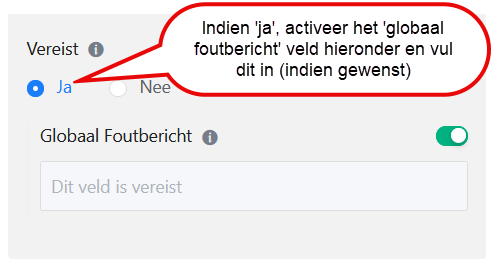
In the field settings you can decide, for each input field you have switched on, whether the name field is ‘Required’ and which validation rules apply. Switch ‘Required’ on if you always want to collect the name. You can also set a custom error message that appears when the field is not filled in correctly.
For a good user experience it is advisable to use clear labels and to make the field required only if you genuinely need the name for your process.
Linking name data to the CRM #
When your form is linked to your CRM, the name data that is entered is saved automatically in the contact profile. If you use separate fields for first name and last name, these are saved separately in the CRM system as well.
For more information on linking forms to your CRM, see linking form sign-ups to the CRM.
Frequently asked questions #
Can I split the name field into first name and last name? #
Yes, in the field settings you can choose separate fields for first name and last name under ‘Name fields’, or even a more extensive format including a middle name.
Is the name data transferred to the CRM automatically? #
Yes, if your form is linked to the CRM, all the name data that is entered is saved automatically in the visitor’s contact profile. For more information on linking forms to your CRM, see linking form sign-ups to the CRM.
Can I use a custom label for the name field? #
Yes, in the field settings you can change the label completely, to ‘Your name’, ‘Contact person’ or any other text you want.


