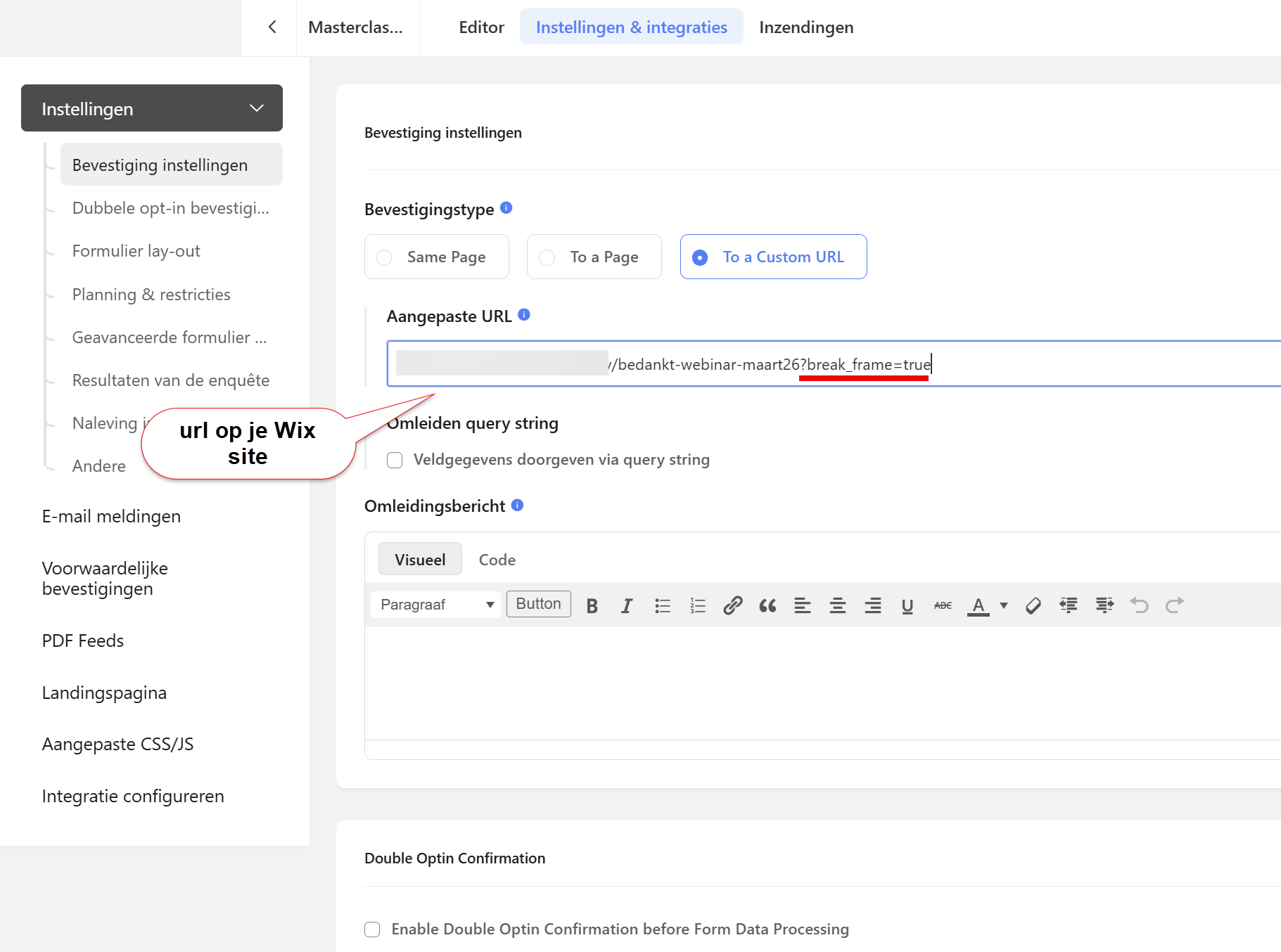
To place forms on an external website, you first need to create a landing page for the form in the form settings under the ‘Landing page’ tab. Under the ‘Share’ sub-tab you can then copy the iframe code, so you can embed this form through an iframe on another website
Please note: this only works if we know about your other website. Our websites are protected against clickjacking, so your forms cannot be misused on websites other than your own. We always whitelist your own main domain and website. If you want to embed a form on another website, send us an email about it. If you see the message ‘[website name] refused to connect.’ in the place where you put the iframe, we still need to whitelist that website. In that case, send us an email with the URL of the website where you want to place the form.
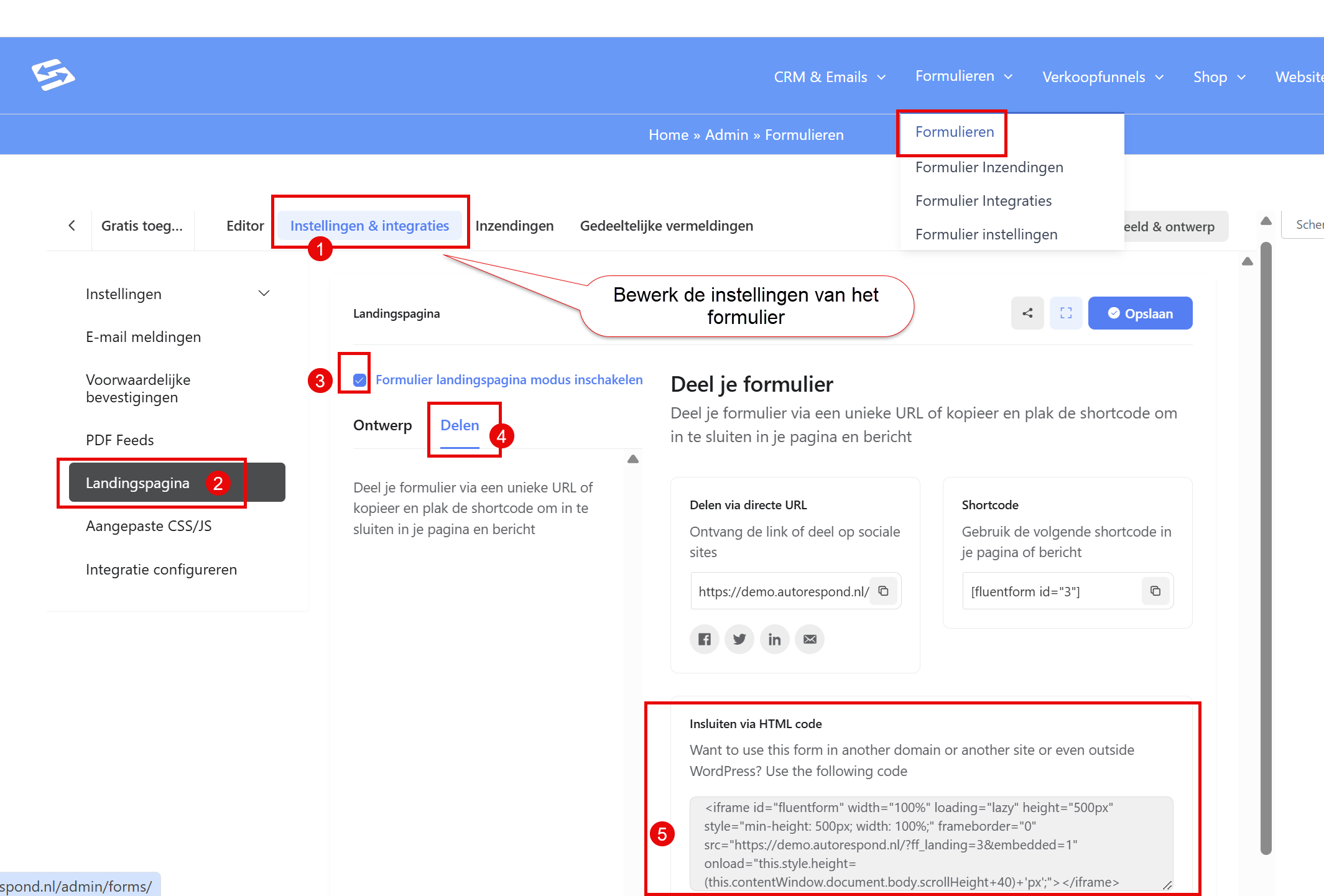
Make sure you untick ‘pretty url’, otherwise you will see a 404 page in the iframe.
On your other website you can often place this code in an HTML block, or directly in the HTML code of the website.
An alternative is to copy the landing page URL of the form and place a link to this form on the external website.
Adjusting the iframe (to avoid the scrollbar) #
The default height of the iframe the form is displayed in is 500px. If you have several fields in the form, it may not fit inside that height completely. In that case you will see a scrollbar on the right.
To solve this, you can increase the height of the iframe in the embed code so that it is as tall in pixels as the form. Try 600 pixels, for instance. And if that is not enough, increase it until the form is displayed neatly. To hide the scrollbar you can add the following to the iframe code: scrolling=”no”
So you can change the elements in bold as you wish
<iframe id="fluentform" width="100%" loading="lazy" height="600px" style="min-height: 600px; width: 100%;" frameborder="0" src="https://demo.autorespond.nl/?ff_landing=3&embedded=1" onload="this.style.height=(this.contentWindow.document.body.scrollHeight+40)+'px';" scrolling="no"></iframe>Landing page design best practices #
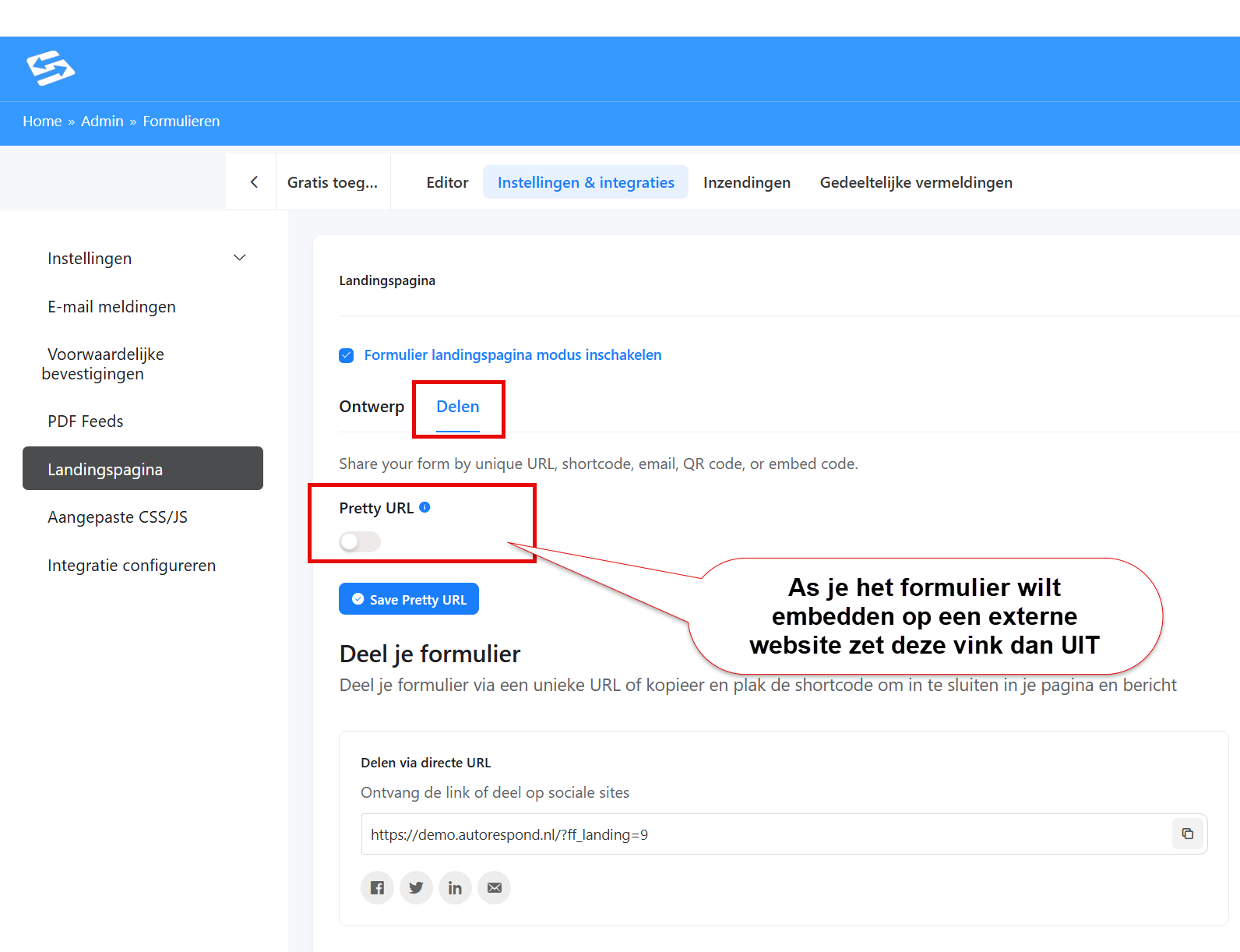
If you use the landing page for an embed on another website, these are the best practices:
- Choose the ‘Boxed’ layout
- Set the background colour to the same colour as the background of the page where you embed the form
- Remove the inner and outer shadow by clicking the circle icons
Confirmation page is shown inside the iframe #
If you embed the form through an iframe on another website and set a URL on that external website as the thank-you page, that thank-you page is also shown inside the iframe.
We have built a standard solution for this so that it does not happen – if it does happen with one of your forms, please contact support. We are leaving the explanation below in place in case you use an iframe by another route:
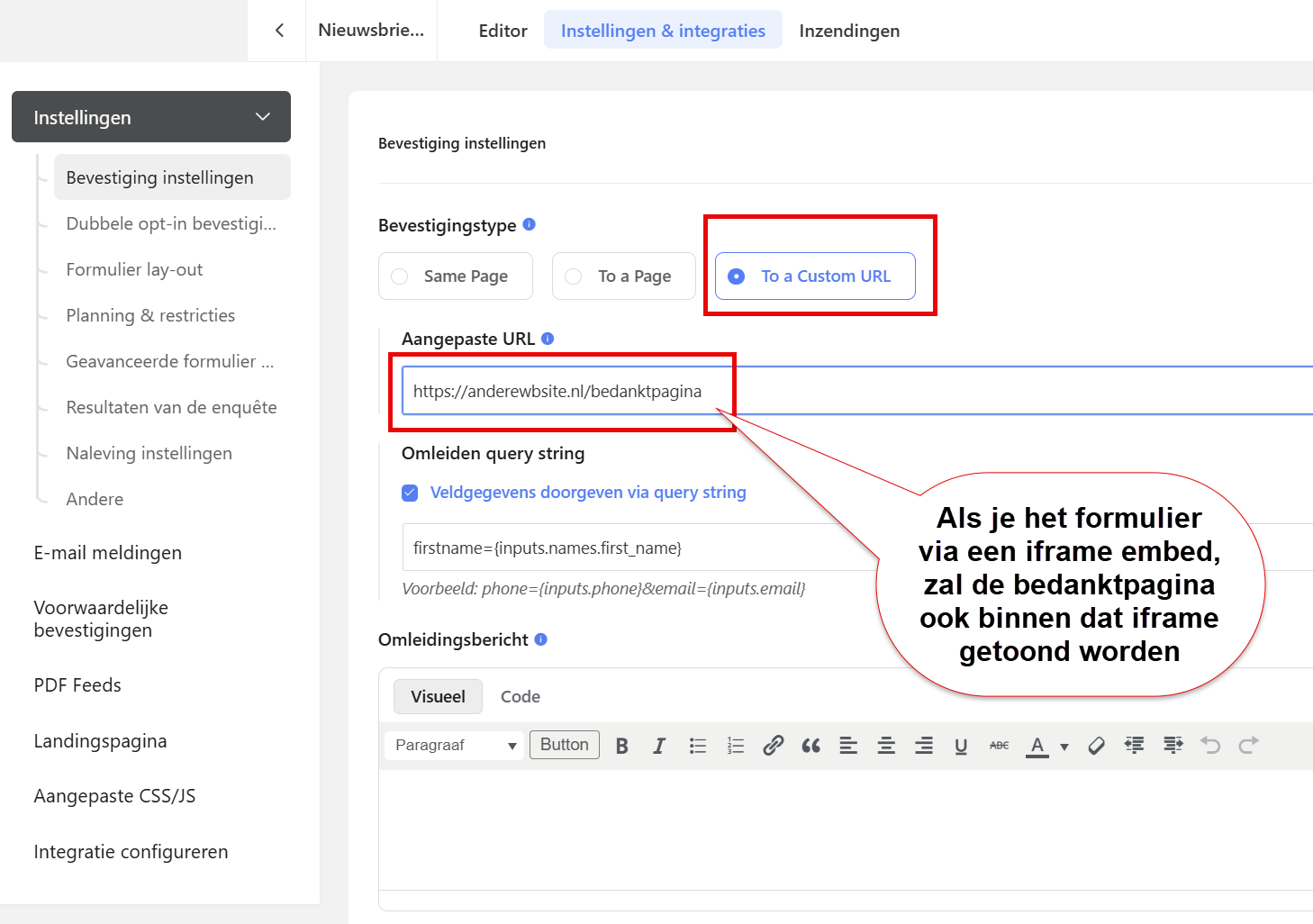
To make sure that thank-you page loads outside the iframe, you can place the following HTML code on the thank-you page in question (in this example on the page ‘https://anderewbsite.nl/bedanktpagina‘):
<script type="text/javascript">
  if (window.top !== window.self) {
    window.top.location = window.self.location.href;
  }
</script>
Add this code to an HTML block on the relevant page of your own website.
Please note: was your thank-you page on your external website built in Elementor? And do you want to add this code in the Elementor editor? Then you need to use different code, because otherwise Elementor runs the code straight away while you edit the page in the Elementor editor. In that case use this code:
<script>
document.addEventListener('DOMContentLoaded', function() {
    // Am I in the Elementor editor preview? Then do not break out.
    var isElementorEditor =
        window.location.search.indexOf('elementor-preview') !== -1 ||
        document.body.classList.contains('elementor-editor-active') ||
        (window.elementorFrontend &&
         typeof window.elementorFrontend.isEditMode === 'function' &&
         window.elementorFrontend.isEditMode());

    if (!isElementorEditor && window.top !== window.self) {
        window.top.location = window.self.location.href;
    }
});
</script>
When changes are not shown #
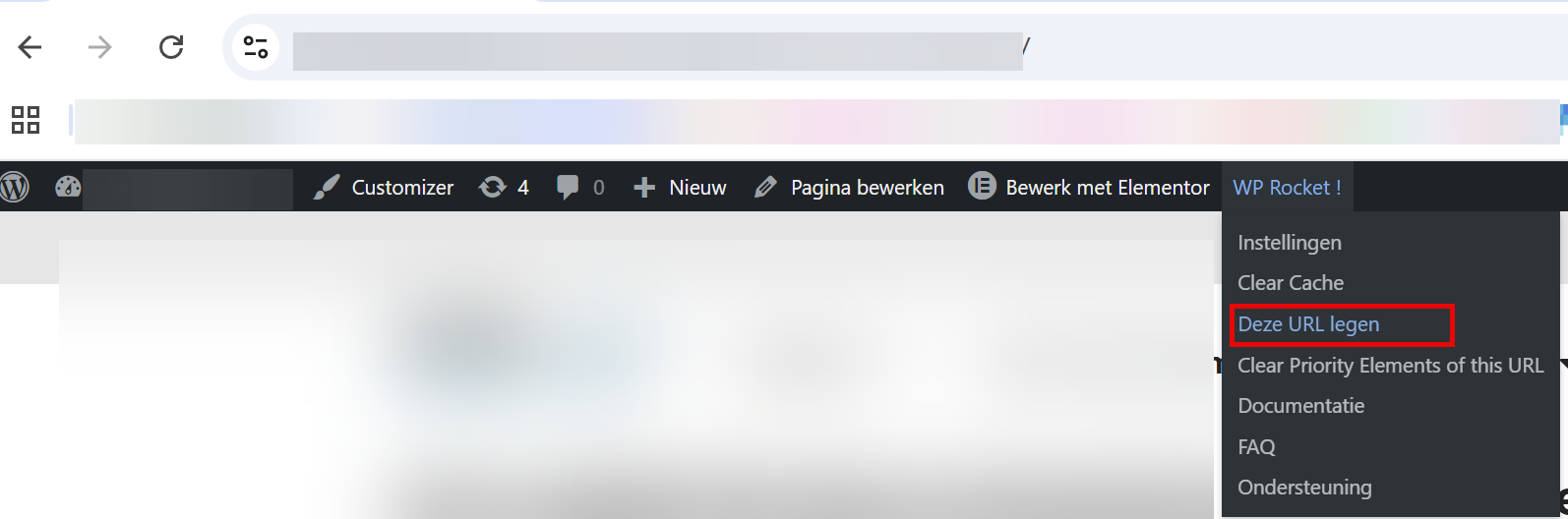
If changes you make in the form are not shown straight away on the page where you embedded the form, you are very likely using a caching plugin. Make sure the cache for that URL is cleared. If you use WP Rocket, that can be done as follows, for example:
Using Wix? #
Let us know in advance. For Wix we need to apply a few extra settings before you can embed forms on a Wix page.
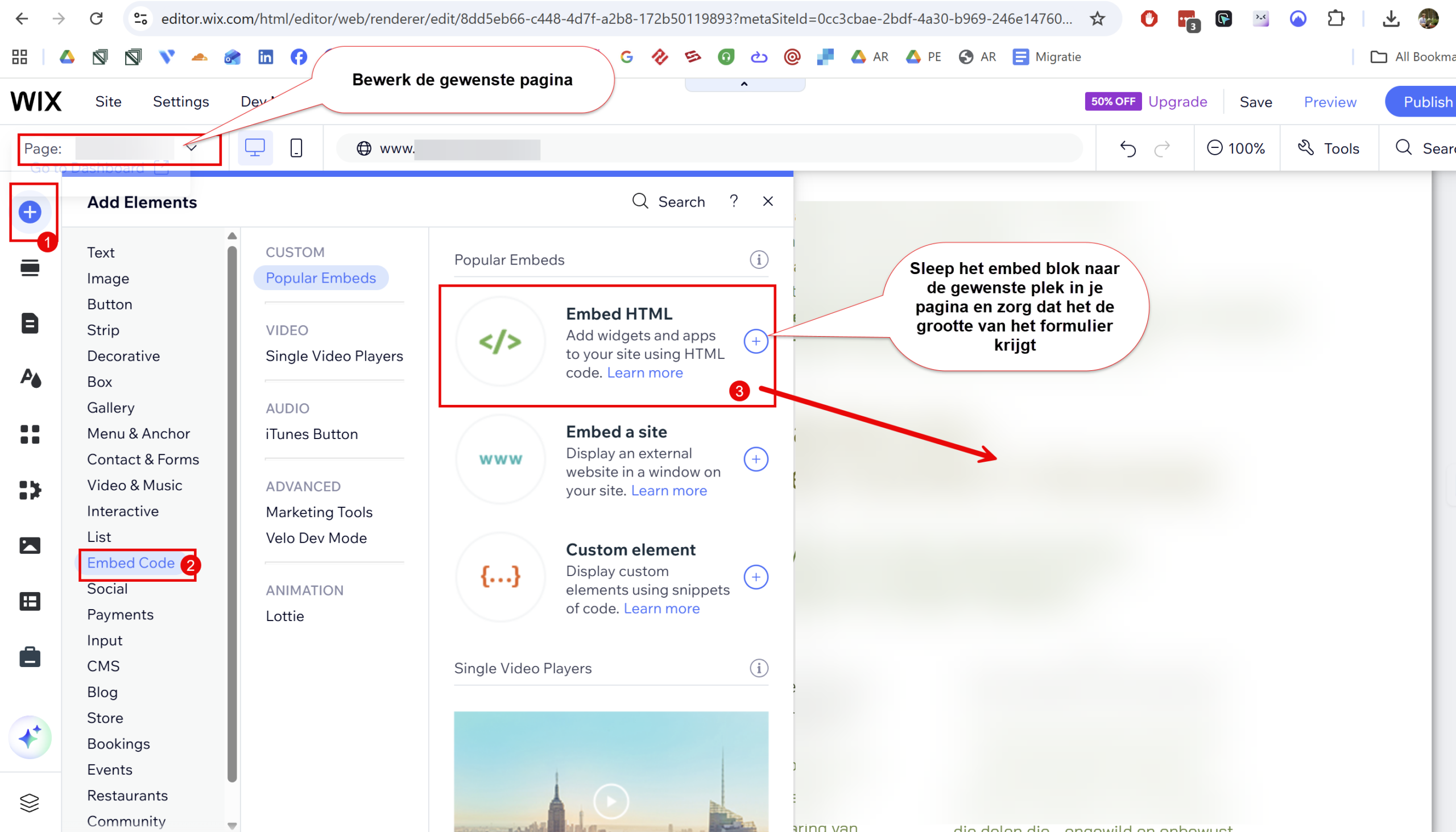
To place the iframe code of the form on a page in Wix, you can follow the screenshots below:
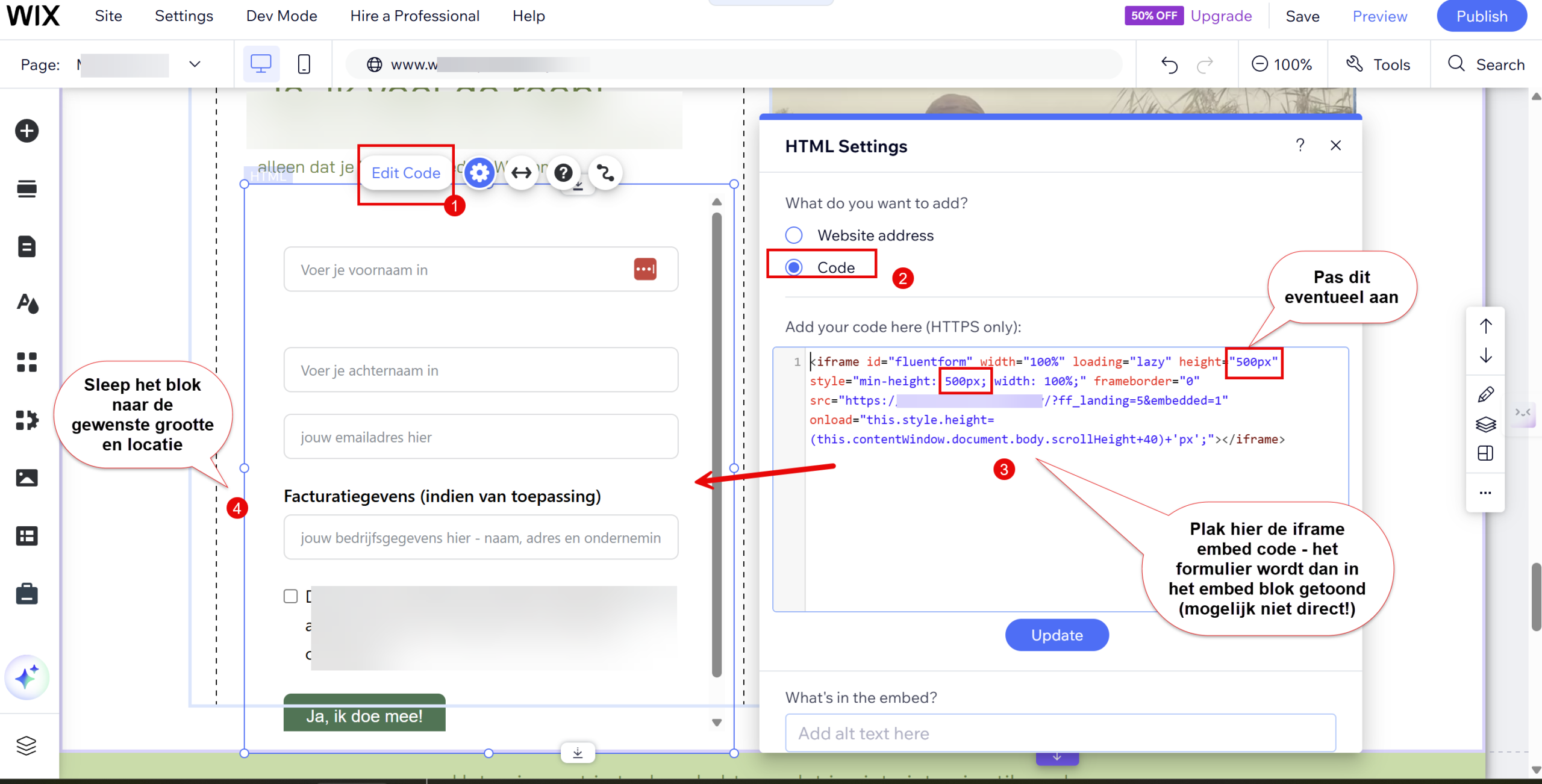
After adding the HTML block you can paste the iframe code into it, and then drag it to the size you want and put it in the right place:
Preventing an external Wix thank-you page from being shown inside the iframe #
If you set the confirmation page in the form to a page on your Wix site, that thank-you page will be shown inside the iframe. To prevent this, you can place the following code in the header of your Wix website once.
Please note: we have made a change so that the thank-you page set in a form is never shown inside an iframe. The text below is therefore no longer relevant. Using Autorespond and it still happens? Then contact support. We are leaving the explanation below in place in case you want to break a Wix page out of an iframe by another route.
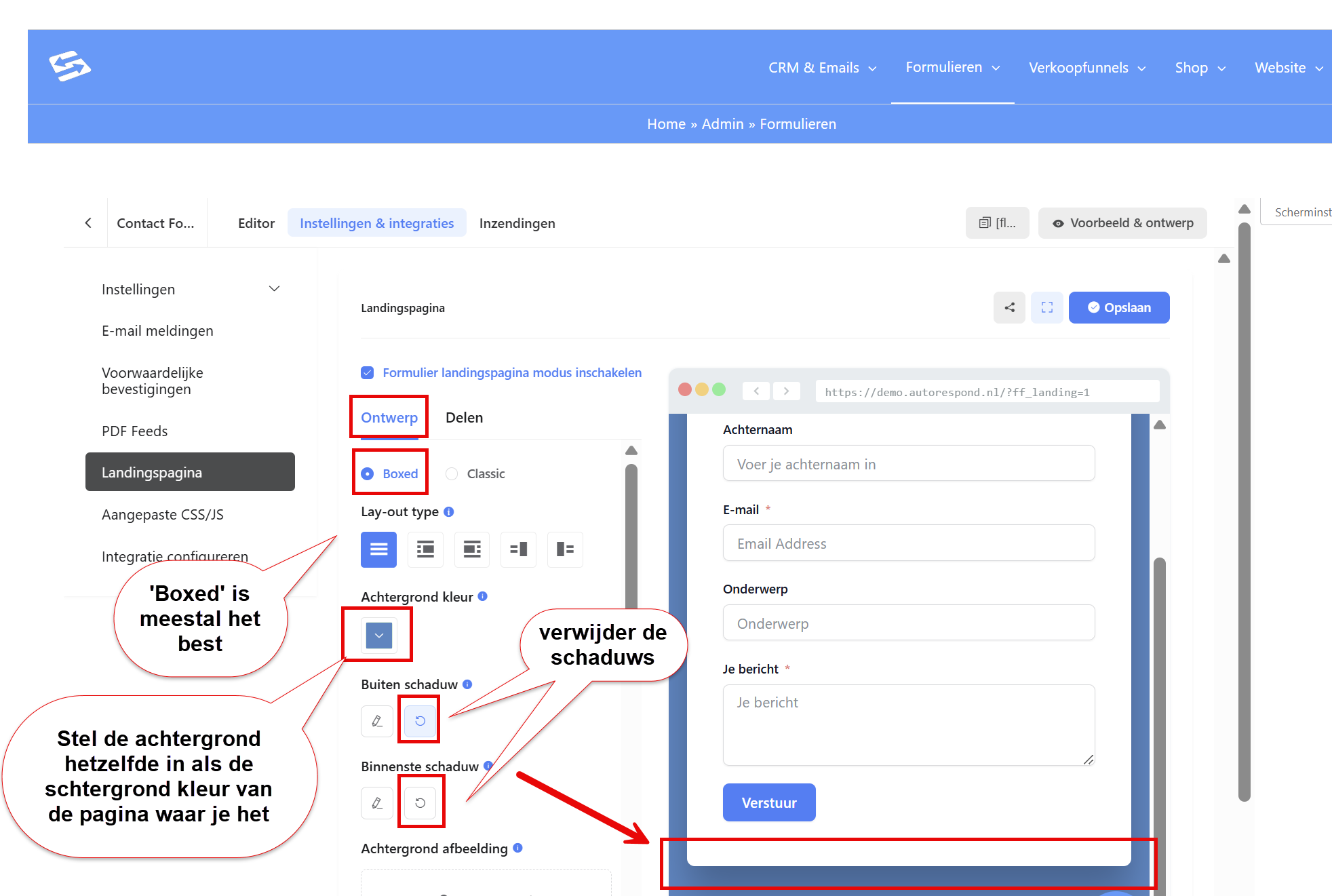
The following code, which you add to the header of your pages, effectively says ‘if the URL ends with ?break_frame=true, break out of the iframe (if you are being shown inside one)‘
<script type="text/javascript">
  (function() {
    const urlParams = new URLSearchParams(window.location.search);
    if (urlParams.get('break_frame') === 'true') {
      if (window.top !== window.self) {
        window.top.location.href = window.location.href;
      }
    }
  })();
</script>
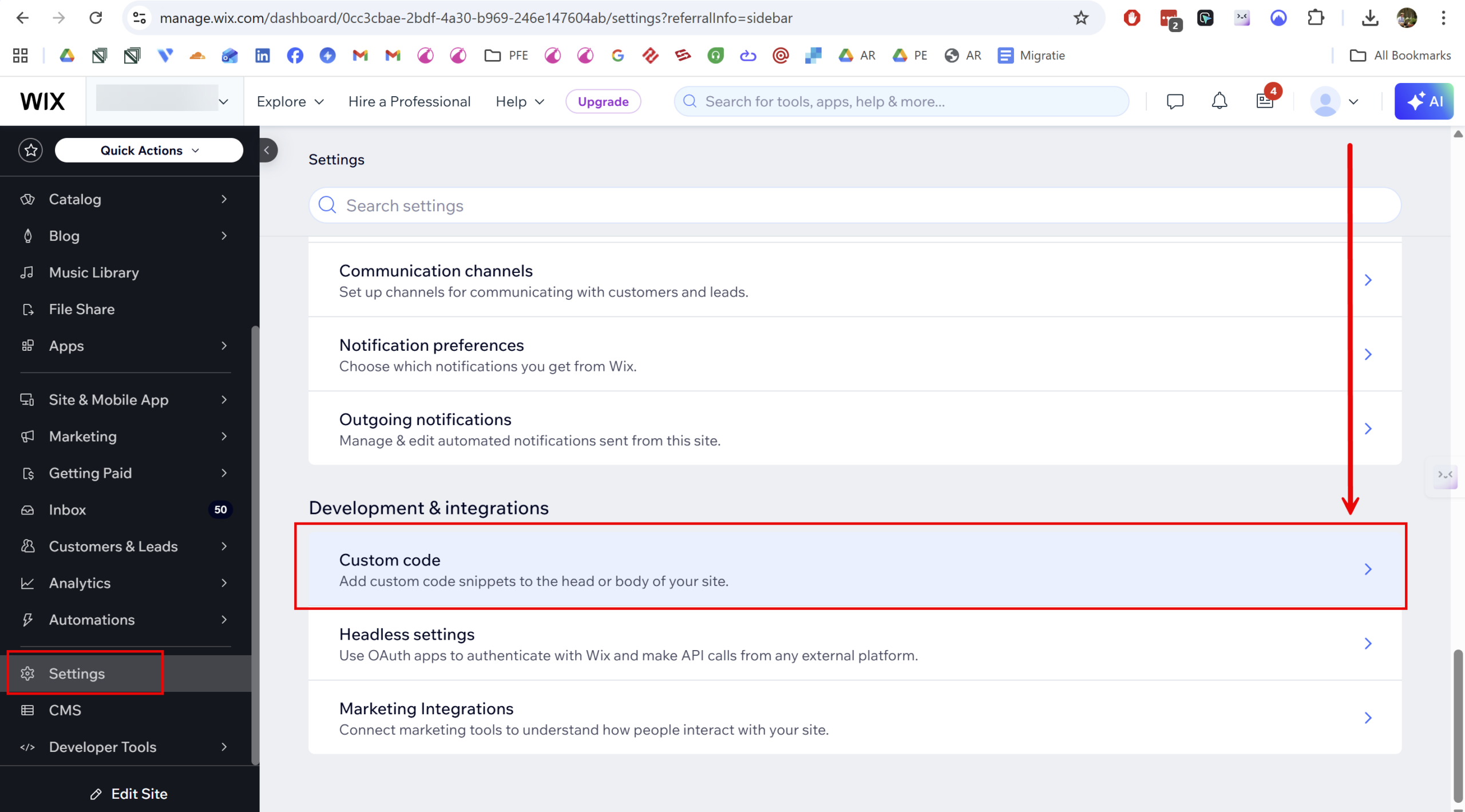
In Wix you can do this by going to the Wix Settings and scrolling all the way down to ‘custom code’:
Then you add a new custom code:
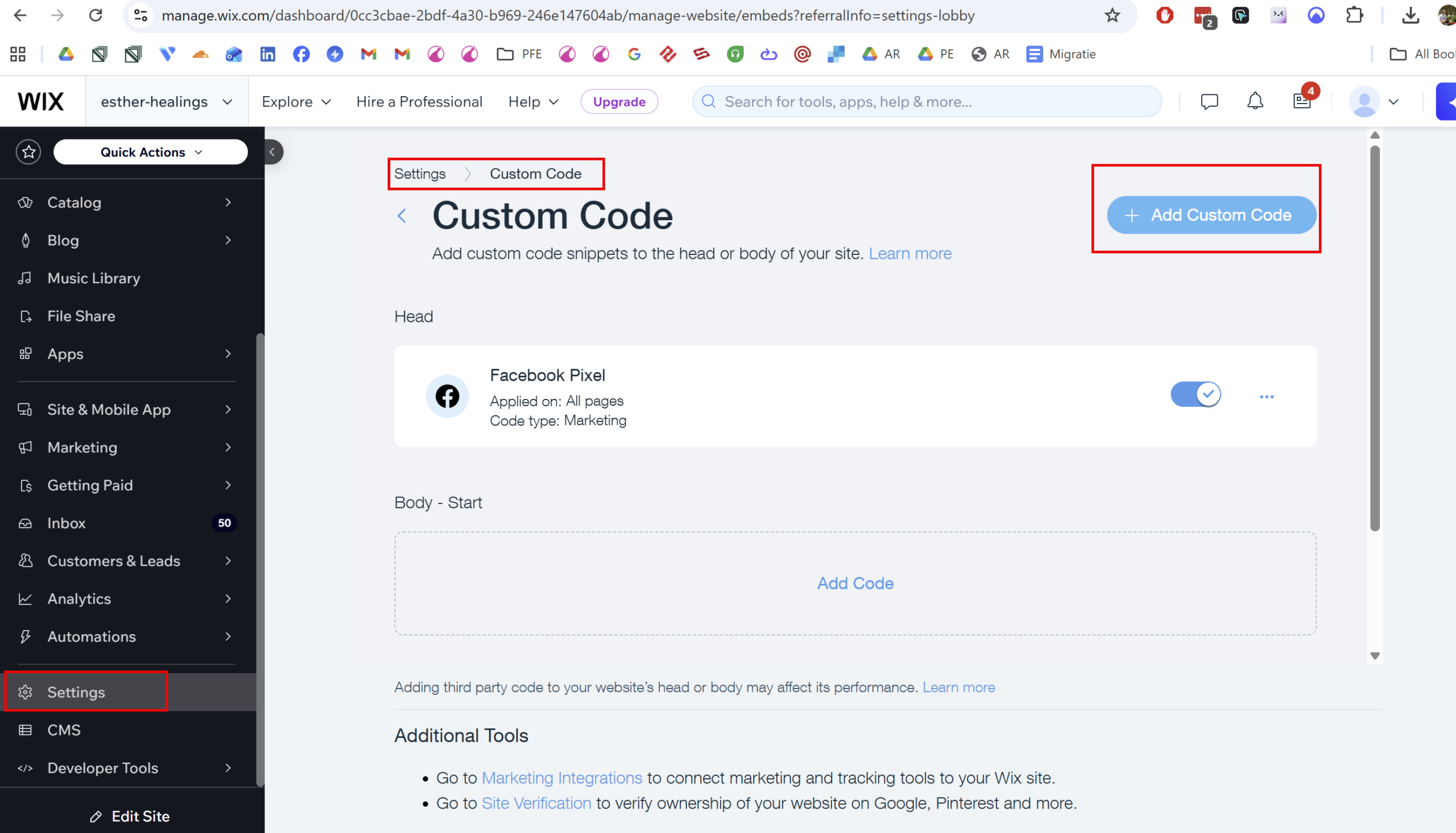
In principle you can set this up so that it loads on all pages and is loaded on every page.
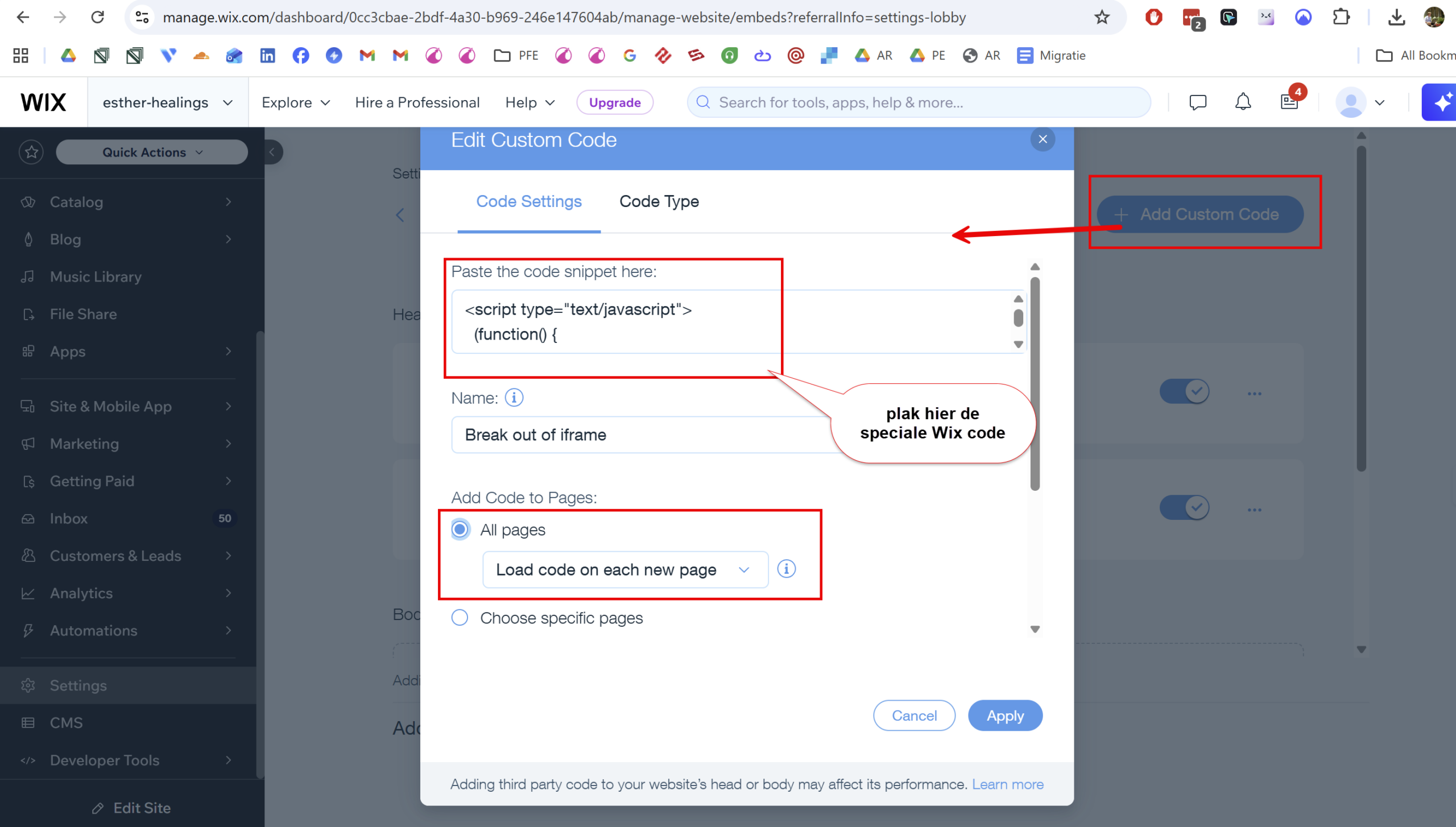
From now on you can use a page on your Wix website as the thank-you page in your form, as long as you add ‘?break_frame=true‘ to the end of the URL: