By law, every marketing email shows your business name and address, and every email has a sender and a reply-to address. You set them once; after that Autorespond uses them everywhere.
The CRM and the email settings in Autorespond are based on FluentCRM, included in your package. Read the FluentCRM documentation
Your business details #
Go to CRM & Emails → CRM Settings. You arrive on Business Settings.
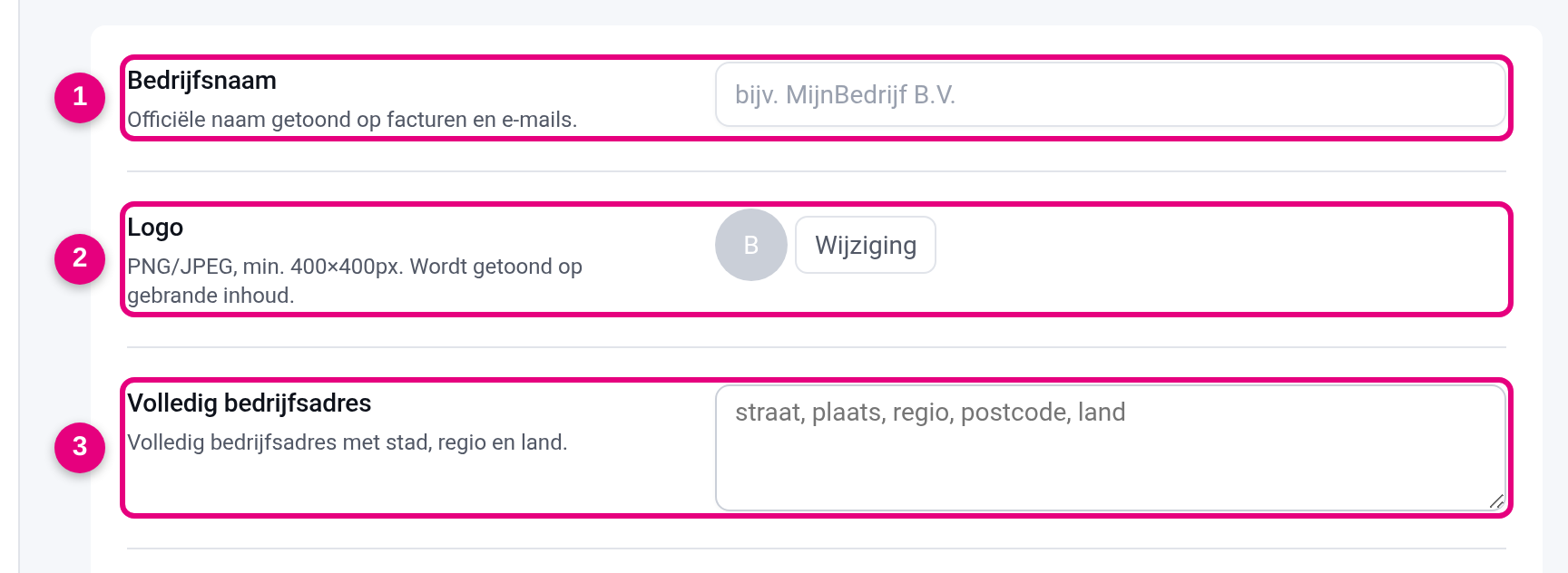
- Business Name: the official name of your business, as it should appear under your emails and on invoices.
- Logo: a PNG or JPG of at least 400 by 400 pixels.
- Full Business Address: street, postcode, town and country. This address is required under every marketing email.
Click Save at the top right.
Your sender and reply-to address #
In the same menu, click Global Email Settings on the left.
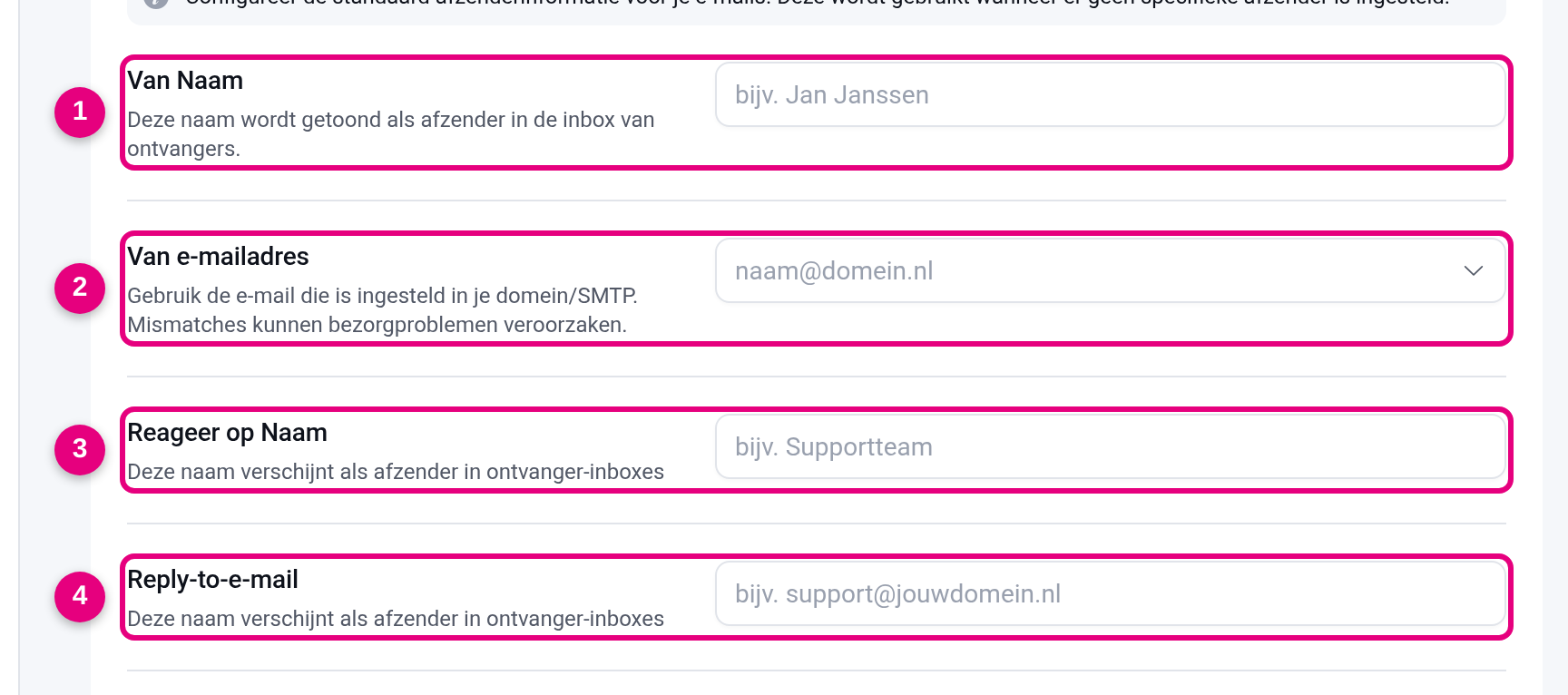
- From Name: the name people see in their inbox. Choose a name they recognise: your own name, your business name or a combination (“Sanne from Northwind”).
- From Email: choose an address on your own domain. Which addresses you can use depends on your sending domain (step 3).
- Reply to Name: the name with the reply-to address.
- Reply to Email: where replies go. Use an address someone reads. A no-reply address costs you the replies of the people who were most interested.
Further down the same page you set the footer of your emails, with the unsubscribe link. Always keep the unsubscribe link: it is required, and without it people are quicker to mark your email as spam.
Done when #
- Business name, logo and address are in Business Settings.
- Sender name, sender address and reply-to address are filled in.
- The preview of an email shows your details and the unsubscribe link at the bottom.


