Working with a virtual assistant or a colleague? Give everyone their own account. Never share your own login details: with separate accounts you see who did what, and you remove access without changing your own password.
Which role for whom #
- ARadmin: the administrator of the environment, usually you. Can do everything in the menu, including managing users.
- Editor: for your assistant or a colleague who works on your content, emails and customers, but does not manage users or settings.
Not sure which role fits what someone needs to do? Ask support; we will look at it with you.
Adding a user #
Go to Administration → Users and click Add New User.
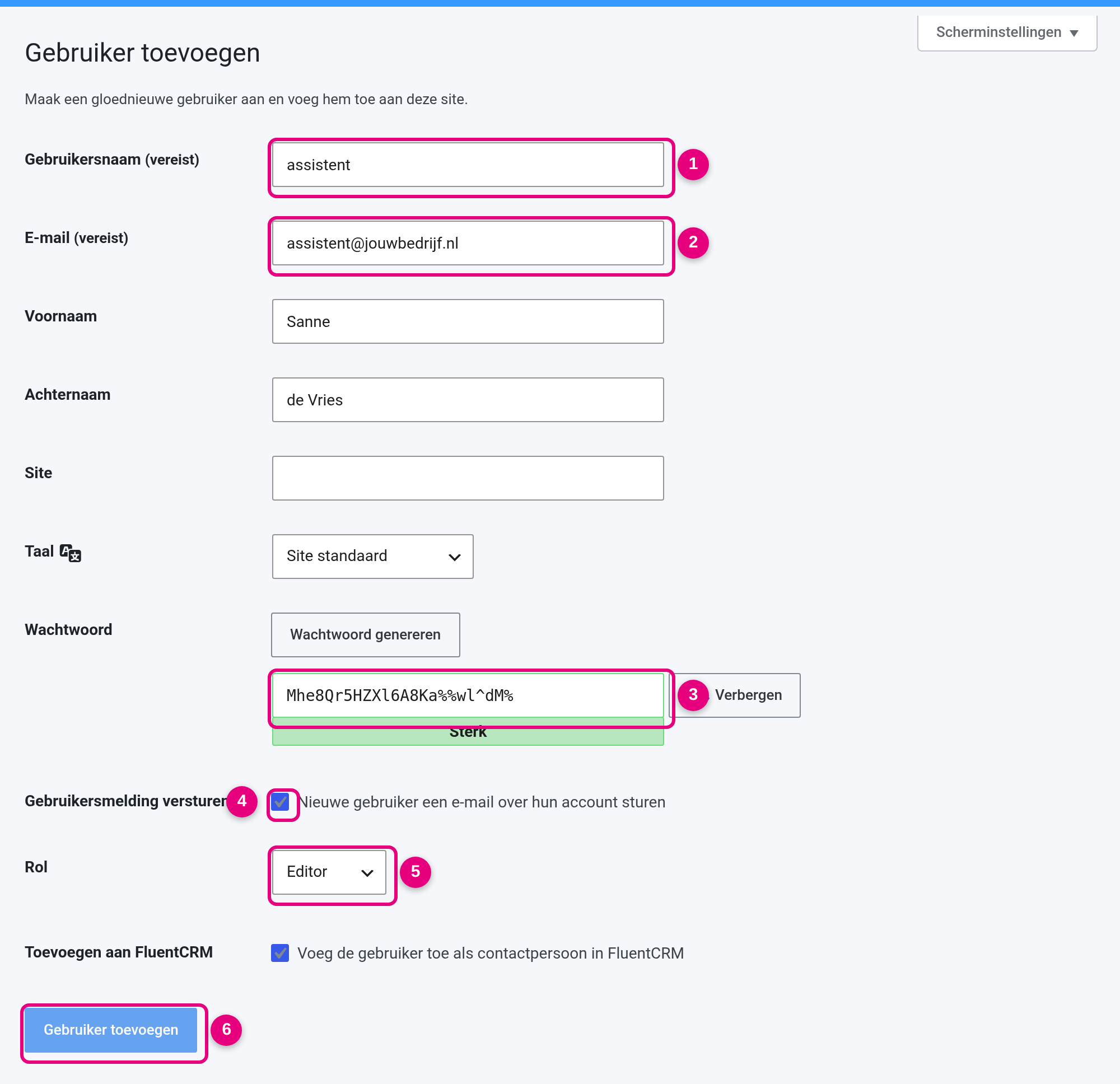
- Username: your assistant’s first name, for example.
- Email: that person’s own email address.
- Password: leave the generated password; the new user sets their own password.
- Send User Notification: on, so the new user gets an email to log in.
- Role: choose Editor for an assistant, ARadmin only for someone who helps manage the environment.
- Add New User: click to create the account.
Note
Sending email is switched off during your trial. A new user does not get an email to log in then; pass on the login details yourself, or create the account after going live.
Keeping it safe #
- Two-factor authentication is set per role, not per person. Switch it on after going live for ARadmin and Editor (step 11), and let your team know they will get a code by email when they log in.
- Someone leaving? Delete the account or set the role to Subscriber, the same day.
Done when #
- Everyone who works with you has their own account with the right role.
- After going live: two-factor authentication is on for ARadmin and Editor.


